Can I Use Thunderbolt Port For External Monitor Now
Yes, you can absolutely use a Thunderbolt port for an external monitor. Thunderbolt ports carry both data and video signals, making them one of the most versatile connection options available today. Whether you have a Thunderbolt 3 or Thunderbolt 4 port, you can connect high-resolution displays with ease using the right cable or adapter.
So you just got a shiny new monitor and you want to plug it in. But when you look at your laptop, all you see is a small Thunderbolt symbol. Can you actually use that port for an external monitor? The short answer is yes. The longer answer is that it depends on a few things, and I am going to walk you through all of it.
Thunderbolt technology has changed the way we connect devices. It combines data, video, and power into one single cable. That means fewer cords on your desk and a much cleaner setup. But not everyone knows how to make it work with an external display. This guide will show you exactly how to do it, step by step.
Key Takeaways
- Thunderbolt ports support video output: You can connect external monitors directly using Thunderbolt cables or adapters.
- Thunderbolt 3 and Thunderbolt 4 both work: Both versions support external displays, but Thunderbolt 4 offers better performance and compatibility.
- You need the right cable or adapter: Not all cables are equal. Using the correct one ensures you get the best resolution and refresh rate.
- Docking stations expand your setup: A Thunderbolt docking station lets you connect multiple monitors and peripherals through a single port.
- Common issues are easy to fix: Most problems with Thunderbolt monitor connections come from cables, adapters, or display settings.
- Both Mac and Windows PCs work: Thunderbolt is a universal standard supported by most modern laptops and desktops.
📑 Table of Contents
- What Is a Thunderbolt Port and Why Does It Matter?
- How to Connect an External Monitor Using a Thunderbolt Port
- Best Monitors for Thunderbolt Connections
- Docking Stations: The Ultimate Thunderbolt Setup
- Common Problems and How to Fix Them
- Thunderbolt vs Other Connection Types
- Quick Tips for the Best Thunderbolt Monitor Experience
- Expert Insights on Thunderbolt Monitor Setup
- Key Takeaways
- Conclusion
What Is a Thunderbolt Port and Why Does It Matter?
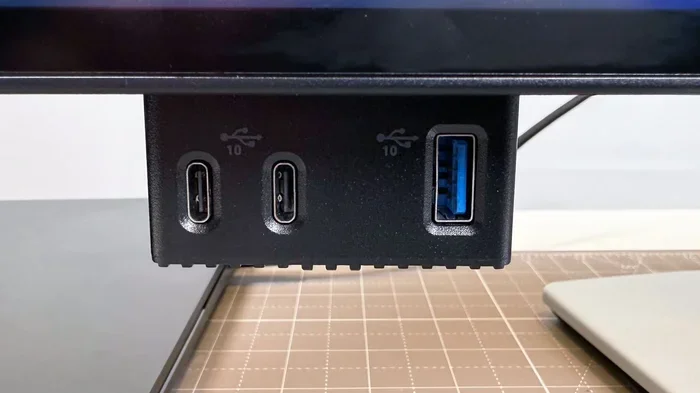
A Thunderbolt port is a small, oval-shaped connector that does a lot more than you might think. It was developed by Intel in partnership with Apple, and it has become one of the most popular connection types for modern laptops and desktops. The port looks almost identical to a USB-C port, but it does much more.
Here is what makes Thunderbolt special. It supports high-speed data transfer, video output, and power delivery all through one cable. That means you can charge your laptop, connect an external monitor, and transfer files at the same time. No extra adapters needed if you have the right setup.
Thunderbolt 3 vs Thunderbolt 4
There are two main versions you will encounter today. Thunderbolt 3 came first and is still widely used. It supports data transfer speeds of up to 40 gigabits per second. It can also drive one 4K display at 60Hz or two 4K displays at 30Hz.
Thunderbolt 4 is the newer standard. It also offers 40 gigabits per second of data transfer, but it has stricter requirements for video output and peripheral compatibility. Thunderbolt 4 can support two 4K displays or one 8K display. If you are buying new hardware, Thunderbolt 4 is the way to go.
| Feature | Thunderbolt 3 | Thunderbolt 4 |
|---|---|---|
| Data Speed | 40 Gbps | 40 Gbps |
| Max 4K Displays | 1 at 60Hz or 2 at 30Hz | 2 at 60Hz |
| Max 8K Display | No | Yes |
| Power Delivery | Up to 100W | Up to 100W |
| Security | Basic | Enhanced |
Both versions work great for connecting an external monitor. The main difference comes down to the number of displays you can run and the video quality you can get. For most users, either version will handle a single external monitor with no problems at all.
How to Connect an External Monitor Using a Thunderbolt Port
Connecting an external monitor through a Thunderbolt port is pretty straightforward. But there are a few things you should know before you grab a cable and start plugging things in.
Step 1: Check Your Port
First, look at your laptop or desktop. You need to find a Thunderbolt port. It will have a small lightning bolt symbol next to it. Do not confuse it with a regular USB-C port. While they look the same, a regular USB-C port may not support video output.
If you are not sure whether your port is Thunderbolt, check your device specs online. You can also look in your system settings on Windows or your About This Mac section on macOS. The info will tell you exactly what your port supports.
Step 2: Get the Right Cable
You need a Thunderbolt cable to get the best results. These cables are usually marked with the Thunderbolt logo. They come in different lengths, so pick one that works for your desk setup. A 1 to 2 foot cable is great for short distances. If your monitor is farther away, go for a longer cable.
Here is a quick tip. Not all Thunderbolt cables are created equal. Some only support data transfer, while others handle both data and video. Make sure the cable you buy supports video output. Check the packaging or the product description to confirm.
Step 3: Plug It In and Configure
Once you have the right cable, plug one end into your Thunderbolt port and the other into your monitor. Your screen should light up automatically. If it does not, do not panic. There are a few things you can try.
On Windows, go to Settings and then Display. You should see your external monitor listed. Click on it and choose Extend or Duplicate depending on what you want. On macOS, go to System Settings and then Displays. Your Mac should detect the monitor right away.
Using an Adapter if Needed
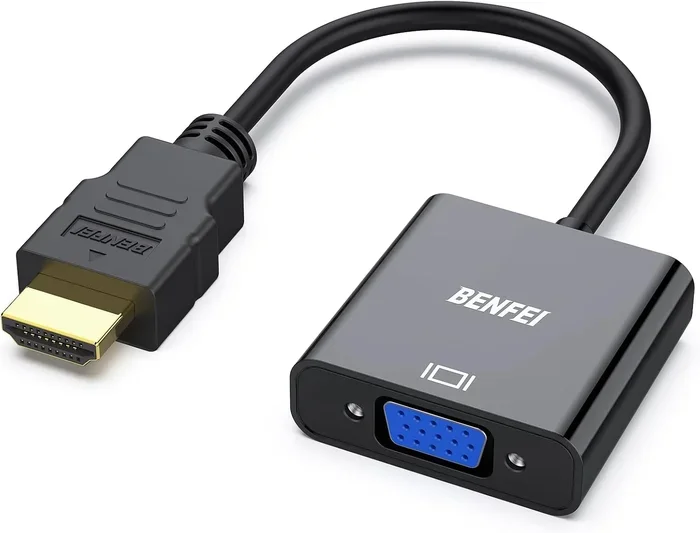
Sometimes your monitor might not have a Thunderbolt input. That is totally fine. You can use an adapter to bridge the gap. The most common adapters convert Thunderbolt to HDMI or DisplayPort. These are cheap and easy to find online or at any electronics store.
Just make sure you buy a quality adapter. Cheap adapters can cause signal loss, flickering, or no signal at all. Look for adapters from reputable brands like Belkin, CalDigit, or Cable Matters. They may cost a little more, but they save you a lot of headaches.
Best Monitors for Thunderbolt Connections
Not all monitors are created equal when it comes to Thunderbolt compatibility. Some monitors have built-in Thunderbolt ports, which makes the setup even simpler. Others work great through a standard HDMI or DisplayPort connection using a Thunderbolt adapter.
Monitors with Built-In Thunderbolt
These monitors have a Thunderbolt port built right into them. That means you can daisy chain multiple devices through a single cable. You can connect your laptop to the monitor, and then connect a hard drive or another display to the monitor. It is a clean and efficient setup.
Some popular options include the Apple Thunderbolt Display, the LG UltraFine series, and the Dell Thunderbolt monitors. These are great choices if you want a plug-and-play experience with no extra adapters.
Monitors That Work with Adapters
Most modern monitors with HDMI or DisplayPort inputs will work perfectly with a Thunderbolt connection. You just need the right adapter or cable. Almost any 4K monitor you buy today will work fine with a Thunderbolt port.
When shopping for a monitor, look for these features. Support for 4K resolution at 60Hz is ideal. Make sure the monitor has good color accuracy if you do any photo or video editing. And check the refresh rate if you are into gaming or fast-moving content.
Docking Stations: The Ultimate Thunderbolt Setup
If you want to take your setup to the next level, a Thunderbolt docking station is the way to go. A docking station connects to your laptop through a single Thunderbolt cable and gives you multiple ports. You can connect monitors, keyboards, mice, external hard drives, and more all at once.
Why Use a Docking Station?
A docking station turns your laptop into a full desktop setup with one plug. You do not need to reach behind your desk and connect five different cables every time. Just plug in the Thunderbolt cable, and everything is ready to go.
Docking stations also give you more display options. Many support two or even three external monitors at once. This is perfect if you need extra screen space for work, coding, or creative projects.
Top Thunderbolt Docking Stations
Here are some popular options to consider.
- CalDigit TS4: Supports two 4K displays and has tons of ports. It is one of the most reliable docking stations on the market.
- Anker 777 Thunderbolt Dock: A more affordable option that still delivers great performance and multiple display support.
- Belkin Thunderbolt 4 Dock: A solid all-around dock with good build quality and wide device compatibility.
When choosing a docking station, make sure it supports Thunderbolt 3 or Thunderbolt 4. Older docking stations may not give you the full video and data performance you need.
Common Problems and How to Fix Them
Even though Thunderbolt connections are reliable, you might run into some issues from time to time. Here are the most common problems and how to solve them.
No Signal on the Monitor
This is the most common issue. If your monitor shows no signal, first check that both ends of the cable are firmly connected. Try a different Thunderbolt cable if you have one. Also, make sure your monitor is set to the right input source. Most monitors have a button or menu option to switch between HDMI, DisplayPort, and other inputs.
If that does not work, try unplugging the cable and plugging it back in. Sometimes the connection just needs a fresh start. On Windows, you can also try pressing Windows Plus P to cycle through display modes quickly.
Low Resolution or Flickering
If your external monitor looks blurry or flickers, the cable might be to blame. Cheap or damaged Thunderbolt cables often cause these issues. Replace the cable with a high-quality one and see if that fixes the problem.
You should also check your display settings. On Windows, go to Display Settings and make sure the resolution is set to the monitor’s native resolution. On macOS, go to Displays and click Scaled to choose the best option.
Monitor Not Detected by the Computer
Sometimes your computer just does not recognize the external monitor. This can happen if the Thunderbolt port is not delivering a video signal. Try using a different port if your computer has more than one Thunderbolt port.
You can also update your display drivers on Windows. Go to Device Manager, find your display adapter, right-click, and choose Update Driver. On macOS, make sure your system is fully updated. Apple often includes display compatibility fixes in software updates.
Slow Performance with External Display
If you notice lag or slow refresh rates, your Thunderbolt cable might be limiting the connection. Thunderbolt 3 and Thunderbolt 4 cables are not all the same. Make sure you are using a cable rated for the full Thunderbolt speed. A cable that only supports USB-C speeds will not give you the best video performance.
Thunderbolt vs Other Connection Types
There are several ways to connect an external monitor these days. Let us compare Thunderbolt with the most common alternatives so you can see why it is such a great choice.
Thunderbolt vs HDMI
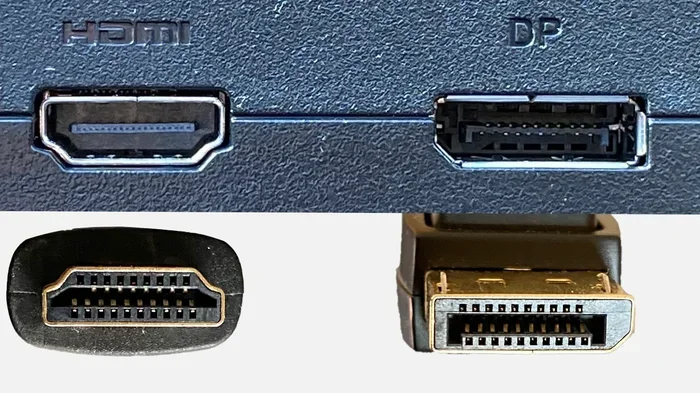
HDMI is the most common monitor connection. It works well and almost every monitor has an HDMI port. But HDMI only carries video and audio. It does not carry data or power. Thunderbolt does all three in one cable. That makes Thunderbolt much more convenient for a clean desk setup.
Thunderbolt vs DisplayPort
DisplayPort is another popular video connection. It offers great video quality and supports high refresh rates. But like HDMI, it only carries video and audio. Thunderbolt uses the DisplayPort protocol for video, so the picture quality is just as good. The big advantage of Thunderbolt is the extra functionality it adds on top.
Thunderbolt vs USB-C
USB-C and Thunderbolt look the same, but they are not the same thing. USB-C is just a connector shape. Thunderbolt is a technology that uses the USB-C connector. A regular USB-C port may or may not support video output. A Thunderbolt port always supports video output, along with faster data speeds and better compatibility.
So when you are choosing between these options, Thunderbolt wins if you want versatility. You get video, data, and power in one connection. That is hard to beat.
Quick Tips for the Best Thunderbolt Monitor Experience
Here are some quick tips to get the most out of your Thunderbolt monitor setup.
- Use certified cables: Always buy Thunderbolt-certified cables. They are tested to deliver the full speed and video quality.
- Keep your drivers updated: Outdated drivers can cause display issues. Check for updates regularly on both Windows and macOS.
- Check your monitor settings: Make sure your monitor is set to the correct input source before troubleshooting any issues.
- Invest in a good docking station: A Thunderbolt docking station makes connecting multiple devices easy and keeps your desk tidy.
- Avoid long cable runs without a booster: Thunderbolt cables work best at lengths under 6 feet. For longer runs, use an active cable or a signal booster.
- Match your monitor to your needs: If you do creative work, choose a monitor with great color accuracy. If you game, look for high refresh rates.
Following these tips will help you get a smooth and reliable experience every time you connect an external monitor through your Thunderbolt port.
Expert Insights on Thunderbolt Monitor Setup
Technology experts agree that Thunderbolt is the best all-in-one connection for modern setups. The ability to carry video, data, and power through a single cable makes it incredibly convenient. According to industry reviews, Thunderbolt 4 in particular sets a new standard for reliability and performance.
One thing to keep in mind is compatibility. Not every monitor or laptop plays nicely with every Thunderbolt device. Always check the specs of both your laptop and monitor before buying cables or adapters. This small step can save you a lot of frustration later on.
If you are still unsure about which setup is right for you, consider your daily workflow. Do you need one monitor or multiple? Do you travel often with your laptop? These questions will help you decide whether a simple Thunderbolt cable or a full docking station makes more sense for your situation.
Key Takeaways
- Thunderbolt ports fully support external monitors: You can connect any compatible display using a Thunderbolt cable or adapter.
- Thunderbolt 3 and Thunderbolt 4 both deliver excellent video output: Thunderbolt 4 offers better support for multiple high-resolution displays.
- The right cable makes all the difference: Always use Thunderbolt-certified cables for the best performance and reliability.
- Adapters and docking stations expand your options: You can connect HDMI or DisplayPort monitors easily with the right adapter.
- Most problems have simple fixes: Check cables, drivers, and display settings before assuming something is broken.
- Thunderbolt beats other connections in versatility: It combines video, data, and power in a single cable, making it ideal for clean and efficient setups.
Conclusion
Using a Thunderbolt port for an external monitor is not only possible, it is one of the best ways to set up a clean and efficient workspace. Whether you have a Thunderbolt 3 or Thunderbolt 4 port, you get fast data transfer, high-quality video output, and power delivery all through one simple cable. The setup process is easy, and the results are fantastic.
Just remember to get the right cable, check your display settings, and consider a docking station if you need multiple connections. With the right gear, your Thunderbolt setup will feel seamless every single day. So go ahead and plug in that monitor. You will wonder why you did not do it sooner.
And if you are looking for ways to boost your overall productivity while you are at it, you might enjoy these 4 apps that are like Uber for finding dog walkers that can help you manage your time better and free up more hours for focused work.
Frequently Asked Questions
Can I use any USB-C cable for a Thunderbolt monitor connection?
Not all USB-C cables support video output or Thunderbolt speeds. You need a Thunderbolt-certified cable to get the best results. Regular USB-C cables may only charge your device or transfer data, but they might not carry a video signal to your external monitor.
Can I connect two external monitors to one Thunderbolt port?
Yes, but it depends on your Thunderbolt version and docking station. Thunderbolt 4 supports two 4K displays natively. You can also use a Thunderbolt docking station to connect multiple monitors through a single port. Check your device specs to confirm how many displays your setup can support.
Do I need a special adapter to connect a Thunderbolt port to an HDMI monitor?
Yes, you will need a Thunderbolt to HDMI adapter if your monitor only has an HDMI input. These adapters are widely available and affordable. Just make sure you buy one that supports the resolution and refresh rate you need for the best picture quality.
Is Thunderbolt the same as USB-C?
No, they are not the same. USB-C is just a connector shape, while Thunderbolt is a technology that uses the USB-C connector. A Thunderbolt port always supports video output, data transfer, and power delivery. A regular USB-C port may only support some of these features.
Why is my external monitor not showing up on my computer?
This is usually caused by a loose cable, wrong input source, or outdated display drivers. Try unplugging and replugging the cable, checking your monitor settings, and updating your drivers. If the problem persists, try a different Thunderbolt cable or port on your computer.
Can I use a Thunderbolt port with a Windows PC?
Yes, Thunderbolt works with both Windows PCs and Macs. Most modern Windows laptops and desktops with Thunderbolt ports support external monitor connections just as well as Macs. Make sure your Windows display drivers are up to date for the best compatibility.
=== CONCLUSION ===
Using a Thunderbolt port for an external monitor is simple, reliable, and incredibly versatile. Whether you are working from home, setting up a creative studio, or building a powerful desktop workstation, Thunderbolt gives you everything you need in one connection. The key is to use the right cable, check your compatibility, and invest in quality accessories like docking stations and adapters.
With this guide, you have everything you need to get started. Connect your monitor, enjoy the crisp display, and make the most of your Thunderbolt setup today.