Can I Use Old Hdmi Cable For Arc Heres What You Need To Know
Using an old HDMI cable for ARC can work, but it depends on the cable version and your devices. HDMI ARC has been around since HDMI 1.4, so older cables may or may not support it. This guide breaks down exactly what you need to check, common problems you might face, and how to fix them.
You plug in your HDMI cable, stare at your TV screen, and realize the sound is not coming through your soundbar or home theater system. You check the settings. You restart everything. And then you wonder, can I use old HDMI cable for ARC? Its a frustrating situation, and one a lot of people run into. The short answer is maybe. The longer answer depends on a few things that well walk through right now.
HDMI ARC, which stands for Audio Return Channel, lets your TV send audio back to your soundbar or receiver through a single HDMI cable. Its a great feature that cuts down on cable clutter. But here is the catch. Not every HDMI cable handles ARC the same way. An old cable might work perfectly fine, or it might cause all kinds of headaches. This article will help you figure out exactly where your setup stands.
We will cover what HDMI ARC is, how to check if your old cable supports it, what goes wrong, and how to fix it. By the end, you will know exactly what to do. No guesswork. No wasted time. Just clear, practical advice you can use right away.
Key Takeaways
- HDMI ARC works with HDMI 1.4 and newer cables: If your old cable meets the HDMI 1.4 standard, it should support ARC.
- Not all old cables are equal: Some older cables lack the bandwidth or wiring needed for a reliable ARC connection.
- eARC is a different story: Enhanced ARC requires HDMI 2.1 cables for full Dolby Atmos and uncompressed audio support.
- Common ARC problems include no sound, intermittent audio, and handshake failures: Most can be fixed with simple troubleshooting.
- Replacing a cheap old cable is inexpensive and often solves the problem: A new certified HDMI cable costs very little and saves hours of frustration.
📑 Table of Contents
- What Is HDMI ARC and Why Does It Matter?
- Can You Use an Old HDMI Cable for ARC?
- HDMI Cable Versions and Their ARC Support
- Signs Your Old HDMI Cable Is Not Working with ARC
- How to Fix ARC Issues with Your Current Cable
- When Should You Replace Your Old HDMI Cable?
- Expert Tips for Getting the Best ARC Performance
- Common Mistakes People Make with HDMI ARC
- Final Thoughts on Using Old HDMI Cables for ARC
What Is HDMI ARC and Why Does It Matter?
HDMI ARC stands for Audio Return Channel. It is a feature built into the HDMI standard that lets audio travel in both directions through one cable. Before ARC existed, you needed separate cables for video and audio. Your TV would send video to your soundbar, and you would need a separate audio cable running from the TV back to the speaker system. ARC changed all of that.
Here is why it matters. With HDMI ARC, your TV sends audio back to your soundbar or receiver automatically. This means you only need one cable for both video and sound. It simplifies your setup. It reduces cable mess. And it makes switching between inputs much easier. Most modern TVs and audio devices support ARC. But the cable you use plays a big role in whether it actually works.
How HDMI ARC Works in Practice
When you turn on your TV, the ARC feature sends audio signals from the TV to your connected device. This happens over the same HDMI cable that carries the video signal. You do not need to change any cables. You do not need extra wires. Everything flows through one connection.
For example, if you are watching a show on a streaming app on your TV, the audio goes from the TV through the HDMI cable to your soundbar. The soundbar plays the audio. Simple, right? But here is where things get tricky. If your HDMI cable is old, the connection might not be strong enough. The audio might cut out. It might not work at all. Or you might get a weird error message on your screen.
Can You Use an Old HDMI Cable for ARC?
This is the big question. And the honest answer is it depends. HDMI ARC was introduced with the HDMI 1.4 specification back in 2009. So any cable that meets or exceeds the HDMI 1.4 standard should technically support ARC. But here is the problem. Many old cables on the market are not clearly labeled. And some cables that say they are HDMI might not actually meet the version standards they claim.
If your old cable is from the last decade or so, there is a good chance it supports ARC. But if it is really ancient, like from before 2009, it probably does not. And even if an old cable technically supports ARC, it might not deliver the best audio quality. You could get dropouts, static, or no sound at all.
Factors That Determine ARC Compatibility
Several things decide whether your old HDMI cable will work with ARC. Let us break them down.
- Cable version: HDMI 1.4 or newer cables should support ARC. Anything older likely will not.
- Cable build quality: Cheap, thin cables with poor shielding can cause signal loss. This leads to ARC failures.
- Cable length: Longer cables can weaken the signal. If your cable is over 15 feet, you might run into problems.
- Connector condition: Bent pins, corroded ports, or loose connections can all cause ARC issues.
- Device compatibility: Your TV and soundbar both need to support ARC. The cable is only one piece of the puzzle.
The bottom line is that an old HDMI cable can work for ARC, but it is not guaranteed. You need to check a few things before you assume it will work.
HDMI Cable Versions and Their ARC Support
Not all HDMI cables are created equal. Different versions support different features. And ARC has evolved over time. Here is a quick look at the main HDMI versions and what they mean for ARC.
| HDMI Version | Year Released | ARC Support | Bandwidth |
|---|---|---|---|
| HDMI 1.3 | 2006 | No | 10.2 Gbps |
| HDMI 1.4 | 2009 | Yes | 10.2 Gbps |
| HDMI 2.0 | 2013 | Yes | 18 Gbps |
| HDMI 2.1 | 2017 | Yes (with eARC) | 48 Gbps |
As you can see, HDMI 1.4 was the first version to include ARC support. So any cable labeled HDMI 1.4 or higher should work. But here is the thing. Many old cables do not have their version printed on them. You might need to check the packaging or look up the model number online.
What About eARC?
eARC stands for Enhanced Audio Return Channel. It was introduced with HDMI 2.1. eARC supports advanced audio formats like Dolby Atmos and DTS:X. It also has a faster data transfer rate. If you want the best audio quality from your TV to your soundbar, eARC is the way to go.
But here is the catch. eARC requires an HDMI 2.1 cable. An old HDMI cable that only supports ARC (not eARC) will not cut it for advanced audio formats. So if you are using an old cable and wondering why you cannot get Dolby Atmos through ARC, this is likely the reason.
Signs Your Old HDMI Cable Is Not Working with ARC
How do you know if your old cable is the problem? There are several telltale signs. Watch for these common issues.
- No sound at all: You get video but no audio through your soundbar or receiver.
- Intermittent audio: The sound cuts in and out randomly. This is especially annoying during movies.
- ARC not showing in TV settings: Your TV menu does not display the ARC option.
- Audio delay or sync issues: The sound does not match the video on screen.
- Error messages: Your TV shows a message like ARC not supported or handshake failed.
If you are experiencing any of these problems, your old HDMI cable could be the culprit. But it could also be a settings issue or a device problem. Before you replace the cable, try the troubleshooting steps below.
Quick Tips to Check Your Cable
- Inspect the connectors for damage or dirt.
- Try a different HDMI port on your TV.
- Unplug and replug the cable firmly.
- Check if the cable has any visible wear or fraying.
- Test the cable with a different device if possible.
How to Fix ARC Issues with Your Current Cable
Before you run out and buy a new cable, try these fixes first. Many ARC problems are easy to solve without spending a dime.
Step 1: Enable ARC in Your TV Settings
Sounds obvious, but many people skip this step. Go into your TV settings and look for the HDMI ARC or CEC option. Make sure it is turned on. The exact path varies by TV brand, but it is usually under Settings, then Sound, then HDMI CEC or ARC Control.
Step 2: Power Cycle Your Devices
Turn off your TV, soundbar, and receiver. Unplug them all from the wall. Wait at least 30 seconds. Plug them back in and turn them on in this order. This process, called a power cycle, often resets the HDMI handshake and fixes ARC issues.
Step 3: Update Your TV Firmware
TV manufacturers regularly release firmware updates that fix bugs and improve compatibility. Check your TV settings for a software update option. Install any available updates and test ARC again.
Step 4: Try a Different HDMI Port
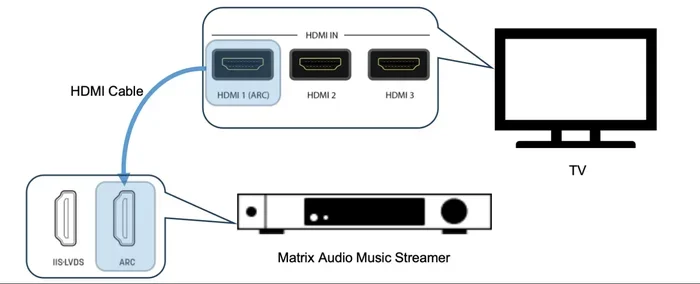
Not all HDMI ports on your TV support ARC. Look for a port labeled ARC or eARC. If your TV does not label them, try plugging into different ports one at a time until ARC works.
Step 5: Replace the Cable
If none of the above steps work, it is time to replace the cable. A new certified HDMI cable is inexpensive. Look for a cable labeled High Speed HDMI or Premium High Speed HDMI. These are guaranteed to support ARC and eARC.
When Should You Replace Your Old HDMI Cable?
Sometimes the old cable just needs to go. Here are clear signs it is time for a replacement.
- The cable is physically damaged: Frayed wires, bent connectors, or visible breaks mean it is time to retire it.
- You are using HDMI 1.3 or older: These cables do not support ARC at all.
- You want eARC and Dolby Atmos: Only HDMI 2.1 cables support these features.
- You have persistent audio dropouts: If the sound keeps cutting out no matter what you try, the cable is likely the issue.
- Your cable is over 5 years old: HDMI technology has improved a lot. Newer cables offer better shielding and signal quality.
Replacing an old HDMI cable is one of the cheapest and easiest fixes you can make. A good certified cable costs between 5 and 15 dollars. That is a small price to pay for reliable audio and video.
What to Look for in a New HDMI Cable for ARC
When shopping for a new cable, keep these things in mind.
- Look for the HDMI 2.1 label: This ensures full ARC and eARC support.
- Choose Ultra High Speed HDMI cables: These support the highest bandwidth and all HDMI features.
- Pick the right length: Measure the distance between your devices. Buy a cable that is just long enough. Longer cables can weaken the signal.
- Buy from reputable brands: Brands like Belkin, Cable Matters, and Amazon Basics make reliable HDMI cables.
- Avoid ultra-cheap no-name cables: They might not meet the specifications they claim.
Expert Tips for Getting the Best ARC Performance
Want to get the most out of your HDMI ARC setup? Here are some expert tips that make a real difference.
Keep your cables as short as possible. Shorter cables mean stronger signals. Try to stay under 6 feet for the best results. If you need a longer cable, look for one with active signal boosting.
Use high-quality certified cables. Certified cables have been tested to meet specific standards. They are more reliable and less likely to cause problems. The HDMI Licensing website has a list of certified cable manufacturers.
Label your cables. Once you get your setup working, label the HDMI cable that carries ARC. This saves you time if you ever need to troubleshoot again.
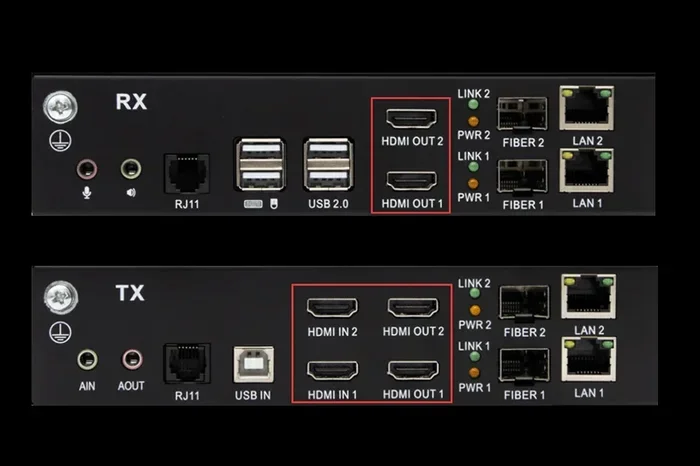
Do not use HDMI splitters or extenders with ARC. These devices can block the ARC signal. If you need to extend your setup, use an HDMI matrix or switch that specifically supports ARC.
Check your soundbar settings too. Some soundbars have their own ARC settings that need to be enabled. Check the soundbar manual or settings menu to make sure ARC is turned on.
Common Mistakes People Make with HDMI ARC
There are a few mistakes that trip up a lot of people. Avoid these and you will save yourself a lot of frustration.
- Assuming all HDMI ports support ARC: Only specific ports on your TV support ARC. Check your TV manual to find the right one.
- Using an optical cable instead: Some people switch to an optical audio cable when ARC fails. Optical cables work, but they do not support Dolby Atmos or uncompressed audio.
- Ignoring CEC settings: HDMI ARC relies on CEC (Consumer Electronics Control) to work. If CEC is disabled, ARC will not work either.
- Buying the wrong cable type: Standard HDMI cables do not support the bandwidth needed for ARC. Always look for High Speed or Ultra High Speed labels.
- Not restarting devices after changes: After changing cables or settings, always restart your devices. This allows them to recognize the new connection properly.
These mistakes are easy to avoid once you know about them. And avoiding them can save you hours of troubleshooting time.
Final Thoughts on Using Old HDMI Cables for ARC
So, can you use an old HDMI cable for ARC? The answer is it depends on the cable version and condition. If your old cable meets the HDMI 1.4 standard and is in good shape, it should work. But if the cable is damaged, very old, or of poor quality, you will likely run into problems.
The good news is that replacing an old HDMI cable is cheap and easy. A new certified cable can solve most ARC issues in minutes. Before you spend money, try the troubleshooting steps we covered. Power cycling your devices, checking your settings, and trying a different port can often fix the problem.
HDMI ARC is a great feature that makes your home entertainment setup simpler and cleaner. But it only works well when you have the right cable. Do not let an old, faulty cable ruin your viewing experience. Take a few minutes to check your setup. You might be surprised at how much difference a new cable makes.
Whether you are watching movies, listening to music, or gaming, reliable audio matters. Make sure your HDMI cable is up to the task. Your ears will thank you.
Frequently Asked Questions
Can any old HDMI cable support ARC?
Not necessarily. HDMI ARC was introduced with the HDMI 1.4 standard in 2009. If your old cable is from before 2009 or is labeled HDMI 1.3 or older, it likely will not support ARC. Check the cable specifications or packaging to confirm its version before assuming it works.
Why is there no sound when I use my old HDMI cable with ARC?
There are several possible reasons. The cable might not support ARC, the ARC setting might be disabled in your TV menu, or the cable could be damaged. Try power cycling your devices, checking your TV sound settings, and inspecting the cable connectors. If none of that works, the cable is probably the issue.
Do I need a special HDMI cable for eARC?
Yes. eARC requires an HDMI 2.1 cable, also known as an Ultra High Speed HDMI cable. Standard ARC works with HDMI 1.4 and newer, but eARC needs the higher bandwidth that only HDMI 2.1 cables provide. If you want Dolby Atmos or uncompressed audio, make sure you have the right cable.
Can I use an HDMI splitter with ARC?
Most HDMI splitters do not support ARC. They can block the audio return channel signal. If you need to split your HDMI connection, look for a switch or splitter that specifically lists ARC support. Otherwise, stick to a direct connection between your TV and soundbar for the best results.
How can I tell if my HDMI cable supports ARC?
Check the cable label or packaging for the HDMI version. HDMI 1.4 or newer supports ARC. If the cable has no label, look up the model number online. You can also test it by connecting your TV to a soundbar and checking if the ARC option appears in your TV sound settings.
What is the difference between HDMI ARC and optical audio?
HDMI ARC carries both video and audio through one cable, while optical audio only carries sound. HDMI ARC also supports modern audio formats like Dolby Atmos, which optical cables cannot. Optical is a good backup option, but HDMI ARC is the better choice for a complete home theater setup.
=== CONCLUSION ===
Using an old HDMI cable for ARC is possible, but it is not always reliable. Check your cable version, look for signs of damage, and run through the troubleshooting steps before replacing anything. A new certified HDMI cable is a small investment that can make a huge difference in your home entertainment setup. Do not let a bad cable get in the way of great sound and video. Take action today and enjoy your content the way it was meant to be heard.