Can HDMI Be Used For Ethernet To Connect All Devices
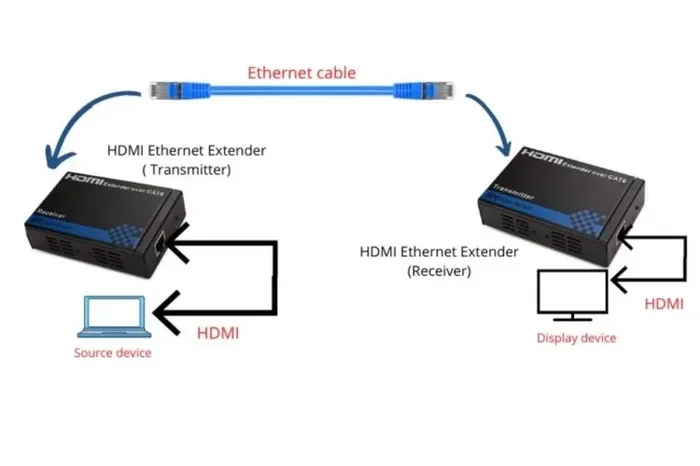
Yes, HDMI can be used for Ethernet through a feature called HDMI Ethernet Channel. This technology lets a single HDMI cable carry both audio-video signals and internet data between compatible devices. Learn how HDMI Ethernet works, which devices support it, and simple steps to set it up.
Have you ever looked behind your TV and thought, “There has to be a simpler way to connect everything?” You are not alone. Many people want fewer cables, fewer adapters, and fewer headaches. The idea of using an HDMI cable to carry internet data sounds like a dream come true. But can HDMI be used for Ethernet? The short answer is yes, with some important caveats.
This guide breaks down everything you need to know about HDMI Ethernet. We will cover how it works, which devices support it, and whether it is right for your setup. By the end, you will know exactly what to do next.
If you have ever explored ways to simplify your home network setup, you know the struggle of too many cables. Finding the right connection method can feel overwhelming. Much like how finding the right app can simplify tasks, sometimes the right cable does the same. For instance, if you are also looking for ways to connect smart home devices or pet cameras, checking out 4 apps that are like Uber for finding dog walkers might give you ideas about smart connectivity solutions. But let us focus on HDMI Ethernet first.
Key Takeaways
- HDMI Ethernet Channel exists: HDMI cables can carry internet data alongside audio and video signals through a built-in feature.
- Not all HDMI cables support it: You need a high-speed HDMI cable with Ethernet capability for the feature to work.
- It simplifies your setup: HDMI Ethernet reduces the number of cables you need behind your TV, console, or home theater.
- Speed is limited: HDMI Ethernet typically offers 100 Mbps, which is enough for browsing and streaming but not heavy gaming.
- Both devices must be compatible: Your source and display device both need HDMI Ethernet Channel support.
- Traditional Ethernet is faster: For serious internet needs, a dedicated Ethernet cable still outperforms HDMI Ethernet.
📑 Table of Contents
What Is HDMI Ethernet Channel?
HDMI Ethernet Channel is a built-in feature found in certain HDMI cables and devices. It allows the HDMI cable to transmit internet data along with audio and video signals. This means one cable can do the job of two or more.
The technology was introduced as part of the HDMI 1.4 specification back in 2009. It was designed to reduce cable clutter in home entertainment setups. The feature uses a dedicated channel within the HDMI cable to send and receive Ethernet data.
Here is what makes HDMI Ethernet Channel special:
- It works over a single HDMI cable. No extra Ethernet cord needed.
- It supports 100 Mbps speeds. That is enough for most everyday internet tasks.
- It is bidirectional. Data can flow in both directions between connected devices.
- It is plug-and-play. No extra software or configuration is usually required.
However, not every HDMI cable has this feature. You need a cable that specifically supports HDMI Ethernet Channel. Regular HDMI cables without this capability will not transmit internet data, no matter what you try.
How to Identify an HDMI Cable with Ethernet Support
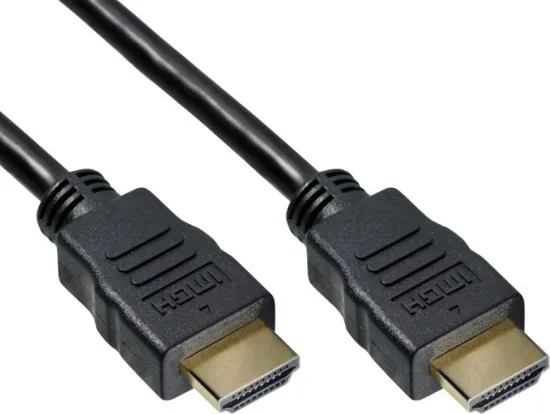
Looking at an HDMI cable, you cannot always tell if it supports Ethernet just by looking. The packaging or product description is your best friend here. Look for terms like “High Speed HDMI Cable with Ethernet” or “HDMI Ethernet Channel.”
If you are shopping online, check the specifications section carefully. If it does not mention Ethernet support, assume it does not have it. When in doubt, contact the manufacturer or check the product manual.
How Does HDMI Carry Ethernet Data?
Understanding how HDMI carries Ethernet data helps you appreciate the technology. HDMI cables contain multiple twisted wire pairs inside the outer sheath. Most of these pairs handle audio and video signals. But HDMI Ethernet Channel uses one of these spare pairs to transmit internet data.
Think of it like a highway with extra lanes. The main lanes carry your video and audio traffic. The extra lane handles internet data. All of this travels through the same cable at the same time without interfering with each other.
The Ethernet data travels at 100 Mbps. This is the same speed as a basic Fast Ethernet connection. It is more than enough for browsing the web, checking email, and streaming standard-definition content. But it may struggle with 4K streaming or online gaming that demands low latency.
The Role of HDMI ARC and Ethernet
You might have heard of HDMI ARC, which stands for Audio Return Channel. HDMI ARC lets your TV send audio back to a soundbar or receiver through the HDMI cable. HDMI Ethernet Channel works in a similar way but for internet data instead of audio.
Both features use dedicated channels within the HDMI cable. They share the same physical infrastructure but serve different purposes. Some newer HDMI cables support both ARC and Ethernet, giving you maximum flexibility.
Which Devices Support HDMI Ethernet?
Not every device on the market supports HDMI Ethernet Channel. The feature depends on both the cable and the device. Let us look at what you need on each end of the connection.
On the cable side, you need a High Speed HDMI cable with Ethernet. This is the most common type that supports the feature. Standard HDMI cables and most basic cables do not include Ethernet support.
On the device side, both the source and the display need to support HDMI Ethernet Channel. Here are some common devices that may include this support:
- Smart TVs: Many modern smart TVs from brands like Samsung, LG, and Sony include HDMI Ethernet Channel in their HDMI ports.
- Streaming devices: Certain streaming sticks and boxes may support it, though this varies by model.
- Game consoles: Some consoles include HDMI Ethernet support, but many do not. Check your specific model.
- Blu-ray players: Higher-end models sometimes support HDMI Ethernet.
- A/V receivers: Some home theater receivers include HDMI Ethernet Channel capability.
If either device does not support HDMI Ethernet Channel, the cable will still work for audio and video. It simply will not transmit internet data. The connection will fall back to standard HDMI functionality.
Checking Your Device Compatibility
The easiest way to check if your device supports HDMI Ethernet is to look at the user manual or the manufacturer’s website. Search for the model number and look for “HDMI Ethernet Channel” in the specifications. You can also check the port labels on the back of your device. Some manufacturers print “Ethernet” next to the HDMI port if it supports the feature.
If you cannot find the information, try connecting two compatible devices with an HDMI Ethernet cable. If the connection works, both devices support the feature. If it does not, at least one device does not.
How to Set Up HDMI Ethernet Connection
Setting up HDMI Ethernet is straightforward. In most cases, it works automatically without any manual configuration. Here is a step-by-step guide to get it working.
- Check compatibility: Make sure both your cable and devices support HDMI Ethernet Channel.
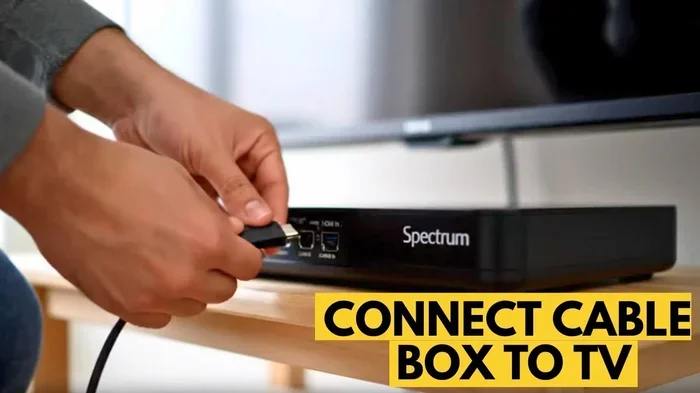
- Connect the cable: Plug one end of the HDMI cable into your source device and the other end into your display device.
- Power on both devices: Turn on both the source and the display.
- Check network settings: Go to the network settings on your device. It should recognize the Ethernet connection through HDMI.
- Test the connection: Open a web browser or streaming app to confirm the internet is working through the HDMI connection.
That is it. No drivers to install. No software to configure. The HDMI Ethernet Channel handles everything in the background.
Quick Tips for a Smooth Setup
- Use a certified cable: Always buy HDMI cables from reputable brands. Cheap, uncertified cables may not support Ethernet even if they claim to.
- Keep cable runs short: HDMI Ethernet works best with cables under 15 feet. Longer cables may experience signal loss.
- Update your device firmware: Sometimes a firmware update enables or improves HDMI Ethernet support.
- Try a different port: If one HDMI port does not work, try another. Not all ports on a device may support Ethernet.
HDMI Ethernet vs. Traditional Ethernet: What Is the Difference?
Now that you understand HDMI Ethernet, you might wonder how it compares to a standard Ethernet connection. Both carry internet data, but they differ in important ways.
| Feature | HDMI Ethernet | Traditional Ethernet |
|---|---|---|
| Speed | 100 Mbps | Up to 10 Gbps (Cat6a) |
| Cables Needed | One HDMI cable | Separate Ethernet cable |
| Setup Complexity | Very simple | Simple |
| Latency | Higher | Lower |
| Device Compatibility | Limited | Widespread |
| Best For | Basic internet, streaming | Gaming, large file transfers |
The biggest advantage of HDMI Ethernet is convenience. You use one cable for both audio-video and internet. This reduces cable clutter and simplifies your setup. It is perfect for situations where running a separate Ethernet cable is impractical.
However, traditional Ethernet wins on speed and reliability. If you need fast, stable internet for online gaming or large file downloads, a dedicated Ethernet cable is the better choice. HDMI Ethernet is a convenience feature, not a replacement for a proper network connection.
When to Use HDMI Ethernet
HDMI Ethernet shines in specific scenarios. Here are some situations where it makes sense:
- Minimalist setups: You want fewer cables behind your entertainment center.
- Smart TV updates: Your TV needs an internet connection but you do not want to run a separate cable.
- Temporary setups: You are setting up a presentation or event and want to keep things simple.
- Wall-mounted TVs: Running an Ethernet cable through the wall is difficult or impossible.
When to Avoid HDMI Ethernet
There are also times when HDMI Ethernet is not the right choice:
- Online gaming: The higher latency and lower speed can cause lag and stuttering.
- 4K streaming: 4K content requires stable, fast internet that HDMI Ethernet may not reliably provide.
- Large file transfers: The 100 Mbps cap makes file transfers slow compared to traditional Ethernet.
- Older devices: If your devices do not support the feature, you will not get any benefit.
Common Problems and How to Fix Them
Even with the best setup, you might run into issues with HDMI Ethernet. Here are the most common problems and their solutions.
HDMI Ethernet Not Working
If your HDMI Ethernet connection is not working, start with the basics. Check that both devices support the feature. Verify that your cable is rated for HDMI Ethernet Channel. Try a different HDMI port if available. A simple cable swap often fixes the issue.
Sometimes the problem is a firmware glitch. Restart both devices and try again. If the issue persists, check for firmware updates on the manufacturer’s website.
Slow Internet Speeds Over HDMI
If your internet is slow when using HDMI Ethernet, the 100 Mbps cap is likely the culprit. This speed limit is built into the HDMI Ethernet specification and cannot be changed.
For faster speeds, switch to a traditional Ethernet connection. If you must use HDMI Ethernet, make sure nothing else is hogging your bandwidth. Close background apps and pause other devices that are using the same network.
Intermittent Connection Drops
An unstable HDMI Ethernet connection can be frustrating. This often happens with low-quality cables or long cable runs. Try using a shorter, certified HDMI cable. Make sure the cable is not bent or damaged at the connectors.
If the problem continues, your devices may not be fully compatible. Try connecting different devices to isolate the issue. Sometimes a firmware update on one of the devices resolves the problem.
Is HDMI Ethernet Worth It?
The answer depends on your needs. If you want a clean, simple setup and your internet needs are basic, HDMI Ethernet is a great option. It eliminates one cable and keeps your entertainment area tidy.
But if you need fast, reliable internet for gaming or heavy streaming, stick with a traditional Ethernet connection. HDMI Ethernet is a convenience feature, not a performance upgrade.
Think of it this way. HDMI Ethernet is like a Swiss Army knife. It does many things reasonably well. But if you need a specialized tool, you reach for something else. The same applies here. Use HDMI Ethernet for what it excels at and rely on dedicated Ethernet for tasks that demand more.
Also, keep in mind that technology evolves. Newer HDMI versions like HDMI 2.1 bring even more capabilities. As devices become more advanced, features like HDMI Ethernet may become more robust or eventually replaced by better alternatives. Stay informed about your devices and cables to make the best choices for your setup.
For those exploring broader connectivity options, it is worth noting that the landscape of device connections is always changing. Just as apps that connect people to services have transformed how we find help, new cable technologies continue to reshape how we connect devices at home.
In the end, HDMI Ethernet is a useful feature that adds versatility to your HDMI setup. It is not perfect, but it serves a real purpose for many users. Understanding its strengths and limitations helps you make the most of it.
Final Thoughts
Can HDMI be used for Ethernet? Absolutely. HDMI Ethernet Channel is a real, functional feature that lets you carry internet data through your HDMI cable. It is convenient, easy to set up, and perfect for basic internet needs.
But it is not a one-size-fits-all solution. For demanding tasks like online gaming or 4K streaming, a dedicated Ethernet connection still wins. Know your needs, check your device compatibility, and choose the right connection method accordingly.
The next time you set up your home entertainment system, consider HDMI Ethernet. It might just be the cable solution you did not know you needed. Keep your setup simple, your connections clean, and your experience enjoyable.
Frequently Asked Questions
Can any HDMI cable be used for Ethernet?
No, only HDMI cables specifically rated for Ethernet support this feature. Look for “High Speed HDMI Cable with Ethernet” on the packaging. Standard HDMI cables without this rating will not transmit internet data.
How fast is HDMI Ethernet?
HDMI Ethernet supports speeds up to 100 Mbps. This is sufficient for web browsing, email, and standard streaming. However, it is not fast enough for competitive online gaming or heavy 4K streaming that requires consistent high bandwidth.
Do all smart TVs support HDMI Ethernet?
No, not all smart TVs support HDMI Ethernet Channel. Check your TV’s user manual or specifications on the manufacturer’s website to confirm. Many modern smart TVs do include this feature, but it is not universal.
Can I use HDMI Ethernet to connect my TV to the internet without Wi-Fi?
Yes, if both your TV and the source device support HDMI Ethernet Channel, you can share an internet connection through the HDMI cable. This is a great option if you want to avoid running a separate Ethernet cable or relying on Wi-Fi.
Does HDMI Ethernet work with HDMI 2.0 and HDMI 2.1 cables?
Yes, HDMI Ethernet Channel can work with HDMI 2.0 and HDMI 2.1 cables, as long as the cable specifically supports Ethernet. Newer HDMI versions focus on higher bandwidth for video and audio, but the Ethernet feature remains available in compatible cables.
Is HDMI Ethernet better than Wi-Fi for streaming?
HDMI Ethernet provides a wired connection, which is generally more stable than Wi-Fi. However, its 100 Mbps speed cap may limit performance for high-quality streaming. For the best streaming experience, a dedicated Ethernet connection or strong Wi-Fi signal is usually better.
=== CONCLUSION ===
HDMI Ethernet Channel is a handy feature that bridges the gap between audio-video connections and internet connectivity. It lets you use one HDMI cable to carry both media and data, reducing cable clutter and simplifying your setup. While it is not a replacement for a dedicated Ethernet connection, it serves a valuable purpose for everyday internet needs.
Now that you know the answer to “can HDMI be used for Ethernet,” you can make informed decisions about your home setup. Check your cables, verify your device compatibility, and enjoy the convenience of fewer wires and a cleaner entertainment area.