Can I Convert Hdmi To Vga And Keep Great Picture Quality
Yes, you can convert HDMI to VGA and maintain great picture quality with the right adapter and setup. Whether you need to connect a modern laptop to an older projector or monitor, a proper HDMI to VGA converter ensures your display stays sharp and clear. This guide walks you through everything you need to know about signal conversion, active vs passive adapters, and how to keep your visuals looking their best.
Key Takeaways
- HDMI to VGA conversion is possible: You can connect modern HDMI devices to older VGA displays using the right adapter or converter.
- Active adapters are essential: Passive cables alone won’t work because HDMI is digital and VGA is analog.
- Picture quality depends on your converter: A quality active converter preserves resolution and clarity better than cheap alternatives.
- Audio needs separate handling: VGA does not carry audio, so you need a separate connection for sound.
- Resolution matching matters: Setting the correct output resolution on your device prevents blurry or distorted images.
- Common mistakes can ruin your experience: Avoid using passive cables, ignoring driver updates, and mismatched resolutions.
📑 Table of Contents
- Can I Convert HDMI To VGA And Keep Great Picture Quality?
- Understanding HDMI and VGA: What Is The Difference?
- How Does HDMI To VGA Conversion Work?
- How To Choose The Right HDMI To VGA Adapter
- Step By Step: How To Connect HDMI To VGA
- Does HDMI To VGA Conversion Affect Picture Quality?
- Common HDMI To VGA Mistakes And How To Avoid Them
- Expert Tips For The Best HDMI To VGA Setup
- Frequently Asked Questions
- Final Thoughts
Can I Convert HDMI To VGA And Keep Great Picture Quality?
If you have a newer laptop or streaming device with only HDMI ports, and you need to connect it to an older monitor or projector with VGA, you might wonder whether this is even possible. The short answer is yes. But the real question is whether you can do it without sacrificing image quality. And that answer depends on a few important factors.
Converting HDMI to VGA is something many people run into in offices, classrooms, and home setups. Older projectors and monitors still work perfectly fine, but they use the VGA connector while modern devices use HDMI. The good news is that with the right HDMI to VGA adapter, you can bridge this gap easily. But not all adapters are created equal.
In this guide, we will walk you through everything you need to know. We will cover how the conversion works, which type of adapter you need, how to keep your picture quality sharp, and the common mistakes that trip people up. By the end, you will feel confident about setting up your display connection the right way.
Let us start with the basics so you understand why this conversion is not as simple as plugging in a single cable.
Understanding HDMI and VGA: What Is The Difference?
What Is HDMI?
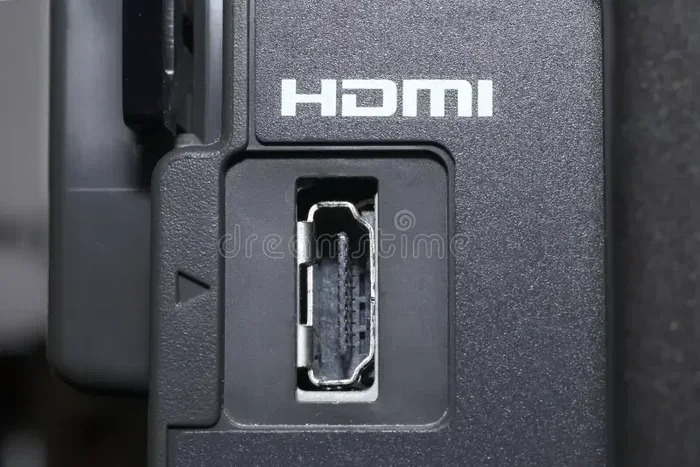
HDMI stands for High-Definition Multimedia Interface. It is a digital signal standard that carries both high-definition video and audio through a single cable. Almost every modern device uses HDMI. This includes laptops, gaming consoles, streaming sticks, Blu-ray players, and smart TVs. HDMI supports very high resolutions, and the signal stays clean because it is digital from start to finish.
The HDMI standard has evolved over the years. HDMI 1.4 supports 4K at 30Hz, while HDMI 2.0 handles 4K at 60Hz. The newest HDMI 2.1 standard can handle even higher bandwidths for 8K and beyond. No matter which version your device uses, the core idea is the same. HDMI sends a clean, digital picture and sound together.
What Is VGA?
VGA stands for Video Graphics Array. It has been around since 1987, and it is an analog signal standard. VGA only carries video, not audio. You have probably seen the blue, 15-pin connector on older computers, projectors, and monitors. Many schools and businesses still rely on VGA because the equipment works fine and replacing it is expensive.
The problem is that VGA was designed for lower resolutions. Standard VGA supports up to 640×480 pixels. Extended VGA versions can handle higher resolutions like 1080p, but the analog nature of the signal means quality can degrade over longer cable runs. This is why understanding how to convert properly matters so much.
Why Does The Signal Type Matter?
Here is where it gets important. HDMI is digital. VGA is analog. You cannot just connect them directly. Digital signals use ones and zeros to represent data, which keeps the picture clean. Analog signals use electrical waves, which are more prone to interference and quality loss. To go from HDMI to VGA, you need a device that can convert the digital signal into an analog signal. That device is an active converter or adapter.
Think of it like translating between two languages. HDMI speaks digital fluently. VGA speaks analog. You need a translator in between. Without that translator, the two simply cannot communicate. This is why a simple cable will never work for HDMI to VGA conversion.
How Does HDMI To VGA Conversion Work?
Active Converters vs Passive Cables
This is the most important concept to understand. There are two types of products people buy for this job: active converters and passive cables. They work very differently, and only one of them actually does the job.
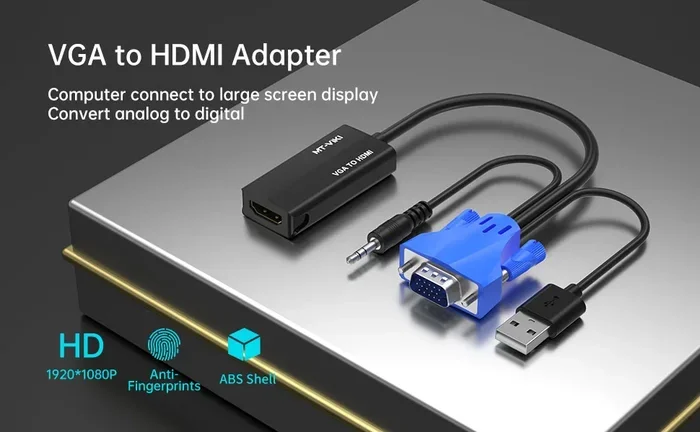
An active HDMI to VGA converter contains a chip that converts the digital HDMI signal into an analog VGA signal. It also often extracts the audio from the HDMI signal so you can send it to separate speakers. Active converters require power, usually through a USB cable that plugs into your device or a wall adapter.
A passive HDMI to VGA cable or adapter has no conversion chip inside. It simply has different connectors on each end. These do not work for HDMI to VGA conversion because there is no translation happening. If you buy a passive cable, you will get no signal at all, or a very poor one.
Always look for an active converter when shopping for HDMI to VGA adapters. The product description should clearly state that it contains a conversion chip. If it does not mention conversion, it is probably a passive cable and will not work.
The Conversion Process Step By Step
Here is what happens when you use an active converter:
- Your device sends a digital HDMI signal through the cable.
- The converter chip receives the digital signal and processes it.
- The chip converts the digital data into an analog waveform.
- The analog signal travels through the VGA cable to your monitor or projector.
- Some converters also split the audio signal and send it through a separate 3.5mm jack.
Each step matters. The quality of the converter chip determines how clean the analog signal is. A cheap chip will produce a blurry or noisy image. A quality chip will preserve sharpness and color accuracy. This is why choosing a good converter is the single most important factor in keeping great picture quality.
How To Choose The Right HDMI To VGA Adapter
What To Look For In A Converter
Not all HDMI to VGA adapters are the same. Here are the key things to check before you buy:
- Active conversion chip: Make sure the adapter is active, not passive. Check the product description carefully.
- Resolution support: Look for adapters that support at least 1080p. Some support 4K, but the VGA output will still be limited by the analog signal.
- Audio extraction: If you need sound, choose a converter with a built-in 3.5mm audio output.
- USB power requirement: Most active converters need a USB cable for power. Make sure your setup can accommodate this.
- Build quality: Metal housings and gold-plated connectors last longer and provide better signal transfer.
- Brand reputation: Stick with known brands like Cable Matters, UGREEN, or Kinivo for reliable performance.
Popular HDMI To VGA Adapters We Recommend
Here are a few options that consistently deliver good results:
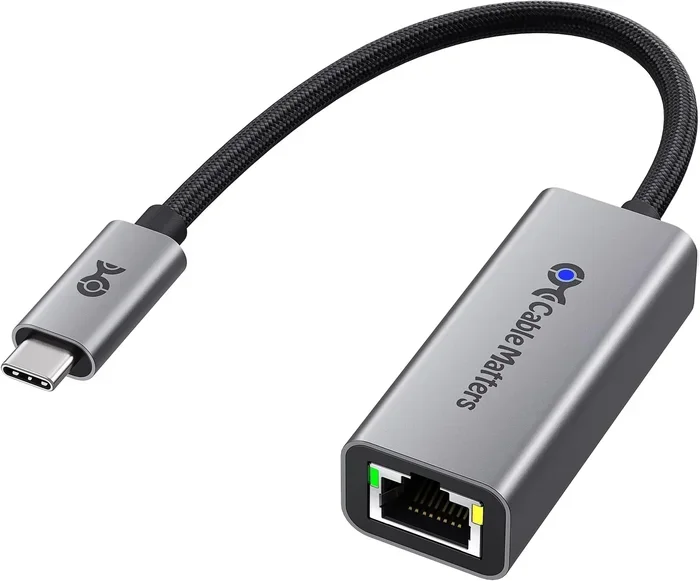
- Cable Matters HDMI to VGA Adapter: Supports 1080p, includes audio output, and has a solid metal build.
- UGREEN HDMI to VGA Converter: Active conversion with USB power, works with laptops, desktops, and Raspberry Pi devices.
- Kinivo HDMI to VGA Adapter: Budget-friendly option that still provides reliable active conversion and audio support.
If you are looking for ways to simplify your tech setup, you might also enjoy our article on 10 Gadgets To Make Moms Life Easier, which covers helpful tech accessories for everyday use.
Step By Step: How To Connect HDMI To VGA
What You Will Need
Before you start, gather these items:
- An active HDMI to VGA converter
- A VGA cable
- A USB cable for powering the converter
- A 3.5mm audio cable (if you need sound)
- Your HDMI source device (laptop, streaming stick, etc.)
- A VGA display (monitor or projector)
Setting Up Your Connection
Follow these steps to get everything working:
- Plug the VGA cable into the VGA port on your monitor or projector.
- Connect the other end of the VGA cable to the VGA output on the active converter.
- Plug the HDMI cable from your source device into the HDMI input on the converter.
- Connect the USB cable to the converter and plug it into a USB port on your device or a wall charger for power.
- If you need audio, plug a 3.5mm cable from the converter’s audio output into your speakers or headphones.
- Turn on your display and your source device.
- Select the correct input on your monitor or projector.
Once everything is connected, your screen should display on the VGA monitor. If you see nothing, double-check each connection and make sure the converter is receiving power.
Adjusting Resolution For Best Picture Quality
After connecting, you may need to adjust the output resolution on your device for the best results. Here is how:
- On Windows: Right-click the desktop, select Display Settings, and choose the recommended resolution for your VGA monitor.
- On Mac: Go to System Preferences, click Displays, and set the resolution to match your display’s native capability.
- On a Raspberry Pi: Edit the config.txt file and set the HDMI output resolution to match the VGA display.
Setting the right resolution prevents stretching, blurriness, and black bars. If your VGA monitor is a 1080p display, set your HDMI output to 1920×1080 for the sharpest image.
Does HDMI To VGA Conversion Affect Picture Quality?
What Can Cause Quality Loss
The honest answer is that some quality loss can happen during HDMI to VGA conversion. Here is why:
- Digital to analog conversion: Converting a digital signal to analog always introduces some potential for degradation. The converter chip has to interpret digital data and recreate it as an analog waveform.
- Cheap converter chips: Low-quality adapters use poor chips that produce noisy, blurry, or discolored images.
- Long VGA cables: Analog signals degrade over distance. A VGA cable longer than 15 feet may show quality loss.
- Resolution mismatch: If your device outputs a resolution that does not match the display’s native resolution, the image will look stretched or blurry.
- Interference: VGA cables are more susceptible to electromagnetic interference than HDMI cables.
How To Minimize Quality Loss
You can take several steps to keep your picture quality as high as possible:
- Buy a quality active converter from a reputable brand.
- Use a short VGA cable, ideally under 10 feet.
- Always match the output resolution to your display’s native resolution.
- Keep VGA cables away from power cables and other sources of interference.
- Update your device’s display drivers to ensure the best output settings are available.
With the right setup, you can get a very good picture from an HDMI to VGA conversion. It may not be quite as crisp as a native digital connection, but for most practical purposes, the difference is minimal and barely noticeable.
What Resolution Can You Actually Get?
Most quality active converters support up to 1080p over VGA. Some claim to support higher resolutions, but VGA’s analog nature means the real-world ceiling is around 1080p for reliable quality. If you need 4K output, VGA is not the right choice. In that case, you should look into HDMI to DisplayPort conversion or use a modern display with HDMI input. For more on connecting different devices, you might find our article on adding prefixes to numbers on iPhone helpful for other connectivity tips.
Common HDMI To VGA Mistakes And How To Avoid Them
Using A Passive Cable Instead Of An Active Converter
This is the number one mistake people make. A passive HDMI to VGA cable will not convert the signal. It simply changes the connector shape. You will get no display output at all. Always double-check that your adapter is an active converter with a built-in chip.
Forgetting To Power The Converter
Active converters need power to work. Many people plug in the HDMI and VGA cables but forget the USB power cable. Without power, the conversion chip cannot do its job. Always connect the USB power cable and make sure it is plugged into a working port or charger.
Ignoring Audio Needs
VGA does not carry audio. If you need sound, you must use a separate audio cable. Many people connect the video and then wonder why there is no sound. Plan ahead and have a 3.5mm audio cable or external speakers ready.
Not Updating Display Drivers
On Windows devices, outdated display drivers can cause resolution problems, flickering, or no display at all. After connecting your converter, check for driver updates through Device Manager or your laptop manufacturer’s support page.
Using A Damaged Or Old VGA Cable
A worn-out VGA cable can cause a blurry, flickering, or distorted image. Inspect your cable for bent pins, frayed shielding, or loose connections. Replacing an old cable is cheap and often solves mysterious display problems.
Mismatched Resolutions
Setting your HDMI output to a resolution that does not match your VGA display’s native resolution will result in a poor image. Always check your display’s specifications and match the output accordingly.
Expert Tips For The Best HDMI To VGA Setup
Use A Converter With Built-In USB Hub
Some HDMI to VGA converters come with extra USB ports. This is handy because the converter needs a USB connection for power anyway. Having extra ports lets you connect a mouse or keyboard through the same hub, reducing cable clutter on your desk.
Test With Different Resolutions
If the image looks blurry, try different resolution settings. Sometimes the default output does not match what the display handles best. Cycling through a few options in your display settings can make a noticeable difference.
Keep Your Cables Organized
With multiple cables running from your converter, things can get messy quickly. Use cable ties or a cable management box to keep everything neat. This also reduces the risk of accidental disconnections during use.
Consider The Room Lighting
If you are projecting onto a screen in a bright room, VGA quality might show more limitations than in a dark room. Analog signals are more sensitive to ambient light washout. If picture quality is critical, consider upgrading to a modern projector with HDMI input for the best results.
Frequently Asked Questions
Can I Convert HDMI To VGA Without An Adapter?
No, you cannot. HDMI is a digital signal and VGA is an analog signal. You need an active converter that contains a chip to translate between the two. A simple cable with different connectors on each end will not work because no actual signal conversion takes place.
Will My VGA Display Support 1080p After HDMI To VGA Conversion?
Yes, most VGA monitors and projectors support 1080p, and quality active HDMI to VGA converters can output at 1080p. However, the analog nature of VGA means the signal is more prone to degradation than a pure digital HDMI connection. Using a short, high-quality VGA cable helps maintain sharpness at 1080p.
Why Is There No Sound When I Connect HDMI To VGA?
VGA only carries video signals. It does not transmit audio. If your converter has a 3.5mm audio output, you need to connect a separate audio cable from the converter to your speakers or headphones. Not all converters include audio extraction, so check the product specifications before purchasing.
Can I Use An HDMI To VGA Adapter With A Laptop That Has USB-C?
Yes, but you need the right adapter. If your laptop has USB-C instead of HDMI, you need a USB-C to VGA adapter or a USB-C to HDMI adapter paired with an HDMI to VGA converter. Some adapters combine both steps into one device, making the setup simpler.
Do I Need To Install Drivers For An HDMI To VGA Converter?
Most active HDMI to VGA converters are plug-and-play and do not require drivers. However, some converters with advanced features or higher resolution support may need a driver install. Check the manufacturer’s website for driver downloads if your display is not working correctly after connection.
Can I Convert VGA Back To HDMI?
Yes, you can use an active VGA to HDMI converter to go in the opposite direction. This allows you to connect an older VGA device to a modern HDMI display. The same principles apply: you need an active converter with a built-in chip, and the VGA source will be limited by its maximum resolution output.
Final Thoughts
So, can you convert HDMI to VGA and keep great picture quality? The answer is a confident yes. With the right active HDMI to VGA converter, proper setup, and a few best practices, you can connect modern devices to older displays without significant quality loss.
The key is understanding that HDMI is digital and VGA is analog, which means conversion is necessary. Skip the passive cables, invest in a quality active converter, match your resolution settings, and use short, well-maintained VGA cables. These simple steps make a huge difference in the final image.
Whether you are setting up a classroom projector, connecting a laptop to a conference room monitor, or using an older display in your home office, the right HDMI to VGA setup will serve you well. Keep these tips in mind, avoid the common mistakes, and you will enjoy a clear, reliable picture every time you connect.
Technology keeps moving forward, and newer standards continue to replace older ones. But VGA displays are still around, and knowing how to work with them gives you flexibility and saves money. Next time you need to connect an HDMI device to a VGA screen, you will know exactly what to do and how to get the best results.