Can I Connect Usb C Hub To My Monitor Without Any Issues
Yes, you can connect a USB C hub to your monitor, and it is easier than you think. Whether you are using a Thunderbolt dock, a USB C to HDMI adapter, or a universal docking station, setting up an external display through a hub works with most modern laptops and monitors. This guide walks you through every step, from checking compatibility to fixing common problems, so you can get your USB C hub to monitor setup running smoothly today.
Have you ever stared at your laptop screen and wished you could connect it to a bigger, better monitor? Maybe you are working from home, setting up a home office, or just want to extend your display for productivity. The good news is that you can connect a USB C hub to monitor setups without a lot of hassle. But how exactly does it work? And what do you need to watch out for? Let us walk through everything you need to know about connecting a USB C hub to monitor displays, step by step.
USB C hubs have become one of the most popular accessories for laptop users today. They add ports, expand connectivity, and in many cases, let you hook up external monitors directly. Whether you are using a MacBook, a Windows laptop, or a Chromebook, the USB C hub to monitor connection is something more and more people are relying on every single day. In this guide, we will cover the basics, the different types of hubs available, the setup process, common problems, and expert tips to get the best results from your display connection.
Key Takeaways
- USB C hubs support monitor connections: Most modern USB C hubs can carry video signals to external displays through HDMI, DisplayPort, or USB C video output.
- Compatibility matters: Check that your laptop, hub, and monitor all support the same video protocol, such as DisplayPort Alt Mode or Thunderbolt 3.
- Setup is straightforward: Connecting a USB C hub to a monitor usually involves plugging in a cable, selecting the input source, and adjusting display settings in your operating system.
- Common issues are fixable: Problems like no signal, low resolution, or hub non-recognition can often be resolved with simple troubleshooting steps.
- The right hub makes a difference: Choosing a hub with dedicated display output ensures better performance and reliability than generic adapters.
📑 Table of Contents
- What Is a USB C Hub and Why Does It Matter for Monitor Connections?
- Can You Connect a USB C Hub to a Monitor? The Short Answer
- Types of USB C Hubs That Work with Monitors
- Step-by-Step Guide to Connecting Your USB C Hub to a Monitor
- Common Problems When Connecting a USB C Hub to a Monitor
- Expert Tips for the Best Monitor Setup with a USB C Hub
- Frequently Asked Questions
- Conclusion
What Is a USB C Hub and Why Does It Matter for Monitor Connections?
A USB C hub is a small device that expands the ports on your laptop or computer. It plugs into a single USB C port and gives you access to multiple connections at once. These can include USB A ports, SD card readers, Ethernet jacks, and importantly, video output ports like HDMI or DisplayPort.
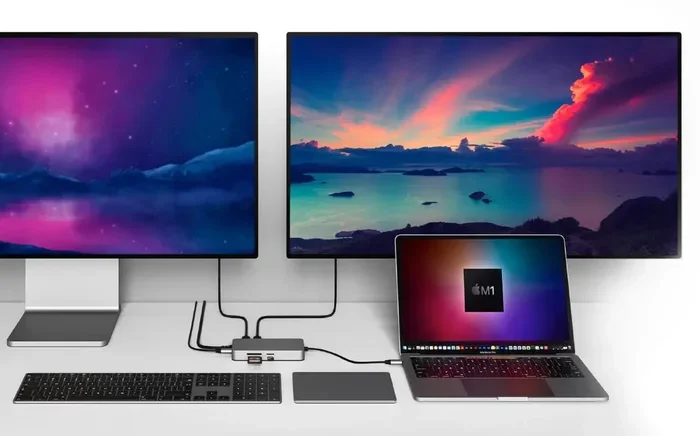
When it comes to connecting an external display, the hub acts as a bridge. Your laptop sends a video signal through the USB C connection, and the hub translates that signal into a format your monitor can read. This is why a USB C hub to monitor setup has become so popular. It lets you turn any laptop into a full desktop workstation with just one cable connection. You get the convenience of a port replication device without the clutter of multiple cables.
Understanding USB C Hub Basics
Not all USB C hubs are the same. Some are simple pass-through devices that just add a few extra ports. Others are full-featured docking stations that support high-resolution video output, fast data transfer, and even charging pass-through. When choosing a hub for monitor use, look for these key features:
- Video output support: HDMI, DisplayPort, or USB C video output
- Resolution capability: 4K, 1080p, or higher depending on your needs
- Power delivery: USB C charging pass-through so your laptop stays charged
- Bandwidth: USB 3.0 or USB 3.1 for faster data transfer
- Hub compatibility: Works with your specific laptop model and operating system
Understanding these basics helps you avoid buying a hub that does not support the USB C hub to monitor connection you need. A hub that only adds USB A ports and an SD card reader will not give you video output. Always check the product specifications before purchasing to ensure your monitor connectivity needs are met.
Why People Are Switching to USB C Hubs for Monitor Setups
The shift toward USB C hubs for monitor connections is happening for a few key reasons. First, modern laptops are dropping traditional ports like HDMI and VGA. Second, USB C offers a single-cable solution that handles data, video, and power all at once. Third, docking stations and hubs make cable management much simpler.
Think about it. Instead of plugging in three or four different cables every morning, you just connect one USB C cable from your hub to your laptop. Your monitor turns on, your peripherals connect, and you are ready to work. This kind of USB C hub to monitor convenience is why so many professionals and students are making the switch. If you are someone who likes to keep your tech organized and streamlined, you might enjoy checking out our guide on 10 Gadgets To Make Moms Life Easier. Many of the gadgets listed there pair wonderfully with a good USB C hub, especially for creating a clean, efficient workspace.
Can You Connect a USB C Hub to a Monitor? The Short Answer
The short answer is yes. You can absolutely connect a USB C hub to monitor displays and get great results. But the details matter. Not every hub works with every monitor, and not every connection method is the same. Let us break down how the connection works and what you need to know before you start.
How the Connection Works
When you plug a USB C hub into your laptop and connect a monitor to the hub, the hub uses a technology called DisplayPort Alt Mode or Thunderbolt to send video signals. This is different from a standard USB connection, which is mainly for data and charging. The video-capable USB C hub has special circuitry inside that converts the digital signal from your laptop into a format your monitor understands.
Here is what happens in simple terms:
- Your laptop sends a video signal through the USB C port.
- The USB C hub receives that signal and processes it.
- The hub sends the video signal out through an HDMI or DisplayPort connector.
- Your monitor receives the signal and displays your screen.
This entire process happens in seconds, and once it is set up, you can use your external monitor just like you would use your laptop screen. The beauty of a USB C hub to monitor setup is that it is reversible and flexible. You can disconnect and reconnect without any hassle, making it perfect for people who switch between a laptop screen and an external display throughout the day.
What You Need Before You Start
Before you connect anything, make sure you have the right gear. Here is a quick checklist to prepare for your monitor setup:
- A laptop or computer with a USB C port that supports video output
- A USB C hub or docking station with a video output port (HDMI or DisplayPort)
- A monitor with an HDMI, DisplayPort, or USB C input
- The right cable to connect your hub to your monitor
- The latest drivers or software for your laptop (usually not required but helpful)
One thing to watch out for is that some older USB C ports do not support video output. If your laptop only has a basic USB C port for charging and data, it might not be able to send a signal to a monitor through a hub. Check your laptop specifications to confirm it supports DisplayPort Alt Mode or Thunderbolt before buying a hub. This step saves time, money, and frustration.
Types of USB C Hubs That Work with Monitors
Not all hubs are created equal when it comes to monitor support. Different types of hubs offer different features, and choosing the right one depends on what you need. Let us look at the main options available for a USB C hub to monitor setup.
USB C to HDMI Adapters
The simplest option is a USB C to HDMI adapter. This small dongle plugs into your laptop and gives you an HDMI port to connect your monitor. These adapters are affordable, portable, and great for basic setups. They typically support 4K resolution at 30Hz or 1080p at 60Hz, depending on the model.
USB C to HDMI adapters are perfect for people who just need one external monitor. They are lightweight, easy to carry in a bag, and require no extra power source. However, they usually do not add extra USB ports or other features. If you want more than just a video connection, you will need a fuller-featured hub.
Thunderbolt Docking Stations
Thunderbolt docking stations are the premium option for a USB C hub to monitor setup. These hubs use Intel Thunderbolt 3 or Thunderbolt 4 technology, which offers much higher bandwidth than standard USB C. This means they can support multiple monitors, higher resolutions, and faster data transfer speeds.
Thunderbolt docks can connect to two or more monitors simultaneously, making them ideal for a multi-monitor setup. They also typically include Gigabit Ethernet, USB A ports, SD card readers, and 100W power delivery. If you are a professional who needs a reliable, high-performance workstation, a Thunderbolt dock is the way to go.
One thing to keep in mind is that Thunderbolt docks tend to be more expensive than standard USB C hubs. But for the features they offer, they are worth the investment for anyone who works with multiple displays or needs fast, stable connections.
Universal USB C Hubs with Display Support
Universal USB C hubs sit somewhere between simple adapters and Thunderbolt docks. They offer a mix of ports, including HDMI or DisplayPort for video, several USB A ports for peripherals, and often power delivery for charging. These are the most popular choice for everyday users who want a versatile USB C hub to monitor solution.
When shopping for a universal hub, look for these specifications:
- HDMI 2.0 or higher for 4K support
- USB 3.0 or USB 3.1 for fast data transfer
- Power delivery of at least 60W if you want to charge your laptop
- Plug-and-play compatibility with your operating system
Brands like Anker, Satechi, and CalDigit make reliable universal hubs that work well with most laptops. Reading reviews and checking compatibility lists before buying will save you from disappointment.
Comparison Table: Types of USB C Hubs for Monitor Connections
| Hub Type | Video Output | Max Resolution | Multi-Monitor Support | Price Range | Best For |
|---|---|---|---|---|---|
| USB C to HDMI Adapter | HDMI | 4K at 30Hz | No | $10 – $25 | Basic single monitor setup |
| Universal USB C Hub | HDMI / DisplayPort | 4K at 60Hz | No (single output) | $30 – $80 | Everyday productivity |
| Thunderbolt Docking Station | HDMI / DisplayPort / USB C | 4K at 120Hz or 8K | Yes (2+ monitors) | $150 – $400 | Professional multi-monitor setups |
Step-by-Step Guide to Connecting Your USB C Hub to a Monitor
Now that you understand the options, let us walk through the actual setup process. Connecting a USB C hub to monitor displays is straightforward, but there are a few details that can make the process smoother.
Step 1: Check Your Port Compatibility
Before you buy or connect anything, verify that your laptop supports video output through USB C. On most modern laptops, this is clearly stated in the specifications. Look for terms like DisplayPort Alt Mode, Thunderbolt 3, or Thunderbolt 4 on your laptop port or in the product manual.
If you are unsure, you can also check your laptop manufacturer website for detailed port specifications. This step is crucial because connecting a hub to a port that does not support video output will not give you a display signal. A quick check now saves a lot of troubleshooting later.
Step 2: Choose the Right Cable
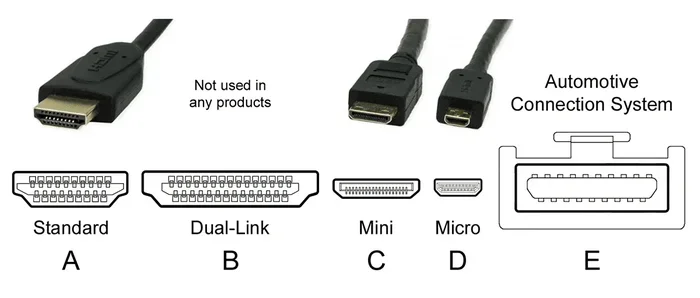
The cable you use between your hub and monitor matters. If your hub has an HDMI output, use a quality HDMI cable. If it has a DisplayPort output, use a DisplayPort cable. For the best results, use cables that are rated for the resolution you want. A cheap or damaged cable can cause signal issues, flickering, or no display at all.
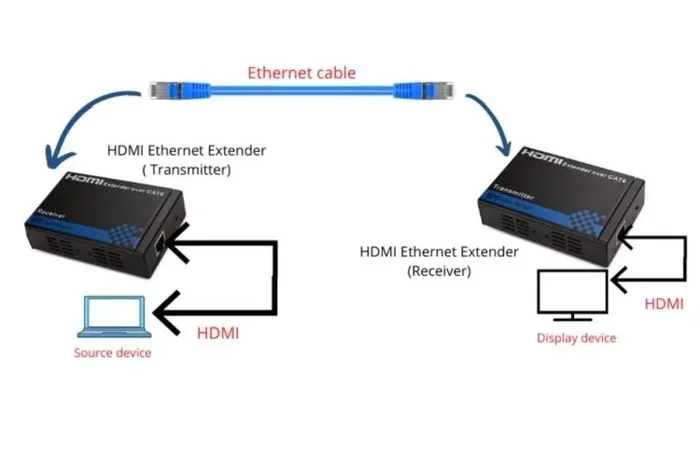
Also, make sure the cable length is appropriate. Very long cables over six feet can sometimes cause signal degradation, especially at higher resolutions. If you need a longer run, consider an active HDMI or DisplayPort cable that boosts the signal for reliable monitor connectivity.
Step 3: Connect and Configure Display Settings
Once you have the right cables, here is how to set things up:
- Plug the USB C hub into your laptop.
- Connect your monitor to the hub using the appropriate cable.
- Turn on your monitor and select the correct input source (HDMI, DisplayPort, or USB C).
- On your laptop, go to Display Settings on Windows or System Preferences on Mac.
- Choose how you want to use the external monitor: extend, mirror, or as primary display.
That is it. Your USB C hub to monitor connection should be working. If the monitor does not display anything, do not worry. We will cover troubleshooting in the next section.
Common Problems When Connecting a USB C Hub to a Monitor
Even with the right gear, you might run into some issues. This is normal, and most problems have simple fixes. Let us look at the most common issues people face when setting up a USB C hub to monitor connection and how to solve them.
No Signal or Blank Screen
This is the most common problem, and it is usually easy to fix. First, check that all cables are securely plugged in. A loose connection is often the culprit. Next, make sure your monitor is set to the correct input source. If your hub uses HDMI, your monitor needs to be on the HDMI input, not VGA or DisplayPort.
If the cables are fine and the input is correct, try unplugging the hub, waiting a few seconds, and plugging it back in. Sometimes the laptop needs a moment to recognize the new display. You can also try restarting your laptop with the hub already connected. Another thing to check is whether your hub requires its own power source. Some hubs, especially those with multiple ports, need to be plugged into a wall outlet to function properly. Without external power, they may not be able to drive a video output signal.
Poor Display Quality or Resolution Issues
If your monitor works but the image looks blurry or the resolution is lower than expected, the issue is usually the cable or the hub capabilities. Make sure you are using a cable that supports your desired resolution. An older HDMI 1.4 cable, for example, may not support 4K at 60Hz.
Also, check your display settings on the laptop. Right-click on your desktop, go to Display Settings, and make sure the resolution is set to the monitor native resolution. If the hub does not support the resolution you want, you may need to upgrade to a better hub or cable. Remember that your display resolution is limited by the weakest link in your connection chain.
Hub Not Recognized by Your Device
Sometimes your laptop simply does not recognize the hub at all. This can happen for several reasons. First, try a different USB C port on your laptop if you have one available. Some ports may be limited in functionality. Second, update your laptop display drivers and USB drivers through your device manager or system preferences.
If the hub still is not recognized, it may be a compatibility issue. Not all hubs work with all laptops, especially MacBooks and Windows laptops sometimes behave differently with the same hub. Check the manufacturer compatibility list or contact their support team for help. For organizing your device connections and keeping track of which cables go where, you might also find our article on Adding Prefixes To Numbers On Iphone helpful for keeping your digital files and device labels organized.
Expert Tips for the Best Monitor Setup with a USB C Hub
Getting a USB C hub to monitor setup working is one thing. Getting it working well is another. Here are some expert tips to help you get the best performance and experience from your setup.
Cable Management Tricks
One of the biggest challenges with a hub setup is cable clutter. When you have a hub, a monitor, a laptop charger, and peripherals all connected, things can get messy fast. Here are some tips to keep things tidy:
- Use a cable management tray under your desk to hide excess cable length.
- Label your cables so you know which one goes where at a glance.
- Use cable clips or ties to bundle cables together neatly.
- Choose a hub with a built-in cable or a short, fixed cable to reduce loose ends.
Good cable management not only looks better but also improves airflow around your workspace and reduces the risk of cables getting accidentally unplugged. It is a small step that makes a big difference in your daily laptop docking experience.
Maximizing Display Performance
To get the sharpest, most vibrant image from your USB C hub to monitor setup, keep these tips in mind:
- Always use your monitor native resolution for the clearest image.
- Use high-quality cables rated for the resolution and refresh rate you need.
- Keep your hub firmware and laptop drivers up to date.
- If you are using a Thunderbolt dock, make sure your laptop supports Thunderbolt for full performance.
- Close unnecessary applications to reduce strain on your system graphics processing.
These small steps can make a big difference in how your external display performs. A well-optimized setup gives you smoother scrolling, better color accuracy, and a more enjoyable viewing experience. When you are building out your ideal workspace, remember that the right accessories make all the difference. If you are looking for more inspiration on tech gadgets that simplify your daily routine, our piece on 10 Gadgets To Make Moms Life Easier has some great ideas that work well alongside a USB C hub setup, whether you are at home or in the office.
Frequently Asked Questions
Can I connect a USB C hub to any monitor?
Yes, you can connect a USB C hub to most modern monitors, as long as the hub has a compatible video output such as HDMI, DisplayPort, or USB C, and your laptop supports video output through USB C. Check that your monitor has an available input that matches the hub output port. Almost all monitors made in the last five years will work with a USB C hub for display connections.
Do I need a special cable to connect the hub to the monitor?
You need a cable that matches the output port on your hub. If your hub has an HDMI output, use an HDMI cable. If it has a DisplayPort output, use a DisplayPort cable. Some hubs also offer USB C video output, which requires a USB C to USB C cable. Using the right cable ensures the best signal quality and resolution support for your USB C hub to monitor setup.
Will a USB C hub charge my laptop while connected to a monitor?
Many USB C hubs and docking stations support power delivery, which means they can charge your laptop while also connected to a monitor. Look for hubs with USB C Power Delivery of at least 60W for most laptops, or 85W or higher for power-hungry models. Not all hubs include this feature, so check the specifications before buying to ensure your laptop docking experience is seamless.
Can I connect two monitors to one USB C hub?
Yes, you can connect two monitors to a single USB C hub, but it depends on the hub capabilities. Thunderbolt docking stations and some premium universal hubs support dual-monitor output through multiple video ports. Standard USB C hubs with a single HDMI or DisplayPort output can only drive one external monitor at a time. Always check the hub specifications for multi-monitor support details.
Why is my monitor showing no signal when connected through a USB C hub?
A no-signal issue is usually caused by a loose cable connection, the wrong monitor input source, or a hub that does not support video output. Try unplugging and replugging all connections, switching your monitor to the correct input, and restarting your laptop. If the problem persists, the hub may not be compatible with your laptop USB C port for video output. Checking your laptop specifications for DisplayPort Alt Mode support can help diagnose the issue.
Is a Thunderbolt hub better than a regular USB C hub for monitors?
A Thunderbolt hub is generally better for monitor connections because it offers higher bandwidth, which means it can support higher resolutions, refresh rates, and multiple monitors. Thunderbolt 3 and 4 also provide faster data transfer and more reliable performance. However, if you only need a single 1080p or 4K monitor, a regular USB C hub with DisplayPort Alt Mode support will work just fine and save you money.
Conclusion
Connecting a USB C hub to monitor displays is one of the simplest and most effective ways to boost your productivity and upgrade your workspace. Whether you choose a simple USB C to HDMI adapter, a universal hub, or a premium Thunderbolt dock, the process is straightforward and the results are worth it. You get a bigger screen, better multitasking, and a cleaner desk setup all through a single connection point.
The key is to understand your setup, choose the right hub for your needs, and follow the steps we covered in this guide. From checking compatibility to troubleshooting common issues, you now have everything you need to make a successful USB C hub to monitor connection. Do not let cable confusion or compatibility worries hold you back. Take the leap, set up your external display, and enjoy the difference a bigger screen makes in your daily workflow.
Remember, the right accessories can transform how you work and play. A USB C hub to monitor setup is an investment in your productivity and comfort. Start today, and you will wonder how you ever worked without it. With the right USB C hub, your monitor setup will feel like a complete, powerful workstation that adapts to your needs.