Can I Charge Mac Via Usb C Here Is What You Should Know
Can I Charge Mac Via Usb C? Yes, absolutely. Most modern Macs, including the MacBook Pro and MacBook Air, use USB-C charging as their primary power source. USB-C ports handle power delivery, data transfer, and video output all in one cable. In this guide, we cover which Mac models support it, the best chargers to use, and how to avoid common mistakes.
If you have recently picked up a new Mac or are thinking about making the switch, you might have noticed something different right away. There is no big chunky power brick with a proprietary cable. Instead, your Mac uses a small, slim USB-C connector. This has left a lot of people asking one simple question: Can I Charge Mac Via Usb C?
The answer is a clear yes. USB-C charging has become the standard way to power up modern Mac computers. Whether you own a MacBook Pro, MacBook Air, or even a Mac mini with the right setup, USB-C handles the job. But there is more to it than just plugging in a cable and walking away.
Not every USB-C cable or charger works the same way. Some charge slowly. Others might not work at all with certain Mac models. Using the wrong equipment can lead to frustration, slow charging speed, or in rare cases, hardware issues. That is exactly why this guide exists.
In this article, we will walk you through everything you need to know. We will cover which Mac models support USB-C charging, what kind of charger you need, how fast it charges, and how to troubleshoot common problems. By the end, you will feel confident about powering your Mac with a USB-C cable and USB-C power adapter.
Key Takeaways
- Yes, USB-C charges Macs: Modern MacBooks use USB-C as their main charging port, replacing older MagSafe and barrel connectors.
- Check your Mac model: Not all Macs use USB-C. Older models need different chargers, so always confirm Mac USB-C compatibility first.
- Use the right wattage: A USB-C charger wattage of at least 60W is recommended for most MacBooks to ensure full-speed charging.
- Thunderbolt 3 and 4 work too: These ports support power delivery and can charge your Mac while connecting to peripherals.
- Avoid cheap cables: Low-quality USB-C cables can cause slow charging, overheating, or even damage to your Mac.
- Fast charging is possible: Using a higher-wattage USB-C power adapter can significantly reduce charging time for your Mac notebook.
- Troubleshooting is simple: Most USB-C charging issues can be fixed by resetting the SMC, trying a different cable, or cleaning the port.
📑 Table of Contents
What Is USB-C and Why Does It Matter for Your Mac
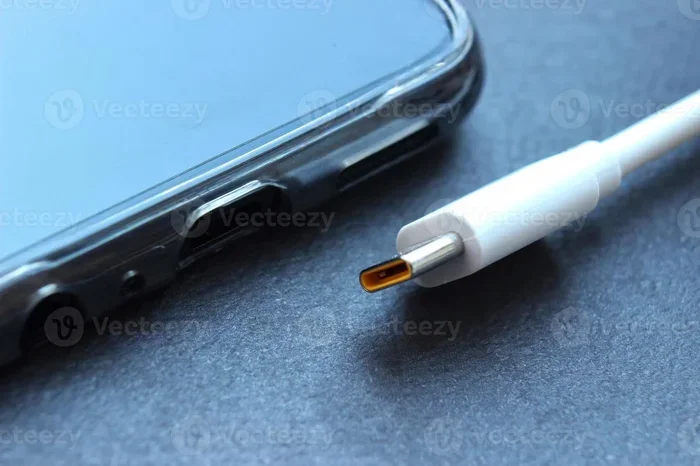
USB-C is a type of connector that has taken the tech world by storm. It is small, oval-shaped, and reversible, meaning you never have to flip it to plug it in. Unlike older USB-A ports that were flat and one-directional, USB-C port design is compact and works both ways.
The Evolution of Mac Charging Ports
Apple used to rely on MagSafe magnetic chargers for years. These were beloved because they snapped onto the Mac magnetically and prevented accidental drops. Then Apple transitioned to USB-C starting with the 2015 MacBook. By 2016, the MacBook Pro fully adopted USB-C charging as its only power option.
This shift was not just about aesthetics. USB-C is a universal standard. It carries power, data, and video signals through a single cable. That means one USB-C cable can charge your Mac, connect you to an external monitor, and transfer files to a hard drive. Fewer cables, fewer adapters, less clutter.
How USB-C Power Delivery Works
USB-C power delivery, often called PD, is a protocol that lets devices negotiate the right amount of power. When you plug your Mac into a charger, the two devices communicate. They agree on the safest and fastest charging speed based on what the Mac needs and what the charger can provide.
This is different from older charging methods. With traditional barrel plugs, the power output was fixed. USB-C PD is dynamic. It adjusts in real time. This is why using a proper USB-C power adapter matters so much. A cheap or underpowered charger may not negotiate correctly, leading to slow or unreliable charging.
Which Mac Models Support USB-C Charging
Not every Mac uses USB-C for charging. Apple has a range of models, and the charging method depends on the age and type of the device. Here is a breakdown of which Macs support USB-C charging and which do not.
MacBooks That Use USB-C
All MacBook models released from 2016 onward use USB-C or Thunderbolt 3 ports for charging. This includes:
- MacBook (2016 and later): Uses a single USB-C port for charging and data.
- MacBook Air (2018 and later): Features two USB-C ports, both capable of USB-C charging.
- MacBook Pro 13-inch (2016 and later): Uses USB-C or Thunderbolt 3 ports depending on the year.
- MacBook Pro 15-inch and 16-inch (2016 and later): Multiple USB-C and Thunderbolt 3 ports support Mac notebook charging.
Mac Models That Do Not Use USB-C for Charging
Some Macs still rely on other charging methods. If you own one of these, USB-C charging will not work directly:
- iMac (all models): Uses a built-in power supply. No external USB-C charging needed.
- Mac mini (older models): Plugs into a wall outlet with a standard power cable.
- Mac Pro (standard models): Uses a proprietary power cord.
- Older MacBooks (pre-2016): Use MagSafe 2 or barrel-style DC connectors.
If you are unsure which model you have, click the Apple logo in the top-left corner of your screen and select About This Mac. This will tell you your exact model and year, helping you confirm Mac USB-C compatibility.
How to Charge Your Mac With USB-C
Charging your Mac with USB-C is straightforward, but there are a few things you should know to do it safely and effectively. Let us walk through the process step by step.
What You Need
To charge your Mac via USB-C charging, you need three things:
- A USB-C cable that is rated for power delivery. Not all USB-C cables are the same. Some are data-only and cannot carry enough current to charge a Mac.
- A USB-C power adapter with enough wattage. Apple recommends at least a 60W adapter for most MacBook models and a 96W adapter for the 16-inch MacBook Pro.
- A compatible power outlet. A standard wall outlet works fine, but you can also use a USB-C hub or USB-C docking station that supports pass-through charging.
Step-by-Step Charging Guide
Follow these simple steps to get your Mac charging:
- Plug your USB-C cable into the USB-C power adapter.
- Connect the adapter to a wall outlet.
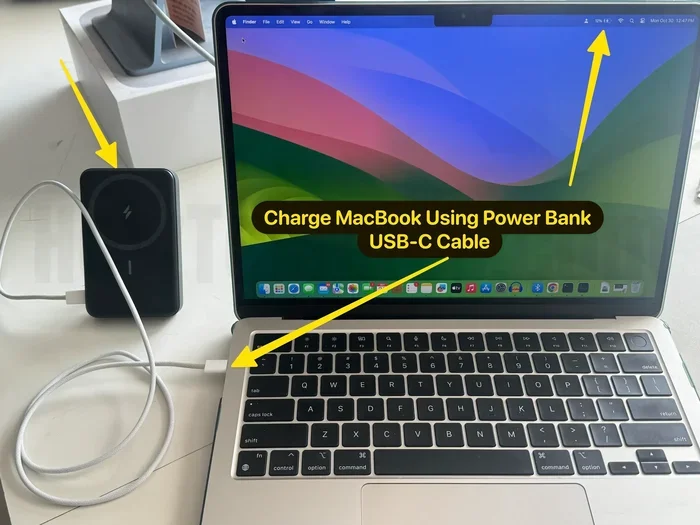
- Insert the other end of the cable into your Mac’s USB-C port.
- Check the charging icon on your screen. A lightning bolt or battery indicator should appear in the menu bar.
- Let your Mac charge until the battery reaches 100%.
That is it. No special software, no extra steps. The power delivery protocol handles everything automatically.
Can You Charge Through a USB-C Hub or Dock
Yes, you can charge your Mac through a USB-C hub or USB-C docking station as long as the hub supports pass-through power delivery. This means the hub takes power from the wall through one port and passes it along to your Mac through another port.
However, there is a catch. If your hub is connected to a low-power source, it might not deliver enough wattage to charge your Mac while also powering connected devices. For the best results, plug the hub directly into a high-quality charging adapter.
USB-C Charging Speed and Power Delivery
One of the most common questions people ask is about charging speed. How fast does a Mac charge via USB-C? The answer depends on several factors, including the charger wattage, the cable quality, and what your Mac is doing while charging.
How Fast Does USB-C Charging Actually Be
With a proper 60W or higher USB-C power adapter, a MacBook Air can go from 0% to 50% in roughly 30 minutes. A 16-inch MacBook Pro will charge a bit slower because it has a larger battery, but it still charges quickly with the right charger.
Using a lower-wattage charger will slow things down significantly. For example, plugging your MacBook Pro into a 20W phone charger might take several hours to reach a full charge. It will work, but it is not practical for daily use.
Fast Charging Tips
Want to get the most out of your USB-C charging setup? Try these tips:
- Use the charger that came with your Mac: Apple’s included USB-C power adapter is optimized for your specific model.
- Put your Mac to sleep while charging: This reduces power draw and speeds up the process.
- Avoid using your Mac while it charges: Heavy tasks like video editing generate heat, which can slow down charging speed.
- Keep your Mac cool: High temperatures can throttle charging. Remove thick cases and keep your Mac in a well-ventilated area.
- Use an Anker or Belkin certified charger: These brands offer reliable USB-C charger wattage options that match Apple’s standards.
USB-C vs MagSafe Charging Comparison
Many Mac users wonder how USB-C charging compares to the old MagSafe system. Here is a quick comparison:
| Feature | USB-C Charging | MagSafe Charging |
|---|---|---|
| Connector Type | USB-C reversible plug | Magnetic snap-on connector |
| Charging Speed | Fast with proper wattage | Moderate to fast |
| Data Transfer | Yes | No |
| Video Output | Yes | No |
| Accidental Disconnect | Stays plugged in | Magnetically detaches |
| Compatibility | Universal | Mac only |
As you can see, USB-C charging offers more versatility than MagSafe ever did. You get power, data, and video through one cable. The trade-off is that USB-C does not have the magnetic safety feature that made MagSafe so popular. Apple has since brought MagSafe back on newer MacBooks, but it works alongside USB-C, not instead of it.
Best USB-C Chargers for Mac
Not all USB-C chargers are created equal. Choosing the right one can make a big difference in charging speed and long-term safety. Here are some top recommendations.
Apple USB-C Power Adapter (60W and 96W)
The official Apple chargers are the safest bet. The 60W adapter works great for MacBook Air and 13-inch MacBook Pro. The 96W version handles the larger 16-inch MacBook Pro with ease. They are compact, reliable, and fully compatible with USB-C power delivery.
Anker Nano II 67W
If you want a smaller alternative to Apple’s charger, the Anker Nano II is an excellent choice. It is compact, supports fast charging Mac models, and comes with a built-in USB-C cable. It is a great travel companion.
Belkin Thunderbolt 3 Charger (96W)
Belkin makes premium accessories, and their 96W Thunderbolt 3 charger is no exception. It supports Mac USB-C compatibility across all models and delivers consistent power without overheating.
UGREEN 65W GaN Charger
UGREEN offers a solid GaN (gallium nitride) charger at a great price point. GaN chargers are smaller and more efficient than traditional silicon chargers. This one is perfect for everyday USB-C charging at home or in the office.
Common Problems and Troubleshooting
Even with the right equipment, you might run into issues with USB-C charging from time to time. Here are the most common problems and how to fix them.
Mac Not Recognizing the USB-C Charger
If your Mac does not recognize the charger, try these steps:
- Unplug the USB-C cable and plug it back in firmly.
- Try a different USB-C port on your Mac if it has multiple ports.
- Test with a different cable to rule out a faulty USB-C cable.
- Reset the System Management Controller (SMC) on your Mac. This fixes most power-related issues.
Slow Charging Issues
If your Mac is charging very slowly, the most common cause is an underpowered charger. Make sure your USB-C charger wattage matches or exceeds your Mac’s requirements. Also, check that you are not running demanding apps while charging, as this draws power faster than the charger can supply.
Overheating During Charging
It is normal for your Mac to feel slightly warm while charging. But if it is getting too hot to touch, something is wrong. Remove any thick cases, move your Mac to a cooler surface, and try a different charging adapter. Overheating can also be caused by a damaged USB-C port that needs professional repair.
Expert Insights and Final Thoughts
USB-C charging has completely changed how we power our Macs. It is faster, more versatile, and more universal than anything Apple has used before. With the right USB-C power adapter and a quality cable, you can keep your Mac charged and ready to go all day long.
The key takeaway is to always use certified equipment. Stick with Apple’s own charger or trusted third-party brands like Anker, Belkin, and UGREEN. Avoid cheap no-name cables and chargers, as they can damage your Mac and void your warranty.
If you are still unsure about Mac USB-C compatibility, check your specific model on Apple’s website. They have a detailed support page that lists every Mac and its charging requirements. Taking two minutes to verify this can save you a lot of headaches down the road.
In short, Can I Charge Mac Via Usb C? Yes, you absolutely can. It is convenient, efficient, and the future of Mac charging. Just make sure you have the right gear, and you will never have to worry about running out of battery again.
Frequently Asked Questions
Can I use any USB-C cable to charge my Mac?
Not all USB-C cables are the same. You need a cable that supports power delivery and the correct wattage for your Mac. Using a data-only or low-quality cable may result in very slow charging or no charging at all. Always look for cables rated for USB-C power delivery.
What wattage USB-C charger do I need for my MacBook?
Most MacBook Air models work well with a 60W USB-C power adapter. MacBook Pro 13-inch models also use 60W, while the 16-inch MacBook Pro benefits from a 96W adapter. Using a lower wattage charger will still work but will charge much more slowly.
Is it safe to charge my Mac through a USB-C hub?
Yes, it is safe as long as the hub supports pass-through power delivery. Make sure the hub is connected to a power source that provides enough wattage for your Mac. A low-quality hub might not deliver sufficient power, leading to slow or inconsistent USB-C charging.
Why is my Mac not charging when plugged into USB-C?
There are several possible reasons. The cable might be faulty, the charger might not have enough wattage, or the USB-C port might be dirty or damaged. Try a different cable and charger first. If that does not work, reset the SMC on your Mac and check for debris in the port.
Can I charge my MacBook Air with a phone charger?
Technically yes, but it is not recommended. A typical phone charger delivers 20W or less, which is far below what a MacBook Air needs. It will eventually charge the battery, but it will take many hours. For reliable fast charging Mac performance, use a charger with at least 30W or higher.
Do I need a special charger for Thunderbolt 3 and Thunderbolt 4 Macs?
No special charger is needed. Thunderbolt 3 and Thunderbolt 4 ports are fully compatible with standard USB-C charging. They support the same power delivery protocol and can charge your Mac just like any other USB-C port. The only difference is that Thunderbolt ports also support faster data transfer and external display connections.