Can A Hdmi Cable Transmit Audio And Video Without Any Hassle
Yes, an HDMI cable can transmit both audio and video through a single cable, making it one of the most convenient multimedia solutions available. Whether you are setting up a home theater, connecting a gaming console, or hooking up a laptop to a monitor, HDMI simplifies your setup by carrying uncompressed digital audio and video signals simultaneously. This guide covers everything you need to know about HDMI audio transmission, cable types, common issues, and expert tips to get the best sound and picture quality.
Have you ever plugged in an HDMI cable and wondered if it really carries sound along with the picture? The short answer is yes. An HDMI cable transmits both audio and video signals through one single cable, and it does so without any hassle when set up correctly. This is one of the biggest reasons HDMI has become the standard connector for TVs, monitors, projectors, gaming consoles, and streaming devices.
But there is more to it than just plugging and playing. Not all HDMI cables are the same. Different versions support different audio formats, resolutions, and features. And sometimes, you might run into issues where the audio does not come through even though the picture looks perfect. That can be frustrating, kind of like when a line wont delete in Microsoft Excel and you cannot figure out why nothing works no matter what you try.
In this article, we will walk you through everything you need to know about HDMI audio transmission. We will cover how it works, which cable versions matter, common problems, and expert tips to get the best audio experience. Whether you are a casual viewer or a home theater enthusiast, this guide has you covered.
Key Takeaways
- HDMI carries both audio and video: A single HDMI cable replaces multiple audio and video cables, streamlining your setup.
- Multiple HDMI versions exist: HDMI 1.4, 2.0, and 2.1 each support different audio formats and features like eARC.
- ARC and eARC are game-changers: These features let your TV send audio back to a soundbar or receiver using just one HDMI cable.
- Cable quality matters: Using the right HDMI cable type ensures you get the best audio and video performance.
- Common issues are fixable: Most HDMI audio problems stem from settings, cable quality, or port compatibility.
- Dolby Atmos and surround sound work over HDMI: You can enjoy immersive audio formats without extra cables.
📑 Table of Contents
- How Does HDMI Transmit Audio and Video?
- Different HDMI Versions and Their Audio Capabilities
- HDMI Audio Formats You Should Know
- Common HDMI Audio Problems and How to Fix Them
- How to Choose the Right HDMI Cable for Audio
- HDMI vs. Other Audio-Video Connections
- Expert Tips for the Best HDMI Audio Experience
- Final Thoughts
How Does HDMI Transmit Audio and Video?
HDMI stands for High-Definition Multimedia Interface. It was designed to carry uncompressed digital audio and video signals through a single cable. This was a huge deal when it first came out because before HDMI, you needed separate cables for audio and video. Think about it. You needed one cable for the picture and another for the sound. Sometimes even more.
Here is how it works in simple terms. When you send a signal from a source device like a Blu-ray player or a laptop, the HDMI cable carries that signal as digital data. The receiving device, like your TV or monitor, decodes that data into both audio and video. This all happens in milliseconds. You do not need to adjust anything manually.
The signal travels through tiny copper wires inside the HDMI cable. There are dedicated pins for different functions. Some pins handle video data, some handle audio, and others handle control signals like CEC, which lets devices talk to each other. This clever design is what makes HDMI so reliable and versatile.
Digital Audio vs. Analog Audio
One important thing to understand is that HDMI uses digital audio transmission. This is different from older cables like RCA or 3.5mm jacks, which carry analog signals. Digital audio is much cleaner and less prone to interference. You get crisp, clear sound without any static or noise. That is a huge advantage of using HDMI over older connection types.
Different HDMI Versions and Their Audio Capabilities
Not all HDMI cables support the same features. The HDMI version determines what audio formats, resolutions, and bandwidth the cable can handle. Here is a breakdown of the main versions you will encounter.
HDMI 1.4
HDMI 1.4 was a big step forward. It introduced support for 4K resolution at 30Hz and added the Audio Return Channel, commonly known as ARC. ARC lets your TV send audio back to a soundbar or AV receiver through the same HDMI cable. This means you do not need a separate audio cable running from your TV to your sound system. It is a huge convenience.
HDMI 2.0
HDMI 2.0 boosted the bandwidth significantly. It supports 4K at 60Hz and can handle higher-quality audio formats. You can pass through Dolby TrueHD, DTS-HD Master Audio, and even multi-channel surround sound. For most home setups, HDMI 2.0 is more than enough. It handles everything from gaming to movie watching with ease.
HDMI 2.1
HDMI 2.1 is the latest and greatest. It supports 8K at 60Hz and 4K at 120Hz. The bandwidth jumps to 48 Gbps. On the audio side, HDMI 2.1 supports Dolby Atmos, DTS:X, and eARC. Enhanced Audio Return Channel, or eARC, is a major upgrade over regular ARC. It supports uncompressed audio and advanced formats like Dolby Atmos, which regular ARC cannot handle.
HDMI Audio Formats You Should Know
One of the best things about HDMI is its support for high-quality audio formats. Here are the most common ones you will encounter.
- Uncompressed PCM: This is the basic digital audio format. It works with all HDMI versions and delivers clean stereo or multi-channel sound.
- Dolby Digital: A compressed 5.1 surround sound format. It is widely used for DVDs and streaming content.
- Dolby TrueHD: A lossless format that delivers studio-quality audio. It is common on Blu-ray discs and streaming services.
- DTS-HD Master Audio: Another lossless format that rivals Dolby TrueHD in quality. It is popular among home theater fans.
- Dolby Atmos: This immersive audio format adds height channels for a 3D sound experience. HDMI 2.1 with eARC supports it fully.
- DTS:X: Similar to Dolby Atmos, it creates an object-based surround sound experience. It is supported on HDMI 2.1 cables.
The format you get depends on your source device, your cable, and your receiving device. If any one of these does not support a format, the audio will fall back to a lower-quality version. This is something to keep in mind when setting up your system.
Common HDMI Audio Problems and How to Fix Them
Even though HDMI is designed to be simple, things can go wrong sometimes. Here are the most common audio issues and how to solve them.
No Sound at All
This is the most common problem. Usually, it happens because the TV or monitor is set to the wrong audio output. Go into your device settings and make sure the audio output is set to HDMI. On most TVs, you can find this under the sound or audio settings menu. Sometimes, simply switching from internal speakers to HDMI output fixes the issue instantly.
Audio and Video Are Out of Sync
This can happen when the audio and video signals travel different paths or when there is a processing delay. To fix this, try enabling the “Audio Sync” or “Lip Sync” feature in your TV settings. You can also try using a shorter HDMI cable, as longer cables can sometimes introduce slight delays.
Only Stereo Sound Instead of Surround
If you are only getting stereo sound even though your system supports surround, check your audio settings on the source device. Make sure the audio output format is set to surround or bitstream rather than PCM. Also, verify that your HDMI cable supports the bandwidth needed for multi-channel audio.
ARC or eARC Not Working
ARC and eARC need to be enabled on both your TV and your audio device. Go into the TV settings and look for HDMI-CEC or ARC controls. Make sure both the TV and the soundbar or receiver have ARC enabled. Using an HDMI 2.1 cable is recommended for eARC to work properly.
HDMI Cable Not Recognized
Sometimes, the device simply does not detect the HDMI cable. Try unplugging it and plugging it back in. If that does not work, try a different port. It could also be a faulty cable. Not all cables are created equal, and a cheap or damaged cable can cause all sorts of issues.
How to Choose the Right HDMI Cable for Audio
Choosing the right HDMI cable is simpler than you might think. Here are some quick tips to help you make the right choice.
- Check the version: Look for cables labeled HDMI 2.0 or HDMI 2.1. These support the latest audio formats and higher bandwidth.
- Go for certified cables: Look for “Premium High Speed HDMI” or “Ultra High Speed HDMI” labels. These are tested to meet the official HDMI standards.
- Consider the length: For most home setups, a 6 to 10-foot cable works great. Longer runs may need active cables or signal boosters.
- Brass connectors matter: Cables with gold-plated or brass connectors tend to last longer and provide a more reliable connection.
- Do not overpay: You do not need the most expensive cable. A mid-range certified HDMI 2.1 cable will handle all your audio and video needs perfectly.
Remember, the cable is just one part of the equation. Your source device and your display or audio system also need to support the same HDMI version for everything to work seamlessly.
HDMI vs. Other Audio-Video Connections
How does HDMI compare to other ways of connecting audio and video? Let us take a quick look.
| Connection Type | Carries Audio | Carries Video | Quality |
|---|---|---|---|
| HDMI | Yes | Yes | Excellent |
| DisplayPort | Yes (limited) | Yes | Excellent |
| VGA + 3.5mm | Yes (analog) | Yes (analog) | Good |
| USB-C | Yes (with Alt Mode) | Yes | Good to Excellent |
| RCA (Composite) | Yes (analog) | Yes (analog) | Fair |
As you can see, HDMI is the clear winner for most setups. It carries both high-quality audio and video in one cable. Other connections either need multiple cables or do not support the same quality level. For a clean, simple setup, HDMI is hard to beat.
Expert Tips for the Best HDMI Audio Experience
Want to get the most out of your HDMI audio setup? Here are some expert tips that make a real difference.
- Keep your cables short: Shorter cables reduce signal loss and latency. Try to keep HDMI runs under 15 feet for the best results.
- Update your firmware: Sometimes, audio issues are caused by outdated firmware on your TV or soundbar. Check for updates regularly.
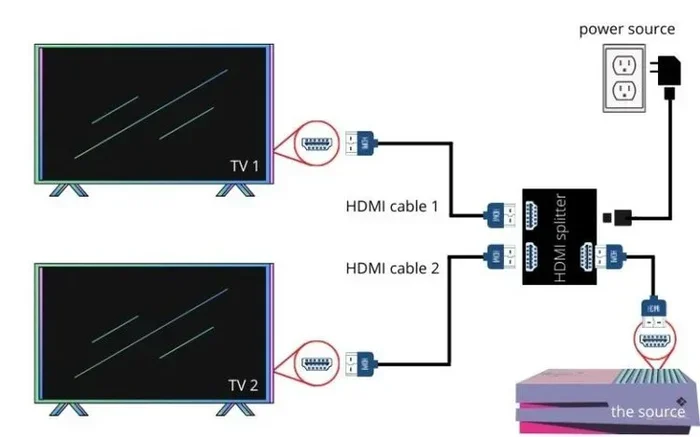
- Use a quality switch if needed: If you have multiple HDMI sources, a good HDMI switch can simplify things and maintain audio quality.
- Label your cables: It sounds simple, but labeling your HDMI cables saves a lot of time when troubleshooting. You will always know which cable goes where.
- Test one thing at a time: If you have audio issues, change one thing at a time. Swap the cable, then check the settings, then try a different port. This helps you isolate the problem quickly.
Final Thoughts
The answer to whether a HDMI cable can transmit audio is a resounding yes. HDMI is one of the most versatile and reliable ways to carry both audio and video signals through a single cable. From basic stereo sound to immersive Dolby Atmos, HDMI supports a wide range of audio formats to suit every need.
By choosing the right HDMI cable version, keeping your settings in check, and following the troubleshooting tips above, you can enjoy a seamless audio and video experience every time. The technology is mature, widely supported, and incredibly convenient. So go ahead, plug in that HDMI cable, and enjoy your favorite movies, games, and music with crystal-clear sound and stunning visuals.
Remember, a good setup starts with the right cable. Take the time to choose wisely, and your entertainment system will thank you for it.
Frequently Asked Questions
Can HDMI carry both audio and video at the same time?
Yes, absolutely. HDMI was specifically designed to carry uncompressed digital audio and video through a single cable. This is one of its biggest advantages over older connection types that required separate cables for audio and video.
Do all HDMI cables support audio?
Most HDMI cables support basic audio formats like stereo and 5.1 surround sound. However, for advanced formats like Dolby Atmos or eARC, you need an HDMI 2.1 cable or at least an HDMI 2.0 cable with the right features.
What is the difference between ARC and eARC on HDMI?
ARC stands for Audio Return Channel. It lets your TV send audio back to a soundbar or receiver. eARC, or Enhanced Audio Return Channel, is an upgraded version that supports uncompressed audio and advanced formats like Dolby Atmos. eARC requires HDMI 2.1.
Can I get Dolby Atmos over HDMI?
Yes, you can. Dolby Atmos requires HDMI 2.1 with eARC support on both the source device and the receiving device. Make sure your HDMI cable is rated for the bandwidth needed to carry this format.
Why is there no sound when I connect via HDMI?
This is usually a settings issue. Check that your TV or monitor is set to use HDMI as the audio output. Also, make sure the HDMI cable is fully inserted and not damaged. If the problem persists, try a different cable or port.
Does HDMI cable length affect audio quality?
For most home setups, cable length does not affect audio quality significantly. However, very long cables over 15 feet can sometimes cause signal degradation. Using a certified, high-quality cable helps maintain consistent audio and video performance over longer distances.