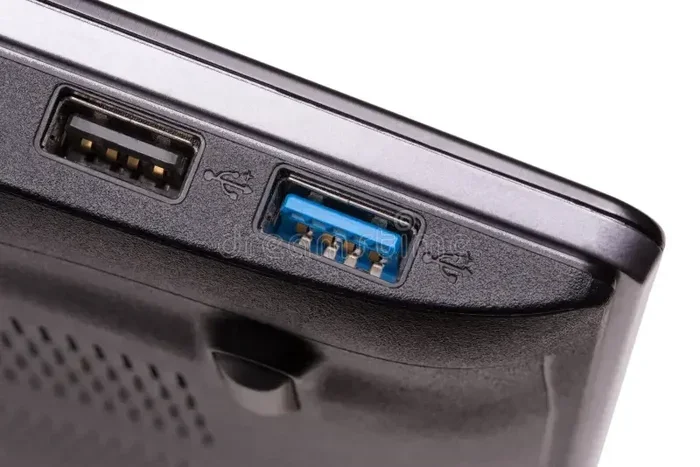
Are Blue Usb Ports Different From Regular Usb Ports
Blue USB ports are indeed different from regular ports. They typically indicate USB 3.0 or higher, offering faster data transfer speeds and better power delivery. Understanding port colors helps you get the most from your devices and peripherals.
Have you ever looked at the back of your computer and noticed some USB ports are blue while others are black? It is not just a design choice. The color of a USB port actually tells you something important about what it can do. Blue USB ports are different from regular ports, and understanding why matters for anyone who uses external devices, charges gadgets, or transfers files.
In this guide, we will break down everything you need to know about blue USB ports. You will learn what makes them different, why the color exists, and how to tell them apart from standard ports. Whether you are plugging in an external hard drive, a flash drive, or charging your phone, this knowledge will help you get better performance from your devices.
Key Takeaways
- Blue USB ports are USB 3.0 ports: They offer speeds up to 5 Gbps, which is ten times faster than USB 2.0.
- Color coding matters: USB port colors are an industry standard that helps you identify port types at a glance.
- Backward compatibility is built in: USB 3.0 ports work with older USB 2.0 devices, just at slower speeds.
- More power delivery: Blue USB ports supply more power, which means faster charging for some devices.
- Not all blue ports are the same: Some manufacturers use blue for USB 3.2 or other standards, so always check the specs.
- Other colors exist too: Red, teal, and yellow ports each serve different purposes beyond standard data transfer.
📑 Table of Contents
What Are Blue USB Ports?
A blue USB port is a visual indicator that the port supports USB 3.0 or a newer standard. The blue coloring is part of an industry-wide effort to help users quickly identify the type of port they are looking at. This simple color code saves you from digging through manuals or guessing whether your device will work at full speed.
The USB Implementers Forum, the group that manages USB standards, introduced the blue color for USB 3.0 ports. Before that, most ports were black or white, and users had no easy way to tell if a port supported high-speed data transfer. The blue port became the universal sign for SuperSpeed USB, which is the marketing name for USB 3.0.
Why Does Port Color Matter?
Port color matters because it directly affects performance. A blue USB 3.0 port can transfer data at up to 5 gigabits per second. A standard black USB 2.0 port maxes out at 480 megabits per second. That is more than ten times slower. If you plug a fast external drive into a USB 2.0 port, you will not get the speed you paid for.
Color coding also helps with port identification when you have multiple ports on a single device. Instead of testing each port, you can look for the blue one and know it will give you the best performance for high-bandwidth tasks like video editing or large file transfers.
Blue USB Ports vs Regular USB Ports
The main difference between blue USB ports and regular ports comes down to the USB standard they support. Regular ports are usually black or white and support USB 2.0. Blue ports support USB 3.0 or newer. This difference affects speed, power delivery, and overall capability.
Here is a quick comparison to help you understand the differences:
| Feature | Blue USB Port (USB 3.0) | Regular USB Port (USB 2.0) |
|---|---|---|
| Max Data Speed | 5 Gbps | 480 Mbps |
| Color Code | Blue | Black or White |
| Power Output | Up to 900 mA | Up to 500 mA |
| Connector Type | USB-A or USB-C | USB-A (most common) |
| Backward Compatible | Yes | No (with USB 3.0) |
| Common Use | External drives, video capture | Keyboards, mice, basic peripherals |
As you can see, the differences are significant. A blue USB port offers much faster data transfer and more power. This makes it the better choice for anything that moves large amounts of data or needs more current.
Speed Differences in Real-World Use
Theoretical speeds are one thing, but real-world speeds tell the real story. In practice, a USB 3.0 port will transfer a 10GB video file in about 20 seconds. The same file on a USB 2.0 port takes around 3 to 4 minutes. That is a huge difference if you work with large files regularly.
For everyday tasks like browsing or using a mouse, you might not notice the difference. But for external hard drives, flash drives with large storage, or connecting a camera for video editing, the blue port makes a noticeable impact.
How to Identify USB Port Types by Color
USB port colors are not random. Each color represents a specific USB standard or feature. Learning the color codes helps you make smarter connections every time you plug something in.
Here is a simple breakdown of common USB port colors:
- Blue ports: USB 3.0 or USB 3.1 Gen 1. These are the most common high-speed ports you will find on desktops and laptops.
- Black ports: USB 2.0. These are the standard regular ports found on almost all computers.
- Red ports: USB 3.1 Gen 2 or ports with special features like always-on charging.
- Teal or cyan ports: USB 3.2 Gen 2 or USB 3.2 Gen 2×2. These offer even faster speeds than blue ports.
- Yellow ports: Sleep-and-charge ports. These provide power even when the computer is off.
Beyond Color: Other Identification Methods
Color is not the only way to identify a port. Many devices print the USB standard number next to the port. Look for labels like “SS” (SuperSpeed), “3.0,” “3.1,” or “3.2.” On some computers, the port symbols include a “SS” logo next to the standard USB icon.
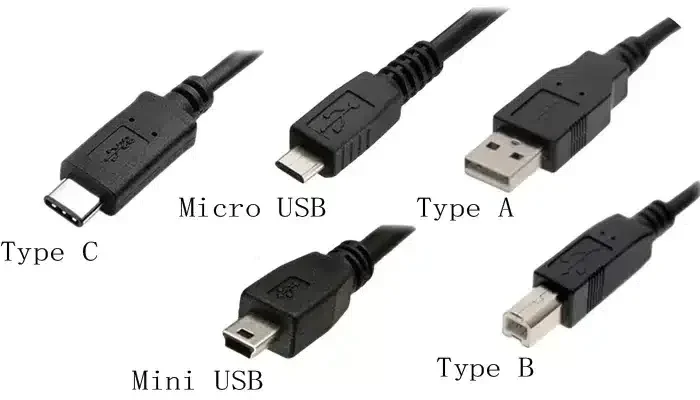
If your device does not have color coding or labels, you can check the port shape. USB 3.0 Type-A ports have an extra row of pins inside the connector compared to USB 2.0. This physical difference is another way to tell them apart, even without the blue coloring.
Benefits of Using Blue USB Ports
Using a blue USB port over a regular port comes with several real advantages. These benefits apply to both casual users and professionals who rely on their devices daily.
Faster Data Transfer
The biggest benefit is speed. With USB 3.0 data transfer rates of 5 Gbps, you can move large files in seconds instead of minutes. This is especially helpful for photographers, video editors, and anyone who works with large media files.
Even if your external drive is not a SuperSpeed drive, connecting it to a blue port ensures you are using the fastest connection available on your device.
Better Power Delivery
Blue USB ports supply up to 900 milliamps of power, compared to 500 milliamps on USB 2.0 ports. This means devices charge faster when plugged into a blue port. Smartphones, tablets, and portable battery packs all benefit from the extra power.
Some devices like bus-powered external hard drives also need more power than a USB 2.0 port can provide. Plugging them into a blue port can prevent connection issues and data loss.
Improved Efficiency
USB 3.0 ports handle multiple connected devices better. They use a full-duplex communication method, which means they can send and receive data at the same time. USB 2.0 ports use half-duplex, so they can only do one direction at a time. This makes a difference when you have several devices connected at once.
Common Mistakes People Make with USB Ports
Even though blue USB ports are straightforward, many people make mistakes that cost them speed and performance. Here are the most common ones to avoid.
Plugging a USB 3.0 Device into a USB 2.0 Port
This is the most common mistake. If you plug a USB 3.0 flash drive into a black USB 2.0 port, it will only run at USB 2.0 speeds. You paid for a fast device but got slow performance because of the wrong port. Always check the port color before connecting high-speed devices.
Assuming All Blue Ports Are the Same
Not every blue port is USB 3.0. Some manufacturers use blue for USB 3.1 or USB 3.2 ports. While these are all backward compatible and faster than USB 2.0, the actual speeds vary. USB 3.1 Gen 2 offers 10 Gbps, and USB 3.2 Gen 2×2 offers 20 Gbps. Check your device specifications to know exactly what you are getting.
Ignoring Cable Quality
A USB cable can be the bottleneck, not the port. A cheap or damaged USB 3.0 cable will limit your speeds even if the port is blue. Always use high-quality cables that are rated for the USB standard you need.
Forcing a Connector
USB 3.0 Type-A connectors are larger than USB 2.0 connectors because of the extra pins. If a connector does not fit easily, do not force it. You might be trying to plug a USB 3.0 device into a USB 2.0 port or vice versa.
Expert Tips for Getting the Most from Your USB Ports
Getting the best performance from your USB ports is easier than you think. These practical tips will help you make the most of every connection.
Check Your Device Manual
Your computer or laptop manual will tell you which ports support which USB standards. If you no longer have the physical manual, check the manufacturer’s website. Most brands list port specifications in the product details section.
Use a USB Hub with Care
A USB hub can expand your port options, but not all hubs are created equal. A cheap USB 2.0 hub will limit your high-speed USB devices to slower speeds, even if you plug the hub into a blue port. Look for a hub that explicitly supports USB 3.0 or higher.
Keep Your Drivers Updated
Sometimes a blue USB port does not perform at full speed because of outdated drivers. Check your operating system for USB controller driver updates. This is especially common after major Windows or macOS updates.
Consider USB-C for Future-Proofing
USB-C is the newest connector type and supports the fastest USB standards. Many modern laptops now include USB-C ports that support USB 3.2 or even USB4. If you are buying new cables or devices, USB-C is the way to go for long-term compatibility.
Test Your Port Speeds
If you are unsure whether your blue port is performing correctly, you can run a speed test. Free tools like USBDeview or CrystalDiskMark can measure the actual data transfer rate of your USB ports. This helps you confirm that your port is working as expected.
Are Blue USB Ports Worth It?
The short answer is yes. Blue USB ports offer significantly better performance than standard USB 2.0 ports. Faster speeds, more power, and better efficiency make them a worthwhile feature on any computer or device.
Most modern computers come with a mix of USB 2.0 and USB 3.0 ports. The blue ones are the ones you want to use for anything that benefits from speed or extra power. Simple peripherals like keyboards and mice work fine on black USB 2.0 ports, but anything involving data transfer or storage should go into the blue port.
If you are shopping for a new computer, look for one with multiple blue USB 3.0 ports. The more high-speed ports you have, the more flexible your setup becomes. And with the rise of fast external SSDs and portable hard drives, having USB 3.0 connectivity is more important than ever.
For more tips on optimizing your device accessories, check out our guide on 4 apps that are like Uber for finding dog walkers to discover how technology continues to simplify everyday tasks.
Conclusion
Blue USB ports are different from regular USB ports, and the difference matters. They offer faster data transfer speeds, better power delivery, and improved efficiency. The blue color is an easy visual shortcut that helps you choose the right port every time.
Understanding port colors and standards empowers you to get the most from your devices. Whether you are transferring files, charging gadgets, or connecting external storage, using the right port makes a real difference in performance and reliability.
Next time you plug something in, take a moment to check the port color. That small habit can save you time, frustration, and even protect your data. Blue USB ports are a simple but powerful feature, and now you know exactly how to use them to your advantage.
Frequently Asked Questions
What does a blue USB port mean?
A blue USB port means the port supports USB 3.0 or a newer high-speed standard. The blue color is an industry-wide identifier for SuperSpeed USB, which offers data transfer speeds up to 5 Gbps, much faster than standard USB 2.0 ports.
Can I plug a USB 2.0 device into a blue USB 3.0 port?
Yes, you can. Blue USB 3.0 ports are backward compatible with USB 2.0 devices. The device will work, but it will only run at USB 2.0 speeds. You will not get the full speed benefit of the blue port.
Are all blue USB ports USB 3.0?
Most blue USB ports are USB 3.0, but some manufacturers use blue for USB 3.1 or USB 3.2 ports. These are all faster than USB 2.0 and backward compatible. Check your device specifications to confirm the exact standard.
Do blue USB ports charge devices faster?
Yes, they can. Blue USB 3.0 ports supply up to 900 milliamps of power, compared to 500 milliamps on USB 2.0 ports. This extra power means compatible devices charge faster when connected to a blue port.
How can I tell if my USB port is 3.0 without the blue color?
Look for a “SS” (SuperSpeed) logo next to the port or check the device manual. You can also use software tools like USBDeview to identify the USB standard. On Windows, you can check Device Manager under Universal Serial Bus controllers for port details.
Why do some computers have both blue and black USB ports?
Computers have both types to offer flexibility. Black USB 2.0 ports work fine for low-speed devices like keyboards and mice. Blue USB 3.0 ports handle high-speed devices like external drives and video capture equipment. Having both gives you the right port for every task.