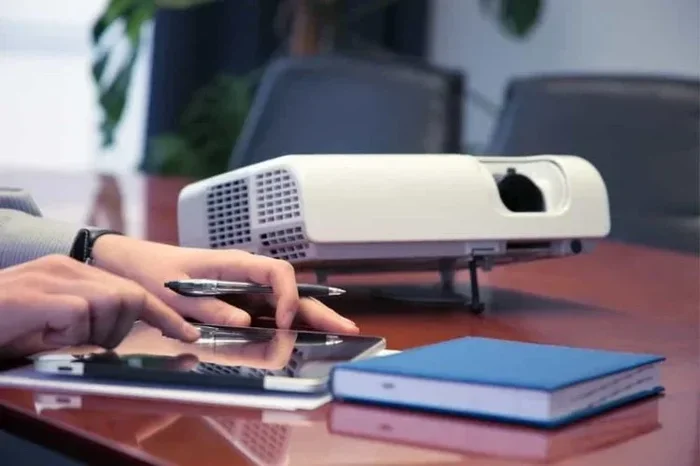
Can You Connect A Tablet To A Projector Wirelessly
Yes, you can connect a tablet to a projector wirelessly using several methods including Wi-Fi casting, Bluetooth, and wireless display adapters. This guide covers every option from Miracast and AirPlay to portable smart projectors, so you can share your screen effortlessly for movies, presentations, or gaming.
Have you ever wanted to show something on your tablet but the screen just feels too small? Maybe you are at a family gathering, a work meeting, or simply relaxing on the couch and wish the content could fill a bigger wall. Connecting a tablet to a projector wirelessly solves that problem instantly. You do not need messy cables or complicated setups anymore.
The good news is that modern tablets and projectors support a range of wireless technologies that make screen sharing surprisingly easy. Whether you use an iPad, an Android tablet, or a Windows tablet, there is a wireless method that fits your needs. In this guide, we will walk you through every option, from built-in casting features to external adapters and smart projectors.
You will learn how each method works, what equipment you need, and which option delivers the best experience for different situations. By the end of this article, you will feel confident setting up a wireless connection between your tablet and projector like a pro.
Key Takeaways
- Wireless projection is simple: You can cast your tablet screen to a projector using built-in features like AirPlay or Miracast, or with a wireless display adapter.
- Multiple methods exist: Wi-Fi Direct, Bluetooth, HDMI adapters with wireless capabilities, and smart projectors all offer tablet-to-projector connectivity.
- Latency and resolution matter: Wireless connections may have slight delays, so pick the right method based on whether you need real-time interaction or just media playback.
- Compatibility is key: Not every tablet and projector pair perfectly, so check your devices’ supported standards before buying any extra gear.
- Portable options are game-changing: Mini wireless projectors designed for tablets make on-the-go screen sharing incredibly convenient.
- Troubleshooting is straightforward: Most connection issues resolve with a simple restart, firmware update, or network adjustment.
📑 Table of Contents
- Why Connect a Tablet to a Projector Wirelessly?
- Methods to Connect a Tablet to a Projector Wirelessly
- Step-by-Step: Connecting an iPad to a Projector Wirelessly
- Step-by-Step: Connecting an Android Tablet to a Projector Wirelessly
- Tips for the Best Wireless Projection Experience
- Common Mistakes to Avoid When Connecting a Tablet to a Projector
- Comparison Table: Wireless Projection Methods
- Expert Insights on Wireless Tablet Projection
- Frequently Asked Questions
- Conclusion
Why Connect a Tablet to a Projector Wirelessly?
Wireless projection has become a go-to solution for both personal and professional use. Instead of fumbling with cables and adapters, you can mirror your tablet screen in seconds. This convenience opens up a world of possibilities for everyday users and professionals alike.
Freedom From Cables
One of the biggest advantages of wireless tablet-to-projector connection is the freedom it gives you. No tangled cords. No limited reach. You can move around the room freely while your content displays on the big screen. This is especially helpful during presentations where you want to interact with your audience rather than staying glued to a laptop or tablet dock.
Quick Setup for Any Occasion
Wireless connections typically take less than a minute to establish. You do not need technical expertise or special tools. Whether you are setting up for a movie night with friends or a quick business pitch, the setup process is straightforward and fast.
Compatibility Across Devices
Most modern tablets support wireless display standards like Miracast, AirPlay, or Chromecast. Many newer projectors also include built-in wireless capabilities. This broad compatibility means you likely already own the equipment needed for a wireless connection.
Methods to Connect a Tablet to a Projector Wirelessly
Several methods allow you to project your tablet screen without cables. Each method has its own strengths, and the best choice depends on your devices, budget, and what you plan to display.
Method 1: Built-In Wireless Display (Miracast and AirPlay)
Many tablets come with built-in wireless display technology. Apple devices use AirPlay to stream content to compatible projectors or Apple TV boxes. Android and Windows tablets often support Miracast, a universal standard for wireless screen mirroring.
To use this method, both your tablet and projector (or a receiving device connected to the projector) need to support the same standard. Here is how it generally works:
- Make sure both devices are on the same Wi-Fi network.
- Open the wireless display or screen mirroring settings on your tablet.
- Select your projector or receiving device from the list.
- Your tablet screen should now appear on the projected display.
This method works great for streaming videos, sharing photos, and presenting slides. However, it may introduce a small delay, which is fine for most media but not ideal for real-time gaming or precise presentations.
Method 2: Wireless Display Adapters
If your projector does not have built-in wireless support, you can add it with a wireless display adapter. These small devices plug into the projector’s HDMI port and connect to your tablet over Wi-Fi or Bluetooth.
Popular options include devices from brands like Microsoft Wireless Display Adapter, Amazon Fire TV Stick, and Google Chromecast. These adapters act as a bridge between your tablet and the projector, receiving the wireless signal and displaying it on the big screen.
Here is what you need for this setup:
- A projector with an available HDMI port.
- A wireless display adapter.
- A stable Wi-Fi network.
- A tablet that supports screen mirroring or casting.
Wireless adapters give you flexibility because they work with almost any projector that has an HDMI input. They also support multiple tablets, so different people can take turns casting content during a meeting or movie night.
Method 3: Bluetooth Projectors
Some projectors include Bluetooth connectivity, which allows you to pair your tablet directly. Bluetooth projection is convenient because it does not rely on Wi-Fi, which means fewer network-related issues.
The downside is that Bluetooth typically has a shorter range and lower bandwidth compared to Wi-Fi-based methods. This means the image quality might not be as sharp, and there could be more noticeable latency. Bluetooth works best for audio streaming or simple slide presentations where perfect video quality is not the top priority.
Method 4: Smart Projectors with Built-In Tablet Integration
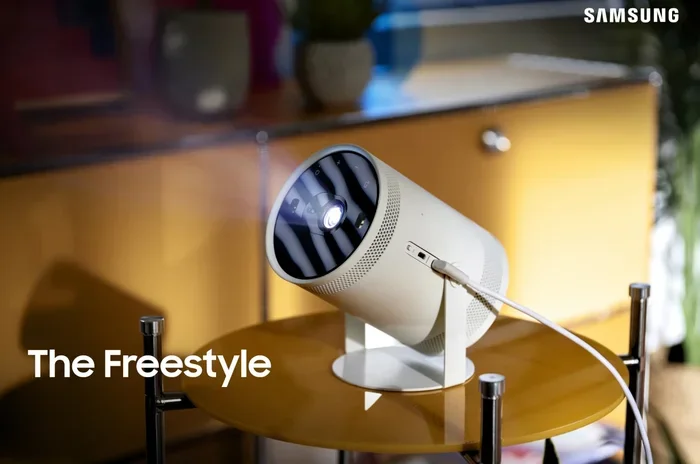
The newest category of projectors includes smart projectors designed to work seamlessly with tablets. These devices often run on Android or a simplified operating system and connect directly to your tablet through Wi-Fi or a dedicated app. Some models even support voice commands and app integration.
Smart projectors eliminate the need for any extra hardware. You just connect both devices to the same network, open the projector’s companion app on your tablet, and start projecting. These devices are perfect for people who want a simple, all-in-one solution without dealing with adapters or cables.
If you enjoy gadgets that simplify everyday life, you might also appreciate 10 Gadgets To Make Moms Life Easier, which highlights innovative tech tools that make daily tasks more convenient.
Method 5: Wi-Fi Direct Connection
Wi-Fi Direct allows two devices to connect directly without a router or Wi-Fi network. This peer-to-peer connection is useful when you do not have access to a stable network or when you want to avoid network congestion affecting your projection quality.
To use Wi-Fi Direct, both your tablet and projector must support the feature. You typically enable it in the settings menu on each device and then pair them. Once connected, you can mirror your tablet screen or stream content directly to the projector. This method offers a reliable, low-latency connection that works well for presentations and media playback.
Step-by-Step: Connecting an iPad to a Projector Wirelessly
iPads are among the most popular tablets for wireless projection. Apple’s AirPlay technology makes the process smooth and intuitive. Here is a detailed walkthrough.
- Check compatibility. Make sure your projector supports AirPlay or has an Apple TV or AirPlay-compatible adapter connected.
- Connect to the same network. Both your iPad and the receiving device must be on the same Wi-Fi network.
- Open Control Center. Swipe down from the top-right corner of your iPad screen to access Control Center.
- Tap Screen Mirroring. Select your projector or AirPlay receiver from the list of available devices.
- Enter the code if prompted. Some projectors require a verification code displayed on the projected screen.
- Start projecting. Your iPad screen will now appear on the projector. Open any app, video, or presentation, and it will display wirelessly.
If you run into issues, try restarting both devices or checking your Wi-Fi connection. For tips on managing your iPad’s connectivity settings, check out our guide on adding prefixes to numbers on iPhone, which covers helpful network and device configuration tips.
Step-by-Step: Connecting an Android Tablet to a Projector Wirelessly
Android tablets offer flexible wireless projection options thanks to Miracast and Google Cast support. Here is how to get started.
- Verify Miracast support. Go to your tablet’s settings and look for “Wireless Display” or “Screen Mirroring.” If you see this option, your device supports Miracast.
- Prepare your projector. If your projector has built-in Miracast, enable the wireless display feature in its settings. If not, connect a Miracast adapter to the projector’s HDMI port.
- Connect to the same network. Ensure both devices are on the same Wi-Fi network for the best results.
- Enable screen mirroring on your tablet. Go to Settings > Connected Devices > Connection Preferences > Wireless Display and toggle it on.
- Select your projector. Your tablet will scan for available devices. Tap on your projector when it appears.
- Begin casting. Your Android tablet screen will now mirror on the projector.
For Chromecast-enabled projectors, you can also use the Google Home app to cast content directly from compatible apps like YouTube, Netflix, and Google Slides. This method is slightly different from full screen mirroring but offers better performance for streaming content.
Tips for the Best Wireless Projection Experience
Getting your tablet connected to a projector wirelessly is only half the battle. To ensure a smooth and enjoyable experience, keep these tips in mind.
Use a Strong Wi-Fi Connection
A weak Wi-Fi signal causes lag, stuttering, and poor image quality. Place your router close to the projector and tablet, or use a Wi-Fi extender to boost the signal in the projection area. For the most reliable experience, a 5 GHz network performs better than a 2.4 GHz network for wireless projection.
Close Unnecessary Apps
Running too many apps on your tablet can slow down screen mirroring. Close background apps before you start projecting to free up memory and processing power. This simple step reduces latency and keeps the projected image smooth.
Adjust Display Settings
Match your tablet’s screen resolution to your projector’s native resolution for the sharpest image. If your tablet supports 1080p output and your projector is 1080p, you will get the best results. Mismatched resolutions can cause blurry or stretched images.
Check Audio Output
By default, audio may still play through your tablet’s speakers instead of the projector. Go into your tablet’s audio settings and select the projector as the output device. If your projector has built-in speakers, this step ensures you hear the sound through them.
Minimize Interference
Other wireless devices, microwaves, and even walls can interfere with your wireless signal. Keep your tablet and projector in the same room with minimal obstacles between them for the strongest connection.
Update Firmware and Software
Keep both your tablet and projector firmware up to date. Manufacturers often release updates that improve wireless connectivity, fix bugs, and add new features. A simple update can solve many projection issues.
Quick Tip: If you are using your tablet for work presentations and need to edit spreadsheets on the go, remember that a line won’t delete in Microsoft Excel can be a common frustration. Always test your projected content beforehand to avoid surprises during a live presentation.
Common Mistakes to Avoid When Connecting a Tablet to a Projector
Even with the best setup, common mistakes can ruin your wireless projection experience. Here are the pitfalls to watch out for.
- Assuming all projectors are wireless-ready. Not every projector has built-in Wi-Fi or Bluetooth. Always check your projector’s specifications before assuming it supports wireless connections.
- Ignoring network requirements. Many wireless projection methods require both devices to be on the same network. Forgetting this step is the most common reason for connection failures.
- Overlooking latency. Wireless projection always has some delay. If you need real-time interaction, such as drawing on a tablet while presenting, consider using a wired connection or a low-latency adapter.
- Not testing before the event. Always test your setup before a meeting, presentation, or movie night. Discovering connection issues in the middle of an important event is stressful and avoidable.
- Using outdated adapters. Older wireless adapters may not support the latest display standards. Investing in a modern adapter ensures better performance and compatibility.
- Neglecting battery life. Wireless projection drains tablet battery faster. Keep your tablet plugged in or use a portable charger during extended sessions.
Comparison Table: Wireless Projection Methods
| Method | Best For | Latency | Setup Difficulty | Equipment Needed |
|---|---|---|---|---|
| AirPlay (iPad) | Apple ecosystem users | Low to Medium | Very Easy | AirPlay-compatible projector or Apple TV |
| Miracast (Android/Windows) | Android and Windows tablet users | Low to Medium | Easy | Miracast-enabled projector or adapter |
| Chromecast | Streaming content from Android | Low | Easy | Chromecast-compatible projector or dongle |
| Wireless Display Adapter | Any projector with HDMI | Medium | Moderate | Wireless display adapter |
| Bluetooth | Audio and simple slides | Medium to High | Easy | Bluetooth-enabled projector |
| Wi-Fi Direct | No network available | Low | Moderate | Wi-Fi Direct-compatible devices |
| Smart Projector | All-in-one simplicity | Low | Very Easy | Smart projector only |
Expert Insights on Wireless Tablet Projection
Industry experts agree that wireless projection technology has matured significantly over the past few years. Screen mirroring latency has decreased dramatically, and modern adapters deliver near-wired performance for most use cases. The trend is clearly moving toward wireless-first solutions in both consumer and business markets.
According to display technology analysts, the key factors driving adoption are ease of use, cost-effectiveness, and the increasing number of devices that support wireless standards natively. Companies are also investing in digital signage solutions that allow wireless content sharing from tablets, making wireless projection a standard feature in modern meeting rooms and classrooms.
For the best results, experts recommend using a dedicated wireless display adapter rather than relying solely on built-in projector Wi-Fi. Adapters tend to offer more consistent performance and broader device compatibility. They also allow you to upgrade an older projector with modern wireless capabilities at a fraction of the cost of buying a new smart projector.
Frequently Asked Questions
Can any tablet connect to any projector wirelessly?
Not every tablet and projector combination works wirelessly out of the box. Both devices need to support compatible wireless standards like AirPlay, Miracast, or Chromecast. If your projector lacks built-in wireless support, you can add it with a wireless display adapter. Always check the specifications of both devices before purchasing.
Is wireless projection as good as a wired connection?
Wireless projection has improved significantly, but a wired HDMI connection still offers the most reliable performance with zero latency and maximum image quality. For most everyday uses like streaming videos, sharing photos, and presenting slides, wireless projection delivers an excellent experience. However, for professional settings where precision and real-time interaction matter, a wired connection remains the gold standard.
Do I need Wi-Fi to connect a tablet to a projector wirelessly?
Most wireless projection methods require both devices to be on the same Wi-Fi network. However, some alternatives like Wi-Fi Direct and Bluetooth do not need a traditional Wi-Fi network. Wi-Fi Direct creates a direct peer-to-peer connection between your tablet and projector without relying on a router.
Can I connect multiple tablets to one projector wirelessly?
Yes, many wireless projectors and adapters support multiple device connections. You can switch between tablets during a presentation or allow different people to cast content in turn. Some smart projectors even support multi-screen mirroring, where multiple tablets can display content simultaneously on the same projected screen.
Why is my wireless projection lagging or delayed?
Lag in wireless projection is usually caused by a weak Wi-Fi signal, network congestion, or outdated firmware on your devices. To reduce latency, connect to a 5 GHz Wi-Fi network, close unnecessary apps on your tablet, and update your projector’s firmware. Moving closer to the router can also improve performance significantly.
What is the best wireless projector for tablets?
The best wireless projector depends on your needs and budget. For portability, the Anker Nebula Capsule and LG PH550 are popular choices that work seamlessly with tablets. For business presentations, the Epson EpiqVision series offers excellent wireless features and image quality. For budget-friendly options, a standard projector paired with a Chromecast or Amazon Fire TV Stick provides reliable wireless projection at a low cost.
Conclusion
Connecting a tablet to a projector wirelessly is easier than most people think. With the right method and equipment, you can share your tablet screen on a big display in minutes. Whether you choose built-in features like AirPlay or Miracast, a wireless display adapter, a Bluetooth connection, or a smart projector, the options are plentiful and accessible.
The key is understanding your devices’ capabilities and choosing the method that best fits your needs. For casual movie nights, built-in casting works wonderfully. For professional presentations, a wireless display adapter offers reliability and flexibility. For ultimate simplicity, a smart projector eliminates the need for any extra gear.
Remember to test your setup beforehand, keep your devices updated, and use a strong Wi-Fi connection for the best results. With these tips in mind, you will enjoy seamless wireless projection every time you connect your tablet to a projector.
Start experimenting with the methods in this guide today, and you will wonder how you ever managed without wireless projection. The future of screen sharing is wireless, and it is waiting for you to try it.