Can I Use Hdmi For Video And Bluetooth For Audio Together
Can I Use Hdmi For Video And Bluetooth For Audio is an essential topic that provides valuable insights.
Key Takeaways
- You can use HDMI for video and Bluetooth for audio together: Most modern devices support this combination with simple settings changes.
- Setting it up is straightforward: You just need to adjust your audio output settings on your device.
- Audio lag is the biggest challenge: Bluetooth delay can cause lip sync issues, but there are easy fixes.
- Bluetooth transmitters and receivers help: These small devices make the setup smoother and more reliable.
- HDMI ARC and eARC improve audio routing: These features give you more control over how your sound travels.
- Gaming and movies both work: With the right settings, you can enjoy both activities without problems.
- Know your device capabilities: Not all devices handle this setup the same way, so check your hardware first.
📑 Table of Contents
- Can You Really Use HDMI for Video and Bluetooth for Audio Together?
- How HDMI and Bluetooth Work Together
- How to Set Up HDMI Video with Bluetooth Audio
- Common Problems and How to Fix Them
- Devices That Support This Setup
- Bluetooth Transmitters and Receivers Explained
- HDMI ARC and eARC: Better Audio Routing Options
- HDMI vs. Bluetooth: Key Differences
- Expert Tips for the Best Experience
- Key Takeaways
- Conclusion
Can You Really Use HDMI for Video and Bluetooth for Audio Together?
Let us get straight to the point. Yes, you can use HDMI for video and Bluetooth for audio at the same time. This is one of the most common setups people want when they have a great TV or monitor but want wireless sound from a separate speaker or headphone setup.
The idea is simple. Your HDMI cable carries the video signal from your source device to your display. At the same time, your Bluetooth audio sends sound wirelessly to your headphones, speaker, or soundbar. You get high-quality visuals and the freedom of wireless audio.
But it is not always plug-and-play. There are a few things you need to know. Different devices handle this differently. Some require extra accessories. And audio sync can sometimes be a headache. This guide covers everything you need to make it work smoothly.
Whether you are a casual viewer or a serious gamer, understanding how HDMI and Bluetooth work together will save you time and frustration. Let us dive into the details.
How HDMI and Bluetooth Work Together
To understand this setup, you need to know what each technology does. HDMI handles video and sometimes audio through one cable. Bluetooth sends audio wirelessly to a paired device. When you use both at the same time, you are splitting your media experience.
The Role of HDMI in Your Setup
HDMI stands for High-Definition Multimedia Interface. It carries both video and audio signals. Most people use a single HDMI cable to connect a laptop, gaming console, or streaming device to a TV. The video travels through the cable. The audio can too, if you do not change anything.
But here is the key. You can change your audio output so HDMI only carries the video. This frees up your audio to go somewhere else. That is where Bluetooth comes in.
The Role of Bluetooth in Your Setup
Bluetooth is a wireless technology that sends data over short distances. In your case, it sends audio signals to a paired device. This could be wireless headphones, a Bluetooth speaker, or even a soundbar.
Bluetooth audio has come a long way. Modern versions like Bluetooth 5.0 and 5.3 offer better range and less lag. Still, there is always a tiny delay compared to wired connections. We will talk about how to manage that later.
Why Would You Want This Setup?
You might be wondering why anyone would split their audio and video. Here are some common reasons:
- Late-night watching: You want to watch TV without waking up the house. Bluetooth headphones let you hear every detail silently.
- Better audio quality: Your TV speakers might not be great. A Bluetooth soundbar or speaker can sound much better.
- Gaming immersion: Wireless headphones can give you surround sound and make games feel more real.
- Multiple listeners: Bluetooth headphones let different people listen at different volumes without bothering others.
- Distance from the TV: You might sit far from your TV and want better sound without running long cables.
Each of these reasons makes a strong case for using HDMI for video and Bluetooth for audio. The setup is practical and increasingly popular.
How to Set Up HDMI Video with Bluetooth Audio
Setting up this combination is easier than most people think. The exact steps depend on your device, but the general process is similar across most platforms. Here is a step-by-step guide.
Step 1: Connect Your HDMI Cable
First, plug your HDMI cable into your source device and your TV or monitor. This gives you your video signal. Make sure the connection is secure. A loose cable can cause picture problems.
Step 2: Go to Your Audio Settings
On your device, open the audio or sound settings. You will see a list of available audio output options. Look for Bluetooth in that list. Select your paired Bluetooth device as the audio output.
On Windows PCs, right-click the speaker icon in your taskbar. Choose your Bluetooth device from the list. On a Mac, go to System Settings and find Sound. Pick your Bluetooth output there.
Step 3: Adjust the HDMI Audio Output
Here is where it gets tricky on some devices. You need to make sure HDMI is not set as the audio output. If it is, your sound will come through the TV speakers instead of your Bluetooth device.
On most systems, you can simply set the default audio output to Bluetooth. The HDMI audio will automatically stop. If it does not, you may need to disable HDMI audio in your sound control panel.
Step 4: Test and Fine-Tune
Play a video or a game. Check if the sound comes through your Bluetooth device. If it does, great. If you notice audio lag or lip sync issues, keep reading. We have fixes for that below.
Quick Tips for a Smooth Setup
- Keep your Bluetooth device close: The closer it is, the stronger the signal and less the lag.
- Use Bluetooth 5.0 or higher: These versions handle audio better and have less delay.
- Update your drivers: Old drivers can cause connection problems and audio glitches.
- Restart both devices: A simple restart often fixes connection hiccups.
- Check for interference: Other wireless devices can weaken your Bluetooth signal.
Common Problems and How to Fix Them
No setup is perfect. Here are the most common issues people face when using HDMI for video and Bluetooth for audio and how to solve them.
Audio Lag and Lip Sync Issues
This is the number one complaint. You see lips move, but the sound comes a split second later. This is called audio delay or lip sync problem.
The cause is simple. Bluetooth takes a tiny bit longer to transmit audio than a wired connection. The delay is usually so small you do not notice it. But on fast-paced videos or games, it becomes obvious.
Here is how to fix it:
- Use a Bluetooth transmitter with low-latency codecs like aptX Low Latency or aptX Adaptive.
- Adjust the audio delay settings on your TV or audio device. Many TVs have a sound sync or audio delay option in their settings.
- Try reducing the Bluetooth bitrate. Lower quality audio sometimes means less delay.
- Use a Bluetooth receiver that supports advanced codecs for better timing.
Bluetooth Keeps Disconnecting
If your Bluetooth audio keeps cutting out, it is usually a signal issue. Here are some fixes:
- Move closer to the source device.
- Remove obstacles between your devices. Walls and furniture can weaken the signal.
- Turn off other nearby wireless devices that might cause interference.
- Make sure both devices are fully charged. Low battery can cause connection drops.
- Forget the Bluetooth device and pair it again from scratch.
No Sound at All
If you get video but no audio through Bluetooth, try these steps:
- Check that your Bluetooth device is properly paired and connected.
- Make sure the volume is turned up on both the source device and the Bluetooth device.
- Go to your audio settings and confirm Bluetooth is selected as the output.
- Try disconnecting and reconnecting the Bluetooth device.
- On some devices, you may need to disable HDMI audio output manually.
HDMI Audio Still Plays Through TV Speakers
This happens when your device does not automatically switch audio outputs. You need to manually change the default audio device.
- On Windows: Right-click the speaker icon, select Open Sound Settings, and choose your Bluetooth device under Output.
- On macOS: Go to System Settings, click Sound, and select your Bluetooth device under Output.
- On smart TVs: Go to Settings, then Sound, then Audio Output, and select Bluetooth.
Audio Quality Is Poor
Bluetooth audio quality depends on the codec being used. If you are getting weak sound, try these tips:
- Make sure your devices support the same Bluetooth codec. AAC, aptX, and LDAC are common ones.
- Stay within range of the source device for the best signal quality.
- Avoid using Bluetooth through walls or other barriers.
- Consider using a Bluetooth transmitter that supports high-quality codecs.
Devices That Support This Setup
Not all devices handle HDMI video with Bluetooth audio the same way. Here is a look at popular devices and how well they work with this setup.
Smart TVs
Most modern smart TVs support this setup natively. You can connect a device via HDMI for video and then pair Bluetooth headphones or speakers through the TV settings. Samsung, LG, Sony, and TCL TVs all generally handle this well.
Some TVs even have a Bluetooth audio sharing feature built in. This lets you connect multiple Bluetooth devices at once.
Laptops and PCs
Windows and Mac computers are very flexible with audio outputs. You can plug in HDMI for video and select Bluetooth as your audio output easily. This makes laptops a great device for this kind of setup.
Gaming Consoles
PlayStation and Xbox consoles support Bluetooth audio in different ways. PlayStation 5 lets you pair Bluetooth headphones directly or through the DualSense controller. Xbox has more limited Bluetooth audio support and often requires a Bluetooth adapter.
Streaming Devices
Devices like Roku, Apple TV, and Chromecast handle audio output in specific ways. Some allow Bluetooth audio directly. Others need a Bluetooth transmitter connected to the audio port.
Bluetooth Transmitters and Receivers Explained
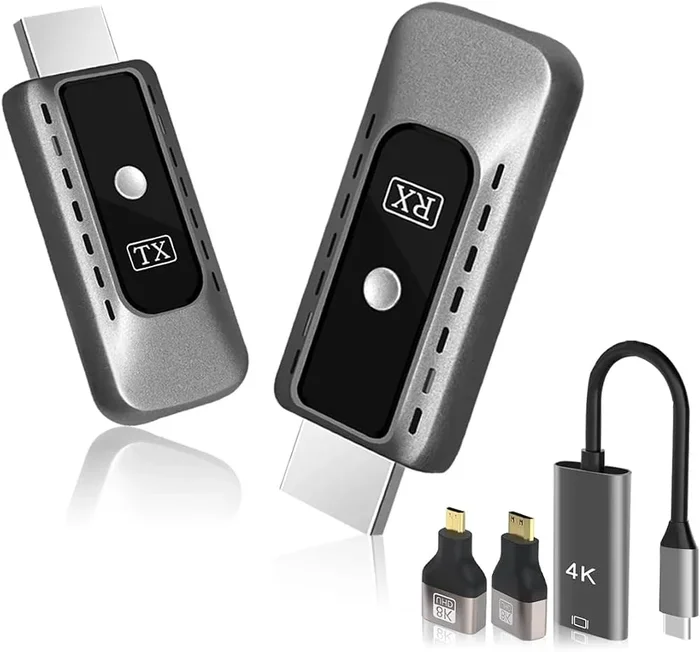
A Bluetooth transmitter sends audio from your device to a Bluetooth receiver. A Bluetooth receiver receives audio and sends it to your headphones or speaker. These small devices can make your setup much better.
When Do You Need a Transmitter?
You need a transmitter when your source device does not have built-in Bluetooth or when the built-in Bluetooth is weak. You plug the transmitter into your device using a 3.5mm jack or optical cable. It then sends audio wirelessly to your Bluetooth headphones or speaker.
When Do You Need a Receiver?
You need a receiver when your speaker or headphones do not have Bluetooth. The receiver plugs into the speaker and makes it Bluetooth-compatible. This is great for older speakers you want to use wirelessly.
Best Bluetooth Transmitters for This Setup
Here are some features to look for in a good transmitter:
- Low latency: Look for aptX Low Latency support to reduce audio delay.
- Long range: A range of 30 feet or more gives you freedom to move.
- Multipoint connection: This lets you connect to two devices at once.
- Built-in microphone: Some transmitters also work as receivers for calls.
- Easy pairing: A simple setup process saves you time and frustration.
HDMI ARC and eARC: Better Audio Routing Options
If you want a more advanced setup, look into HDMI ARC and eARC. These are HDMI features that make audio routing much easier.
HDMI ARC stands for Audio Return Channel. It lets audio travel back through the HDMI cable to your sound system. This means you can use your TV as a hub for both video and audio.
eARC stands for Enhanced Audio Return Channel. It supports higher-quality audio formats like Dolby Atmos. This is great for home theater setups.
With ARC or eARC, you can connect your TV to a soundbar or AV receiver via HDMI. Then use Bluetooth for a secondary audio output. This gives you a more stable audio connection for your main sound system while still allowing wireless flexibility.
Not all TVs and devices support ARC or eARC. Check your device specifications before buying cables or accessories.
HDMI vs. Bluetooth: Key Differences
Understanding the differences between HDMI and Bluetooth helps you appreciate why using both together is a smart choice.
| Feature | HDMI | Bluetooth |
|---|---|---|
| What it carries | Video and audio | Audio only |
| Connection type | Wired | Wireless |
| Quality | High-definition, no compression | Good, some compression |
| Latency | None | Small delay possible |
| Range | Limited by cable length | Up to 30 feet or more |
| Convenience | Less flexible | Very flexible and portable |
| Setup complexity | Simple plug-and-play | Requires pairing |
As you can see, each technology has its strengths. Using them together gives you the best video quality from HDMI and the best wireless freedom from Bluetooth.
Expert Tips for the Best Experience
Here are some pro tips to get the most out of your HDMI video and Bluetooth audio setup.
Use a Quality Bluetooth Transmitter
A good transmitter makes a huge difference. Cheap transmitters often have high latency and poor audio quality. Invest in one that supports aptX or aptX Low Latency for the best results.
Keep Your Devices Updated
Firmware updates for your TV, laptop, or Bluetooth device can fix audio issues and improve compatibility. Check for updates regularly.
Manage Your Expectations
Bluetooth audio will never be 100% identical to a wired connection in terms of timing. The delay is usually tiny and acceptable for most uses. But if you are a competitive gamer, you might notice it. For movies and casual viewing, it is barely an issue.
Consider a Soundbar with Bluetooth
A Bluetooth soundbar can be a great middle ground. It gives you better audio quality than TV speakers and wireless freedom. Many soundbars also support HDMI ARC for easy connection.
Test in Different Rooms
Bluetooth range can vary depending on walls and obstacles. Test your setup in different positions to find the sweet spot for the best connection.
Key Takeaways
- You can use HDMI for video and Bluetooth for audio together: Most modern devices support this combination with simple settings changes.
- Setting it up is straightforward: You just need to adjust your audio output settings on your device.
- Audio lag is the biggest challenge: Bluetooth delay can cause lip sync issues, but there are easy fixes.
- Bluetooth transmitters and receivers help: These small devices make the setup smoother and more reliable.
- HDMI ARC and eARC improve audio routing: These features give you more control over how your sound travels.
- Gaming and movies both work: With the right settings, you can enjoy both activities without problems.
- Know your device capabilities: Not all devices handle this setup the same way, so check your hardware first.
Conclusion
Using HDMI for video and Bluetooth for audio together is not only possible but also very practical. Whether you want to watch movies late at night with headphones, game with wireless surround sound, or simply enjoy better audio than your TV speakers provide, this setup delivers.
The process is simpler than most people think. Connect your HDMI cable for video, pair your Bluetooth device for audio, and adjust your settings. If you run into lag or connection issues, the fixes are well within reach. A Bluetooth transmitter or audio delay adjustment can solve most problems quickly.
This combination gives you the best of both worlds. You get the high-quality video that HDMI provides and the wireless freedom that Bluetooth offers. It is a win-win setup for anyone who values both picture quality and audio flexibility.
Give it a try. Set up your HDMI for video and Bluetooth for audio configuration today. Once you experience the convenience and quality, you will wonder how you ever watched without it.
Frequently Asked Questions
Can I use HDMI for video and Bluetooth for audio on a smart TV?
Yes, most smart TVs support this setup. You connect your device via HDMI for video and then pair Bluetooth headphones or speakers through the TV’s settings menu. Check your TV’s user manual for specific instructions on enabling Bluetooth audio output.
Why is there a delay between the video and Bluetooth audio?
Bluetooth audio has a slight delay because it takes time to compress and transmit the audio signal wirelessly. This delay is usually very small and unnoticeable during movies. For gaming, you may notice it more, but using a low-latency Bluetooth codec like aptX Low Latency can reduce it significantly.
Do I need any extra equipment to use HDMI for video and Bluetooth for audio?
In most cases, no extra equipment is needed. Your device and TV likely support both technologies already. However, if your device lacks Bluetooth, a small Bluetooth transmitter can add wireless audio capability. Similarly, a Bluetooth receiver can make non-Bluetooth speakers wireless.
Can I connect multiple Bluetooth audio devices while using HDMI video?
Some devices support multiple Bluetooth connections at the same time. Many modern smart TVs allow you to pair more than one Bluetooth audio device. Check your device specifications to confirm. Using a Bluetooth multipoint transmitter can also help manage multiple connections.
Is Bluetooth audio quality good enough for watching movies?
Yes, Bluetooth audio quality is more than good enough for most movie watching. Modern Bluetooth codecs like aptX and LDAC deliver high-quality sound. For the best experience, use a Bluetooth transmitter that supports these codecs and keep your devices within a reasonable range.
Will using HDMI and Bluetooth together affect my video quality?
No, using HDMI for video and Bluetooth for audio does not affect your video quality at all. HDMI carries the video signal independently from Bluetooth audio. Your video will remain crisp and high-definition regardless of how you handle the audio output.