Can I Connect My Jbl Speaker To Alexa And Play Music
Yes, you can connect your JBL speaker to Alexa and enjoy voice-controlled music streaming in minutes. This guide walks you through pairing, setup, and troubleshooting so you can start using Alexa with your JBL speaker right away. Whether you own a JBL Flip, Charge, or another model, you will find clear steps to make it work.
So you want to know if you can connect your JBL speaker to Alexa and play music. The short answer is yes, absolutely. It is one of the easiest ways to upgrade your speaker setup and add hands-free voice control to your day.
Whether you have a JBL Flip, a JBL Charge, or another popular model, pairing it with Alexa opens up a whole new world of convenience. You can ask Alexa to play your favorite playlist, check the weather, or even control other smart devices in your home. It is a game changer for anyone who loves music and smart tech.
In this guide, we will walk you through every step of the process. You will learn how to pair your speaker, set up voice commands, fix common issues, and get the best sound quality. By the end, you will be fully confident in your setup and ready to enjoy music the smart way.
Key Takeaways
- Easy Pairing: Connecting a JBL speaker to Alexa is simple and takes just a few minutes.
- Wide Compatibility: Most modern JBL speakers support Alexa through Bluetooth or Wi-Fi.
- Voice Control: Once connected, you can use voice commands to play music, set alarms, and control smart home devices.
- Quick Troubleshooting: Common issues like pairing failures have simple fixes you can try at home.
- Smart Home Boost: Adding Alexa to your JBL speaker turns it into a full smart home hub, similar to the gadgets that make daily life so much easier.
📑 Table of Contents
How to Connect Your JBL Speaker to Alexa
Connecting your JBL speaker to Alexa is straightforward. You do not need to be a tech expert to get it done. Follow these steps and you will be listening to music in no time.
Step 1: Check Compatibility
Before you start, make sure your JBL speaker supports Alexa. Most newer JBL models come with built-in Alexa or Bluetooth support. You can check the product label or the user manual to confirm. If your speaker has Bluetooth, you can connect it to an Echo device or the Alexa app on your phone.
Some JBL speakers like the JBL Charge series and JBL Flip series are fully compatible. These speakers have strong Bluetooth range and clear audio, which makes them perfect for Alexa pairing. If you are unsure, visit the JBL website or check the Amazon product page for details.
Step 2: Download the Alexa App
If you have not already, download the Alexa app on your smartphone. It is free and available on both iOS and Android. The app is your central hub for managing all Alexa-connected devices.
Once installed, sign in with your Amazon account. This account will link your JBL speaker to the Alexa ecosystem. Make sure your phone and your JBL speaker are both fully charged before you begin the pairing process.
Step 3: Enable the JBL Skill in Alexa
Open the Alexa app and go to the Skills section. Search for “JBL” or “JBL Connect.” You will see the JBL skill listed there. Tap on it and select Enable.
This skill allows Alexa to recognize and communicate with your JBL speaker. It is a small but important step that many people skip. Without it, your speaker may not show up in the device list.
Step 4: Pair via Bluetooth or Wi-Fi
Now it is time to pair. Turn on your JBL speaker and put it in pairing mode. Usually, you just hold down the Bluetooth button until the light starts flashing.
In the Alexa app, go to Devices and select Add Device. Choose Bluetooth and look for your JBL speaker on the list. Tap on it to complete the connection. If your speaker supports Wi-Fi, you can also connect it directly to your home network for a more stable connection.
Compatible JBL Speakers for Alexa
Not all JBL speakers are the same when it comes to Alexa support. Here is a quick look at the most popular models and how well they work with Alexa.
JBL Flip Series
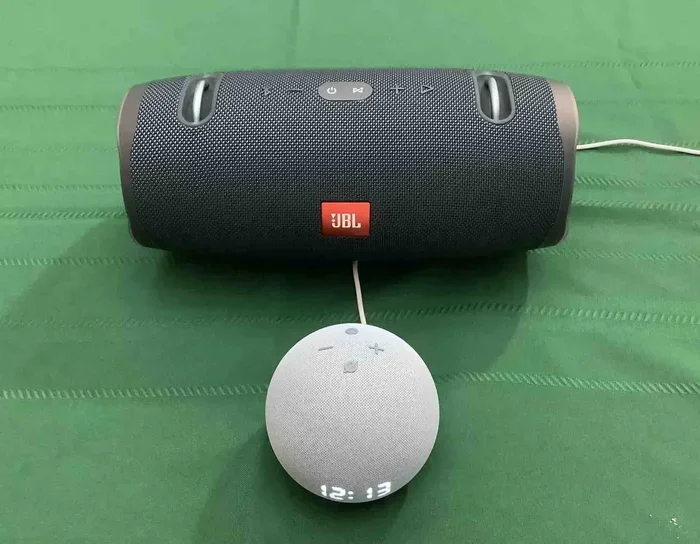
The JBL Flip series is one of the most popular portable speaker lines. Models like the JBL Flip 5 and JBL Flip 6 offer great sound and reliable Bluetooth connectivity. They connect to Alexa easily through the Alexa app. You can also link them to an Amazon Echo device for room-filling sound.
These speakers are lightweight and waterproof, which makes them perfect for outdoor use. You can take them to the beach, the park, or a backyard barbecue and still enjoy full Alexa voice control. They pair up quickly and hold a strong connection over long distances.
JBL Charge Series
The JBL Charge series is known for its powerful bass and long battery life. The JBL Charge 4 and Charge 5 both support Bluetooth and work well with Alexa. These speakers are a bit bigger but deliver rich, room-filling sound.
Because they have larger batteries, you can use them for hours without worrying about recharge. They are also great for parties or gatherings where you want consistent music playback with hands-free voice commands through Alexa.
JBL Link Series
The JBL Link series is built with Alexa baked right in. Models like the JBL Link Portable and JBL Link Charge come with built-in voice assistant support. You do not need to pair them separately. Just power them on and say “Alexa” to get started.
These speakers are the most seamless option for Alexa users. They offer Wi-Fi and Bluetooth connectivity, so you have flexibility in how you set them up. If you want the easiest possible experience, the JBL Link series is the way to go.
Setting Up Voice Control with Alexa
Once your JBL speaker is connected to Alexa, you can start using voice commands right away. Voice control is one of the biggest reasons people connect their speakers to Alexa in the first place.
Basic Voice Commands
Here are some simple commands to get you started:
- “Alexa, play music on JBL.” This starts playing music through your connected speaker.
- “Alexa, volume up.” Increases the speaker volume.
- “Alexa, what is the weather?” Gets a weather update through your JBL speaker.
- “Alexa, stop.” Pauses the music instantly.
- “Alexa, set a timer for 10 minutes.” Useful for cooking or workouts.
Creating Routines
Alexa routines let you automate multiple actions with a single command. For example, you can create a “Good Morning” routine that turns on your JBL speaker, reads the news, and starts your favorite playlist. This is a great way to start your day with minimal effort.
You can also set up evening routines that lower the volume, play soft music, and turn off smart lights. The possibilities are endless once you start exploring routines in the Alexa app.
Using Alexa with Smart Home Devices
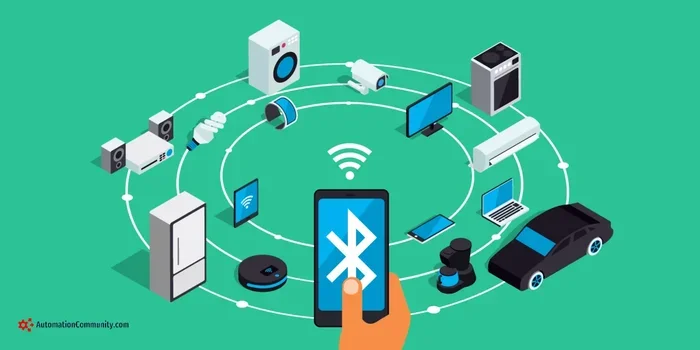
Your JBL speaker becomes a smart home controller once connected to Alexa. You can ask Alexa to turn on lights, adjust the thermostat, or lock your doors. All of this happens through your JBL speaker using just your voice.
Many people also use Alexa to set reminders, create shopping lists, and even order products from Amazon. It is amazing how much you can do without touching your phone. Having a smart speaker setup like this can genuinely simplify your daily routine and free up your hands for other tasks.
Troubleshooting Common Connection Issues
Sometimes things do not go as smoothly as we hope. If your JBL speaker will not connect to Alexa, do not worry. Most issues have simple solutions.
Speaker Not Showing Up in Alexa App
If your JBL speaker does not appear in the Alexa app, try these steps:
- Make sure Bluetooth is turned on in your phone settings.
- Turn your JBL speaker off and back on.
- Move closer to your phone or Echo device.
- Check that your speaker is in pairing mode.
- Restart the Alexa app and try again.
Poor Sound Quality
If the sound is weak or distorted, check your connection. Bluetooth can sometimes interfere with audio quality, especially in crowded areas with many wireless devices. Moving closer to the speaker or switching to a Wi-Fi connection can improve sound clarity significantly.
You can also adjust the equalizer settings in the Alexa app. Boosting the bass or treble can make a noticeable difference in how your music sounds through the JBL speaker.
Alexa Not Responding to Voice Commands
If Alexa is not responding, the speaker might not be set as the default audio device. Go to the Alexa app, select Devices, and make sure your JBL speaker is set as the preferred output. You can also try unplugging the speaker, waiting a few seconds, and plugging it back in.
Tips for the Best Audio Experience
Getting your JBL speaker connected to Alexa is only half the battle. Here are some tips to make sure you get the best sound and performance every time.
Placement Matters
Where you place your JBL speaker affects both sound quality and Alexa responsiveness. Keep it in an open area away from walls and corners. This allows the sound to travel freely and helps Alexa pick up your voice commands more accurately.
Avoid placing the speaker near other Bluetooth devices or microwave ovens. These can cause interference and disrupt the connection. A clear line of sight between your speaker and your phone or Echo device works best.
Keep Firmware Updated
JBL regularly releases firmware updates for their speakers. These updates fix bugs, improve connectivity, and sometimes add new features. Check the JBL app or the Alexa app for any available updates for your speaker.
Similarly, keep your Alexa app updated to the latest version. This ensures smooth compatibility between your speaker and the Alexa platform. Most updates happen automatically, but it is good to check manually every few weeks.
Use Wi-Fi When Possible
While Bluetooth is convenient, Wi-Fi provides a more stable and higher-quality connection. If your JBL speaker supports Wi-Fi, use it for the best audio experience. Wi-Fi also allows Alexa to respond faster and handle more complex commands.
Is It Worth Connecting Your JBL Speaker to Alexa?
The short answer is yes. Connecting your JBL speaker to Alexa adds a layer of convenience that you did not even know you needed. Instead of reaching for your phone every time you want to change a song or adjust the volume, you just speak.
It also turns your portable speaker into a smart home hub. You can control lights, locks, and thermostats using just your voice. For families, this is especially useful. Kids can ask Alexa to play their favorite songs or set homework timers without needing help.
If you are already invested in the Amazon ecosystem, adding Alexa to your JBL speaker is a natural next step. It brings everything together and creates a seamless smart home experience. You get premium sound from JBL combined with the intelligence of Alexa. That is a combination that is hard to beat.
Many people find that once they connect their speaker to Alexa, they wonder how they ever lived without it. The convenience of voice control and the quality of JBL audio make it a winning combination for everyday use.
Conclusion
Connecting your JBL speaker to Alexa is simple, rewarding, and well worth the effort. Whether you use a JBL Flip, Charge, or Link model, the process is similar and straightforward. You just need a few minutes, the Alexa app, and a willingness to try.
Once connected, you gain hands-free music control, smart home integration, and a much more convenient daily routine. The JBL speaker and Alexa combination brings together great sound and smart technology in a way that feels natural and easy to use.
Start with the basic pairing steps, explore voice commands, and experiment with routines. Before long, you will not know how you ever managed without it. So go ahead, connect your JBL speaker to Alexa, and start enjoying music the smart way today.
Frequently Asked Questions
Can I connect any JBL speaker to Alexa?
Most modern JBL speakers support Alexa either through built-in integration or Bluetooth connectivity. Models like the JBL Flip, Charge, and Link series work seamlessly. Check your speaker’s specifications to confirm Alexa compatibility before attempting to pair.
Do I need an Amazon Echo device to connect JBL to Alexa?
No, you do not need an Echo device. You can connect your JBL speaker to Alexa using the Alexa app on your smartphone. The app lets you pair Bluetooth speakers and manage all Alexa features directly from your phone.
Why is my JBL speaker not showing up in the Alexa app?
This usually happens when Bluetooth is turned off or the speaker is not in pairing mode. Try restarting both your speaker and the Alexa app. Moving closer to the speaker and ensuring it is fully charged can also resolve the issue.
Can I use Alexa with multiple JBL speakers at once?
Yes, you can group multiple JBL speakers together using the Alexa app. This is great for filling a large room with sound or playing music in different areas of your home simultaneously. Check the Alexa app for speaker grouping options.
Does connecting JBL to Alexa affect battery life?
Using Bluetooth and Alexa features can drain your JBL speaker battery faster than normal use. However, most JBL speakers have long-lasting batteries that still provide several hours of playback. Keeping your speaker charged and using Wi-Fi when available helps preserve battery life.
Can I use Alexa to control other smart devices through my JBL speaker?
Absolutely. Once your JBL speaker is connected to Alexa, you can control lights, thermostats, locks, and other smart home devices using voice commands. This turns your JBL speaker into a convenient smart home hub that you can use from anywhere in your home.
=== META TITLE ===
Connect JBL Speaker to Alexa and Play Music | Easy Guide
=== URL SLUG ===
connect-jbl-speaker-to-alexa-play-music
=== SEO TITLE ===
Can I Connect My JBL Speaker To Alexa And Play Music?