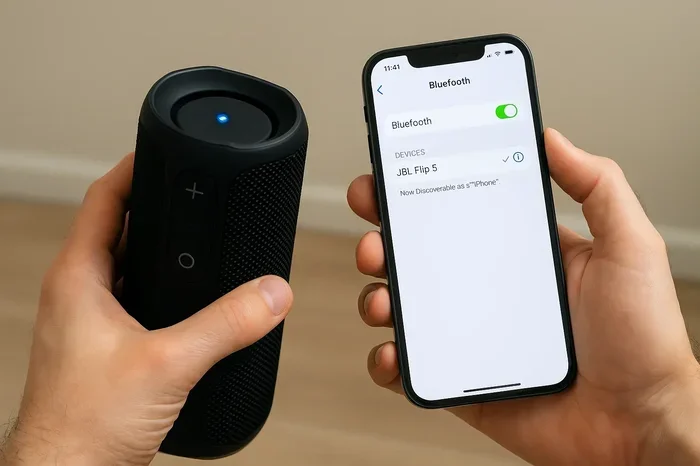
How Do I Connect My Ar Bluetooth Speaker to Devices
Connecting your AR Bluetooth speaker is easier than you think. This guide walks you through pairing your speaker to any device in just a few simple steps. You will learn how to connect to phones, tablets, laptops, and more. We also cover troubleshooting tips to fix common problems. Get ready to enjoy wireless audio in minutes.
So you just got an AR Bluetooth speaker, and you want to start playing music right away. Maybe you are at home, at a party, or even outdoors. The good news is that connecting your speaker to any device is really simple. You do not need to be a tech expert to get things working. This guide will show you exactly how to do it. We will cover every step from turning on your speaker to fixing common problems. By the end, you will be streaming your favorite songs without any hassle.
Bluetooth technology has made sharing audio super easy. You can use a Bluetooth speaker to amplify your voice or stream music from almost any device. The AR Bluetooth speaker works with most modern gadgets. Whether you use an iPhone, Android phone, tablet, or laptop, the process is very similar. Let us dive into the details and get your speaker connected right now.
Key Takeaways
- Quick Pairing: Most AR Bluetooth speakers connect in under 30 seconds using standard Bluetooth pairing.
- Wide Device Support: You can connect your speaker to smartphones, tablets, laptops, TVs, and gaming consoles.
- Troubleshooting Is Simple: Most connection issues can be fixed by resetting Bluetooth, updating firmware, or moving closer to the speaker.
- Audio Quality Matters: Keeping your speaker close and free from interference helps maintain strong wireless audio.
- Multiple Devices Work: Many AR speakers support multipoint pairing, letting you switch between devices easily.
📑 Table of Contents
- Understanding Your AR Bluetooth Speaker
- Step-by-Step Guide to Connect Your AR Bluetooth Speaker
- Connecting Your AR Bluetooth Speaker to Different Devices
- Troubleshooting Common Connection Issues
- Tips for Better Audio Quality with Your AR Bluetooth Speaker
- Can You Connect Multiple Devices to Your AR Bluetooth Speaker?
- How to Make Your Old Speakers Work with Bluetooth
- Maintaining Your AR Bluetooth Speaker
- Final Thoughts on Connecting Your AR Bluetooth Speaker
Understanding Your AR Bluetooth Speaker
Before you start connecting, it helps to know what is on your speaker. Most AR Bluetooth speakers come with a few basic buttons and lights. Understanding these will make the pairing process much smoother.
Power Button and Indicators
Every Bluetooth speaker has a power button. On most AR Bluetooth speakers, this button also controls Bluetooth mode. When you turn the speaker on, you will see a light. A solid blue light usually means the speaker is ready. A flashing light means it is searching for a device to pair with. This small detail matters a lot during setup.
Bluetooth and Pairing Button
Some models have a dedicated Bluetooth button. Pressing it puts the speaker into pairing mode. Others enter pairing mode automatically when you first turn them on. Check your user manual to be sure. Knowing this small detail saves you time and frustration.
Charging Port and Battery Level
Make sure your speaker is fully charged before you try to connect it. A low battery can cause weak connections or unexpected shutdowns. Most AR Bluetooth speakers use a USB charging cable. A full charge usually gives you several hours of playback time.
Step-by-Step Guide to Connect Your AR Bluetooth Speaker
Now let us get into the actual steps. This process works for most AR Bluetooth speakers and most devices. Follow along carefully and you will be listening to music in no time.
Step 1: Turn On Your Speaker
Press and hold the power button on your speaker. Wait for the light to turn on. If the light flashes blue or white, your speaker is in discovery mode. This means it is ready to be found by other devices.
Step 2: Open Bluetooth on Your Device
Go to the settings menu on your phone, tablet, or laptop. Find the Bluetooth option and turn it on. Your device will start scanning for nearby Bluetooth devices. This usually takes just a few seconds.
Step 3: Find Your Speaker on the List
Look for the name of your AR Bluetooth speaker on the list of available devices. The name might be something like “AR Speaker” or “AR-BT-Speaker.” Tap on it to start the pairing process.
Step 4: Confirm the Pairing
Some devices ask you to confirm a PIN or passcode. If you see a code on your screen, check if it matches the one on your speaker. If it does, tap “Pair” or “Connect.” You should hear a confirmation sound from the speaker.
Step 5: Start Playing Audio
Once connected, you can start playing music or any audio on your device. The sound will now come through your AR Bluetooth speaker. Try adjusting the volume on both your device and the speaker for the best experience.
Quick Tip: If your speaker does not show up on the list, make sure it is in pairing mode. Also, move your device closer to the speaker. Distance and walls can weaken the Bluetooth signal.
Connecting Your AR Bluetooth Speaker to Different Devices
The basic pairing process is the same for most devices. But there are a few small differences depending on what you are connecting to. Let us look at how to connect your AR Bluetooth speaker to the most common devices.
Connecting to a Smartphone
Smartphones are the most common device people use with Bluetooth speakers. On iPhone, open Settings and tap Bluetooth. On Android, swipe down from the top of the screen and tap the Bluetooth icon. Both systems work the same way for pairing. Once your phone finds the speaker, tap to connect. You are good to go.
If you want to use your phone as a speaker for calls or presentations, you can also turn your phone into a Bluetooth speaker for other setups. But with the AR Bluetooth speaker, you get much better sound quality and louder volume.
Connecting to a Tablet
Tablets follow the same pairing process as phones. Open Bluetooth settings, find your AR Bluetooth speaker, and tap to connect. Tablets are great for watching videos with better audio. The larger screen combined with strong Bluetooth audio makes for a nice media experience.
Connecting to a Laptop or Computer
On Windows laptops, click the Bluetooth icon in the taskbar. On MacBooks, click the Bluetooth menu in the top right corner. Your computer will search for available devices. Select your AR Bluetooth speaker from the list and click Connect. This is perfect for watching movies or video calls with better sound.
Some older laptops may not have built-in Bluetooth. In that case, you can buy a small Bluetooth USB adapter. This plugs into a USB port and adds Bluetooth capability. It is a cheap and easy fix that opens up a lot of possibilities.
Connecting to a TV
Many smart TVs support Bluetooth audio output. Go to your TV settings, find the Bluetooth or Audio output section, and pair your speaker. This is a great way to upgrade your TV sound without buying expensive sound systems. Just keep in mind that some TVs have a slight audio delay. This can make it hard to watch fast-action content.
Troubleshooting Common Connection Issues
Even though Bluetooth is simple, things do not always go perfectly. Here are the most common problems people face when connecting their AR Bluetooth speaker and how to fix them.
Speaker Not Showing Up on Device
This is the most common issue. First, make sure your speaker is in pairing mode. The light should be flashing. Second, move your device closer to the speaker. Third, turn Bluetooth off and back on again. If that does not work, try restarting both devices. Sometimes a simple reset fixes everything.
Connection Keeps Dropping
Interference from other wireless devices can cause dropouts. Wi-Fi routers, microwaves, and even USB 3.0 cables can cause Bluetooth interference. Move your speaker away from these devices. Also, stay within the Bluetooth range, which is usually about 30 feet.
If you are exploring other speaker options, you might wonder if you can use a Bluetooth speaker without Bluetooth. The short answer is yes, in some cases. You can use an aux cable or USB connection depending on the speaker model. But the wireless Bluetooth connection is what makes these speakers so convenient.
Paired But No Sound
Sometimes the connection works but you hear no sound. Check the volume on both your device and the speaker. Also, make sure your device is not routing audio to a different output. On phones and laptops, you can usually select the audio output in the sound settings. Choose your AR Bluetooth speaker as the default output device.
Speaker Will Not Turn Off or Reset
Hold down the power button for 10 seconds to force a shutdown. For a full reset, check your speaker manual for the specific button combination. A reset clears all old pairings and gives you a fresh start. This is especially helpful if your speaker is stuck connecting to an old device.
Tips for Better Audio Quality with Your AR Bluetooth Speaker
Once your AR Bluetooth speaker is connected, you want the best sound possible. Here are some simple tips to improve your listening experience.
Keep Your Devices Close
Bluetooth works best when devices are within a few feet of each other. Walls, furniture, and even people can weaken the signal. Place your speaker in the same room as your device for the strongest connection and best audio quality.
Avoid Wireless Interference
Other wireless devices can mess with your Bluetooth connection. Keep your speaker away from Wi-Fi routers and other Bluetooth devices. This reduces interference and helps maintain a clean, strong wireless audio signal.
Update Your Speaker Firmware
Some AR Bluetooth speakers support firmware updates. These updates can improve connection stability and audio quality. Check the manufacturer’s app or website for any available updates. Keeping your speaker updated is an easy way to get the best performance.
Use High-Quality Audio Files
The quality of your audio files matters too. Streaming services like Spotify and Apple Music use compressed audio. If you want the best sound, download high-quality files or use a premium streaming tier. Your speaker can only reproduce what the source file provides.
Charge Your Speaker Fully Before Use
A low battery can affect both volume and audio quality. Always charge your speaker fully before a long listening session. Most AR Bluetooth speakers give you 8 to 12 hours of playback on a full charge. That is plenty for a full day of use.
Can You Connect Multiple Devices to Your AR Bluetooth Speaker?
Many modern Bluetooth speakers support a feature called multipoint pairing. This lets you connect two devices at the same time. For example, you can have your phone and laptop both connected to the speaker. When a call comes in on your phone, the speaker switches automatically.
Not all AR Bluetooth speakers support this feature. Check your speaker’s manual or product page to find out. If it does support multipoint, the setup process is usually straightforward. You pair each device one at a time while the speaker is in multipoint mode.
This feature is really handy for people who work from home. You can switch between your work laptop and personal phone without reconnecting every time. It saves a lot of hassle and makes the speaker much more versatile.
How to Make Your Old Speakers Work with Bluetooth
If you already have a set of wired or old speakers, you do not need to throw them away. You can turn regular speakers into Bluetooth using a simple Bluetooth receiver. This small device plugs into your speaker’s aux input and receives Bluetooth signals from your phone or laptop. It is a budget-friendly way to add wireless capability to any speaker setup.
That said, an AR Bluetooth speaker gives you everything built into one unit. You get the speaker and the Bluetooth receiver in one package. This means less clutter, fewer cables, and a cleaner setup. For most people, a dedicated Bluetooth speaker is the better choice.
Maintaining Your AR Bluetooth Speaker
Taking care of your speaker helps it last longer and perform better. Here are a few simple maintenance tips.
- Clean the speaker regularly: Use a soft, dry cloth to wipe off dust and dirt. Do not use water or cleaning liquids directly on the speaker.
- Store it properly: When not in use, keep your speaker in a cool, dry place. Extreme heat or cold can damage the battery and internal components.
- Avoid overcharging: Unplug the speaker once it is fully charged. Leaving it plugged in overnight can shorten battery life over time.
- Update firmware when available: Software updates often fix bugs and improve performance. Check for updates every few months.
- Reset occasionally: A factory reset every few months clears out old pairing data and keeps things running smoothly.
With proper care, your AR Bluetooth speaker will give you reliable wireless audio for years. It is a small investment that pays off big time in entertainment and convenience.
Final Thoughts on Connecting Your AR Bluetooth Speaker
Connecting your AR Bluetooth speaker does not have to be complicated. The process is quick, simple, and works with almost any modern device. Whether you are pairing with a phone, tablet, laptop, or TV, the steps are basically the same. Turn on Bluetooth, find your speaker, and tap to connect.
If you run into issues, the troubleshooting tips in this guide should help you fix them fast. Keep your devices close, avoid interference, and keep your speaker charged. These small habits make a big difference in your daily listening experience.
Now that you know how to connect your speaker, it is time to enjoy your music. Put on your favorite playlist, grab a drink, and relax. Your AR Bluetooth speaker is ready to deliver great sound wherever you go. Happy listening.
Frequently Asked Questions
How do I put my AR Bluetooth speaker in pairing mode?
Press and hold the power button or Bluetooth button on your speaker until the light starts flashing. This means the speaker is ready to be found by other devices. Refer to your speaker’s manual if the light pattern is different.
Why won’t my AR Bluetooth speaker connect to my phone?
Make sure Bluetooth is turned on and your speaker is in pairing mode. Move closer to the speaker and restart both devices if needed. Sometimes old pairings can cause conflicts, so try removing the speaker from your phone’s Bluetooth list and pairing again.
Can I connect my AR Bluetooth speaker to multiple devices at once?
Some AR Bluetooth speakers support multipoint pairing, which allows two devices to connect at the same time. Check your speaker’s specifications to see if this feature is available. If it is, follow the pairing instructions in your manual.
How far can my AR Bluetooth speaker be from my device?
Most Bluetooth speakers work within a range of about 30 feet. Walls, furniture, and other electronic devices can reduce this range. For the best connection, keep your speaker and device in the same room with no obstructions between them.
Can I use my AR Bluetooth speaker for phone calls?
Yes, most AR Bluetooth speakers have a built-in microphone that supports phone calls. You can answer calls directly through the speaker. The call audio will play through the speaker and your voice will be picked up by the built-in mic.
How do I disconnect my AR Bluetooth speaker from a device?
Go to your device’s Bluetooth settings and tap on the speaker name. Select “Forget” or “Unpair” to disconnect. You can also simply turn off Bluetooth on your device or power off the speaker to end the connection.
=== SEO TITLE ===
How Do I Connect My Ar Bluetooth Speaker to Devices
=== META TITLE ===
How to Connect My AR Bluetooth Speaker to Devices
=== URL SLUG ===
/how-do-i-connect-my-ar-bluetooth-speaker-to-devices