How Do I Clear My Bluetooth Device and Remove Pairing
Clearing your bluetooth device list and removing old pairings is one of the easiest ways to fix connection problems and free up space on your gadgets. Whether you use Windows, Mac, Android, or iPhone, this guide walks you through every step with simple instructions. You will learn how to delete paired devices, reset your bluetooth module, and keep your device list clean for better performance.
Have you ever looked at your bluetooth device list and seen a bunch of old gadgets you do not even use anymore? Maybe your phone is connected to a speaker you left at a friend’s house, or your laptop keeps trying to pair with a headset you gave away. It happens to all of us. The good news is that clearing my bluetooth device list and removing old pairings is super simple, and it can fix a lot of annoying connection problems.
In this guide, we will walk you through exactly how to remove pairing from every major device and platform. We will cover Windows, Mac, Android, and iPhone. You will also learn how to reset your bluetooth module when simple removal is not enough. By the end, you will know exactly how to keep your bluetooth list clean and your connections running smoothly.
Let us get started. No technical degree required, just a few minutes of your time.
Key Takeaways
- Clearing paired devices helps solve most bluetooth connectivity problems quickly.
- Every major platform has a simple way to remove bluetooth pairing from settings.
- Resetting your bluetooth module can fix deeper connection issues that just removing a device won’t solve.
- Keeping your bluetooth device list clean improves performance and reduces lag.
- You can delete bluetooth device entries on Windows, Mac, Android, and iPhone in just a few taps.
- Regular maintenance of your paired devices list prevents connection conflicts and saves battery life.
📑 Table of Contents
- What Does It Mean to Clear My Bluetooth Device?
- How to Clear Bluetooth Devices on Windows
- How to Remove Paired Devices on Mac
- How to Clear Bluetooth on Android and iPhone
- How to Reset Your Bluetooth Module
- What Happens When You Remove a Bluetooth Pairing?
- Tips to Keep Your Bluetooth Device List Clean
- Common Mistakes People Make When Clearing Bluetooth Devices
- Expert Insights on Bluetooth Device Management
- Final Thoughts
What Does It Mean to Clear My Bluetooth Device?
When you clear my bluetooth device list, you are removing the saved memory of gadgets that were once paired together. Your phone, laptop, or tablet stores information about every device it has ever connected to. This is called a pairing record. Over time, this list can get really long and cluttered.
Removing a pairing does not delete anything from the other device. It just tells your main device to stop remembering that connection. Think of it like erasing a phone number from your contacts. The other person is still there. You just no longer have them saved on your end.
Here is why this matters. A crowded bluetooth device list can cause several problems:
- Connection lag — your device takes longer to connect because it has to sort through old entries.
- Battery drain — your gadget keeps scanning for devices it remembers, which uses power.
- Connection conflicts — sometimes two old pairings fight for attention and nothing connects properly.
- Security concerns — old paired devices you no longer control could be a privacy risk.
Regularly cleaning up your paired devices list keeps everything running fast and safe. It is one of those small habits that makes a big difference.
How to Clear Bluetooth Devices on Windows
Windows makes it pretty easy to delete bluetooth device entries. Whether you are on Windows 10 or Windows 11, the process is almost the same. Here is exactly how to do it step by step.
Step-by-Step: Removing Bluetooth Devices on Windows
- Open Settings. Click the Start menu and then click the gear icon. This opens your Settings panel.
- Go to Bluetooth settings. Click on “Bluetooth and devices” from the left sidebar.
- Find the device. You will see a list of all your paired devices under the Bluetooth section.
- Click the three dots. Next to the device you want to remove, click the three-dot menu.
- Select Remove device. Click it and confirm when prompted.
That is it. The device is now gone from your list. If you want to clear multiple devices, just repeat these steps for each one.
If your computer still has trouble connecting after removal, you may need to reset your bluetooth module. We will cover that later in this guide. Also, if you ever wonder whether you can use your headset as a microphone after clearing pairings, check out our guide on using your Bluetooth headset as a mic for helpful tips.
What If the Device Will Not Show Up?
Sometimes a device disappears from the list but is still causing problems. In that case, try these quick fixes:
- Restart your PC. A simple reboot often clears stuck bluetooth entries.
- Toggle bluetooth off and on. Turn it off, wait ten seconds, then turn it back on.
- Run the Bluetooth troubleshooter. Go to Settings, then System, then Troubleshoot, and select Bluetooth.
How to Remove Paired Devices on Mac
Mac users have a straightforward process too. Apple keeps things simple, which is always nice. Here is how to clear my bluetooth device list on macOS.
Step-by-Step: Removing Bluetooth Devices on Mac
- Open System Settings. Click the Apple menu in the top left corner and choose System Settings.
- Click Bluetooth. You will find it in the sidebar on the left.
- Find the device. Look through the list of paired devices on the right side.
- Hover over the device. Click the X button that appears next to the device name.
- Confirm removal. Click Remove to confirm.
Your Mac will now forget that device completely. If you want to connect again later, you will need to put the other device back into pairing mode and set it up fresh.
One thing to keep in mind: if you have an older Mac and are thinking about adding bluetooth capability through an adapter, you might want to check out our article on making your wired headphones bluetooth for some great adapter recommendations.
Cleaning Up Your Mac Bluetooth List Regularly
Macs tend to remember every device they have ever connected to. Over months and years, this list can grow quite long. We recommend cleaning it up once a month. It takes less than five minutes and keeps your bluetooth connection fast and reliable.
Also, if you use your Mac with external speakers, removing old pairings can help your new bluetooth speaker connect without any hiccups. Want to learn more about using speakers with your devices? Read our guide on using a Bluetooth speaker to amplify your voice.
How to Clear Bluetooth on Android and iPhone
Both Android and iPhone make it easy to manage your bluetooth device list. The steps are slightly different, but both are simple to follow.
Clearing Bluetooth on Android
- Open Settings. Tap the gear icon on your home screen or app drawer.
- Tap Bluetooth. It is usually near the top of the Settings menu.
- Find the device. Look under the list of paired devices.
- Tap the gear icon. Next to the device name, tap the settings gear.
- Tap Unpair. Confirm when prompted.
On some Android phones, you might need to long-press the device name and then select “Unpair” or “Remove” from the menu that pops up. Either way works.
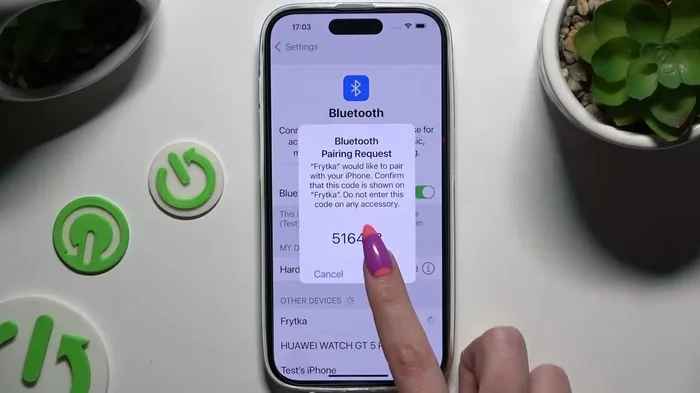
Clearing Bluetooth on iPhone
- Open Settings. Tap the gear icon on your home screen.
- Tap Bluetooth. It is near the top of the Settings list.
- Find the device. Look under My Devices or Other Devices.
- Tap the info icon. This is the small “i” in a circle next to the device.
- Tap Forget This Device. Confirm by tapping Forget Device again.
That is all it takes. Your iPhone will no longer try to connect to that device automatically.
One quick tip: if you are dealing with a lot of old pairings, it is worth going through the list and removing anything you have not used in the past three months. This keeps your bluetooth memory clean and your phone running efficiently.
How to Reset Your Bluetooth Module
Sometimes just removing a device is not enough. If you are still having connection problems after clearing your list, your bluetooth module might need a reset. This is like restarting the bluetooth hardware itself.
What Is a Bluetooth Module?
Your bluetooth module is the tiny chip or component inside your device that handles all bluetooth connections. It manages sending and receiving signals to and from your paired devices. When it gets confused or overloaded, a reset can work wonders.
How to Reset Bluetooth on Windows
- Open Device Manager. Right-click the Start button and select Device Manager.
- Expand Bluetooth. Click the arrow next to the Bluetooth section.
- Right-click your bluetooth adapter. Select Disable device.
- Wait ten seconds. Then right-click again and select Enable device.
- Check your connection. Try pairing a device again and see if it works.
If that does not work, you can also try uninstalling the bluetooth driver and then restarting your PC. Windows will reinstall a fresh driver automatically.
How to Reset Bluetooth on Mac
On a Mac, resetting bluetooth is a bit different:
- Hold Shift and Option. Click the Bluetooth icon in your menu bar while holding both keys.
- Click Debug. A hidden menu will appear.
- Select Reset the Bluetooth module. Click it and confirm.
- Reconnect your devices. You will need to pair them again.
This is a powerful fix that resolves most stubborn bluetooth issues on Mac. If you ever run into hardware-level bluetooth problems, you may also want to look into whether you can remove Intel wireless bluetooth from your system if you are using a different bluetooth chip.
When Should You Reset Your Bluetooth Module?
Here are some signs that a reset is needed:
- Your device will not pair even after removing old connections.
- You keep getting error messages when trying to connect.
- Bluetooth turns off by itself without warning.
- Your bluetooth device list shows devices that are no longer nearby.
If any of these sound familiar, a module reset should be your next step.
What Happens When You Remove a Bluetooth Pairing?
Understanding what happens after you remove pairing can help you feel more confident about the process. Here is exactly what changes and what stays the same.
| What Happens | Details |
|---|---|
| The device is removed from your list | It no longer shows up in your bluetooth settings. |
| Auto-connect stops | Your device will not try to connect to it anymore. |
| Saved settings are deleted | Any custom names or settings for that device are gone. |
| The other device is unaffected | The other gadget still has its own pairing memory intact. |
| You can pair again fresh | Next time you connect, it will be a brand new pairing. |
One important thing to note: removing a pairing does not factory reset the other device. Your old speaker or headset still remembers your device if it was set up that way. You just need to pair them again from scratch.
This is actually a good thing. It means you can clean up your list without losing anything important on the other end. It is a safe and reversible process.
Tips to Keep Your Bluetooth Device List Clean
Now that you know how to clear my bluetooth device list, let us talk about keeping it clean going forward. A little maintenance goes a long way.
Make It a Monthly Habit
Set a reminder on your phone to check your bluetooth device list once a month. Go through it and remove anything you have not used in the past few weeks. This takes just a couple of minutes and keeps everything running smoothly.
Name Your Devices Clearly
When you pair a new device, give it a clear name. Instead of “Headset 01,” call it “Office Headset” or “John’s AirPods.” This makes it much easier to identify which devices to remove later.
Turn Off Bluetooth When Not in Use
Leaving bluetooth on all the time makes your device scan for connections constantly. This drains battery and can cause interference. Turn it off when you are not actively using it. Your battery will thank you.
Keep Your Software Updated
Software updates often include fixes for bluetooth connectivity issues. Keeping your device updated ensures your bluetooth module works as efficiently as possible.
Use a Bluetooth Adapter for Older Devices
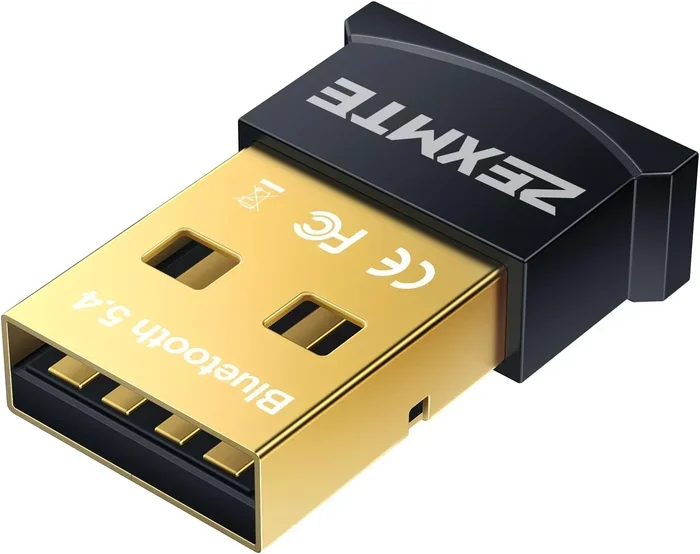
If you have an older device without built-in bluetooth, a USB adapter is an easy fix. Just be sure to remove old pairings from the adapter regularly. If you are curious about adding bluetooth to non-bluetooth devices, check out our article on turning regular speakers into bluetooth for some great adapter options.
Common Mistakes People Make When Clearing Bluetooth Devices
Even though the process is simple, there are a few mistakes people make that can cause problems. Here are the ones to avoid:
- Forgetting to turn off the other device. Always put the device you are removing into pairing mode or turn it off first. This prevents it from trying to reconnect automatically.
- Removing too many devices at once. If you clear your entire list, you will need to re-pair everything. Be selective and only remove what you do not need.
- Ignoring error messages. If your device gives you an error when removing, do not just tap through it. Read the message and follow any on-screen instructions.
- Not restarting after a reset. If you reset your bluetooth module, always restart your device afterward. This ensures the reset fully takes effect.
Avoiding these simple mistakes will save you a lot of frustration and time.
Expert Insights on Bluetooth Device Management
From years of troubleshooting bluetooth connections, here are a few expert tips that most guides do not mention:
- The 80/20 rule applies. About 80 percent of bluetooth problems are solved by simply removing and re-pairing the device. You do not always need a full reset.
- Distance matters during pairing. Keep the two devices within three feet of each other when setting up a new pairing. This ensures a strong initial connection.
- Interference is real. Wi-Fi routers, microwaves, and even USB 3.0 ports can interfere with bluetooth signals. If your connection is spotty, move away from these devices.
- Battery level affects pairing. Low battery on either device can cause pairing failures. Make sure both devices are charged above 20 percent before attempting to connect.
These small tips can make a huge difference in your daily bluetooth experience.
Final Thoughts
Clearing my bluetooth device list and removing old pairings is one of the simplest and most effective things you can do to keep your gadgets running smoothly. It takes just a few minutes, and the results are immediate. No more connection lag, no more confused bluetooth settings, and no more battery drain from old devices your phone is still trying to remember.
We covered how to do this on Windows, Mac, Android, and iPhone. We also walked through how to reset your bluetooth module when simple removal is not enough. And we shared practical tips for keeping your bluetooth device list clean going forward.
The key takeaway is this: treat your paired devices list like you treat your closet. If you have not used it in months, it is time to let it go. A clean list means better connections, faster pairing, and fewer headaches.
So go ahead. Open your settings right now and take five minutes to clean up your bluetooth list. Your future self will thank you every time you connect a device without any fuss.
Frequently Asked Questions
How do I clear all my bluetooth devices at once?
Most devices do not let you delete all paired devices in one tap. You need to go through your list and remove each device individually. On Windows, you can use a third-party tool to bulk remove, but for most people, going one by one is the safest approach.
Will removing a bluetooth device delete any data from that device?
No. Removing a pairing only deletes the connection record from your main device. The other device keeps all its own data untouched. It simply forgets that your main device was ever connected.
How often should I clear my bluetooth device list?
Once a month is a good habit. If you connect to a lot of different devices, you may want to do it every two weeks. Regular cleaning prevents connection conflicts and keeps your bluetooth running fast.
Why does my bluetooth keep connecting to a device I removed?
This usually happens when the other device still has your main device saved in its own pairing memory. Go to the other device’s settings and remove your device from its list too. Then the connection will stop.
Can I re-pair a device after I remove it from my list?
Absolutely. Removing a pairing is not permanent. Just put the other device back into pairing mode and connect it again from your settings. It will create a fresh pairing record.
What should I do if clearing my bluetooth device list does not fix my connection issues?
Try resetting your bluetooth module and restarting your device. If that does not work, check for software updates or consider whether your hardware might need attention. Sometimes a bluetooth adapter or driver update solves the problem.