How Do I Add Bluetooth Device To My Iphone After Forgetting
Forgetting a Bluetooth device on your iPhone is frustrating, but re-adding it is simple. You can remove the old connection, reset your Bluetooth settings, and pair the device again in just a few minutes. This guide walks you through every step with clear instructions and helpful tips.
Have you ever gone to connect your Bluetooth device to your iPhone, only to realize you forgot the whole process? It happens to the best of us. Whether you accidentally removed a paired device or your iPhone cleared it after an update, the good news is that reconnecting is straightforward.
This guide will show you exactly how to add a Bluetooth device to your iPhone after forgetting it. We will cover every step, from removing the old connection to fixing common problems. You will also learn some handy tips to keep your Bluetooth devices running smoothly.
Bluetooth technology has made our lives so much easier. We can connect headphones, speakers, keyboards, and more without wires. But sometimes, things go wrong. Your iPhone might forget a device, or you might need to pair a new one. Either way, this article has you covered.
Key Takeaways
- You can easily remove a forgotten Bluetooth device: Go to Settings, find the device, and tap “Forget This Device.”
- Resetting Bluetooth settings helps clear glitches: Toggling Bluetooth off and on or restarting your iPhone often solves pairing problems.
- Pairing a device again is quick: Put your Bluetooth accessory in pairing mode and select it from your iPhone’s Bluetooth menu.
- Common issues have simple fixes: Distance, battery life, and software updates are the usual culprits behind Bluetooth problems.
- Managing multiple Bluetooth devices is easier with these tips: Keep your device list clean and organized for smooth connections.
📑 Table of Contents
- Why Do iPhones Forget Bluetooth Devices?
- How to Remove a Forgotten Bluetooth Device from Your iPhone
- How to Add a Bluetooth Device to Your iPhone After Forgetting
- Common Problems When Re-adding a Bluetooth Device
- How to Prevent Bluetooth Devices from Being Forgotten
- When to Seek Professional Help
- Expert Insights on iPhone Bluetooth Management
- Key Takeaways
Why Do iPhones Forget Bluetooth Devices?
Before we dive into the fix, let us understand why your iPhone might forget a Bluetooth device in the first place. Knowing the cause can help you prevent it from happening again.
Software Updates Can Reset Connections
When Apple releases an iOS update, it sometimes clears Bluetooth pairings. This is rare, but it does happen. Your iPhone may remove saved devices to ensure a clean slate after a major update. If you notice your Bluetooth device is missing after updating, do not panic.
Manual Removal or “Forget This Device”
You might have accidentally tapped “Forget This Device” in your Bluetooth settings. This is easy to do by mistake. Once a device is forgotten, your iPhone erases all pairing data. You will need to pair it again from scratch.
Distance and Signal Issues
If a Bluetooth device is out of range for too long, your iPhone may remove it from the list. Bluetooth has a limited range, usually about 30 feet. If the device stays away for a while, your iPhone might drop it from memory.
Low Battery on the Bluetooth Device
A device with a dead battery cannot maintain a connection. If your Bluetooth accessory runs out of power, your iPhone will eventually forget it. Always keep your Bluetooth devices charged to avoid this issue.
How to Remove a Forgotten Bluetooth Device from Your iPhone
The first step in re-adding a Bluetooth device is making sure it is completely removed from your iPhone’s memory. This ensures a clean and fresh pairing process.
Step-by-Step Removal Process
- Open the Settings app on your iPhone.
- Tap Bluetooth in the menu.
- Find the device you want to remove in the list.
- Tap the info icon (i) next to the device name.
- Select “Forget This Device”.
- Confirm your choice by tapping “Forget Device” again.
That is it. The device is now completely removed from your iPhone. You will no longer see it in your Bluetooth list. Now you are ready to pair it again.
What If the Device Does Not Show Up?
Sometimes, a forgotten device does not appear in your Bluetooth list. This can happen if the device is turned off or out of range. Make sure your Bluetooth accessory is powered on and close to your iPhone. If it still does not appear, try toggling Bluetooth off and back on.
Removing Multiple Devices at Once
If you have several devices you want to remove, you will need to do it one at a time. There is no bulk delete option in iPhone Bluetooth settings. This can be tedious, but it ensures each device is fully cleared. Think of it as a good chance to clean up your Bluetooth list and keep only the devices you actively use.
How to Add a Bluetooth Device to Your iPhone After Forgetting
Now for the main part. Let us walk through adding your Bluetooth device back to your iPhone. The process is simple, but you need to follow each step carefully.
Step 1: Turn on Your Bluetooth Device
Make sure your Bluetooth accessory is powered on. Some devices need to be in pairing mode to be visible. Check your device manual if you are unsure how to activate pairing mode. Most devices have a dedicated button or a blinking light that signals they are ready to pair.
Step 2: Enable Bluetooth on Your iPhone
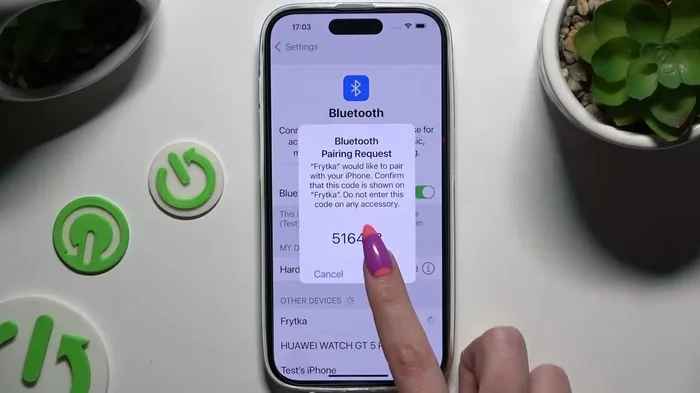
Open Settings and tap Bluetooth. Make sure the toggle switch is turned on. You should see a list of available devices appear on your screen. If your device does not show up, move closer to your iPhone and make sure it is still in pairing mode.
Step 3: Select Your Device
Tap on your device name from the list. Your iPhone will take a few seconds to connect. You may see a spinning animation while it searches. Once connected, the device name will appear under “My Devices” with a status that reads “Connected.”
Step 4: Test the Connection
Always test your connection after pairing. Play some music, make a call, or open an app that uses the device. This confirms everything is working properly. If the connection fails, do not worry. We will cover troubleshooting in the next section.
Quick Tips for Smooth Pairing
- Keep your iPhone close: Stay within 10 feet during pairing for the best results.
- Restart both devices: A quick restart of your iPhone and the Bluetooth accessory can fix many issues.
- Check for updates: Make sure your iPhone is running the latest iOS version.
- Disable other Bluetooth devices: Turn off other Bluetooth accessories temporarily to avoid interference.
- Be patient: Some devices take a few attempts to pair. Do not give up after the first try.
Common Problems When Re-adding a Bluetooth Device
Even when you follow every step, things can still go wrong. Here are the most common issues and how to fix them.
iPhone Does Not Detect the Bluetooth Device
If your iPhone does not see the device, try these fixes. First, make sure the device is in pairing mode. Second, toggle Bluetooth off and on again. Third, restart your iPhone. Fourth, check if the device is connected to another phone or tablet nearby. Sometimes a device stays paired with a previous phone and will not show up on yours.
Connection Keeps Dropping
A loose connection can be annoying. This usually happens when the Bluetooth device is too far from your iPhone. Move closer and see if the connection stabilizes. Also, check if other wireless devices are causing interference. Wi-Fi routers and microwaves can disrupt Bluetooth signals. If the problem continues, try removing and re-adding the device.
iPhone Freezes During Pairing
If your iPhone freezes while trying to pair, force restart it. On most iPhones, you press and release the volume up button, then the volume down button, and then hold the side button until the Apple logo appears. This clears temporary glitches and often solves the problem.
Device Connects but No Sound or Function
If the device pairs but does not work properly, check the audio output settings. Go to Settings > Bluetooth and tap the info icon next to your device. Make sure it is set as the audio output source. Also, check the volume on both your iPhone and the Bluetooth device.
How to Prevent Bluetooth Devices from Being Forgotten
Once you have successfully reconnected your device, you will want to keep it paired. Here are some simple habits that help.
Keep Your Devices Charged
A low battery is the number one reason devices drop connections. Make it a habit to charge your Bluetooth accessories regularly. A fully charged device stays connected much longer and maintains a strong signal.
Keep Devices Close When Not in Use
Bluetooth works best when devices are within range. If you store your Bluetooth device far away from your iPhone for extended periods, the connection may weaken or drop. Keep them in the same bag or drawer when not in use.
Avoid Software Conflicts
Sometimes, connecting too many Bluetooth devices at once can cause conflicts. Your iPhone can only maintain so many active connections. Disconnect devices you are not using to free up bandwidth and reduce interference.
Regularly Update Your iPhone
Apple releases iOS updates that fix bugs and improve Bluetooth performance. Keep your iPhone updated to ensure the best experience. You can check for updates by going to Settings > General > Software Update.
When to Seek Professional Help
Most Bluetooth issues can be fixed at home with the steps above. But sometimes, the problem is deeper. If you have tried everything and your Bluetooth device still will not connect, it might be time to seek help.
Hardware Issues
Your iPhone’s Bluetooth chip could be damaged. This is rare but possible, especially if the phone has been dropped or exposed to moisture. A hardware issue requires professional repair at an Apple Store or authorized service center.
Firmware Updates for the Bluetooth Device
Some Bluetooth accessories need firmware updates to work properly with newer iPhones. Check the manufacturer’s website or app for updates. For example, if you use a Bluetooth headset as a microphone, keeping its firmware updated ensures the best performance.
Reset All iPhone Settings
If nothing else works, you can reset all settings on your iPhone. Go to Settings > General > Transfer or Reset iPhone > Reset All Settings. This will not delete your data, but it will reset all system settings, including Bluetooth. You will need to reconnect all your devices afterward.
Expert Insights on iPhone Bluetooth Management
Managing multiple Bluetooth devices can feel overwhelming, but a few smart habits make it much easier. Experts recommend keeping your Bluetooth device list lean. Only pair devices you use regularly. This reduces clutter and improves connection stability.
Another expert tip is to name your Bluetooth devices clearly. Instead of leaving them as generic names like “Headphones” or “Speaker,” rename them in your iPhone settings. Use names like “Office Headphones” or “Car Speaker.” This makes it much easier to identify and connect the right device quickly.
If you use your bluetooth headset as a mic for calls or recordings, make sure to check the microphone permissions in your iPhone settings. Some apps need explicit permission to access the Bluetooth microphone. You can manage this by going to Settings > Privacy > Microphone and enabling access for the apps you use.
Also, consider how your Bluetooth devices interact with other wireless tech in your car or home. If you are exploring options like adding a smart speaker in your vehicle, make sure it is compatible with your iPhone. Similarly, if you are thinking about using a bluetooth speaker without an active Bluetooth connection, there are specific workarounds that can help in certain situations.
Keeping your Bluetooth devices clean and updated is just as important as keeping your iPhone updated. Dust and debris can block charging ports, which affects pairing. A quick wipe-down of your device connectors every few weeks goes a long way in maintaining reliable connections.
Key Takeaways
- Removing a forgotten Bluetooth device is the first step: Go to Settings > Bluetooth, tap the info icon, and select “Forget This Device.”
- Re-pairing is simple: Turn on your device, enable Bluetooth on your iPhone, and select the device from the list.
- Common problems have easy fixes: Restarting, moving closer, and toggling Bluetooth usually solves most issues.
- Prevent future disconnections: Keep devices charged, updated, and within range of each other.
- Seek help when needed: If all else fails, a reset or professional check can resolve deeper problems.
Frequently Asked Questions
Why did my iPhone forget my Bluetooth device?
iPhones can forget Bluetooth devices after software updates, manual removal, or if the device stays out of range for too long. Low battery on the Bluetooth accessory can also cause the iPhone to drop and forget the connection. This is a normal behavior and not a sign of a broken phone.
Can I add a Bluetooth device to my iPhone without deleting the old connection?
Yes, but it is recommended to remove the old connection first. This ensures a clean pairing process and avoids conflicts. Simply go to Bluetooth settings, tap the info icon, and select “Forget This Device” before re-pairing.
How long does it take to pair a Bluetooth device with an iPhone?
Most Bluetooth devices pair within 10 to 30 seconds. Some devices, especially older models, may take a bit longer. If pairing takes more than a minute, try restarting both your iPhone and the Bluetooth device.
My Bluetooth device shows up but will not connect. What should I do?
First, make sure the device is fully charged. Then, toggle Bluetooth off and on again. If that does not work, remove the device from your iPhone and try pairing it fresh. Restarting your iPhone can also help resolve connection issues.
How many Bluetooth devices can I connect to my iPhone at once?
Your iPhone can maintain connections with several Bluetooth devices at the same time. However, performance may vary depending on the types of devices. For example, you can connect wireless headphones and a keyboard simultaneously, but too many active devices can cause interference.
Will resetting my iPhone Bluetooth settings delete any data?
No, resetting Bluetooth settings will not delete your photos, apps, or personal data. It only clears Bluetooth pairings and network settings. You will need to reconnect your Bluetooth devices after the reset, but everything else stays safe.
=== CONCLUSION ===
Adding a Bluetooth device to your iPhone after forgetting it does not have to be stressful. With the right steps, you can reconnect any accessory in just a few minutes. Start by removing the old connection, then follow the pairing process carefully. If you run into issues, the troubleshooting tips in this guide will help you get back on track.
Remember to keep your devices charged, updated, and within range. These simple habits prevent most Bluetooth problems before they start. Whether you are connecting headphones, speakers, or any other accessory, the process is always the same.
Now that you know how to handle forgotten Bluetooth devices, you can tackle any connection issue with confidence. Try these steps today and enjoy a seamless wireless experience with your iPhone. Happy connecting!