How Do I Check My Network Status on My LG TV at Home
Checking your network status on an LG TV is quick and easy once you know where to look. Whether you are dealing with slow streaming or a complete connection drop, this guide walks you through every step to diagnose and fix the problem. You will learn how to access your LG TV network settings, read the connection details, and troubleshoot common issues like a pro.
There is nothing more frustrating than settling in for a movie night and suddenly seeing the buffering spinner on your screen. Before you call a technician or throw your remote across the room, there is a simple thing you can do. You can check your network status on your LG TV and figure out exactly what is going wrong. Learning how to check your network status on your LG TV takes less than two minutes and can save you hours of headache.
Your LG smart TV has a built-in network diagnostic tool that shows you everything from signal strength to IP address details. You do not need to be a tech expert to read the information. Once you know where to look, you can troubleshoot like someone who has done this a hundred times. This guide covers every method, every setting, and every trick you need to get your LG TV back online.
We will walk through the steps together, explain what each piece of information means, and give you practical tips to keep your connection strong. By the end of this article, you will feel confident about managing your LG TV network settings without any guesswork. Let us get started.
Key Takeaways
- Network status on your LG TV is found in the Settings menu under Network and lets you see signal strength, IP address, and connection type.
- Both Wi-Fi and wired ethernet connections can be checked using the same simple steps on any LG smart TV.
- Restarting your TV and router solves the majority of common network issues without any advanced steps.
- Signal strength and network speed tests help you pinpoint whether the problem is with your TV or your home network.
- Keeping your LG TV firmware updated ensures the best network performance and fewer connection problems.
📑 Table of Contents
- Why Checking Your LG TV Network Status Matters
- How to Access Network Settings on Your LG TV
- Understanding Your Network Status Information
- Troubleshooting Common Network Issues on LG TV
- Tips to Improve Your LG TV Network Connection
- When to Seek Additional Help for Your LG TV Network
- Key Takeaways
- Conclusion
Why Checking Your LG TV Network Status Matters
Your LG TV relies on a steady internet connection to stream content, access apps, and pull up smart features. When the connection gets weak or drops entirely, you notice it right away. Buffering, freezing, and error messages all point back to one thing: your LG TV WiFi connection is not working properly.
Checking your network status gives you the power to understand the problem before it spirals. Instead of blindly restarting everything, you can see exactly what is happening behind the scenes. Is your signal weak? Did your TV lose its IP address? Is the connection type set to wireless when it should be wired? The answers to these questions are all hiding in your network status screen.
Think of your network status as a health report for your TV’s internet connection. Just like you check your phone’s WiFi status when something feels slow, your LG TV gives you the same information. The difference is that most people do not know where to find it or how to read the data. That is exactly what we are going to fix right now.
Common Signs Your LG TV Has a Network Problem
Not sure whether you even have a network issue? Here are the most common signs that something is off with your LG TV connection:
- Streaming apps take forever to load or keep buffering mid-playback.
- Your TV shows a “Not Connected” or “No Internet” error message.
- Apps fail to update or you cannot log into your streaming accounts.
- The picture quality drops significantly or the stream keeps resetting.
- Your LG TV remote apps on your phone cannot find or connect to the TV.
If you are experiencing any of these issues, checking your network status should be your very first step. It takes seconds and gives you the information you need to decide whether the problem is simple or something that needs deeper troubleshooting.
How to Access Network Settings on Your LG TV
Now let us get into the practical part. Accessing your network settings on an LG TV is straightforward, but the exact steps can vary slightly depending on your model and the version of webOS you are running. Do not worry. We will cover the most common path that works on the vast majority of LG smart TVs.
Step-by-Step: Finding Your Network Status
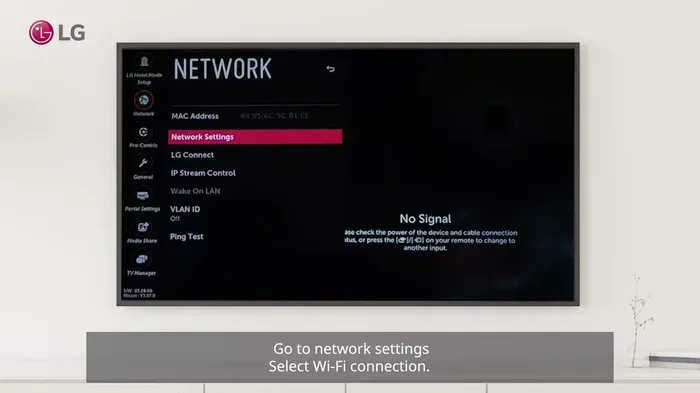
Follow these steps to pull up your network status screen:
- Press the Home button on your LG TV remote. This is the button with the house icon.
- Navigate to the Settings gear icon in the bottom left corner of the screen.
- Scroll down and select Network from the settings menu.
- Choose Network Status or Connection Status depending on your menu layout.
- You will now see a screen displaying your current network information including connection type, signal strength, IP address, and more.
That is it. You are now looking at your LG TV network status. The screen might look a little different on older models, but the core information stays the same. If you have trouble finding the Network option, try using the search function on your remote by pressing the voice button and typing “network.”
Using the LG TV Quick Settings Shortcut
If you want an even faster route, many newer LG TVs offer a quick settings shortcut. Simply press the Settings button on your remote (it usually looks like a gear or three horizontal lines) and scroll directly to the Network section. Some models even let you access the network status right from the home screen by highlighting your current WiFi connection and pressing the OK button.
This quick access is especially handy when you are in the middle of watching something and need to check if your connection dropped. The faster you can get to the network status screen, the less time you spend frustrated and the more time you spend enjoying your content.
Understanding Your Network Status Information
Once you have your network status screen open, you will see several pieces of information. If you have never read this screen before, it can look a little confusing. Let us break down each piece so you know exactly what you are looking at.
Connection Type
The first thing you will notice is whether your LG TV is connected via Wi-Fi or Ethernet. Wi-Fi is wireless and is the default for most setups. Ethernet uses a physical cable and generally provides a more stable, faster connection. If you see Wi-Fi listed but you are experiencing issues, it might be worth trying a wired connection for better performance.
For those wondering about connecting devices to their TV via ethernet, you might want to check out our guide on Can I Do HDMI Over Ethernet for additional connectivity options that could improve your setup.
Signal Strength
Signal strength tells you how strong your wireless connection is. It is usually displayed as bars or a percentage. Strong signal means your TV is getting a clear connection from your router. Weak signal means the TV is struggling to maintain a stable link, which often causes buffering and disconnections.
If your signal strength is low, try moving your router closer to your TV or removing physical obstacles like walls and furniture between the two devices. Sometimes simply repositioning your router makes a dramatic difference in your LG TV streaming quality.
IP Address and Network Details
Your IP address is a unique number assigned to your TV on your home network. It looks something like 192.168.1.105. You do not need to memorize this number, but it can be useful information when troubleshooting with a technician or setting up advanced network features. The network status screen also shows your DNS server addresses and gateway information, though most users never need to interact with these.
Network Speed and Latency
Some LG TV models include a built-in speed test feature within the network status menu. This tests your download and upload speeds right from the TV. If your speeds are significantly lower than what your internet plan promises, the issue might be with your router, your ISP, or the distance between your router and TV.
You can also test your home network speed on other devices to compare. If your phone and laptop get good speeds but your LG TV does not, the problem is likely specific to your TV’s wireless adapter or its position relative to the router.
Troubleshooting Common Network Issues on LG TV
Seeing something odd on your network status screen? Do not panic. Most LG TV network problems have simple solutions. Let us walk through the most common issues and how to fix them.
LG TV Connected to Wi-Fi but No Internet
This is one of the most common scenarios. Your TV shows it is connected to your WiFi network, but you cannot access any apps or stream content. Usually, this means your router has lost its connection to the internet or there is a DNS issue.
Start by checking if other devices in your home can access the internet. If nothing works, restart your router by unplugging it for 30 seconds and plugging it back in. If other devices work fine, try disconnecting and reconnecting your LG TV to the WiFi network. Sometimes simply removing the network and adding it back with the correct password fixes the problem instantly.
Weak Signal on LG TV
If your network status shows a weak signal, your TV is not getting the best connection from your router. This is especially common if your TV is in a different room or on a different floor than your router.
Here are some quick fixes for weak signal issues:
- Move your router closer to your TV or vice versa.
- Remove physical barriers between the router and TV.
- Switch your router to a less congested wireless channel.
- Consider using a WiFi range extender or mesh network system.
- If possible, switch to a wired ethernet connection for the most reliable performance.
For users who also connect their router directly to their TV setup, our article on Can I Plug My Router Into My TV provides helpful insights on optimizing your home network for TV use.
LG TV Keeps Disconnecting from WiFi
Intermittent disconnections are incredibly annoying. Your TV drops the connection randomly and you have to reconnect every time. This usually points to an unstable wireless signal or a router that needs a firmware update.
Try these steps to stop the disconnections:
- Restart both your LG TV and your router.
- Update your router firmware through your router’s admin page.
- Check if other devices on the same network experience similar drops.
- Reduce the number of devices connected to your network simultaneously.
- If the problem persists, switch your LG TV to a wired ethernet connection.
Tips to Improve Your LG TV Network Connection
Prevention is always better than cure. Here are some proactive tips to keep your LG TV network connection strong and reliable every day.
Keep Your LG TV Firmware Updated
LG regularly releases firmware updates that improve network performance and fix connectivity bugs. Make sure your TV is set to automatically download updates or check manually from time to time. An outdated TV firmware can cause network issues that have nothing to do with your actual internet connection.
Optimize Your Router Placement
Your router placement matters more than most people realize. Keep your router in a central, elevated location away from walls, metal objects, and electronic interference. The closer your router is to your TV, the stronger and more stable your connection will be.
Use the 5GHz Band When Possible
If your router supports dual-band WiFi, connect your LG TV to the 5GHz band instead of the 2.4GHz band. The 5GHz band offers faster speeds and less interference, though it has a shorter range. For most home setups where the router is in the same room or nearby, 5GHz is the better choice for streaming.
For users looking to connect additional devices to their TV for a better entertainment setup, you might find our guide on Can I Connect My Phone To TV With HDMI Cable helpful for expanding how you use your LG TV.
Restart Your Network Equipment Regularly
Just like your phone benefits from an occasional restart, your router and modem work better when they get a fresh start. Make it a habit to restart your network equipment once a week. This clears temporary glitches, refreshes connections, and keeps everything running smoothly.
When to Seek Additional Help for Your LG TV Network
Most network issues on LG TVs can be resolved with the steps outlined above. However, there are times when the problem goes beyond what simple troubleshooting can fix. If you have checked your network status, tried all the troubleshooting steps, and your LG TV still cannot maintain a stable connection, it might be time to seek professional help.
Contact your internet service provider first to rule out any outages or account issues. If your ISP confirms everything is working on their end, the problem might be with your TV’s hardware. In rare cases, the wireless adapter inside your LG TV can fail, requiring professional repair or service.
You can also visit the official LG support website for model-specific troubleshooting guides and firmware updates. LG has an excellent support team and detailed knowledge base that can walk you through advanced network diagnostics specific to your TV model.
Key Takeaways
- Checking your LG TV network status is simple and takes just a few steps through the Settings menu.
- The network status screen shows connection type, signal strength, IP address, and more.
- Most network issues can be fixed by restarting your TV and router or reconnecting to your WiFi network.
- Weak signal is the most common culprit for streaming problems and can often be fixed by repositioning your router.
- Keeping your LG TV firmware and router firmware updated prevents many connectivity issues before they start.
- A wired ethernet connection provides the most stable and fastest network performance for your LG TV.
- Knowing what to look for on your network status screen empowers you to troubleshoot effectively without professional help.
Conclusion
Knowing how to check your network status on your LG TV is one of the simplest yet most valuable skills you can develop as a smart TV user. It puts you in control of your connection and helps you quickly identify and fix problems before they ruin your viewing experience. Whether you are dealing with a weak signal, a dropped connection, or just want to make sure everything is running smoothly, your LG TV network status screen has all the answers you need.
Take a few minutes today to explore your network settings and familiarize yourself with the information your TV provides. You will be glad you did the next time something goes wrong. With the tips and troubleshooting steps from this guide, you are well equipped to handle most network issues on your own. Your LG TV is designed to be smart, and now you know how to make the most of its network capabilities right from your living room.
Frequently Asked Questions
Why does my LG TV show connected to Wi-Fi but not the internet?
This usually means your router has lost its connection to the internet or there is a DNS configuration issue. Try restarting your router first by unplugging it for 30 seconds. If other devices also cannot access the internet, the problem is with your ISP and not your LG TV.
How do I run a network speed test on my LG TV?
Some LG TV models have a built-in network speed test in the Network Status menu. If your model does not, you can use the built-in web browser to visit a speed test website like fast.com or speedtest.net to check your connection speed directly from your TV.
Can I connect my LG TV to the internet using an ethernet cable?
Yes, most LG smart TVs have an ethernet port on the back or side of the TV. A wired ethernet connection provides a more stable and faster network connection compared to Wi-Fi, which is especially helpful for streaming 4K content without buffering.
What should I do if my LG TV keeps disconnecting from Wi-Fi?
Start by restarting both your TV and router. If the problem continues, try forgetting the WiFi network on your TV and reconnecting with the correct password. Also check if your router firmware is up to date, as outdated firmware can cause instability with connected devices.
Where is the network settings menu on my LG TV remote?
Press the Home button on your remote, then navigate to the Settings gear icon in the bottom left corner. From there, scroll down to the Network section to access all your WiFi and connection settings including network status.
Does my LG TV need a strong internet connection for streaming?
Yes, a strong and stable connection makes a big difference. For HD streaming, you need at least 5 Mbps, and for 4K streaming, you need 25 Mbps or more. Checking your network status regularly helps you ensure your connection meets these requirements.