How Do I Access My Brooklyn College Wifi Connection
Accessing your Brooklyn College wifi is simple once you know the network name, password, and login steps. Whether you are a new student setting up your device or a returning student dealing with connection issues, this guide walks you through everything you need. You will learn how to connect laptops, phones, and tablets to the campus wireless network, fix common problems, and keep your data safe.
Getting onto the campus wireless network can feel confusing at first. You walk into a building, open your laptop, and suddenly you are staring at a long list of available networks. Which one is yours? What password do you use? How do you even log in? These are common questions every Brooklyn College student faces at some point.
The good news is that connecting to Brooklyn College wifi does not have to be stressful. Once you understand the basics, the process becomes second nature. This guide covers everything you need to know, from finding the right network to fixing common connection problems. Whether you are using a Windows laptop, a Mac, an iPhone, or an Android device, you will find clear steps that work for you.
Let us walk through it together. By the end of this article, you will feel confident connecting to the campus wireless network on any device. You will also know how to handle the occasional hiccup that comes with any internet connection. No more guessing, no more frustration. Just straightforward steps that get you online fast.
Key Takeaways
- Know Your Network: Brooklyn College uses a specific SSID and requires campus credentials to connect.
- Step-by-Step Setup: Connecting your device takes just a few minutes if you follow the right steps.
- Troubleshooting Helps: Most wifi issues can be fixed with simple resets, password checks, and network refreshes.
- Security Matters: Always use secure practices when connecting to campus wifi to protect your personal data.
- Multiple Devices Work: You can connect laptops, phones, tablets, and even gaming consoles to the network.
- Ethernet Is a Backup: If wifi fails, a wired connection can keep you online while you fix the issue.
📑 Table of Contents
- Understanding Brooklyn College Wifi Networks
- Step-by-Step Guide to Connect to Brooklyn College Wifi
- Common Brooklyn College Wifi Problems and How to Fix Them
- Brooklyn College Wifi for Different Devices
- Tips for Getting the Best Brooklyn College Wifi Performance
- Brooklyn College Wifi Security Tips
- Frequently Asked Questions About Brooklyn College Wifi
- Conclusion
Understanding Brooklyn College Wifi Networks
Before you connect, it helps to understand what you are connecting to. Brooklyn College, like most universities, runs its own campus wifi infrastructure. This means the college manages the routers, access points, and network settings across the entire campus.
What Type of Network Does Brooklyn College Use
Brooklyn College uses a secure wireless network designed for students, faculty, and staff. The network requires authentication before you can browse the web, stream videos, or use any online services. This is standard for most educational institutions and helps keep the campus network safe from unauthorized access.
The main campus wifi network typically uses a system called eduroam or a similar secure login platform. Eduroam is used by thousands of universities worldwide. It lets you log in with your Brooklyn College credentials and connect seamlessly. If you have used wifi at another participating university before, you may already be familiar with this system.
In addition to the main student network, Brooklyn College may also offer a guest network for visitors. This network usually has limited access and does not require your student login. However, for full internet access, you will want to use the student or staff network.
Who Can Access Brooklyn College Wifi
Access to the Brooklyn College wireless network is generally restricted to current students, faculty, and staff. You typically need a valid campus ID and network credentials to log in. These credentials are the same ones you use for your school email and other campus systems.
If you are a new student, your network credentials are usually set up during orientation or when you register for classes. If you have not received yours yet, check with the IT help desk or your department advisor. They can help you get set up quickly.
Step-by-Step Guide to Connect to Brooklyn College Wifi
Now that you understand the network, let us get you connected. The steps below cover the most common devices and scenarios. Follow along and you will be online in no time.
Finding the Network Name
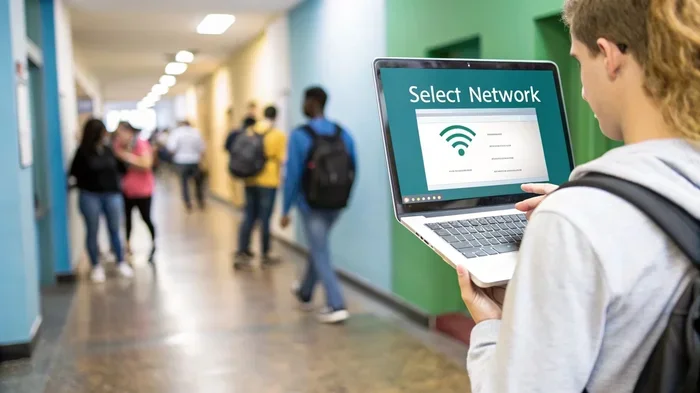
The first step is finding the correct network on your device. On most devices, you can do this by going to your wifi settings and looking for available networks.
- On Windows: Click the wifi icon in your taskbar. A list of networks will appear. Look for the Brooklyn College network name.
- On Mac: Click the wifi icon in the top-right menu bar. Select “Open Network Preferences” and look for the campus network.
- On iPhone or iPad: Go to Settings, then Wi-Fi. The campus network should appear in the list.
- On Android: Go to Settings, then Network and Internet, then Wi-Fi. Look for the Brooklyn College network.
The network name, also called the SSID, is usually something straightforward like “Brooklyn College” or “BC-Wifi.” If you do not see it, try moving to a different building or area on campus. Some buildings have stronger signals than others.
Entering Your Login Credentials
Once you select the network, your device will ask for login details. This is where your campus credentials come in. You will typically need your Brooklyn College email username and password.
- Select the Brooklyn College wifi network from your list.
- Click “Connect” or “Join.”
- Enter your campus email username when prompted.
- Enter your campus password.
- Wait for the connection to establish.
If you have trouble logging in, double-check your credentials. Make sure caps lock is off and you are using your full Brooklyn College email address. If you recently changed your password, try the new one. Sometimes devices save old passwords and cause conflicts.
Connecting Multiple Devices
You can connect more than one device to the Brooklyn College wireless network. Most students connect a laptop, a phone, and maybe a tablet. Each device needs to go through the same login process. There is no limit on the number of devices you can connect, but keep in mind that heavy usage on multiple devices can slow down your bandwidth.
If you want to connect a device that does not have a web browser, such as a smart TV or gaming console, the process may be different. Some devices require you to open a web page and log in through a captive portal. Others may not be compatible with the campus network at all. In those cases, you might consider using your mobile hotspot as a workaround.
Common Brooklyn College Wifi Problems and How to Fix Them
Even with the best setup, you may run into issues from time to time. Wifi problems are frustrating, but most of them have simple solutions. Here are the most common issues Brooklyn College students face and how to fix them.
Password Issues
The most common problem is entering the wrong password. This happens more often than you might think. Maybe you recently changed your campus password, or maybe your device saved an old one by mistake.
If you keep getting a password error, try these steps:
- Double-check that you are typing the correct password.
- Make sure caps lock is turned off.
- Forget the network on your device and reconnect from scratch.
- If you changed your password recently, update it on all your devices.
Sometimes the simplest fix is to “forget” the network and then reconnect. On most devices, you can do this by going to your wifi settings, finding the Brooklyn College network, and selecting “Forget.” Then reconnect and enter your credentials fresh.
Slow Connection Speeds
Slow wifi is another common complaint on college campuses. When dozens or even hundreds of students are all connected to the same network, speeds can drop. This is especially true during peak hours like late afternoon and evening.
To improve your speed, try these tips:
- Move closer to a wifi access point or router.
- Switch to a less crowded building or study area.
- Close apps and tabs you are not using.
- Check if other devices on the same network are streaming or downloading large files.
- Use an ethernet cable if a wired connection is available in your study space.
If you find that your wifi signal is weak in your dorm or apartment, you might want to explore options like a wifi extender or mesh system. Just make sure any equipment you use complies with Brooklyn College IT policies.
Devices That Won’t Connect
Sometimes a device simply refuses to connect to the campus network. This can happen for several reasons. Your device might be too old and not support the required security protocol. Or there might be a settings conflict that is preventing the connection.
Here is what you can do when a device won’t connect:
- Restart your device and try again.
- Make sure your device’s operating system is up to date.
- Check if your device supports the campus network’s security type (usually WPA2 or WPA3).
- Try connecting from a different location on campus.
- Contact the Brooklyn College IT help desk for support.
In some cases, older devices simply cannot handle modern security standards. If this is the case, you may need to use a different device or rely on your phone’s mobile hotspot for internet access.
Brooklyn College Wifi for Different Devices
Different devices connect to wifi in different ways. Below are some specific tips for the most common devices students use on campus.
Connecting Laptops and Desktops
Laptops are the most common device for accessing Brooklyn College wifi. Whether you use a Windows laptop or a MacBook, the connection process is similar. Just find the network, enter your credentials, and you should be good to go.
If your laptop does not have built-in wifi, you can add a wifi adapter. A USB wifi stick is an easy and affordable option. You plug it in, install the drivers, and your laptop can connect to the campus network. Check out our guide on Can I Add Wi-Fi To My PC for more details on this process.
For desktop computers that are far from a router, a wired ethernet connection is often more reliable. If ethernet is not available where you need it, you might explore options like extending your wifi with an ethernet cable to reach your desk.
Connecting Phones and Tablets
Smartphones and tablets are probably the devices you will use most often on campus. The good news is that connecting them to Brooklyn College wifi is straightforward.
On both iPhone and Android, you simply go to your wifi settings, find the campus network, and enter your login details. Your phone will remember the network, so you usually only need to log in once.
If you are having trouble connecting your phone, make sure your operating system is updated. Older phones sometimes struggle with newer security protocols. Also, if your phone keeps disconnecting, try turning wifi off and back on, or toggle airplane mode for a few seconds.
Connecting Gaming Consoles and Smart TVs
Gaming consoles like Xbox and PlayStation can connect to campus wifi, but the process is not always smooth. These devices often lack a web browser, which means you may need to log in through a separate device first or use a different connection method.
Smart TVs also vary in their wifi capabilities. Some connect easily to campus networks, while others may not support the required security type. If your TV or console cannot connect directly, consider using a wifi-enabled streaming stick or connecting via ethernet if possible.
Tips for Getting the Best Brooklyn College Wifi Performance
Once you are connected, you probably want the best possible experience. Here are some practical tips to help you get the most out of your Brooklyn College wifi connection.
Placement Matters
Where you sit on campus can make a big difference in your wifi speed. Buildings closer to the main router or access point will have stronger signals. If you are in a basement or far corner of a building, you may experience weaker connectivity.
Try moving to a different spot if your connection is slow. Even shifting to a nearby table or moving to a different floor can help. The closer you are to a wifi access point, the better your signal will be.
Managing Bandwidth Usage
Campus wifi bandwidth is shared among all users in a building. If everyone is streaming videos and downloading large files at the same time, speeds will drop for everyone.
To be a good network citizen, try to avoid heavy downloads during peak hours. If you need to download something large, do it during off-peak times like early morning or late at night. This helps keep the network fast for everyone, including yourself.
Using Ethernet When Possible
While wireless connectivity is convenient, nothing beats a wired connection for speed and reliability. If your dorm room or study space has an ethernet port, use it.
A wired connection gives you faster speeds, lower latency, and a more stable connection. This is especially helpful for online gaming, video calls, and large file uploads. If you do not have an ethernet port nearby, you can always connect your PC to wifi without ethernet as a reliable alternative.
Brooklyn College Wifi Security Tips
Campus networks are convenient, but they also come with security risks. Because many people share the same network, it is important to protect your personal data.
Protecting Your Personal Data
Always make sure you are connecting to the official Brooklyn College network, not a fake one set up by someone else. Check the exact network name before you connect. If you are unsure, ask a campus IT staff member or check the college website for the correct SSID.
Use strong, unique passwords for your campus account. Avoid using the same password you use for other services. Enable two-factor authentication if Brooklyn College offers it. These simple steps go a long way in keeping your data safe.
Avoiding Common Security Mistakes
Here are some common security mistakes to avoid when using campus wifi:
- Never share your password with anyone, even friends.
- Do not log into sensitive accounts (like banking) on public or shared networks without a VPN.
- Keep your device software updated to patch security vulnerabilities.
- Turn off auto-connect for unknown networks so your device does not accidentally join a rogue network.
- Log out of your account when you are done using a shared or public computer.
Following these basic security practices will help you stay safe while enjoying the convenience of campus wireless access. For more tips on securing your home network, check out our article on Can I Block A Device From Using My Wifi Xfinity which covers network security in more detail.
Frequently Asked Questions About Brooklyn College Wifi
Students often have similar questions about connecting to campus wifi. Here are answers to the most common ones.
What is the Brooklyn College wifi password?
The Brooklyn College wifi password is the same as your campus network login credentials. You use your Brooklyn College email username and password to connect. If you do not know your password, you can reset it through the campus portal or contact the IT help desk for assistance.
Can I use my own router with Brooklyn College wifi?
Generally, personal routers are not allowed on the campus network. Brooklyn College manages its own infrastructure to ensure security and fair access for all users. If you need stronger coverage in your dorm, check with the IT department about approved solutions. You can also learn more about personal router options in our guide on Can I Have My Own Personal Wifi Router.
Why does my Brooklyn College wifi keep disconnecting?
Frequent disconnections can happen for several reasons. You might be too far from an access point, your device settings might need updating, or there could be network congestion during peak hours. Try moving to a different location, restarting your device, or forgetting and reconnecting to the network. If the problem persists, contact the IT help desk.
Can I get wifi without a password at Brooklyn College?
No, Brooklyn College wifi requires a password and login credentials for access. This is standard for campus networks and helps protect user data. The password is your campus network login. If you forget your credentials, reach out to the IT department or your academic advisor for help resetting them.
Is Brooklyn College wifi free for students?
Yes, wifi access is included as part of your student services at Brooklyn College. Current students, faculty, and staff can connect to the campus network at no extra cost. Guest access may be available for visitors, but it usually has limited speed and functionality compared to the student network.
What should I do if I cannot connect to Brooklyn College wifi at all?
Start by checking your credentials and making sure you are selecting the correct network. Restart your device, forget the network, and try connecting again. If nothing works, contact the Brooklyn College IT help desk. They can troubleshoot the issue and help you get back online quickly. You may also find it helpful to check if your device needs a software update or if the campus network is undergoing maintenance.
Conclusion
Accessing your Brooklyn College wifi connection is a straightforward process once you know the steps. You find the right network, enter your campus credentials, and you are online. Of course, like any technology, you may run into the occasional issue. But with the troubleshooting tips in this guide, you should be able to handle most problems on your own.
Remember to keep your devices updated, use strong passwords, and be mindful of your bandwidth usage. These small habits will make your campus wifi experience much smoother. And if you ever feel stuck, the IT help desk is always there to help.
Now that you have all the information you need, go ahead and connect. Get online, finish your assignments, stream your shows, and make the most of your time at Brooklyn College. A strong wifi connection is one of the most important tools you have as a student, and now you know exactly how to use it.