How Can I Reset My Bluetooth Headset Fast and Simple
Figuring out how can I reset my Bluetooth headset is easier than most people think. Whether your headset won’t connect, keeps disconnecting, or has audio issues, a simple reset often solves the problem fast. This guide walks you through every method, from soft resets to factory resets, so you can get your headset working again without any hassle.
There’s nothing more frustrating than a Bluetooth headset that suddenly stops cooperating. You’re in the middle of a call, binging your favorite show, or deep into a gaming session, and then — nothing. The audio cuts out. The connection drops. Or the headset simply won’t pair anymore.
Before you panic or run to buy a new one, take a breath. In most cases, you can fix the problem yourself. The answer to how can I reset my Bluetooth headset is usually simpler than you’d expect. This guide covers every reset method, from the quickest soft reset to the full factory reset, so you can get back to what matters — using your headset.
We’ll also cover why headsets need resets in the first place, common mistakes to avoid, and tips to keep your device running smoothly. Whether you use wireless earbuds, over-ear headphones, or a gaming headset, this article has you covered. Let’s dive in.
Key Takeaways
- Soft Reset: A quick power cycle fixes most minor Bluetooth glitches in seconds.
- Factory Reset: The nuclear option that clears all paired devices and settings.
- Phone/PC Reset: Sometimes the problem is on your device, not the headset.
- Pairing Mode: Getting back into pairing mode is often the missing step after a reset.
- Prevention: Regular maintenance keeps Bluetooth headsets running smoothly long-term.
- Manual Check: Always consult your specific model’s manual for exact reset steps.
- Update First: Firmware updates can fix issues without needing a reset at all.
📑 Table of Contents
- Why Do Bluetooth Headsets Need a Reset?
- How Can I Reset My Bluetooth Headset: Soft Reset Methods
- How Can I Reset My Bluetooth Headset: Factory Reset Methods
- Common Bluetooth Headset Problems That a Reset Fixes
- Reset vs. Re-Pairing: What’s the Difference?
- How to Put Your Headset Back Into Pairing Mode After a Reset
- Preventing Bluetooth Headset Issues in the Future
- When a Reset Won’t Fix the Problem
- Final Thoughts
Why Do Bluetooth Headsets Need a Reset?
Bluetooth devices are smart, but they aren’t perfect. Over time, small software hiccups can build up and cause annoying problems. Understanding why resets are necessary helps you decide which type of reset to try.
Software Glitches and Memory Buildup
Every Bluetooth headset stores a list of paired devices in its memory. It also caches connection data like volume levels, EQ settings, and codec preferences. When that data gets corrupted or outdated, the headset can behave unpredictably. A reset clears this stored information and gives the device a fresh start.
Firmware Conflicts
Just like your phone or laptop, a Bluetooth headset runs on firmware. Sometimes a firmware update goes wrong, or an older version conflicts with your phone’s Bluetooth stack. A reset can roll back problematic settings and restore normal function.
Connection Handshake Failures
When your headset connects to a device, both sides go through a “handshake” process. They agree on codecs, battery levels, and connection parameters. If this handshake fails — due to interference, outdated drivers, or a corrupted pairing — the headset may refuse to connect. A reset forces both devices to start the handshake fresh.
If you’re also wondering about using your headset in other ways, check out our guide on Can I Use My Bluetooth Headset As A Mic for helpful tips.
How Can I Reset My Bluetooth Headset: Soft Reset Methods
A soft reset is the first thing you should try. It takes seconds and won’t delete any of your saved settings. Think of it like restarting your phone — quick, painless, and effective for most minor issues.
Method 1: Power Cycle the Headset
This is the simplest reset method available. Here’s how to do it:
- Turn off your headset. Hold the power button until the LED light turns off.
- Wait 10 to 15 seconds. This lets the internal capacitors fully discharge.
- Turn the headset back on. Press the power button again and wait for it to boot up.
- Try reconnecting. Go to your phone or PC’s Bluetooth settings and reconnect.
This method works for most brands, including Sony, JBL, Bose, and Apple AirPods Pro. If the soft reset doesn’t fix the issue, move on to the next method.
Method 2: The Button Combo Reset
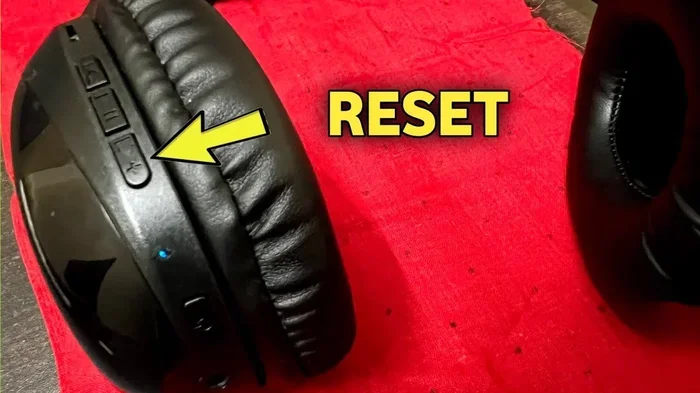
Many headsets have a hidden reset button combination. It usually involves holding two buttons at the same time for several seconds. Common combos include:
- Volume Up + Volume Down: Hold both for 5 to 10 seconds.
- Power + Volume Down: Hold both until the LED flashes red and blue.
- Multifunction Button + Volume Up: Hold both until you hear a beep.
Check your headset’s manual for the exact combo. If you don’t have the manual, the manufacturer’s website usually has a support page with instructions. This method works well when your headset is frozen or unresponsive.
How Can I Reset My Bluetooth Headset: Factory Reset Methods
If a soft reset doesn’t work, a factory reset is the next step. This wipes all paired devices, custom settings, and saved profiles from the headset. Use this method when your headset has serious connectivity issues or when you’re planning to sell or gift the device.
Method 3: Factory Reset via Button Sequence
Most Bluetooth headsets support a factory reset through a specific button sequence. While the exact steps vary by brand, here are common patterns:
- Sony WH-series: Hold the power button and the volume down button together for 7 seconds.
- JBL Tune/Flip series: Hold the volume up and volume down buttons for 10 seconds.
- Bose QuietComfort: Hold the power button for 10 seconds until the LED flashes.
- Apple AirPods: Forget the device on your iPhone, then place both AirPods in the case and hold the setup button for 15 seconds.
After the factory reset, the headset will return to its original out-of-box state. You’ll need to pair it again with your device. This method is especially useful when Bluetooth headset troubleshooting shows persistent pairing failures.
Method 4: Factory Reset Through App or Software
Some modern headsets come with companion apps. Sony has the Sony Headphones Connect app, and Bose has the Bose Music app. These apps often include a factory reset option in the settings menu. Using the app is helpful because:
- You can see the current firmware version.
- You can update the firmware before resetting.
- You get step-by-step on-screen instructions.
If your headset has a companion app, open it, look for a “Reset” or “Restore Defaults” option, and follow the prompts. This is often the safest factory reset method because it doesn’t risk damaging the device with incorrect button combos.
Common Bluetooth Headset Problems That a Reset Fixes
Not sure whether your issue actually needs a reset? Here are the most common problems that a reset can solve:
Headset Won’t Connect to Any Device
If your headset refuses to pair with any device, the Bluetooth module may be stuck in a bad state. A reset forces it to reinitialize the wireless radio, which often fixes the issue immediately.
Audio Keeps Cutting Out
Intermittent audio dropouts are a classic sign of a corrupted Bluetooth connection profile. Resetting clears the cached connection data and forces a clean handshake with your device.
One Side Is Silent
Sometimes only one earbud plays audio. This can happen after a firmware glitch or an interrupted firmware update. A reset can reinitialize the audio channels and restore balanced sound.
Unresponsive Controls
If the touch or physical buttons on your headset stop working, a reset can restore normal functionality. This is especially common after a firmware update that didn’t install properly.
Battery Drains Unusually Fast
A corrupted Bluetooth connection can cause the headset to drain battery even when not in use. A reset stops any runaway background processes and normalizes power consumption.
For gamers, if you’re experiencing issues with wireless gaming headsets, you might also find our article on Can I Use Bluetooth Headphones For Gaming helpful for understanding compatibility and setup.
Reset vs. Re-Pairing: What’s the Difference?
Many people confuse a reset with simply unpairing and re-pairing a device. While both can fix connection issues, they work very differently. Here’s a quick comparison:
| Action | What It Does | Deletes Paired Devices? | When to Use |
|---|---|---|---|
| Re-Pairing | Removes the device from your phone’s Bluetooth list and pairs it again | No (only on the phone side) | Minor connection drops, audio stuttering |
| Soft Reset | Restarts the headset’s software without clearing data | No | Frozen controls, minor glitches |
| Factory Reset | Wipes all settings and paired devices from the headset itself | Yes (on the headset) | Persistent connection failures, firmware issues |
As a rule of thumb, always try re-pairing first. If that doesn’t work, try a soft reset. Reserve the factory reset for stubborn issues that nothing else fixes. This approach saves time and avoids unnecessary data loss.
How to Put Your Headset Back Into Pairing Mode After a Reset
After any reset, your headset needs to be in pairing mode so other devices can find it. The method depends on your headset model, but here are the most common ways:
- Automatic Pairing Mode: Many headsets enter pairing mode automatically after a factory reset. Just look for a flashing LED light.
- Manual Pairing Mode: Hold the power button for 3 to 5 seconds after turning the headset on. The LED should flash blue and red (or white, depending on the brand).
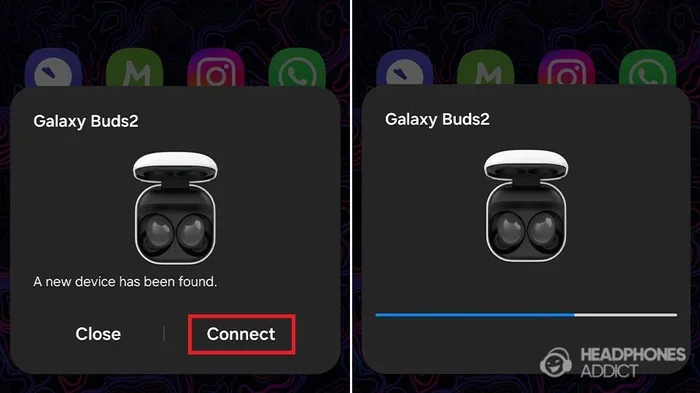
- App-Based Pairing: Open the companion app and select “Add New Device.” The app will guide you through the process.
If your headset doesn’t enter pairing mode after a reset, try turning it off and on again while holding the volume down button. This usually forces it into discovery mode. Once paired, your headset should work normally again.
Thinking about converting your wired headphones? Check out Can I Make My Wired Headphones Bluetooth for some creative alternatives.
Preventing Bluetooth Headset Issues in the Future
The best reset is the one you never need. Here are simple habits that keep your Bluetooth headset healthy and working flawlessly:
- Keep firmware updated. Check the manufacturer’s app regularly for firmware updates. These often include bug fixes for Bluetooth connectivity.
- Don’t overcharge. Unplug your headset once it reaches 100%. Overcharging can degrade battery health over time.
- Clean the contacts. Use a dry cloth to wipe the charging contacts on your earbuds or headset. Dirty contacts cause connection dropouts.
- Limit the number of paired devices. Most headsets support 5 to 10 paired devices. Having too many can slow down the connection process.
- Store properly. When not in use, keep your headset in its case or a clean, dry environment. Dust and moisture are the enemies of Bluetooth electronics.
- Restart your phone’s Bluetooth. Sometimes the issue isn’t the headset but your phone’s Bluetooth radio. Toggling Bluetooth off and on can prevent the need for a headset reset.
For users who want to explore other Bluetooth device options, our article on Can I Use Bluetooth Headphones With Switch covers compatibility across different platforms.
When a Reset Won’t Fix the Problem
Sometimes, even a factory reset isn’t enough. If you’ve tried every method in this guide and your headset still won’t work, the issue might be hardware-related. Here are signs that your problem needs professional help:
- The headset won’t charge at all, even with a different cable and charger.
- You can hear a rattling or grinding noise inside the earcup.
- The LED light never turns on, even after leaving it on the charger for an hour.
- One side produces distorted sound at all volume levels.
- The headset physically fell apart or was dropped from a significant height.
In these cases, contact the manufacturer’s support team. Most brands offer a 1-year warranty that covers hardware defects. If your headset is out of warranty, a repair shop can often fix the issue for a fraction of the cost of a new device.
You might also want to check if Bluetooth is functioning properly on your laptop. For example, see our guide on Can I Remove Intel Wireless Bluetooth if you’re troubleshooting Bluetooth issues on your computer.
Final Thoughts
So, how can I reset my Bluetooth headset? The answer depends on the severity of the issue. For most problems, a simple soft reset — turning the headset off and back on — does the trick. If that doesn’t work, try the button combo method. For serious issues, a factory reset through the headset’s buttons or companion app should resolve everything.
Remember that prevention is always better than cure. Keep your firmware updated, store your headset properly, and don’t overload it with too many paired devices. These small habits can save you from needing a reset in the first place.
Next time your Bluetooth headset acts up, don’t reach for your wallet. Follow the steps in this guide, and you’ll likely have it working again in just a few minutes. Your wallet — and your ears — will thank you.
Frequently Asked Questions
How long does it take to reset a Bluetooth headset?
A soft reset takes less than 30 seconds. A factory reset usually takes about 1 to 2 minutes, depending on the brand. The re-pairing process after a reset might take an additional minute or two. Overall, you should be back up and running in under 5 minutes.
Will resetting my Bluetooth headset delete my music or files?
No. Bluetooth headsets don’t store music or personal files. A reset only clears Bluetooth pairing data, custom settings, and firmware configurations. Your music library, photos, and other files on your phone or computer remain completely safe.
How often should I reset my Bluetooth headset?
You shouldn’t need to reset your headset regularly. A reset is only necessary when you experience connection problems, audio issues, or unresponsive controls. Resetting too often doesn’t improve performance and can wear down the device’s internal memory over time.
What should I do if my Bluetooth headset still won’t connect after a reset?
Try forgetting the device on your phone or computer first, then re-pair it. If that doesn’t work, check if your phone’s Bluetooth is turned off and back on. You should also make sure your headset’s firmware is up to date through the manufacturer’s app. If none of these steps work, contact the manufacturer’s customer support.
Can I reset my Bluetooth headset without the manual?
Yes. Most headsets have a standard reset method that involves holding the power button and one volume button for several seconds. You can also search for your specific model number on the manufacturer’s website to find the exact reset steps. Many headsets also have reset instructions available through their companion apps.
Is there a difference between resetting Bluetooth headphones and earbuds?
The basic reset process is the same, but earbuds sometimes have unique considerations. True wireless earbuds often need to be reset while sitting in the charging case with the lid open. Over-ear headphones typically use button combinations on the earcup. Always check your specific model’s instructions for the most accurate method.