How Can I Tell If My Samsung Tv Has Bluetooth Built In
Finding out if your Samsung TV has Bluetooth is easier than you think. You can check the settings menu, look up your model number, or use the Samsung SmartThings app to confirm Bluetooth capability. This guide covers every method so you can connect wireless headphones, speakers, and other devices without any guesswork.
You just got a new Samsung TV, and you want to connect your wireless headphones or a Bluetooth speaker. But there is one problem. You are not sure if your Samsung TV even has Bluetooth built in. Maybe you are tired of dealing with cables. Or maybe you just want to watch your favorite show late at night without waking up the whole house.
Whatever the reason, this guide will help you figure it out fast. We will walk you through every simple method to check if your Samsung TV supports Bluetooth. You will learn how to use the TV settings, look up your model number, and even use your phone to confirm. By the end, you will know exactly what your TV can do and how to connect your favorite wireless devices.
Bluetooth on a Samsung TV opens up a lot of possibilities. You can pair wireless headphones, connect a soundbar, use a Bluetooth speaker to boost the sound, or even send audio to another room. But first, you need to know if your TV has this feature. Let us get into it.
Key Takeaways
- Check the Settings Menu: The fastest way to find Bluetooth on your Samsung TV is through the Sound or General settings panel.
- Look Up Your Model Number: The Samsung website and user manual list all features, including Bluetooth support, for your specific TV model.
- Use the SmartThings App: The Samsung SmartThings app lets you view and manage connected Bluetooth devices right from your phone.
- Check the Remote and Menu Layout: Newer Samsung remotes have a dedicated Bluetooth or SmartThings button that signals Bluetooth support.
- Use a Bluetooth Adapter if Needed: If your Samsung TV lacks built-in Bluetooth, a simple USB Bluetooth adapter can add wireless connectivity.
- Pairing Is Simple: Once you confirm Bluetooth, connecting headphones, speakers, or soundbars takes just a few steps.
📑 Table of Contents
- Why Bluetooth Matters on a Samsung TV
- Method 1: Check the Samsung TV Settings Menu
- Method 2: Look Up Your Samsung TV Model Number
- Method 3: Use the Samsung SmartThings App
- Method 4: Check the Physical Remote and TV Buttons
- What To Do If Your Samsung TV Does Not Have Bluetooth
- How To Pair Bluetooth Devices With Your Samsung TV
- Quick Tips for the Best Bluetooth Experience on Your Samsung TV
- Common Mistakes People Make When Using Bluetooth on Samsung TVs
- Expert Insights: Bluetooth on Samsung TVs Across Different Series
- Final Thoughts
Why Bluetooth Matters on a Samsung TV
Bluetooth is one of the most useful features on a modern smart TV. It lets you go completely wireless. No more cables running across the floor. No more figuring out which audio cable goes where. With Bluetooth, you can connect your device in seconds and enjoy private listening or better sound quality.
Here are some of the main reasons people look for Bluetooth on their Samsung TV:
- Wireless headphones: Watch TV late at night without disturbing anyone. This is especially helpful for people who share a bed or live in apartments.
- Better sound quality: Many Bluetooth soundbars and speakers deliver richer, louder audio than your TV’s built-in speakers.
- Multiple device connections: You can switch between different Bluetooth audio devices easily, like headphones in the morning and a speaker in the evening.
- Gaming and calls: If you use your TV for gaming or video calls, Bluetooth headphones give you a clean, private audio experience.
- Cleaner setup: Fewer cables means a tidier living room and less clutter around your entertainment center.
Not every Samsung TV has Bluetooth, though. Some older models and budget options leave it out. That is why it is so important to confirm before you buy a new pair of wireless headphones or a Bluetooth speaker. The good news is that checking is quick and easy. Let us look at the different ways to do it.
Method 1: Check the Samsung TV Settings Menu
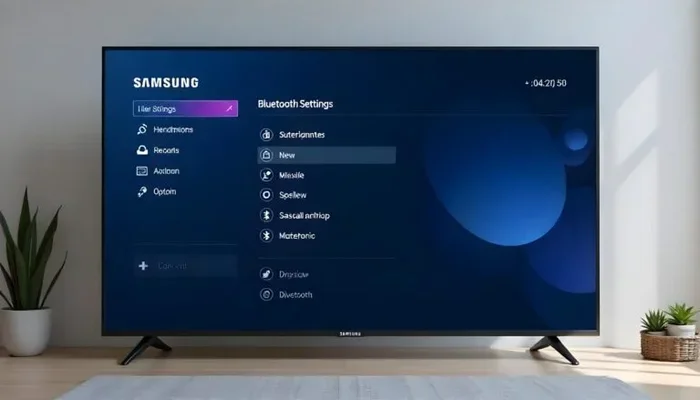
The fastest and most reliable way to check for Bluetooth is right from your TV. This method works on almost all Samsung smart TVs made in the last several years. Here is exactly what to do.
Step-by-Step Guide
- Turn on your Samsung TV. Make sure it is connected to your home Wi-Fi network for the best experience.
- Press the Home button on your Samsung remote. This opens the main dashboard.
- Navigate to Settings. Look for the gear icon on the top or right side of the screen.
- Select Sound. In some models, you may need to go to General first, then Sound.
- Look for Bluetooth. If you see a Bluetooth option or a list of Bluetooth audio devices, your TV has Bluetooth built in.
Some Samsung TV models show Bluetooth under a section called “Sound Output” or “Audio Output.” If you find that section and it lists Bluetooth devices, you are good to go. If you do not see any Bluetooth option at all, your TV may not support it.
Here is a quick tip. If your TV does have Bluetooth but you cannot find it in the Sound menu, try going to Settings > General > Bluetooth instead. Samsung moves this menu around slightly depending on the model and the software version you are running.
What If You Do Not See Bluetooth in Settings?
Do not panic just yet. There are a few reasons Bluetooth might not show up in the settings menu:
- Your TV model does not support Bluetooth. Some older or budget Samsung TVs simply do not have this feature.
- The firmware needs updating. Samsung sometimes adds features through software updates. Check if your TV has a pending update.
- Bluetooth is hidden. On some models, you may need to enable Bluetooth through the SmartThings app first.
Updating your TV firmware is simple. Go to Settings > Support > Software Update and select “Update Now.” This can also fix bugs and improve your TV’s overall performance.
Method 2: Look Up Your Samsung TV Model Number
If you cannot find Bluetooth in the settings, the next best step is to look up your TV’s model number. Every Samsung TV has a unique model number printed on a sticker on the back of the TV or in the user manual. This number tells you exactly what features your TV has.
How to Find Your Model Number
- Check the back of the TV. Look for a white sticker with a series of letters and numbers. The model number usually starts with “QN” for QLED TVs or “RU” for older models.
- Check the user manual. If you still have the box or manual, the model number is on the cover or in the specifications section.
- Check the TV menu. Go to Settings > Support > Contact Samsung and your model number should appear on screen.
- Check the original packaging. The barcode label on the box lists the model number clearly.
Using the Samsung Website to Check Features
Once you have your model number, go to the Samsung website. Search for your exact model number in the support or products section. The product page will list all the specifications for your TV. Look for “Bluetooth” under the audio or connectivity section.
This is one of the most accurate ways to confirm Bluetooth support. Samsung lists every feature on the product page, so you will know for sure. You can also check the Samsung TV user manual online by entering your model number in the search bar on Samsung’s support site.
If you recently bought the TV, you might also check the original box or the email confirmation from your purchase. These often list the key features, including whether Bluetooth is included.
Method 3: Use the Samsung SmartThings App
The Samsung SmartThings app is a powerful tool for managing your Samsung smart devices. It can also help you confirm if your TV has Bluetooth. This method is especially useful if you already have the app installed on your phone.
How to Check Bluetooth Through SmartThings
- Download the SmartThings app from the App Store or Google Play Store if you do not have it already.
- Open the app and sign in with your Samsung account.
- Select your Samsung TV from the list of connected devices.
- Go to Settings or Device Settings. Look for a Bluetooth or Audio section.
- Check for Bluetooth options. If you see options to pair Bluetooth devices, your TV supports Bluetooth.
The SmartThings app also lets you manage your connected Bluetooth devices directly from your phone. You can see what is currently paired, disconnect devices, and pair new ones. This is a very convenient way to handle all your wireless audio connections.
One thing to keep in mind. The SmartThings app works best with Samsung TVs that are connected to the same Wi-Fi network as your phone. Make sure both devices are on the same network for the best experience.
Method 4: Check the Physical Remote and TV Buttons
This is a quick shortcut that many people overlook. The remote control that came with your Samsung TV can give you clues about Bluetooth support.
Look at your Samsung remote carefully. Do you see a button labeled “SmartThings” or a Bluetooth icon? If yes, your TV very likely has Bluetooth built in. Samsung added dedicated Bluetooth and SmartThings buttons to their remotes starting around 2018 and continuing through newer models.
Here are some things to look for on your remote:
- A SmartThings button: This button is usually at the top of the remote and looks like a circle with two curved lines.
- A Bluetooth symbol: This looks like a “B” with tail-like lines extending from it.
- A microphone button: Many newer Samsung remotes have a voice search button, which often works alongside Bluetooth features.
If your remote has none of these buttons, it does not necessarily mean your TV lacks Bluetooth. But it is a strong indicator that your TV may be an older model. In that case, you can try the other methods we covered above to confirm.
Also, some Samsung remotes can be paired to the TV using Bluetooth. If you notice your remote connecting wirelessly rather than through infrared, that is another sign your TV supports Bluetooth.
What To Do If Your Samsung TV Does Not Have Bluetooth
So you checked all the methods above, and your Samsung TV does not have Bluetooth. Do not worry. You are not out of options. There are several easy ways to add Bluetooth to any Samsung TV, even older models.
Option 1: Use a Bluetooth Adapter
A Bluetooth adapter is a small USB device that plugs into your TV and adds Bluetooth capability. These adapters are affordable and work with most Samsung TVs. Here is how to use one:
- Buy a compatible Bluetooth USB adapter. Look for one that supports the Bluetooth 4.0 or 5.0 standard for the best range and stability.
- Plug the adapter into a USB port on your Samsung TV.
- Go to your TV settings and look for the new Bluetooth option.
- Pair your Bluetooth device just like you would with a built-in Bluetooth TV.
Bluetooth adapters are a great solution if you want to connect wireless headphones or a Bluetooth speaker without buying a new TV. They cost between $10 and $30 on most online stores, making them a budget-friendly option.
Option 2: Connect Through an External Speaker or Soundbar
Another option is to use a Bluetooth soundbar or speaker that connects to your TV through an audio cable. Many Bluetooth speakers and soundbars can receive audio from your TV through a 3.5mm cable or RCA connection. Then the speaker handles the Bluetooth connection to your phone or headphones.
You can also turn regular speakers into Bluetooth devices using a Bluetooth receiver. These small devices plug into the audio output of your TV and give your regular speakers wireless capability. It is a simple and effective way to add Bluetooth to any setup.
Option 3: Use a Streaming Device
Some streaming devices, like certain models of Chromecast or Roku, support Bluetooth audio output. If you use a streaming stick or box with your Samsung TV, check if that device supports Bluetooth. This can be an indirect way to get wireless audio from your TV.
How To Pair Bluetooth Devices With Your Samsung TV
Once you have confirmed that your Samsung TV has Bluetooth, pairing your devices is straightforward. Here is a simple guide to get you started.
Pairing Bluetooth Headphones
- Put your headphones in pairing mode. Usually, this means holding down the power button or a dedicated Bluetooth button until a light flashes.
- On your Samsung TV, go to Settings > Sound > Sound Output.
- Select Bluetooth Speaker List.
- Choose your headphones from the list of available devices.
- Wait for the connection. You should hear a confirmation sound or see a message on screen.
If you want to use your Bluetooth headphones while gaming, make sure to check that your TV’s audio latency is low. Some Samsung TVs have a “Game Mode” setting that reduces audio delay, giving you a better experience when using wireless headphones.
Pairing a Bluetooth Speaker
Pairing a Bluetooth speaker follows the same basic steps. Put your speaker in pairing mode, go to the Bluetooth speaker list on your TV, and select your speaker. You can also use a Bluetooth speaker to amplify your voice or boost your TV’s audio if you have a larger room.
Pairing a Soundbar
Samsung soundbars are designed to work seamlessly with Samsung TVs. Simply put your soundbar in pairing mode and select it from the Bluetooth speaker list on your TV. Many Samsung soundbars also support automatic connection, which means they pair with your TV the moment you turn both devices on.
Quick Tips for the Best Bluetooth Experience on Your Samsung TV
Getting Bluetooth to work well on your Samsung TV is not just about pairing. A few simple tips can make a big difference in sound quality and connection stability.
- Keep your Bluetooth device close to the TV. Bluetooth works best within about 30 feet. Walls and furniture can weaken the signal.
- Update your TV firmware regularly. Samsung releases updates that improve Bluetooth performance and fix connection issues.
- Turn off other Bluetooth devices nearby. Too many Bluetooth signals in one area can cause interference and dropouts.
- Use a dedicated Bluetooth channel. Some Samsung TVs let you choose between different Bluetooth codecs for better audio quality.
- Restart your TV and device if connection issues occur. A simple restart often fixes most Bluetooth pairing problems.
- Check your TV’s audio output settings. Make sure the Bluetooth device is set as the default audio output, not the TV speakers.
These tips apply whether you are connecting wireless headphones, a soundbar, or a Bluetooth speaker. Following them will help you get the most out of your Bluetooth connection every time.
Common Mistakes People Make When Using Bluetooth on Samsung TVs
Even with the best setup, people sometimes run into issues with Bluetooth on their Samsung TVs. Here are some common mistakes to avoid.
- Not putting the device in pairing mode. Many Bluetooth devices need to be manually set to pairing mode before they show up on your TV’s list. If your device does not appear, check if it is in pairing mode.
- Connecting too many devices at once. Most Samsung TVs can only connect to one Bluetooth audio device at a time. If you try to connect multiple devices, only the first one will work until you disconnect it.
- Ignoring firmware updates. Outdated firmware can cause Bluetooth issues. Always keep your TV updated for the best performance.
- Placing the Bluetooth device too far away. Bluetooth has a limited range. Keeping your device in the same room as the TV gives you the best results.
- Forgetting to disconnect unused devices. Old paired devices can interfere with new connections. Go to your Bluetooth device list and remove any devices you no longer use.
Avoiding these simple mistakes will save you a lot of frustration and help your Bluetooth connection run smoothly every time you use it.
Expert Insights: Bluetooth on Samsung TVs Across Different Series
Samsung makes many different TV series, and Bluetooth support varies across them. Here is a quick breakdown of what you can expect from popular Samsung TV lines.
| TV Series | Bluetooth Support | Notes |
|---|---|---|
| Samsung QLED (QN Series) | Yes, built in | All QLED models from 2018 and newer support Bluetooth |
| Samsung Crystal UHD | Yes, built in | Most models support Bluetooth audio output |
| Samsung The Frame | Yes, built in | Supports Bluetooth headphones and speakers |
| Samsung Terrace | Yes, built in | Outdoor TV with full Bluetooth support |
| Samsung Older Models (Pre-2017) | May not support | Check model number on Samsung website to confirm |
| Samsung Budget Models | Varies | Some budget models skip Bluetooth to keep costs low |
As you can see, most modern Samsung TVs come with Bluetooth built in. If you own a TV from the last five years, there is a very good chance it supports Bluetooth. If you are unsure, use the methods in this guide to confirm.
Final Thoughts
Checking if your Samsung TV has Bluetooth built in does not have to be complicated. You have several easy options. You can check the settings menu, look up your model number on the Samsung website, use the SmartThings app, or inspect your remote control for Bluetooth indicators.
Once you confirm Bluetooth support, you can enjoy wireless audio in so many ways. Connect your favorite headphones for late-night watching. Pair a soundbar for richer sound. Or use a Bluetooth speaker to fill your room with clear audio. The possibilities are really convenient.
If your Samsung TV does not have Bluetooth, do not worry. A simple Bluetooth adapter or a Bluetooth receiver can add this feature to almost any TV. It is an affordable and easy fix that works like a charm.
Take a few minutes today to check your Samsung TV for Bluetooth. You will be surprised how quickly you can set up a wireless audio connection and start enjoying your favorite shows and movies the way you want. Once you go wireless, you will not want to go back to cables.
Frequently Asked Questions
How do I know if my Samsung TV supports Bluetooth?
The fastest way is to go to Settings > Sound > Sound Output on your Samsung TV. If you see a Bluetooth option or a list of Bluetooth audio devices, your TV supports Bluetooth. You can also look up your model number on the Samsung website to check the full list of features.
Can I add Bluetooth to a Samsung TV that does not have it built in?
Yes, you can. A Bluetooth USB adapter is the easiest and most affordable way to add Bluetooth to any Samsung TV. Simply plug the adapter into a USB port on your TV, and it will enable Bluetooth connectivity for headphones, speakers, and other devices.
Why can my Samsung TV not find my Bluetooth headphones?
This usually happens because the headphones are not in pairing mode. Make sure your headphones are set to discoverable mode before searching on your TV. Also, check that your headphones are not already connected to another device nearby, as this can cause interference.
Can I connect multiple Bluetooth devices to my Samsung TV at the same time?
Most Samsung TVs can only connect to one Bluetooth audio device at a time. However, you can quickly switch between paired devices by going to the Bluetooth speaker list in your TV settings and selecting a different device.
Does every Samsung smart TV have Bluetooth?
No, not every Samsung smart TV has Bluetooth. Some older models and budget TVs do not include this feature. The best way to confirm is to check your TV settings, look up your model number on Samsung’s website, or use the SmartThings app.
Is Bluetooth on Samsung TV good for gaming?
Yes, Bluetooth on Samsung TV works well for gaming, but there may be a slight audio delay compared to a wired connection. Samsung TVs with a Game Mode setting can help reduce this delay. For the best gaming experience, look for headphones that support low-latency Bluetooth codecs.