How Can I Mirror My Phone To My Tv Without Internet
You can mirror your phone to your TV without internet using a few simple methods like HDMI cables, Miracast, and wired connections. This guide walks you through each option step by step so you can pick the best one for your setup. Whether you have an iPhone, Android, or iPad, there is a reliable way to get your screen on the big display. No WiFi? No problem. Keep reading to find the easiest solution.
Key Takeaways
- HDMI cables work great: A simple wired connection lets you mirror your phone to TV without any internet at all.
- Miracast is a popular wireless option: It uses direct device-to-device communication and does not need a router.
- AirPlay works for Apple users: You can use AirPlay with certain smart TVs even without a shared WiFi network.
- Screen mirroring apps exist: Some apps help you cast your phone screen to your TV offline.
- Wired connections are the most reliable: They offer stable performance with zero lag or buffering.
📑 Table of Contents
- How Can I Mirror My Phone To My Tv Without Internet
- Why Mirror Your Phone Without Internet?
- Method 1: Use an HDMI Cable
- Method 2: Use Miracast for Wireless Mirroring
- Method 3: Use AirPlay for Apple Devices
- Method 4: Use a Screen Mirroring Adapter or Dongle
- Method 5: Use a USB Connection
- Comparison Table: Wired vs Wireless Methods
- Common Mistakes to Avoid
- Can You Mirror Without Any Extra Equipment?
- Best Apps for Screen Mirroring Without Internet
- Final Thoughts
How Can I Mirror My Phone To My Tv Without Internet
There are many reasons you might want to mirror my phone to my tv without internet. Maybe your WiFi is down. Maybe you are at a cabin in the woods. Or maybe you just do not trust your home network when it comes to streaming. Whatever the reason, you have options. You do not need a working internet connection to get your phone screen on your TV.
The good news is that this process is simpler than most people think. You can use cables, built-in TV features, or small adapters. In this guide, we will walk through every method that actually works. You will learn which option fits your phone, your TV, and your budget. By the end, you will be ready to cast your screen like a pro.
Screen mirroring without internet is not just a cool trick. It is a practical skill. You can share photos with family, play mobile games on a bigger screen, or even give presentations without relying on a network. Let us dive into the best ways to do it.
Why Mirror Your Phone Without Internet?
You might wonder why anyone would want to cast without wifi. The truth is, there are many real-world situations where internet access is limited or unavailable. Here are some common reasons people need this skill:
- WiFi outages: Your internet provider has a downtime, but you still want to watch something on the big screen.
- Travel and camping: You are staying somewhere with no reliable internet but have a smart TV or monitor available.
- Privacy concerns: You do not want your casting activity going through a shared network.
- Network congestion: Too many devices are using the WiFi, and mirroring keeps buffering.
- Older TVs: You have a TV that does not connect to WiFi but still has HDMI inputs.
No matter the reason, the methods below will get the job done. Phone to TV connection does not always require the internet. Sometimes a simple cable is all you need.
Method 1: Use an HDMI Cable
The most reliable way to mirror my phone to my tv without internet is with an HDMI cable. This is a wired connection, which means it does not depend on any wireless signal. You get a stable, lag-free display every time.
What You Will Need
- An HDMI cable
- The right adapter for your phone (Lightning, USB-C, or Micro-USB)
- A TV with an available HDMI port
For iPhone users, you can check out our guide on connecting your iPhone to your TV with HDMI for model-specific tips. For Android users, a USB-C to HDMI cable or adapter does the trick.
Step-by-Step Instructions
- Plug the HDMI cable into your TV and set the TV to the correct input channel.
- Connect the adapter to your phone.
- Plug the other end of the HDMI cable into the adapter.
- Your phone screen should immediately appear on the TV.
- Adjust the TV volume and display settings as needed.
This method works with almost any phone made in the last five years. It is fast, simple, and does not require any apps or WiFi. If you want a deeper dive into HDMI phone connections, check out our article on connecting your phone to TV with HDMI cable.
Quick Tip: Buy a high-quality HDMI adapter from a reputable brand. Cheap adapters sometimes cause flickering or no signal at all.
Method 2: Use Miracast for Wireless Mirroring
If you want to go wireless but still avoid WiFi, Miracast is your best friend. Miracast is a wireless display standard that connects your phone directly to your TV. It creates a point-to-point connection, so you do not need a router or internet connection.
How Miracast Works
Miracast uses WiFi Direct technology. This means your phone and TV communicate directly with each other. They form a small local network on the spot. No internet is needed. No router is required. Just the two devices talking to each other.
How to Set It Up
- Check if your TV supports Miracast. Most smart TVs made after 2015 have this built in.
- On your TV, go to the input or source menu and select Miracast or Screen Share.
- On your phone, go to Settings and look for Screen Mirroring, Smart View, or Cast.
- Select your TV from the list of available devices.
- Your phone screen will now appear on the TV.
Not all phones support Miracast natively. Android phones almost always do. iPhones do not support Miracast, so Apple users will need to look at other options below.
Expert Insight: Miracast works best when both devices are close to each other. Walls and obstacles can weaken the signal. Keep your phone within about 15 feet of the TV for the best experience.
Method 3: Use AirPlay for Apple Devices
If you have an iPhone or iPad, AirPlay is a built-in feature that lets you mirror your screen. Many people think AirPlay requires WiFi, but that is not always true. Some smart TVs and Apple TVs support AirPlay over a direct peer-to-peer connection.
How to Use AirPlay Without WiFi
- Make sure your TV supports AirPlay or you have an Apple TV connected.
- Turn on AirPlay on your TV.
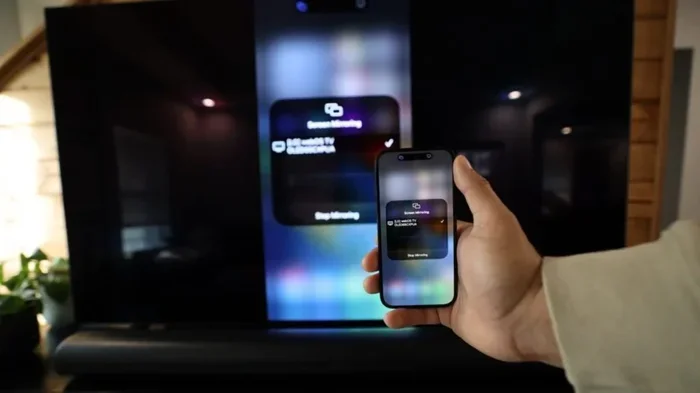
- On your iPhone, open the Control Center and tap Screen Mirroring.
- Select your TV from the list.
- Your screen will appear on the TV without needing a shared WiFi network.
For iPad users who want to connect via cable, you can also check out our guide on connecting your iPad to your TV with a USB cable.
Common Mistake: Many people think AirPlay will not work without WiFi. While it works best on the same network, peer-to-peer AirPlay can function without one. Just make sure both devices have Bluetooth and WiFi turned on, even if they are not connected to a network.
Method 4: Use a Screen Mirroring Adapter or Dongle
Not all TVs have Miracast or AirPlay built in. In that case, a screen mirroring adapter is a great solution. These small dongles plug directly into your TV’s HDMI port and receive a wireless signal from your phone.
Popular Options
- Miracast dongles: Affordable and work with most Android phones.
- Chromecast: Works well with Android and some iOS devices, though it typically needs WiFi.
- Amazon Fire TV Stick: Can mirror your screen using the built-in mirroring feature.
For a device that works without internet, a dedicated Miracast adapter is your safest bet. You simply plug it into the HDMI port, power it up, and connect from your phone.
Quick Tip: Some adapters come with their own WiFi hotspot feature. This means they create their own small network for the phone to connect to. No home internet needed.
Method 5: Use a USB Connection
Some phones support screen mirroring through a USB connection. This is another wired option that does not need WiFi or internet. It works especially well with Android phones that support MHL (Mobile High-Definition Link) or SlimPort.
What You Need
- A USB cable compatible with your phone
- A USB-to-HDMI adapter or cable
- A TV with an HDMI input
Plug the USB end into your phone, the HDMI end into your TV, and your screen should mirror instantly. Not all phones support this, so check your phone’s specifications before buying an adapter.
For those wondering about connecting specific devices, you might also want to read about connecting an HDMI to your phone for more adapter options.
Comparison Table: Wired vs Wireless Methods
Not sure which method is right for you? Here is a quick comparison of the main options for screen mirroring without internet:
| Method | Wired or Wireless | Works Without Internet | Best For | Setup Difficulty |
|---|---|---|---|---|
| HDMI Cable | Wired | Yes | Stable, lag-free display | Very Easy |
| Miracast | Wireless | Yes | Android users wanting wireless freedom | Easy |
| AirPlay | Wireless | Yes (peer-to-peer) | iPhone and iPad users | Easy |
| Miracast Dongle | Wireless | Yes | TVs without built-in Miracast | Easy |
| USB Connection | Wired | Yes | Android phones with MHL support | Moderate |
Common Mistakes to Avoid
Even though mirroring your phone without internet is straightforward, people make mistakes that cause frustration. Here are some to watch out for:
- Using the wrong adapter: Not all adapters work with all phones. Check your phone model before buying.
- Assuming all smart TVs support Miracast: Some budget TVs do not. Check your TV’s settings or manual.
- Ignoring cable quality: Cheap cables can cause poor image quality or no signal at all.
- Forgetting to enable screen mirroring on the TV: Both devices need to have the feature turned on.
- Expecting Miracast to work over long distances: It works best in the same room with minimal walls between devices.
Avoiding these mistakes will save you time and frustration. A little preparation goes a long way.
Can You Mirror Without Any Extra Equipment?
In some cases, yes. If your TV supports Miracast or AirPlay natively, you do not need any extra gear. You just use your phone and TV as they are. However, if your TV is older or does not have these features built in, you will need at least an adapter or dongle.
The simplest no-equipment option is using an HDMI cable if your phone has the right port. Many newer phones use USB-C, and you can get a USB-C to HDMI cable for under fifteen dollars. No adapters, no dongles, no WiFi needed.
Best Apps for Screen Mirroring Without Internet
While many mirroring methods work without any apps at all, some apps can enhance the experience. Here are a few reliable options:
- AirScreen: Turns your TV into an AirPlay receiver. Works without internet on supported devices.
- Miracast App: Available on Android and helps set up wireless display connections.
- Samsung Smart View: For Samsung TV owners, this app makes mirroring seamless.
- LetsView: A free app that supports wireless mirroring between phones and TVs.
Most of these apps work over a direct device connection, not through the internet. They are great tools to have in your back pocket.
Final Thoughts
Mirroring your phone to your TV without internet is easier than you probably think. Whether you choose a simple HDMI cable, wireless Miracast, or AirPlay, you have solid options that work without a router or internet connection. The best method depends on your phone type, your TV model, and whether you prefer wired or wireless.
If you want the most reliable connection, go with an HDMI cable. If you want freedom from cables, Miracast or AirPlay will serve you well. Each method has its strengths, and all of them work offline.
Now that you know the options, pick the one that fits your setup and give it a try. You will be watching your phone screen on the big TV in no time. And the best part? You did not need a single bit of internet to do it.
For more tips on connecting devices to your TV, check out our guide on mirroring your phone to a smart TV without WiFi for additional troubleshooting and setup help.
Frequently Asked Questions
Can I mirror my phone to my TV without WiFi or internet?
Yes, you can. The best methods include using an HDMI cable, Miracast, or AirPlay in peer-to-peer mode. All of these work without an internet connection. You just need the right cable or a TV that supports the wireless standard.
Do I need any special equipment to mirror without internet?
It depends on the method. HDMI mirroring only requires a cable and an adapter. Wireless mirroring may need a TV that supports Miracast or AirPlay natively. If your TV does not support these, a Miracast dongle is an affordable option.
Can I mirror an iPhone to a TV without WiFi?
Yes. You can use AirPlay in peer-to-peer mode, which does not require a shared WiFi network. Alternatively, you can use a Lightning to HDMI adapter for a wired connection. Both methods work without internet.
Why is my screen mirroring lagging or stuttering?
Lag usually happens with wireless methods when the devices are too far apart or there are walls between them. Using a wired HDMI connection eliminates lag completely. If you prefer wireless, keep the devices close together for the best performance.
Does screen mirroring use a lot of battery?
Yes, mirroring can drain your phone battery faster than normal use. Both the wireless signal and the screen output require power. If you are mirroring for a long time, keep your phone plugged in or use a wired connection, which tends to use less battery.
Can I use a USB cable to mirror my phone to my TV?
Yes, if your phone supports MHL or SlimPort. You need a USB-to-HDMI adapter or cable. Check your phone’s specifications to confirm it supports this feature. Most modern Android phones with USB-C support some form of video output.