How Can I Connect My Phone To A Projector Without Cable
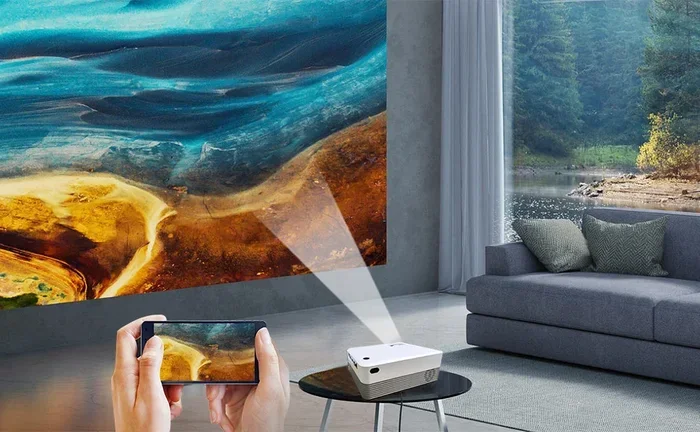
You can connect your phone to a projector without a cable using wireless screen mirroring, Wi-Fi Direct, Bluetooth, or a wireless display adapter. This guide walks you through every method so you can cast your phone screen to a projector easily. Whether you have an iPhone or Android, there is a wireless solution that works for you.
Have you ever wanted to share your phone screen on a big projector but hated the idea of tangled cables? Connecting your phone to a projector without cable is easier than you think. You do not need expensive equipment or a tech degree to make it work.
Wireless projection has come a long way. Today, you can stream videos, present slides, or play games from your phone directly to a projector. The whole process takes just a few minutes to set up. In this guide, we will walk you through every method step by step.
Whether you are at home, in a classroom, or at a business meeting, knowing how to go cable-free with your projector setup saves time and hassle. Let us dive into the best ways to make it happen.
Key Takeaways
- Wireless screen mirroring lets you project your phone display without any physical cables.
- Wi-Fi Direct and Bluetooth offer simple, cable-free ways to link your phone and projector.
- Wireless display adapters like Chromecast or Fire Stick give you more flexibility and better streaming quality.
- Most modern projectors and phones support built-in wireless projection features.
- Troubleshooting tips can fix common connection problems like lag, audio issues, or failed mirroring.
📑 Table of Contents
- Why Go Wireless When Connecting Your Phone to a Projector?
- Method 1: Use Built-In Screen Mirroring
- Method 2: Use a Wireless Display Adapter
- Method 3: Use Wi-Fi Direct for a Cable-Free Connection
- Method 4: Bluetooth Streaming for Audio and Basic Projection
- Common Problems and How to Fix Them
- Comparison Table: Wireless Methods at a Glance
- Tips for the Best Wireless Projection Experience
- Final Thoughts on Wireless Phone-to-Projector Connections
Why Go Wireless When Connecting Your Phone to a Projector?
Cables have their place. They give a stable connection and usually deliver solid quality. But they also bring clutter, limited range, and the annoying need to be right next to the projector. Wireless phone projection removes all of those problems.
When you go cable-free, you gain the freedom to move around the room. You can control your presentation from across the space. You can pass your phone to someone else without unplugging anything. And setup time drops to almost zero.
Here are some real benefits of wireless projector connectivity:
- No more cable clutter on the floor or table.
- You can move freely while presenting or streaming.
- Setup takes minutes instead of fiddling with adapters.
- You can share your screen with anyone in the room instantly.
- It works with most modern phones and projectors.
Now that you know the “why,” let us look at the “how.”
Method 1: Use Built-In Screen Mirroring
Many modern projectors come with built-in wireless features. This is the easiest way to mirror your phone screen without cable. You do not need any extra devices.
How Screen Mirroring Works
Screen mirroring sends your phone display to the projector over Wi-Fi. Both devices need to be on the same network. The projector receives the signal and shows what is on your phone in real time.
On Android phones, look for the Cast or Smart View option in your quick settings. On iPhones, use AirPlay if your projector supports it. Simply select your projector from the list and your screen appears on the big display.
Step-by-Step for Android
- Make sure your phone and projector are on the same Wi-Fi network.
- Swipe down from the top of your screen to open quick settings.
- Tap the Cast or Screen Mirroring icon.
- Select your projector from the list of available devices.
- Your phone screen now shows on the projector wirelessly.
Step-by-Step for iPhone
- Connect your iPhone and the projector to the same Wi-Fi network.
- Swipe down from the top-right corner of your screen.
- Tap the Screen Mirroring button.
- Choose your projector from the list.
- Your iPhone display is now projected on the big screen.
Quick Tip: If your projector does not show up in the list, restart both devices and try again. Sometimes a simple reboot fixes the connection issue fast.
One thing to keep in mind: built-in screen mirroring works best when both devices support the same wireless display protocol. Some older projectors may not have this feature built in. In that case, try Method 2 or Method 3 below.
Method 2: Use a Wireless Display Adapter
A wireless display adapter is a small device you plug into your projector’s HDMI port. It acts as a bridge between your phone and the projector. This method works even if your projector does not have built-in Wi-Fi.
Popular Wireless Display Adapters
There are several great options out there. Here are some of the most popular ones:
- Google Chromecast — affordable and easy to set up with Android and iPhone.
- Amazon Fire TV Stick — great for streaming and screen mirroring.
- Microsoft Wireless Display Adapter — works well with Windows phones and Android.
- Belkin Miracast Adapter — solid performance for presentations and media.
If you are considering a Fire Stick for your projector, you can find more details on using a Fire Stick with a projector on our site.
How to Set Up a Wireless Adapter
- Plug the adapter into your projector’s HDMI port.
- Connect the adapter to a power source.
- Switch your projector to the correct HDMI input.
- Follow the adapter’s setup instructions on your phone.
- Once paired, your phone can cast to the projector wirelessly.
Most adapters use Wi-Fi Direct or a dedicated app to connect. This means you do not always need a router. The phone and adapter can create their own direct connection, which is great for presentations in rooms without Wi-Fi.
Quick Tip: Always update your adapter’s firmware before first use. This ensures the best performance and fixes any bugs from the factory.
Method 3: Use Wi-Fi Direct for a Cable-Free Connection
Wi-Fi Direct is a powerful technology that lets two devices connect directly without a router. Your phone and projector can talk to each other through Wi-Fi Direct, even in places with no internet connection.
This method is perfect for outdoor movie nights, classroom presentations, or anywhere you do not want to rely on a network. The connection is fast and keeps your data private since it does not go through the internet.
How to Enable Wi-Fi Direct on Android
- Open your phone’s Settings app.
- Go to Connected Devices or Network & Internet.
- Look for Wi-Fi Direct or Peer-to-Peer.
- Turn it on and wait for your projector to appear.
- Select the projector and accept the connection request.
Not all projectors support Wi-Fi Direct natively. If yours does not, you can use a wireless HDMI adapter that supports this feature. These adapters create a direct link between your phone and the projector without needing any cables.
Expert Insight: Wi-Fi Direct gives you lower latency than cloud-based mirroring. This means less delay between what you do on your phone and what shows on the projector screen. It is ideal for presentations where timing matters.
Method 4: Bluetooth Streaming for Audio and Basic Projection
Bluetooth is not just for headphones and speakers. Some projectors support Bluetooth connectivity for audio and basic screen sharing. While Bluetooth does not offer the same video quality as Wi-Fi methods, it works well for audio-focused setups.
If you mainly want to stream audio from your phone to a projector, Bluetooth is a simple and reliable option. You can pair your phone with a Bluetooth-enabled projector in seconds.
Here is how to do it:
- Turn on Bluetooth on your phone.
- Put your projector into pairing mode.
- Search for available devices on your phone.
- Select your projector from the list.
- Confirm the pairing and start streaming.
Keep in mind that Bluetooth has a shorter range than Wi-Fi. Stay within about 30 feet of the projector for the best experience. Also, Bluetooth may add a slight delay, so it is not ideal for live presentations or gaming.
Common Problems and How to Fix Them
Even with wireless methods, you might run into issues now and then. Here are the most common problems and quick fixes.
Projector Does Not Show Up in the Device List
This is the number one issue people face. The fix is usually simple. Make sure both devices are on the same network. Restart both the phone and the projector. Turn Wi-Fi off and back on. This almost always solves the problem.
Poor Video Quality or Lag
Laggy projection usually happens because of a weak Wi-Fi signal. Move closer to the router or projector. If you are using a wireless adapter, try switching to a less crowded Wi-Fi channel. Reducing the resolution on your phone can also help speed things up.
No Sound from the Projector
Check that your phone’s audio output is set to the projector, not the phone speakers. On Android, look for the audio output toggle in your quick settings. On iPhone, check Control Center for the audio route option.
Connection Keeps Dropping
Interference from other devices can cause drops. Move away from microwaves, baby monitors, and other wireless devices. If you are using an adapter, make sure its firmware is up to date. A stable wireless projector connection needs a clear signal path.
Comparison Table: Wireless Methods at a Glance
| Method | Best For | Setup Difficulty | Video Quality | Needs Extra Hardware? |
|---|---|---|---|---|
| Built-In Screen Mirroring | Quick, easy sharing | Very Easy | Good | No |
| Wireless Display Adapter | Projectors without Wi-Fi | Easy | Great | Yes |
| Wi-Fi Direct | No internet needed | Medium | Very Good | Sometimes |
| Bluetooth | Audio streaming | Very Easy | Fair | No |
Each method has its strengths. For most people, built-in screen mirroring is the best starting point. If your projector lacks Wi-Fi, a wireless adapter is the way to go. Wi-Fi Direct shines when you need a connection without internet access.
Tips for the Best Wireless Projection Experience
Want to get the most out of your wireless setup? Follow these practical tips:
- Use a strong Wi-Fi network. A slow connection means poor projection quality. If possible, use a 5 GHz band for faster speeds.
- Close background apps. Apps running in the background can slow down screen mirroring and cause lag.
- Keep your phone charged. Screen mirroring uses battery fast. Plug your phone into a power bank during long presentations.
- Update your software. Keep both your phone and projector firmware up to date for the best compatibility.
- Test before the big moment. Always do a test run before a presentation or movie night. Nothing beats finding a problem early.
If you are wondering about connecting other devices to projectors or TVs, we have guides on connecting an iPhone to a TV with HDMI and connecting your phone to a projector with HDMI for those who prefer wired options.
You can also check out our guide on mirroring your phone to a smart TV without Wi-Fi for more wireless tips that apply to both TVs and projectors.
Final Thoughts on Wireless Phone-to-Projector Connections
Connecting your phone to a projector without cable opens up a world of possibilities. You can share memories with friends, give powerful presentations, or enjoy a big-screen movie night — all without a single wire. The methods in this guide cover every situation, from simple built-in mirroring to advanced wireless adapters.
The best part is that most of these methods are free or very affordable. You probably already have what you need. Start with the built-in features on your phone and projector. If those do not work, grab a wireless adapter and try again.
Wireless projection technology keeps getting better every year. Soon, cable-free connections will be the norm, not the exception. By learning these methods now, you stay ahead of the curve and ready for any situation.
So go ahead. Cut the cord and enjoy the freedom of wireless phone projection. Your next presentation, movie night, or game session will be better without the cables holding you back.
Frequently Asked Questions
Can I connect any phone to any projector wirelessly?
Most modern phones and projectors support wireless projection. Android phones generally work with Chromecast, Miracast, and built-in screen mirroring. iPhones work with AirPlay and compatible adapters. Check your projector’s manual to see which wireless features it supports.
Do I need Wi-Fi to connect my phone to a projector wirelessly?
Not always. Built-in screen mirroring usually needs Wi-Fi, but Wi-Fi Direct and some wireless adapters create a direct connection without a router. Bluetooth also works without internet access for audio streaming.
Is wireless projection as good as a wired HDMI connection?
Wired HDMI gives the most stable and highest-quality connection. Wireless methods have improved a lot and offer great quality for most uses. You may notice slight lag or lower resolution with wireless, but for presentations and casual viewing, it works very well.
How can I reduce lag when wirelessly projecting my phone screen?
Use a 5 GHz Wi-Fi band, close background apps, and stay close to the projector. Wireless adapters with dedicated connections also reduce lag significantly compared to cloud-based mirroring.
Can I use a Fire Stick to connect my phone to a projector?
Yes, a Fire Stick plugged into your projector’s HDMI port lets you cast from your phone wirelessly. It is one of the easiest and most affordable ways to add wireless capability to any projector.
What is the best wireless adapter for phone-to-projector connections?
Google Chromecast and Amazon Fire TV Stick are the most popular and affordable options. For professional use, the Microsoft Wireless Display Adapter and Belkin Miracast Adapter offer strong performance and wide compatibility.
=== CONCLUSION ===
Connecting your phone to a projector without cable is simple, practical, and increasingly the standard way to share content. You have multiple wireless methods to choose from, and each one fits different situations and budgets. Whether you use built-in screen mirroring, a wireless adapter, Wi-Fi Direct, or Bluetooth, the goal is the same — a clean, cable-free experience that lets you share your phone screen on a big display.
Start with the method that fits your setup best. Test it before you need it. And remember, technology keeps improving, so these wireless connections will only get better with time. Embrace the freedom of going cable-free and enjoy your projector experience to the fullest.