Does Xbox Series S Support Bluetooth Here Is The Answer
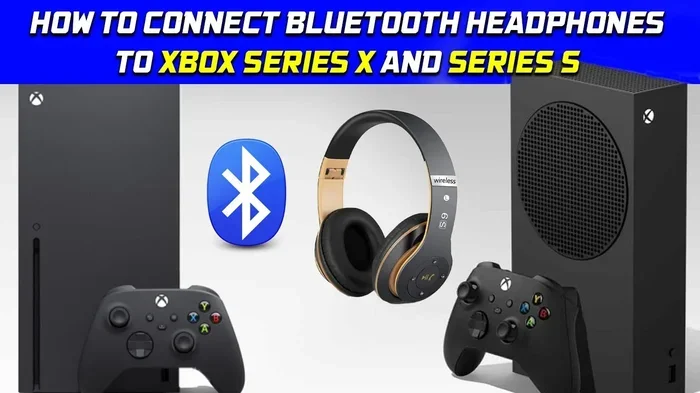
The Xbox Series S does not have built-in Bluetooth support for audio devices. Microsoft uses its own proprietary wireless protocol for controllers and headsets. However, you can still connect Bluetooth headphones and speakers using a USB Bluetooth adapter or by leveraging your TV’s Bluetooth capabilities. This guide breaks down every workaround and limitation so you can enjoy wireless audio with your Xbox Series S.
The Xbox Series S is a powerful little console that delivers amazing gaming experiences. But when it comes to wireless audio, many players hit a wall. The big question is simple: does Xbox Series S support Bluetooth? The short answer is no, not natively. But do not worry. There are several ways around this limitation that work really well. In this guide, we will walk you through everything you need to know about Bluetooth connectivity on the Xbox Series S.
Whether you want to use Bluetooth headphones for gaming, connect a wireless speaker, or just keep things cable-free, we have got you covered. We will explain why Microsoft made this choice, what your options are, and which workaround fits your setup best. Let us dive right in.
Key Takeaways
- No Built-In Bluetooth: The Xbox Series S lacks native Bluetooth audio support, which is a deliberate design choice by Microsoft.
- USB Bluetooth Adapter Works: A compatible USB Bluetooth adapter is the most reliable way to connect Bluetooth headphones to your Xbox Series S.
- TV Bluetooth is a Smart Alternative: If your TV supports Bluetooth, you can route audio through it and connect wireless headphones to the TV instead.
- Xbox Wireless Headsets Are the Best Option: Microsoft’s own wireless headsets use a proprietary protocol that offers lower latency and better performance.
- Controller Bluetooth Only Pairs to Phones: The Xbox Series S controller uses Bluetooth to connect to phones and PCs, but not to the console itself for audio.
- Latency Matters for Gaming: Bluetooth audio can introduce slight delays, which may affect your gaming experience in fast-paced titles.
📑 Table of Contents
- Why Does the Xbox Series S Not Have Built-In Bluetooth?
- How to Connect Bluetooth Headphones to Xbox Series S
- What About the Xbox Series S Controller Bluetooth?
- Best Wireless Headsets for Xbox Series S
- Can You Use Bluetooth with Xbox Series S for Other Purposes?
- Common Mistakes People Make When Trying to Add Bluetooth to Xbox Series S
- Quick Tips for the Best Bluetooth Experience on Xbox Series S
- Final Thoughts
Why Does the Xbox Series S Not Have Built-In Bluetooth?
It is a fair question. Almost every modern device supports Bluetooth these days. Your phone, your laptop, your smart TV, even your refrigerator. So why does Microsoft skip it on the Xbox Series S?
The reason comes down to performance and control. Microsoft uses a proprietary wireless protocol for its Xbox Wireless protocol. This protocol is designed specifically for gaming. It offers lower latency, more stable connections, and better audio quality than standard Bluetooth. When you use an official Xbox Wireless headset, the audio delay is almost unnoticeable. That matters a lot when you are playing competitive games where hearing footsteps or gunshots at the right moment can make all the difference.
Standard Bluetooth audio has a slight delay, known as audio latency. For music or movies, this delay is barely noticeable. But for gaming, even a small delay can throw off your timing. Microsoft wants the Xbox Series S to deliver the best possible gaming experience, and that means prioritizing a wireless protocol built for gaming over a universal one like Bluetooth.
The Xbox Wireless Protocol vs Bluetooth
Here is a quick comparison to help you understand the difference:
- Xbox Wireless Protocol: Custom-built for Xbox devices. Offers ultra-low latency and stable connections. Works with official Xbox Wireless headsets and controllers.
- Bluetooth: A universal wireless standard. Works with millions of devices. Has slightly higher latency than Xbox Wireless. Great for general audio but not optimized for gaming.
So while the Xbox Series S does not have Bluetooth for audio, it does have Bluetooth on the controller. The controller uses Bluetooth to pair with phones and PCs for things like the Xbox app and chat features. But that Bluetooth connection does not extend to audio streaming from the console itself.
How to Connect Bluetooth Headphones to Xbox Series S
Even though the Xbox Series S does not support Bluetooth natively, you are not stuck with wired headphones forever. There are practical workarounds that let you enjoy wireless gaming audio without too much hassle. Here are the best methods.
Method 1: Use a USB Bluetooth Adapter
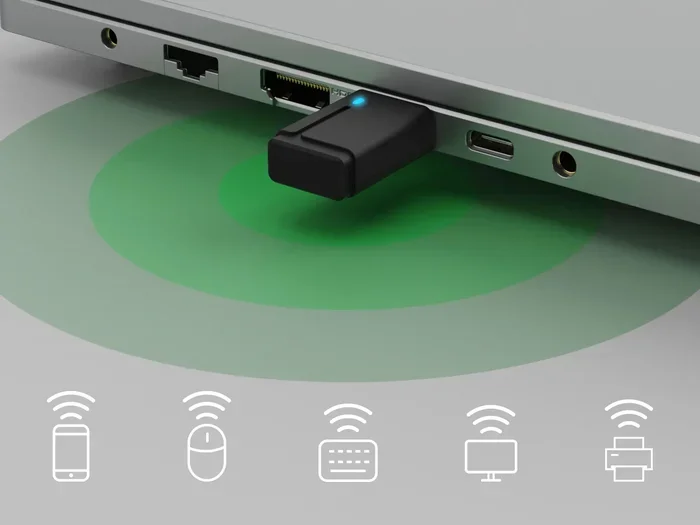
This is the most popular workaround. You buy a small USB Bluetooth adapter, plug it into one of the Xbox Series S USB ports, and pair your Bluetooth headphones to it. It is simple and effective.
Here is what you need to know:
- Make sure the adapter supports Bluetooth 5.0 or higher for the best performance.
- Plug the adapter into the USB port on the front or back of the console.
- Put your headphones in pairing mode and search for them from the adapter.
- Once paired, your audio should route through the Bluetooth adapter automatically.
Pro Tip: Not all USB Bluetooth adapters work with the Xbox Series S. Some adapters use drivers that the console does not support. Look for adapters that are plug-and-play and do not require additional software installation. Brands like TP-Link and ASUS make reliable options that many users have tested successfully.
The biggest downside to this method is that you may experience some audio latency. For casual gaming and single-player titles, this is usually fine. But if you are playing competitive multiplayer games, the slight delay might bother you. In that case, you might want to consider an Xbox Wireless headset instead.
Also worth noting, if you want to use your Bluetooth headset as a microphone too, the experience may vary. Check out our guide on can I use my Bluetooth headset as a mic for more details on microphone functionality with Bluetooth devices.
Method 2: Connect Through Your TV’s Bluetooth
Many modern smart TVs have built-in Bluetooth. This opens up a clever workaround. Instead of connecting Bluetooth directly to the Xbox Series S, you connect your Bluetooth headphones to your TV. The Xbox sends audio to the TV through an HDMI cable, and the TV sends the audio wirelessly to your headphones.
Here is how it works:
- Connect the Xbox Series S to your TV using an HDMI cable.
- Go to your TV settings and enable Bluetooth.
- Put your Bluetooth headphones in pairing mode.
- Pair the headphones with the TV.
- Set the TV audio output to route through Bluetooth.
This method works great because the Xbox itself does not need to handle Bluetooth at all. The TV acts as the bridge. The audio quality and latency depend on your TV’s Bluetooth capabilities. Most modern TVs handle this well, but some budget models may have more noticeable delays.
If you are also wondering about using HDMI for video while keeping audio wireless, we have a detailed guide on using HDMI for video and Bluetooth for audio that covers this setup in more depth.
Method 3: Use the Xbox App on Your Phone
Another option is to use the Xbox app on your smartphone. The app lets you stream Xbox audio to your phone. Since most phones support Bluetooth, you can then connect wireless headphones to your phone and listen that way.
This method is more of a workaround than a proper solution. It works best for situations where you want to listen privately without disturbing others. The setup involves:
- Downloading the Xbox app on your phone.
- Connecting your phone to the same network as your Xbox Series S.
- Using the app to stream console audio to your device.
- Connecting your Bluetooth headphones to your phone.
The downside is that this adds an extra step and can sometimes introduce lag. It is not ideal for competitive gaming but works well for casual play and watching movies.
What About the Xbox Series S Controller Bluetooth?
The Xbox Series S controller does use Bluetooth, but only for connecting to external devices like phones and PCs. You cannot use the controller’s Bluetooth to pair audio devices directly with the console. The controller connects to the Xbox Series S using the proprietary Xbox Wireless protocol, not Bluetooth.
This is an important distinction. When you see Bluetooth on the Xbox Series S controller, it is for connecting the controller to other devices, not for streaming audio from the console. If you want to learn more about using the Xbox controller with Bluetooth devices, check out our article on pairing Bluetooth headphones to Xbox One which covers similar connectivity topics across Xbox models.
Best Wireless Headsets for Xbox Series S
Since Bluetooth is not natively supported, your best bet for wireless audio on the Xbox Series S is to use a headset that supports the Xbox Wireless protocol. These headsets connect directly to the console without any extra adapters and offer the best performance.
Here are some popular options:
- Xbox Wireless Headset: Microsoft’s own headset. It connects natively to the Xbox Series S and offers great sound quality with low latency.
- SteelSeries Arctis Nova 7X: A popular third-party option that supports Xbox Wireless. It also works with other platforms.
- HyperX Cloud III Wireless: A comfortable headset with solid audio performance and a long battery life.
- Turtle Beach Stealth 700 Gen 2 MAX: Offers great surround sound and is specifically designed for Xbox.
These headsets use the same proprietary wireless protocol that the Xbox console relies on. That means you get the best possible audio quality with the least amount of delay. If gaming performance matters to you, these are the way to go.
If you are also interested in using Bluetooth speakers for other purposes, check out our guide on using a Bluetooth speaker without Bluetooth for creative audio solutions.
Can You Use Bluetooth with Xbox Series S for Other Purposes?
While the Xbox Series S does not support Bluetooth audio, Bluetooth does play a role in the Xbox ecosystem. The controller uses Bluetooth to connect to phones and PCs. You can also use Bluetooth to connect accessories like keyboards and mice to the console, though support for these varies.
Microsoft has been gradually expanding the Xbox wireless ecosystem. The company introduced the Xbox Wireless protocol to create a more seamless and reliable connection for gaming accessories. While this means giving up native Bluetooth audio support, it also means a better gaming experience overall.
Some users have also explored using the Xbox Series S as a multimedia hub. You can stream apps like Netflix and Spotify directly on the console. For these activities, the lack of Bluetooth is less of an issue since you can use the TV’s audio output or connect wired headphones to the controller’s 3.5mm jack.
Common Mistakes People Make When Trying to Add Bluetooth to Xbox Series S
There are a few common pitfalls that people run into when trying to add Bluetooth audio to their Xbox Series S. Avoiding these mistakes can save you time and frustration.
- Buying the wrong Bluetooth adapter: Not all USB Bluetooth adapters work with the Xbox Series S. Make sure you get one that is plug-and-play and compatible with the console.
- Ignoring audio latency: Bluetooth always adds some delay. If you are a competitive gamer, test your setup before committing to it for important matches.
- Forgetting about TV Bluetooth: Many people overlook the simple option of connecting headphones directly to their TV. This is often the easiest and most reliable workaround.
- Assuming the controller Bluetooth works for audio: The controller’s Bluetooth only connects to phones and PCs. It does not stream audio from the console.
- Not checking headset compatibility: Some Bluetooth adapters work with certain headsets but not others. Check compatibility before buying.
Quick Tips for the Best Bluetooth Experience on Xbox Series S
Want to get the most out of your wireless audio setup? Here are some quick tips:
- Keep your Bluetooth adapter close to the console for a stronger signal.
- Use a USB extension cable if the adapter has trouble connecting when placed behind the console.
- Update your TV firmware if you are using the TV Bluetooth method. Newer firmware often improves Bluetooth performance.
- Test your setup with different games to see how much latency you experience.
- Consider using a wired connection for competitive gaming and save Bluetooth for casual play and movies.
Final Thoughts
So, does Xbox Series S support Bluetooth? The answer is no, not for audio. Microsoft chose to use its own Xbox Wireless protocol instead of standard Bluetooth, and that decision pays off in lower latency and better gaming performance. But that does not mean you are out of options.
You can use a USB Bluetooth adapter, connect through your TV, or stream audio through the Xbox app on your phone. Each method has its pros and cons, and the best choice depends on your setup and gaming style. If you want the simplest and most reliable wireless experience, an Xbox Wireless headset is the way to go.
The good news is that the gaming world is full of creative workarounds. The lack of native Bluetooth on the Xbox Series S is a limitation, but it is far from a dealbreaker. With the right setup, you can enjoy wireless audio and keep your gaming sessions immersive and cable-free.
For more tips on getting the most out of your Xbox and Bluetooth devices, explore our other guides. We cover everything from pairing headsets to upgrading your setup. Happy gaming!
Frequently Asked Questions
Can I connect Bluetooth headphones directly to the Xbox Series S?
No, the Xbox Series S does not support direct Bluetooth audio connections. You will need a USB Bluetooth adapter or connect through your TV’s Bluetooth to use wireless headphones with the console.
Is there a Bluetooth adapter that works with Xbox Series S?
Yes, many USB Bluetooth adapters work with the Xbox Series S. Look for adapters that support Bluetooth 5.0 or higher and are plug-and-play compatible. Some adapters may require driver installation, which the Xbox does not support, so always check for compatibility before buying.
Can I use my phone’s Bluetooth to connect headphones while gaming on Xbox Series S?
You can use the Xbox app to stream console audio to your phone and then connect Bluetooth headphones to your phone. However, this method may introduce additional latency and is better suited for casual gaming rather than competitive play.
Why does the Xbox Series S not have Bluetooth like other devices?
Microsoft uses a proprietary Xbox Wireless protocol instead of standard Bluetooth for audio devices. This protocol is specifically designed for gaming and offers lower latency and more stable connections than Bluetooth, which improves the overall gaming experience.
Can I use Bluetooth with the Xbox Series S controller?
The Xbox Series S controller does use Bluetooth, but only to connect to phones and PCs. The controller connects to the Xbox Series S console using the Xbox Wireless protocol, not Bluetooth. This Bluetooth connection on the controller is for external device pairing, not for audio streaming from the console.
What is the best wireless headset for Xbox Series S?
The best wireless headsets for Xbox Series S use the Xbox Wireless protocol, such as the official Xbox Wireless Headset, SteelSeries Arctis Nova 7X, or HyperX Cloud III Wireless. These headsets offer the lowest latency and best audio quality for gaming on the console.
=== CONCLUSION ===
The Xbox Series S does not include native Bluetooth support for audio devices, but that does not mean you are limited to wired headphones. With a USB Bluetooth adapter, your TV’s Bluetooth capabilities, or the Xbox app on your phone, you can still enjoy wireless audio while gaming. The key is finding the method that works best for your setup and your gaming needs.
Microsoft’s choice to use a proprietary wireless protocol means better performance for gaming, even if it means giving up the convenience of standard Bluetooth. Whether you choose an Xbox Wireless headset or find a creative workaround, you can absolutely enjoy a wireless audio experience with your Xbox Series S.