Can You Use Stadia Controller For Your Normal Games
The Stadia controller works great for normal games beyond Stadia itself. You can connect it to a PC, Android phone, or tablet via Bluetooth or USB. It is a versatile wireless controller that supports many platforms, making it a solid choice for everyday gaming.
Have you ever picked up a Stadia controller and wondered if it could work with your regular game library? Maybe you have a few Steam games you love, or you enjoy playing on your phone during commute. The good news is that this little controller is more versatile than most people think.
The Stadia controller was designed primarily for Google’s cloud gaming service. But that does not mean it is limited to Stadia only. In fact, you can use it for a wide range of normal games on different devices. Let us walk through exactly how that works and what you need to know.
Whether you are a casual gamer or someone who plays a few rounds of wireless controller games every evening, this guide has you covered. We will look at every major platform, connection method, and a few tips to get the best experience. By the end, you will know if the Stadia controller is right for your everyday gaming needs.
Key Takeaways
- Works on PC: The Stadia controller connects easily to Windows and Mac computers for Steam and other games.
- Android Friendly: It pairs seamlessly with Android phones and tablets for mobile gaming.
- Multiple Connection Options: Use Bluetooth or a USB cable depending on your setup.
- Not for PlayStation or Xbox Natively: You need extra software or adapters to use it on these consoles.
- Low Input Lag: The controller offers responsive performance for casual and competitive gaming.
📑 Table of Contents
What Is the Stadia Controller?
The Stadia controller is a wireless gamepad made by Google for its cloud gaming platform. It features a familiar layout with two analog sticks, a D-pad, face buttons, and shoulder triggers. The build quality feels solid, and it fits comfortably in most hands.
What makes it stand out is its built-in Wi-Fi connection. Instead of relying on Bluetooth like many other controllers, the Stadia controller can connect directly to your router. This reduces latency and makes it great for cloud gaming. But it also supports Bluetooth, which opens the door to using it with other devices.
Key Features at a Glance
- Built-in Wi-Fi and Bluetooth connectivity options
- Compatible with PC, Android, and more
- Rechargeable battery with decent battery life
- Google Assistant button built into the center
- Solid build with a comfortable grip
These features make the Stadia controller a strong gaming peripheral even if you never touch the Stadia service. It competes well with other popular controllers in the market, and its price point makes it an attractive option for budget-conscious gamers.
Can You Use the Stadia Controller on a PC?
Yes, you absolutely can. Using the Stadia controller on a PC is one of the most popular ways people use it for normal games. Whether you play on Steam, Epic Games, or GOG, this controller works with most PC games out of the box.
Connecting via Bluetooth
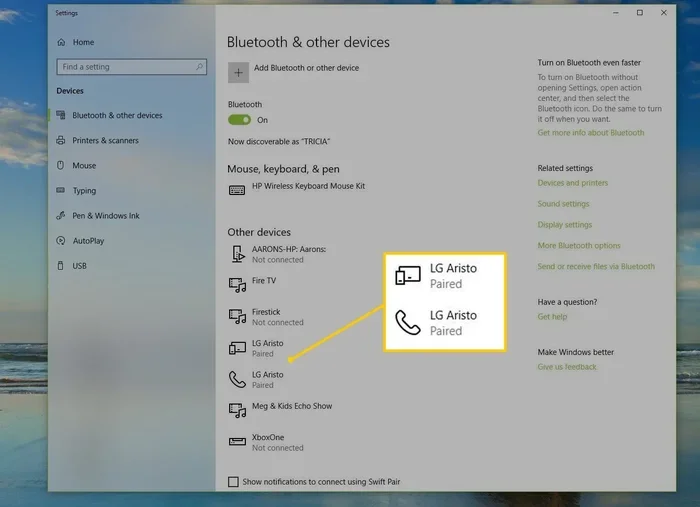
The easiest way to connect your Stadia controller to a PC is through Bluetooth. Put the controller in pairing mode by holding the Stadia button and the capture button simultaneously. Then go to your PC Bluetooth settings and select the controller from the list of available devices.
Once paired, most games will recognize it as a standard gamepad. You do not need to install any extra drivers for basic functionality. This makes it a plug-and-play experience for many titles.
Connecting via USB
If you want a more stable connection, use a USB-C cable. Plug the controller directly into your computer, and it will act as a wired wireless controller. This is especially useful for competitive games where a stable connection matters.
Some games may require you to configure the controller within the game settings. Most modern titles, however, support it automatically. If a game does not recognize the controller right away, check the control settings and remap the buttons as needed.
Using It with Steam
Steam has excellent support for the Stadia controller. When you connect it and open Steam, the controller will be detected automatically. You can even enable the Steam Input feature, which gives you access to advanced configuration options.
With Steam Input, you can create custom button mappings, adjust sensitivity, and even set up gyro aiming. This level of customization makes the Stadia controller feel right at home on a PC gaming setup.
Using the Stadia Controller on Android Devices
If you are an Android user, the Stadia controller works beautifully with your phone or tablet. Since it was originally designed for Android-based cloud gaming, the integration is smooth and natural.
Pairing with Your Android Device
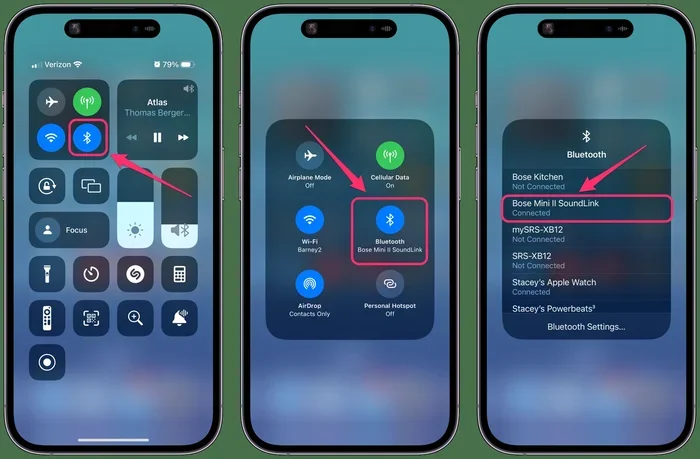
To connect the controller to your Android phone, go to Settings, then Bluetooth, and put the controller in pairing mode. Select it from the list of available devices, and you are good to go. The process is quick and straightforward.
Many Android games support external controllers, including popular titles like Fortnite, Minecraft, and emulators for retro gaming. You can also browse the Google Play Store and find games that specifically list controller support.
Best Games for Android with the Stadia Controller
- Nintendo games through emulators
- Retro games from older consoles
- Casual mobile games that support gamepads
- Cloud gaming apps like Xbox Cloud Gaming
- Multiplayer games that allow controller input
The Stadia controller turns your Android device into a portable gaming powerhouse. You can enjoy a console-like experience wherever you go, whether on the bus, at a coffee shop, or relaxing at home.
Can You Use It With PlayStation or Xbox?
This is where things get a bit tricky. The Stadia controller does not natively connect to PlayStation or Xbox consoles. These platforms have their own proprietary controller ecosystems, and they do not officially support third-party controllers for most games.
Workarounds for PlayStation
If you really want to use the Stadia controller with a PlayStation, you will need a controller adapter. Some third-party adapters allow you to connect USB controllers to the PlayStation. However, compatibility is not guaranteed, and some games may not recognize the input correctly.
Another option is to use the controller on a PC and stream PlayStation games to your device. This way, you get the best of both worlds without dealing with compatibility issues directly on the console.
Workarounds for Xbox
Xbox has slightly better support for third-party controllers through its PC app. You can use the Stadia controller on Xbox PC Game Pass games via a Windows PC connected to your Xbox console. But using it directly on the Xbox console itself remains unsupported.
For most gamers, the wireless controller experience on PlayStation and Xbox is best served by their native controllers. However, if you already own a Stadia controller, the workarounds mentioned above can help you get some use out of it on these platforms.
Bluetooth vs USB Connection: Which Is Better?
When using the Stadia controller for normal games, you have two main connection options: Bluetooth and USB. Each has its own advantages depending on what you are playing and where you are playing.
| Feature | Bluetooth | USB Cable |
|---|---|---|
| Connection Stability | Good for most games | Excellent, no interference |
| Latency | Slightly higher | Near zero |
| Mobility | High, no cables needed | Limited by cable length |
| Setup Time | A few seconds | Instant plug-and-play |
| Battery Usage | Moderate drain | No battery needed |
| Best For | Casual gaming, mobile | Competitive gaming, PC |
For most casual gamers, Bluetooth is perfectly fine. You get freedom of movement and quick setup. But if you are playing competitive games where every millisecond counts, a USB connection gives you the edge you need.
Common Issues and How to Fix Them
While the Stadia controller is generally reliable, you may run into a few hiccups along the way. Here are some common problems and their solutions.
Controller Not Showing Up in Bluetooth
If your controller does not appear in the Bluetooth device list, make sure it is in pairing mode. Hold the Stadia button and the capture button for about three seconds until the LED light starts flashing. Also, restart your device’s Bluetooth and try again.
Button Mapping Issues
Sometimes the buttons may not map correctly in certain games. This is common with gamepad support on PC. Most games let you remap buttons in the settings menu. If the game does not support remapping, you can use third-party software like Steam Input or ReWASD to customize the layout.
Latency or Lag
If you notice a delay between pressing a button and seeing the action on screen, try switching from Bluetooth to USB. Wireless connections can sometimes experience interference from other devices. Moving closer to your router or USB port can also help reduce latency.
Battery Drain
The Stadia controller battery can drain faster when using Bluetooth continuously. Make sure to charge it fully before long gaming sessions. Keeping a USB cable handy allows you to play while charging, which solves the battery issue entirely.
Quick Tips for the Best Experience
- Keep your firmware updated to ensure the latest features and bug fixes.
- Use a USB cable for competitive or fast-paced games.
- Clean the analog sticks regularly to prevent drift.
- Store the controller in a protective case when traveling.
- Pair with one device at a time to avoid connection conflicts.
Final Thoughts
The Stadia controller is a surprisingly capable wireless controller for normal games across multiple platforms. Whether you are gaming on a PC, Android device, or even streaming games remotely, it delivers a solid and comfortable experience. Its dual connectivity options give you flexibility, and its build quality holds up well over time.
While it may not work natively on PlayStation or Xbox, the workarounds available make it a versatile addition to any gaming setup. If you are looking for an affordable controller that works with many devices, the Stadia controller is definitely worth considering. It proves that a controller made for one service can still shine in the broader gaming peripheral market.
So go ahead, connect your Stadia controller, fire up your favorite normal games, and enjoy a great gaming session. You might be surprised at how well it performs outside of the Stadia ecosystem.
Frequently Asked Questions
Can I use the Stadia controller on Steam?
Yes, the Stadia controller works on Steam through both Bluetooth and USB. Steam automatically detects it as a gamepad, and you can use Steam Input for advanced customization. Most Steam games support external controllers without any extra setup.
Does the Stadia controller work on Android phones?
Absolutely. The controller pairs easily with Android devices via Bluetooth. Many Android games support gamepad input, so you can enjoy a console-like experience on your phone or tablet. Just make sure the game you want to play supports external controllers.
Can I use the Stadia controller on a Nintendo Switch?
Yes, you can use the Stadia controller on the Nintendo Switch, but only in handheld mode or with a PC connection. The Switch does not natively support Bluetooth gamepads for docked play. For the best experience, use it with an Android device or PC instead.
Is the Stadia controller better than Xbox or PlayStation controllers?
It depends on your needs. The Stadia controller offers great versatility across platforms, which its official counterparts do not. However, Xbox and PlayStation controllers have deeper integration with their respective ecosystems. If you game across multiple platforms, the Stadia controller is a strong choice.
How do I update the Stadia controller firmware?
You can update the firmware through the Stadia app on your phone or through the controller’s settings when connected to a PC. Keeping the firmware updated ensures the best controller compatibility and fixes any known bugs. Check the official Stadia support page for detailed steps.
Can I use the Stadia controller for competitive gaming?
Yes, the Stadia controller performs well for competitive games, especially when connected via USB. The wired connection reduces input lag and provides a more stable experience. Many casual competitive gamers use it successfully for titles like Rocket League and fighting games.