Can You Use Nebula Capsule Without Remote Controls
Yes, you can absolutely use the Nebula Capsule without a remote control. You can control it through the Nebula app on your phone, use the built-in touchscreen on the device itself, or connect external devices like a Fire Stick for full navigation. This guide covers every method so you never get stuck without your remote again.
Have you ever grabbed your Nebula Capsule for a movie night only to realize the remote is nowhere to be found? It happens to the best of us. Maybe the batteries died, maybe the remote got lost, or maybe you simply want a simpler setup. Whatever the reason, the good news is that you can use the Nebula Capsule without a remote. There are several easy ways to take full control of your projector and keep your movie night on track.
The Nebula Capsule is a popular portable projector known for its compact design and built-in battery. It is a mini projector that packs a lot of punch into a small package. But like many projectors, it relies heavily on the remote for navigation. When that remote goes missing, it can feel like your entertainment setup is useless. This article will walk you through every practical method to operate your Capsule without the remote. You will learn about app controls, built-in options, streaming device workarounds, and more.
Whether you are camping, hosting a backyard movie night, or just tired of hunting for that tiny remote, this guide has you covered. Let us dive into the different ways you can keep your Nebula Capsule running smoothly, remote control or no remote control.
Key Takeaways
- The Nebula Capsule has a built-in screen and buttons that let you navigate menus without any remote at all.
- The Nebula mobile app turns your phone into a virtual remote, giving you full control over playback, settings, and more.
- You can connect streaming devices like a Fire Stick to bypass the need for the remote entirely.
- Voice control and keyboard input offer additional hands-free and text-based alternatives.
- Bluetooth and HDMI connections let you pair external speakers and displays while controlling content from another device.
📑 Table of Contents
- Understanding the Nebula Capsule and Its Remote
- Control Your Nebula Capsule Using the Mobile App
- Use the Built-In Controls on the Nebula Capsule
- Connect Streaming Devices to Bypass the Remote
- Use HDMI and External Devices for Audio and Video Control
- Quick Tips and Common Mistakes to Avoid
- Expert Insights on Portable Projector Control
- Key Takeaways
- Conclusion
Understanding the Nebula Capsule and Its Remote
What Is the Nebula Capsule?
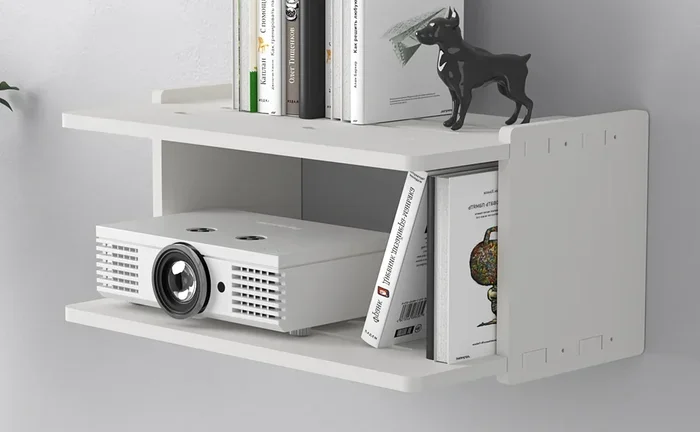
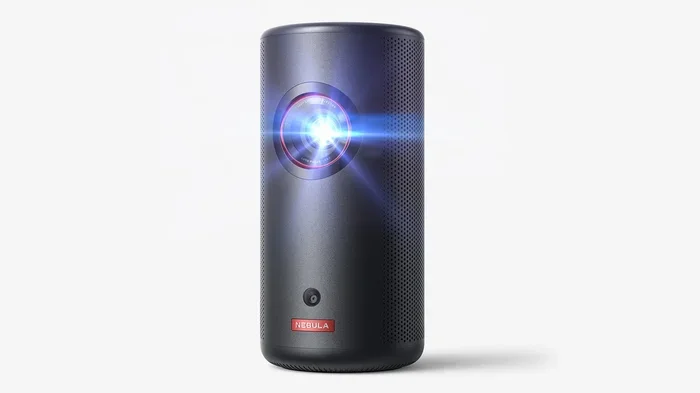
The Nebula Capsule is a portable LED projector made by ViewSonic’s Nebula line. It is designed to be a pocket-sized entertainment hub. The device runs on Android, has a built-in battery, and includes speakers. You can stream content directly from the device or connect external sources through HDMI or USB ports.
There are a few versions of the Capsule, including the Nebula Capsule 2 and the Nebula Capsule 3. Each version improves on the last with better brightness, longer battery life, and enhanced software features. But across all versions, the remote control remains a standard accessory. And that is where the problem starts for many users.
Why Do People Lose or Need Alternatives to the Remote?
Remote controls for portable projectors are small. They are easy to misplace. They also need batteries, which can die at the worst possible moment. Some users find the remote unnecessary when they have a phone or tablet nearby. Others want a more hands-on approach to controlling their portable entertainment setup. Whatever the reason, knowing your alternatives is essential for a smooth experience.
The good thing is that the Nebula Capsule was designed with multiple input and control options. This means you are not completely stuck if the remote disappears. Let us look at each alternative in detail.
Control Your Nebula Capsule Using the Mobile App
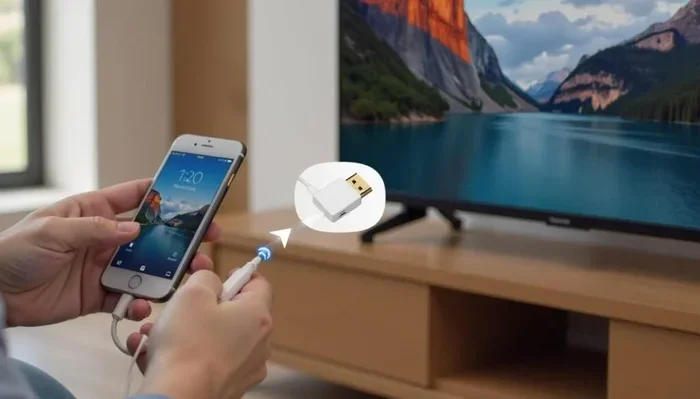
The most popular and straightforward way to use your Nebula Capsule without a remote is through the Nebula mobile app. This free app turns your smartphone or tablet into a full-featured virtual remote. It is available for both Android and iOS devices.
How to Set Up the Nebula App
Setting up the app is simple and fast. Follow these steps to get started:
- Download the Nebula app from the Google Play Store or Apple App Store.
- Make sure your phone and the Nebula Capsule are connected to the same Wi-Fi network.
- Open the app and it should automatically detect your Capsule on the network.
- Tap on your device name to establish the connection.
- You now have full control over playback, volume, settings, and more.
What Can You Do With the App?
The Nebula app is more than just a basic remote. Here is what you can do with it:
- Play, pause, and stop video content directly from your phone.
- Adjust volume and audio settings remotely.
- Navigate the Android interface on the Capsule without touching the device.
- Change display settings like brightness and aspect ratio.
- Access the app store and install new apps on the Capsule.
- Cast content from your phone to the projector screen.
This method is incredibly convenient. You always have your phone with you, so the remote is always within reach in a sense. The app also provides a more comfortable control experience because you can use your phone’s larger screen and touchscreen to navigate menus.
Use the Built-In Controls on the Nebula Capsule
Many people do not realize that the Nebula Capsule itself has built-in controls. You do not need the remote for basic operation. The device includes physical buttons and a small touchscreen depending on the model.
Physical Buttons on the Capsule
The Nebula Capsule features a set of physical buttons on the top or side of the device. These typically include:
- Power button to turn the projector on and off.
- Volume controls for adjusting sound output.
- Navigation buttons for moving up, down, left, and right through menus.
- Select/OK button to confirm your choices.
- Back button to go to the previous screen.
These buttons let you navigate the Android interface, open apps, and even control playback. The experience is not as smooth as using a remote or the app, but it works perfectly fine for basic tasks. You can power on the device, open your streaming app, and start playing content using just the built-in buttons.
Touchscreen Controls (Capsule 3 and Newer Models)
The newer versions of the Nebula Capsule, especially the Capsule 3, include a small touchscreen. This makes navigation much easier without a remote. You can tap, swipe, and pinch just like you would on a phone or tablet. The touchscreen adds a whole new level of convenience to the device.
If you have a touchscreen model, you can skip the remote entirely for most tasks. Use the screen to browse apps, adjust settings, and control your portable projector experience.
Connect Streaming Devices to Bypass the Remote
If you want a completely different way to control your viewing experience, connecting a streaming device is a great option. Devices like the Amazon Fire Stick or Google Chromecast plug into the Capsule’s HDMI port and give you an entirely new interface to work with.
Why Use a Streaming Device?
When you connect a streaming device, the Nebula Capsule essentially becomes a giant screen. The streaming device handles all the navigation and control. You use the streaming device’s own remote, or even your phone, to control what plays on the big screen.
For example, you can plug in an Amazon Fire Stick and control everything from the Fire Stick remote or the Fire TV app on your phone. This method removes the need for the Nebula remote completely.
Setting Up a Streaming Device with the Capsule
Here is how to set things up:
- Plug the streaming device into the Capsule’s HDMI port.
- Connect the streaming device to your Wi-Fi network.
- Use the streaming device’s remote or app to navigate.
- Adjust the Capsule’s volume using the built-in buttons or an external speaker setup.
This approach works especially well if you already own a streaming device and prefer its interface. It also gives you access to a wider range of apps and streaming services. The setup is simple and the results are great for movie nights and presentations.
Use HDMI and External Devices for Audio and Video Control
The Nebula Capsule offers multiple connection options that open up even more control possibilities. By using HDMI and other ports, you can connect external devices that take over the control experience entirely.
Getting Audio Out From HDMI
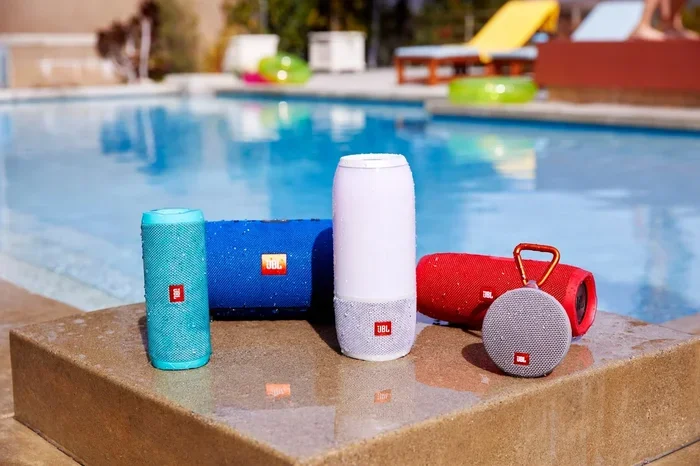
If you are using the Capsule with an external sound system, you can get audio out from the HDMI connection to route sound to a soundbar, speaker, or home theater system. This means you control audio through the external device rather than the Capsule itself.
For instance, if you connect the Capsule to a soundbar with HDMI ARC, you can use the soundbar remote to adjust volume. This is a great workaround when you want a more integrated audio setup without relying on the projector’s tiny built-in speakers.
Using the Capsule as a Display for Other Devices
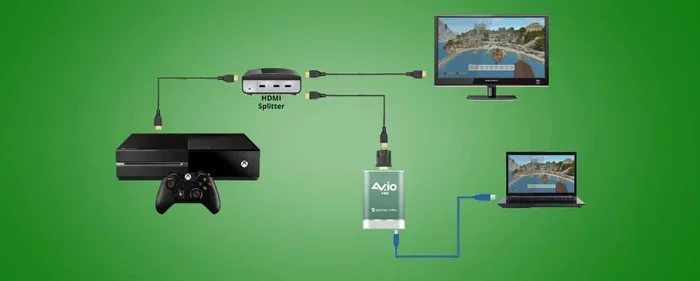
You can also use the Nebula Capsule as a giant display screen for laptops, gaming consoles, or media players. In these setups, the source device controls everything. The Capsule simply projects the image. This is a powerful way to eliminate the need for the remote altogether.
Many users connect their laptop or phone via HDMI or screen mirroring and then control content directly from that device. It is one of the simplest and most effective alternatives to using the projector remote.
Quick Tips and Common Mistakes to Avoid
Quick Tips for Using the Capsule Without a Remote
- Always keep the Nebula app installed on your phone as a backup control method.
- Label your Wi-Fi network password so you can connect the Capsule to a new network quickly.
- Keep the Capsule’s firmware updated through the app for the best performance.
- Use the built-in buttons for quick volume adjustments during a movie.
- Consider a universal remote as a physical backup that works with the Capsule.
Common Mistakes People Make
Here are some things to avoid when using the Capsule without the remote:
- Assuming the app works without Wi-Fi. The Nebula app requires both devices to be on the same network.
- Forgetting to charge the Capsule. Without the remote, you may need to access the device more often, so keep it charged.
- Ignoring the built-in buttons. Many users do not realize the Capsule has physical controls and struggle unnecessarily.
- Using a low-quality HDMI cable. A bad cable can cause connection issues that make it seem like the device is not responding.
Expert Insights on Portable Projector Control
Controlling a portable projector without the original remote is more common than you might think. Many users prefer the flexibility of app-based or device-based control. The Nebula Capsule is designed with this in mind, offering multiple pathways to manage your content.
According to user feedback and expert reviews, the Nebula mobile app is the most reliable alternative. It is stable, feature-rich, and works consistently across different Capsule models. The built-in buttons provide a solid backup for basic operations, while streaming devices offer the most seamless experience for dedicated media setups.
If you are setting up a portable entertainment system, consider pairing the Capsule with a streaming device from the start. This gives you the most control options and the least dependence on the physical remote. You can always use the remote when it is handy, but you will never be stuck if it goes missing.
Another great tip is to explore voice control options if you use a smart home ecosystem. Some users connect their Capsule to a smart speaker and use voice commands to control playback and volume indirectly through a connected streaming device.
Key Takeaways
- The Nebula Capsule can be fully controlled without a remote through the built-in buttons, touchscreen, and mobile app.
- The Nebula mobile app is the best alternative, offering a virtual remote experience right on your phone.
- Connecting a streaming device like a Fire Stick lets you use that device’s remote and app for complete control.
- The Capsule’s built-in physical buttons handle basic navigation, power, and volume functions.
- HDMI connections with external devices shift control to the source device, removing the need for the projector remote entirely.
- Keeping the app installed and firmware updated ensures the smoothest experience when using your Capsule without the remote.
Conclusion
The short answer is yes, you can absolutely use the Nebula Capsule without a remote control. Whether you prefer the Nebula mobile app, the built-in buttons, a touchscreen interface, or a connected streaming device, you have plenty of options. Each method gives you full control over your projector and your entertainment experience.
The beauty of the Nebula Capsule is its versatility. It is not just a projector. It is a complete portable entertainment system that adapts to how you want to use it. Losing the remote does not mean losing the ability to enjoy your favorite movies, shows, or presentations. You simply switch to one of the alternative control methods described in this guide.
So the next time you cannot find that tiny remote, do not panic. Pull up the Nebula app on your phone, use the built-in buttons, or plug in a streaming device. Your movie night will go on without a hitch. Take control of your Nebula Capsule your way and enjoy the flexibility that comes with knowing you are never truly stuck.
Frequently Asked Questions
Can I use the Nebula Capsule without any remote at all?
Yes, you can. The Nebula Capsule has built-in physical buttons and a touchscreen (on newer models) that let you navigate and control the device without any remote. The Nebula mobile app also serves as a full virtual remote when connected to the same Wi-Fi network.
Does the Nebula app work without Wi-Fi?
No, the Nebula app requires both your phone and the Capsule to be connected to the same Wi-Fi network. If you do not have Wi-Fi, you can still use the built-in buttons on the device or connect a streaming device that has its own control method.
Can I use a universal remote with the Nebula Capsule?
Yes, many universal remotes can be programmed to work with the Nebula Capsule. Check your universal remote’s code list for ViewSonic or Nebula-compatible codes. This is a great backup option if you lose the original remote and do not want to rely on the app.
Which Nebula Capsule models have a touchscreen?
The Nebula Capsule 3 and newer models feature a small touchscreen that makes navigation much easier without a remote. Older models like the original Capsule and Capsule 2 rely on physical buttons only.
Can I control the Capsule using voice commands?
Not directly through the Capsule itself. However, if you connect a streaming device like an Amazon Fire Stick, you can use voice commands through the Fire TV remote or Alexa-enabled smart speakers to control playback on the projected screen.
Is the Nebula app free to download?
Yes, the Nebula app is completely free for both Android and iOS devices. It provides full remote functionality, settings adjustment, app management, and content casting features at no extra cost.