Can You Use Bluetooth On Xbox Everything You Need To Know
Can you use Bluetooth on Xbox? The short answer is no — not directly. Xbox consoles do not have built-in Bluetooth support for most devices. However, you can still go wireless using Xbox Wireless or a Bluetooth adapter. This guide covers every method, workaround, and tip you need to connect your Bluetooth devices to Xbox.
Let us start with the big question. Can you use Bluetooth on Xbox? Many gamers want to connect their favorite wireless headphones, speakers, or other devices to their Xbox console. The desire is simple. You want freedom from cables. You want to sit on the couch and game without being tied to your TV setup.
The truth is that Xbox consoles do not support Bluetooth the way your phone or laptop does. This surprises a lot of people. After all, Bluetooth is everywhere these days. It is in our speakers, our earbuds, our keyboards, and even our car stereos. So why not on Xbox?
The answer comes down to how Xbox handles wireless connections. Microsoft uses its own proprietary wireless technology called Xbox Wireless. This is different from standard Bluetooth. It offers better performance for gaming. It has lower latency and a more stable connection. But it also means you need special gear to go wireless.
Do not worry though. You are not stuck with wired headphones forever. There are plenty of ways to get wireless audio on your Xbox. This guide will walk you through every option. We will cover adapters, workarounds, and tips to get the best experience. By the end, you will know exactly what works and what does not.
Key Takeaways
- Xbox does not support native Bluetooth: You cannot pair Bluetooth devices directly to Xbox without extra hardware.
- Xbox Wireless is the official alternative: It works with Xbox-compatible headsets and controllers.
- A Bluetooth adapter solves the problem: A USB Bluetooth adapter lets you connect Bluetooth headphones and speakers.
- Multiple workarounds exist: From 3.5mm cables to transmitter dongles, there are several ways to go wireless.
- Compatibility varies by console: Xbox One and Xbox Series X/S have slightly different options.
- Latency matters for gaming: Wireless connections can add slight delays, which may affect competitive play.
📑 Table of Contents
Why Xbox Does Not Have Built-In Bluetooth
You might wonder why Microsoft chose not to include Bluetooth on Xbox. It seems like a strange decision in a world where Bluetooth is standard. But there are good reasons behind this choice.
Proprietary Wireless Technology
Xbox uses Xbox Wireless instead of Bluetooth. This is a custom protocol designed by Microsoft. It was built specifically for gaming. The goal was to create a connection that is faster and more reliable than standard Bluetooth.
Xbox Wireless operates on a different frequency band. It avoids the crowded 2.4 GHz band that Bluetooth uses. This means less interference from other devices. Your connection stays strong even when your phone, microwave, and neighbor’s Wi-Fi are all competing for the same airspace.
Latency and Performance
For gaming, latency is everything. Bluetooth has improved over the years. But it still adds a small delay between the audio source and your ears. For casual listening, this does not matter. For competitive gaming, it can be a real problem.
Xbox Wireless was designed to minimize this delay. The result is audio that feels instant. You hear footsteps, gunshots, and dialogue right when they happen in the game. This gives you a competitive edge.
Security and Control
Microsoft also wanted more control over the wireless ecosystem. By using proprietary tech, they can ensure a consistent experience across all Xbox accessories. This helps with quality control. It also means they can optimize the connection for the specific hardware in Xbox consoles.
So while Bluetooth would be convenient, it is not the best fit for what Xbox needs. The trade-off is that you need a workaround to use standard Bluetooth devices.
How to Connect Bluetooth Devices to Xbox
Even though Xbox does not have native Bluetooth, you can still connect Bluetooth devices. There are several methods. Each has its own pros and cons. Let us break them down.
Method 1: Use a Bluetooth Adapter
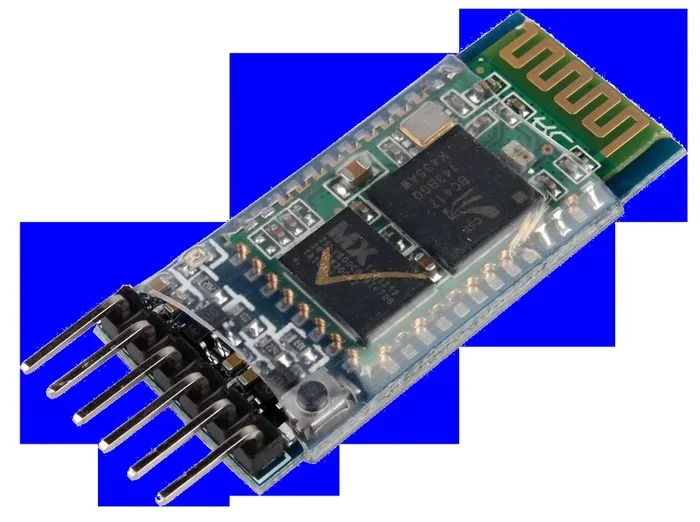
The most popular way to add Bluetooth to Xbox is with a USB Bluetooth adapter. This is a small dongle that plugs into the USB port on your console. It adds Bluetooth capability to your Xbox.
Here is how it works. You buy a Bluetooth adapter that is compatible with Xbox. You plug it into a USB port. Then you pair your Bluetooth headphones or speakers to the adapter. It is simple and effective.
Not all Bluetooth adapters work with Xbox. You need one that supports the Xbox Wireless protocol or acts as a standard Bluetooth transmitter. Look for adapters that specifically say they work with Xbox. Some popular options include adapters designed for gaming headsets.
Quick Tip: If you are looking to connect Bluetooth headphones to Xbox One, a USB adapter is your best bet. Make sure the adapter supports low-latency codecs for the best gaming experience.
Method 2: Use Xbox Wireless Compatible Headsets
The easiest way to go wireless on Xbox is to use a headset that supports Xbox Wireless natively. These headsets connect directly to your console without any adapter. They use the Xbox Wireless protocol instead of Bluetooth.
Brands like SteelSeries, HyperX, and Turtle Beach make headsets that work with Xbox Wireless. You simply pair the headset to your console just like you would pair a controller. The connection is fast and stable.
The downside is that these headsets tend to cost more than standard Bluetooth headphones. But the performance is worth it for serious gamers. You get zero latency and crystal-clear audio.
Method 3: Use a 3.5mm Audio Cable
If you do not want to buy extra gear, a wired connection still works. Most Xbox controllers have a 3.5mm headphone jack. You can plug in any wired headset or headphones and get audio directly.
This is the simplest method. It requires no setup. It has zero latency. The only downside is that you are not wireless. But for some gamers, that does not matter. The sound quality is excellent, and you do not need to charge anything.
Method 4: Use a Bluetooth Transmitter
A Bluetooth transmitter is another option. This device plugs into the Xbox controller’s 3.5mm port or the TV’s audio output. It then transmits audio to your Bluetooth headphones wirelessly.
This method works well for people who already own Bluetooth headphones. You do not need to buy new gear. Just plug in the transmitter and pair your headphones to it.
However, there is a catch. Bluetooth transmitters add some latency. The audio might not be perfectly in sync with the video. For casual gaming, this is fine. For fast-paced competitive games, it can be distracting.
Method 5: Connect Bluetooth Speakers
Want to use Bluetooth speakers with your Xbox? The same methods apply. You can use a Bluetooth adapter or a transmitter to connect speakers. Just keep in mind that speakers are louder and better for shared gaming sessions.
Some people also use their phone as a Bluetooth speaker. You can turn your phone into a Bluetooth speaker and connect it to your Xbox setup. This is a free workaround if you already have a phone with Bluetooth.
Xbox One vs Xbox Series X/S: Bluetooth Differences
The Bluetooth situation is similar across all Xbox consoles. But there are some differences worth noting between Xbox One and the newer Xbox Series X and Series S.
| Feature | Xbox One | Xbox Series X/S |
|---|---|---|
| Native Bluetooth | No | No |
| Xbox Wireless | Yes | Yes |
| USB Bluetooth Adapter Support | Yes | Yes |
| 3.5mm Controller Jack | Yes | Yes |
| Built-in Bluetooth for Controllers | No (uses proprietary) | No (uses proprietary) |
| Best Wireless Headset Option | Xbox Wireless headsets | Xbox Wireless headsets |
Both Xbox One and Xbox Series X/S handle Bluetooth the same way. Neither console has native Bluetooth support. The good news is that the methods to add Bluetooth are the same for both. You can use adapters, transmitters, or Xbox Wireless headsets on either console.
The Xbox Series X and Series S do have better hardware overall. This means they handle wireless connections a bit better. The wireless protocol is slightly faster. But for Bluetooth purposes, the experience is nearly identical.
If you are deciding between the two, do not let Bluetooth be a factor. Both consoles give you the same options for wireless audio. Choose based on other features like graphics, speed, and game library.
Best Bluetooth Devices for Xbox
Not all Bluetooth devices work well with Xbox. Some are designed for gaming and work great. Others are meant for music and may have issues. Here are some of the best options.
Wireless Gaming Headsets
These are the gold standard for Xbox audio. They connect via Xbox Wireless and give you the best experience. Popular choices include the SteelSeries Arctis Nova, HyperX Cloud III, and Turtle Beach Stealth 700.
These headsets offer great sound quality. They have built-in microphones for chat. And they connect without any extra hardware. Just pair and play.
Bluetooth Gaming Headsets
If you prefer standard Bluetooth headphones, there are options. Some Bluetooth headsets work well with a USB adapter. Look for headsets that support low-latency codecs like aptX or aptX Low Latency.
For a broader look at wireless gaming audio, you can explore options for using Bluetooth headphones for gaming to find headsets that work across platforms.
Bluetooth Speakers
Bluetooth speakers work great for casual gaming. They are portable and easy to set up. Just pair them to a Bluetooth adapter or transmitter and you are good to go.
The JBL Flip and Sony XB series are popular choices. They deliver solid sound for the price. They are also great for parties or outdoor gaming sessions.
Xbox Wireless Controllers
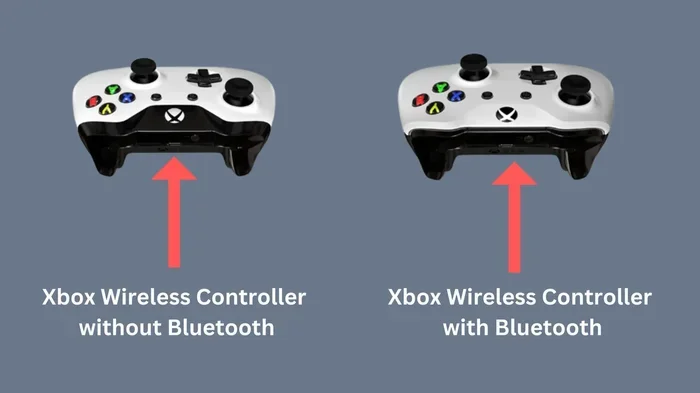
While not audio devices, Xbox Wireless controllers use the same proprietary protocol. They connect directly to Xbox without Bluetooth. If you want a wireless controller on PC or phone, you might need a different approach. Some controllers support Bluetooth for non-Xbox use.
Common Problems and How to Fix Them
Using Bluetooth with Xbox is not always smooth. Here are common issues and how to solve them.
Audio Delay or Lag
This is the most common Bluetooth problem. The audio does not match the video. It feels out of sync. This happens because Bluetooth adds a small delay to the signal.
To fix this, use a low-latency Bluetooth codec. aptX Low Latency is the best option. If your adapter does not support it, consider switching to Xbox Wireless instead.
Connection Drops
If your Bluetooth device keeps disconnecting, the signal might be weak. Move closer to the adapter or transmitter. Remove other wireless devices from the area. Interference from Wi-Fi routers can cause drops.
No Sound at All
If you get no sound, check the audio output settings on your Xbox. Go to Settings, then Display & Sound, then Audio Output. Make sure the correct output is selected. Sometimes Xbox defaults to the HDMI audio and ignores other sources.
Adapter Not Recognized
If your Xbox does not recognize the Bluetooth adapter, try a different USB port. You can also try unplugging and replugging the adapter. Some adapters need to be plugged into the console directly, not a USB hub.
Tips for the Best Bluetooth Experience on Xbox
Want to get the most out of your wireless setup on Xbox? Follow these tips.
- Invest in a quality adapter. Cheap Bluetooth adapters often have high latency and poor range. Spend a little more for a reliable one.
- Keep firmware updated. Both your Xbox and your Bluetooth adapter should have the latest firmware. Updates fix bugs and improve performance.
- Minimize interference. Keep your Bluetooth adapter away from Wi-Fi routers and other wireless devices. This reduces signal conflicts.
- Use low-latency codecs. If your adapter supports aptX Low Latency, turn it on. This dramatically reduces audio delay.
- Charge your devices. Nothing kills a wireless experience faster than a dead battery. Keep your headphones and adapter charged.
- Consider Xbox Wireless first. If you are buying new gear, Xbox Wireless headsets are the best option. They are designed for Xbox and work flawlessly.
Expert Insights
From a technical standpoint, the reason Xbox does not support Bluetooth comes down to optimization. Microsoft wanted to create a gaming experience that feels instant. Bluetooth, while convenient, was not built with competitive gaming in mind.
The Xbox Wireless protocol gives Microsoft full control over the connection. They can tweak the performance for their specific hardware. This results in a better experience for gamers. It is not that Bluetooth is bad. It is just not ideal for the demands of modern gaming.
That said, the industry is changing. More and more gamers want flexibility. They want to use the same headphones with their phone, PC, and Xbox. This is driving demand for better wireless solutions across all platforms.
Final Thoughts
So, can you use Bluetooth on Xbox? Not directly. But you can absolutely go wireless. Whether you use a Bluetooth adapter, Xbox Wireless headsets, or a transmitter, you have options. The key is finding the right method for your setup and your budget.
For the best experience, Xbox Wireless headsets are the way to go. They offer the lowest latency and the most reliable connection. But if you already own Bluetooth headphones, an adapter or transmitter works great too.
The world of wireless gaming is evolving fast. Microsoft may add native Bluetooth support in future Xbox consoles. Until then, the workarounds we covered in this guide will serve you well. Pick the method that fits your needs and enjoy wireless gaming on your Xbox.
Remember, the goal is to enhance your gaming experience. Do not let the lack of native Bluetooth stop you. There is a solution for every setup and every budget. Get out there, go wireless, and enjoy your games.
Frequently Asked Questions
Can you connect Bluetooth headphones directly to Xbox?
No, Xbox does not support direct Bluetooth connections. You need a USB Bluetooth adapter or a transmitter to connect Bluetooth headphones to your Xbox console.
What is the best way to get wireless audio on Xbox?
The best way is to use an Xbox Wireless compatible headset. These connect directly to your console without any extra hardware. They offer the lowest latency and best performance for gaming.
Does Xbox Series X support Bluetooth?
No, Xbox Series X does not have built-in Bluetooth support. It uses Xbox Wireless for proprietary connections. You can add Bluetooth using a USB adapter or transmitter.
Can you use a Bluetooth transmitter with Xbox?
Yes, a Bluetooth transmitter works with Xbox. You plug it into the controller’s 3.5mm jack or the TV’s audio output. Then you pair your Bluetooth headphones or speakers to the transmitter.
Why is my Bluetooth audio delayed on Xbox?
Bluetooth adds a small amount of latency to audio signals. This delay is normal. To reduce it, use a low-latency Bluetooth codec like aptX Low Latency. Alternatively, switch to Xbox Wireless for zero-latency audio.
Can you use Bluetooth speakers with Xbox for party gaming?
Yes, you can use Bluetooth speakers with Xbox. Connect them through a Bluetooth adapter or transmitter. Bluetooth speakers are great for shared gaming sessions and casual play.
=== CONCLUSION ===
Can you use Bluetooth on Xbox? The short answer is no, not natively. But the long answer is that you have many great options to go wireless. From USB Bluetooth adapters to Xbox Wireless headsets, there is a solution for every gamer. The key is understanding what your console supports and choosing the right method for your needs.
We covered a lot in this guide. We explained why Xbox does not use Bluetooth. We walked through five different methods to connect wireless devices. We compared Xbox One and Xbox Series X/S. We shared tips for the best experience. And we answered the most common questions.
The bottom line is simple. You do not need cables to enjoy great audio on Xbox. You just need the right gear. Whether you are a casual gamer or a competitive player, there is a wireless solution that fits your setup. Choose the method that works best for you and start enjoying wireless gaming today.