Can You Add Bluetooth To Ps5 And Get Wireless Audio Working
The PS5 does not have built-in Bluetooth support for audio devices, but you can absolutely add Bluetooth functionality using a USB transmitter or a compatible Bluetooth adapter. This guide walks you through every method to connect wireless headphones, speakers, and earbuds to your console. Whether you want wireless audio PS5 gaming or hands-free chat, we have you covered with step-by-step instructions and top product recommendations.
So you just bought a pair of wireless headphones and want to use them with your PS5. Maybe you are tired of tangled cables or you just want the freedom to move around your room while you game. Whatever the reason, you are probably wondering if you can add Bluetooth to PS5 and get wireless audio working. The short answer is yes. The longer answer involves a few different methods, some helpful accessories, and a little bit of setup. But do not worry, this guide breaks it all down in simple terms.
Sony built the PS5 as a powerful gaming machine, but it left out native Bluetooth audio support. That means you cannot simply pair your wireless headphones directly to the console the way you would with a phone. This can feel frustrating, especially when Bluetooth is so common on other devices. But the good news is that adding Bluetooth to PS5 is straightforward once you know what tools you need. In this article, we will cover every method, every tip, and every product recommendation you need to get wireless audio working on your PS5.
Key Takeaways
- The PS5 lacks native Bluetooth audio support and requires a workaround to connect wireless devices.
- A USB Bluetooth transmitter is the easiest and most affordable solution for adding wireless audio to your console.
- Low-latency Bluetooth adapters ensure your audio stays perfectly synced with in-game action.
- Multiple connection methods exist, including 3.5mm jacks, USB transmitters, and wireless docking stations.
- Picking the right adapter matters for audio quality, range, and lag-free performance.
- Common Bluetooth issues can be fixed with simple troubleshooting steps.
📑 Table of Contents
- Why the PS5 Does Not Have Built-In Bluetooth Audio
- How to Add Bluetooth to PS5: 3 Easy Methods
- Best Bluetooth Adapters for Adding Wireless Audio to PS5
- Setting Up Your Wireless Audio on PS5: Step-by-Step Guide
- Common Problems When Adding Bluetooth to PS5 and How to Fix Them
- Comparing Bluetooth Audio Methods for PS5
- Expert Tips for the Best Wireless Gaming Audio on PS5
- Can You Use iPhone Bluetooth Tips for PS5 Setup?
- Final Thoughts on Adding Bluetooth to Your PS5
Why the PS5 Does Not Have Built-In Bluetooth Audio
You might be wondering why Sony did not just include Bluetooth audio in the PS5. After all, the console has Bluetooth for the DualSense controller. So why not for headphones and speakers? The answer comes down to how Sony designed the wireless protocol for the console.
The Controller vs. Audio Bluetooth Difference
The PS5 uses Bluetooth for its DualSense controller, but that connection is specifically designed for controller input. It is not meant for streaming audio. Sony uses a different wireless technology for the controller, which is optimized for low latency and precise input. Audio Bluetooth works differently. It needs to handle continuous streams of sound data without interruptions. So even though the PS5 has Bluetooth hardware, it is reserved for the controller only.
This design choice is not unique to the PS5. Many gaming consoles, including previous PlayStation models, do not support Bluetooth audio natively. The reason is simple. Gaming audio needs to be fast and reliable. Standard Bluetooth can introduce a small delay, which might not matter when you are listening to music but can be a big problem when you are trying to hear footsteps in a shooter game.
Now, this does not mean you are stuck with wired audio forever. There are several ways to add Bluetooth to PS5 and enjoy wireless sound while you play. Let us look at the best options.
How to Add Bluetooth to PS5: 3 Easy Methods
Adding Bluetooth to your PS5 is simpler than you might think. You have three main methods to choose from. Each one has its own benefits, and we will walk you through them so you can pick the best option for your setup.
Method 1: Use a USB Bluetooth Transmitter
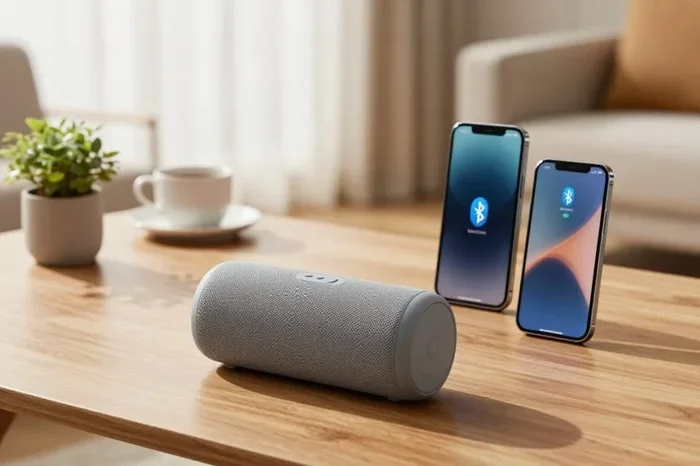
This is the most popular and easiest way to get wireless audio PS5. A USB Bluetooth transmitter plugs into one of the PS5’s USB ports and creates a new Bluetooth connection that your headphones or speakers can pair with.
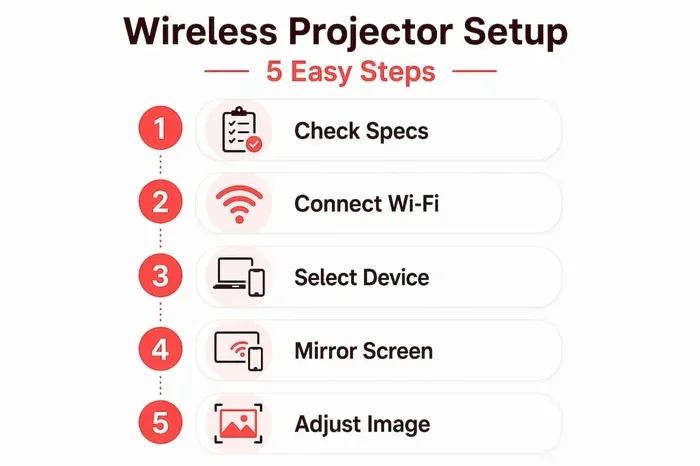
Here is how it works in simple steps:
- Buy a USB Bluetooth transmitter that supports low-latency audio. Look for ones that use Bluetooth 5.0 or higher for the best performance.
- Plug the transmitter into a USB port on your PS5. The console has USB ports on the front and back.
- Put your wireless headphones into pairing mode.
- On the transmitter, hold the pairing button until it connects to your headphones.
- Go to your PS5 sound settings and select the transmitter as your audio output device.
That is it. You are now listening to game audio wirelessly. Most USB transmitters cost between 15 and 50 dollars, making this the most budget-friendly option.
Method 2: Use the PS5 3.5mm Jack with a Bluetooth Adapter
If you prefer using your DualSense controller for audio, you can use the 3.5mm headphone jack on the controller. But to go wireless, you need a small Bluetooth adapter that plugs into that jack.
These tiny adapters are designed specifically for this purpose. They fit right into the controller’s headphone port and pair with your headphones just like a regular Bluetooth device. The advantage here is that you keep using the DualSense controller for audio, which some players prefer because it keeps the setup simple.
The downside is that these adapters can be a bit tricky to fit securely in the controller jack. They also tend to have a shorter battery life compared to USB transmitters. But for casual gaming, they work just fine.
Method 3: Use a Wireless Gaming Headset Dock
Some wireless gaming headsets come with their own USB docking station. You plug the dock into the PS5, and the headset connects to the dock wirelessly. This is the cleanest setup because you do not need a separate Bluetooth adapter.
Popular headsets like the SteelSeries Arctis Nova 7 or the HyperX Cloud Mix use this approach. The dock handles the wireless connection, and you get a dedicated audio experience without relying on standard Bluetooth. This method gives you the best audio quality and the lowest latency of all the options.
Best Bluetooth Adapters for Adding Wireless Audio to PS5
Not all Bluetooth adapters are created equal. When you are trying to add Bluetooth to PS5, you need an adapter that supports low-latency audio and strong signal range. Here are some things to look for.
What to Look for in a Bluetooth Adapter
- Bluetooth version 5.0 or higher: Newer versions offer better range, stronger connections, and lower latency.
- aptX or aptX Low Latency support: These codecs reduce audio delay significantly, which is crucial for gaming.
- USB-A or USB-C compatibility: Make sure the adapter matches the USB port type on your PS5.
- Multi-device pairing: Some adapters let you connect multiple devices, which is handy if you share the console with family members.
- Compact size: You want an adapter that does not block nearby USB ports on the console.
Some popular options include the 1Mii B06TX adapter, the Avantree Oasis Plus, and the TaoTronics TT-BA07. Each of these supports low-latency codecs and works well with the PS5 for wireless gaming audio.
When comparing adapters, think about your needs. If you just want basic wireless audio, a simple Bluetooth 5.0 transmitter works great. If you are a competitive gamer who needs zero delay, look for adapters with aptX Low Latency or similar technology. The right adapter makes all the difference between a smooth experience and one that feels out of sync.
Setting Up Your Wireless Audio on PS5: Step-by-Step Guide
Once you have your Bluetooth adapter or transmitter, the next step is setting it up. The process is simple, but there are a few settings you need to adjust on your PS5 to make everything work perfectly.
Step 1: Connect the Adapter to Your PS5
Plug your USB Bluetooth transmitter into the PS5. If you are using the front USB port, it is easily accessible. The back ports work just as well but might require you to move the console slightly. Wait a few seconds for the PS5 to recognize the new device.
Step 2: Pair Your Headphones or Speakers
Put your wireless headphones into pairing mode. This usually means holding down the Bluetooth button on the headphones until a light starts flashing. Then go to the PS5 settings menu, navigate to Sound, and look for Bluetooth devices. Your headphones should appear in the list. Select them to complete the pairing.
Step 3: Adjust Audio Output Settings
After pairing, you need to tell the PS5 to send audio through the Bluetooth device. Go to Settings, then Sound, then Audio Output. Under Output Device, select your Bluetooth transmitter or adapter. You can also adjust the volume and audio format here. Some adapters work best with specific audio formats, so check the manufacturer’s instructions if you run into issues.
Step 4: Test and Fine-Tune
Play a game or watch a video to test the audio. Check for any delay between the visuals and the sound. If you notice lag, try adjusting the Bluetooth codec settings on your adapter. Many transmitters have a companion app that lets you switch between different codecs for the best performance.
Common Problems When Adding Bluetooth to PS5 and How to Fix Them
Even with the best setup, you might run into some issues. Here are the most common problems and how to solve them.
Audio Delay or Lag
Audio lag is the number one complaint when using Bluetooth with a PS5. If the sound does not match what you see on screen, it can be very distracting. The fix is to use an adapter that supports a low-latency codec like aptX Low Latency or aptX Adaptive. Standard Bluetooth codecs like SBC and AAC tend to have more delay. If your adapter does not support low-latency codecs, try moving closer to the PS5 to strengthen the signal.
Connection Drops
If your wireless audio keeps disconnecting, the Bluetooth signal might be weak. Try these fixes:
- Move the PS5 closer to your headphones.
- Remove any physical obstructions between the console and your headphones.
- Make sure your adapter firmware is up to date.
- Avoid using the adapter near other wireless devices that might cause interference.
No Sound at All
If you paired your headphones but hear nothing, check a few things. First, make sure the PS5 audio output is set to the Bluetooth device. Second, check the volume on both the PS5 and your headphones. Third, try unpairing and re-pairing the devices. Sometimes a fresh connection fixes the problem instantly.
Mic Not Working on Wireless Headsets
If your headset has a microphone and it is not working over Bluetooth, this is a known PS5 limitation. The PS5 does not support Bluetooth microphone audio through third-party adapters. You will need to use the headset’s wired connection for chat or use the DualSense controller microphone instead.
Comparing Bluetooth Audio Methods for PS5
Not sure which method is right for you? Here is a quick comparison of the three main ways to add Bluetooth to PS5.
| Feature | USB Bluetooth Transmitter | 3.5mm Bluetooth Adapter | Wireless Headset Dock |
|---|---|---|---|
| Ease of Setup | Easy | Moderate | Very Easy |
| Audio Quality | Good to Excellent | Good | Excellent |
| Latency | Low with aptX | Moderate | Very Low |
| Cost | 15 to 50 USD | 10 to 30 USD | 50 to 200 USD |
| Range | 30 to 50 feet | 15 to 30 feet | 30 to 50 feet |
| Mic Support | Limited | Limited | Usually Yes |
As you can see, each method has its strengths. The USB transmitter offers the best balance of cost, quality, and ease of use. The 3.5mm adapter is great for budget setups. And the wireless headset dock is ideal if you already own a compatible headset and want the best possible audio experience.
Expert Tips for the Best Wireless Gaming Audio on PS5
Want to get the most out of your wireless PS5 setup? Here are some expert tips that make a real difference.
Keep Your Firmware Updated
Bluetooth adapters and transmitters receive firmware updates that improve performance and fix bugs. Check the manufacturer’s app or website regularly for updates. A simple firmware update can reduce latency and improve connection stability.
Use the Right Codec
Not all Bluetooth codecs are the same. Codecs like aptX Low Latency and aptX Adaptive are designed for gaming. They reduce the delay between audio and video to nearly imperceptible levels. If your adapter supports these codecs, always use them for the best experience.
Position Your Adapter Strategically
Place your USB transmitter in a location with a clear line of sight to your headphones. Avoid tucking it behind the console or inside a closed cabinet. The more open the space, the stronger and more stable the Bluetooth signal will be.
Charge Your Headphones Fully
This might sound obvious, but low battery can cause audio dropouts and increased latency. Always charge your wireless headphones before a long gaming session. Some adapters also let you charge headphones through the transmitter, which is a nice bonus.
Consider a Dedicated Gaming Wireless System
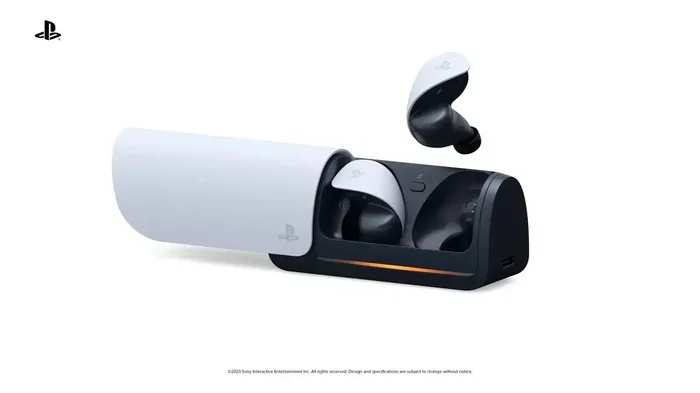
For serious gamers, dedicated wireless systems like the PlayStation Pulse 3D headset are purpose-built for the PS5. They use a proprietary wireless protocol that offers zero latency and full integration with the console. While they are not Bluetooth, they solve the same problem of getting wireless audio working on your PS5.
Can You Use iPhone Bluetooth Tips for PS5 Setup?
You might already be familiar with managing Bluetooth connections on your iPhone. The process of pairing and troubleshooting Bluetooth on a PS5 is similar in some ways. If you have ever dealt with adding prefixes to numbers on iPhone or managing Bluetooth device lists on iOS, those skills transfer in a helpful way. Both systems require you to put devices in pairing mode, manage connected devices in settings, and troubleshoot connection issues. The main difference is that the PS5 requires an additional hardware adapter to bridge the gap between the console and your wireless audio devices.
Similarly, if you enjoy exploring gadgets that make life easier, a Bluetooth transmitter for your PS5 fits right into that category. It is a small, affordable gadget that transforms your gaming setup from wired to wireless with minimal effort. The convenience of moving freely around your room without cable restrictions is a game-changer for many players.
Final Thoughts on Adding Bluetooth to Your PS5
So, can you add Bluetooth to PS5 and get wireless audio working? Absolutely. While the PS5 does not support Bluetooth audio natively, a USB Bluetooth transmitter or a compatible adapter solves the problem quickly and affordably. You have multiple methods to choose from, ranging from simple plug-and-play transmitters to dedicated wireless headset docks.
The key is to pick the right adapter for your needs. If you want the easiest setup, go with a USB Bluetooth transmitter that supports low-latency codecs. If you already own a wireless headset with a USB dock, use that for the best performance. And always remember to keep your firmware updated and your devices charged for the smoothest experience.
Wireless gaming audio on PS5 is totally achievable. You just need the right tool and a few minutes to set things up. Once you experience the freedom of untethered audio while gaming, you will never want to go back to wired headphones. So grab a Bluetooth adapter, follow the steps in this guide, and enjoy your PS5 games with crystal-clear wireless sound.
Frequently Asked Questions
Can I connect any Bluetooth headphones to PS5?
Not directly. The PS5 does not support Bluetooth audio pairing natively. You need a USB Bluetooth transmitter or a 3.5mm Bluetooth adapter to connect wireless headphones to the console. Once you have the right adapter, most Bluetooth headphones will pair without issues.
Does adding Bluetooth to PS5 cause audio lag?
Standard Bluetooth can cause a small amount of audio lag. However, using a transmitter that supports aptX Low Latency or aptX Adaptive codecs reduces this delay to nearly imperceptible levels. For competitive gaming, choose an adapter specifically designed for low latency.
Can I use a Bluetooth speaker with my PS5?
Yes, you can connect a Bluetooth speaker to your PS5 using a USB Bluetooth transmitter. The setup process is the same as connecting headphones. Just make sure the speaker supports the Bluetooth version and codec requirements for the best audio quality.
Why does my PS5 not show Bluetooth audio devices in settings?
The PS5 does not have a native Bluetooth audio settings menu. You must use a third-party USB Bluetooth transmitter or adapter. Once the adapter is connected, the PS5 recognizes it as an audio output device, and you can select it in the Sound settings.
Is a USB Bluetooth transmitter better than a 3.5mm Bluetooth adapter?
Generally, yes. USB transmitters offer better audio quality, longer range, and stronger battery life than 3.5mm adapters. They also tend to have lower latency and more reliable connections. The 3.5mm adapter is a good budget option but has more limitations overall.
Can I use the DualSense controller microphone for chat with wireless headphones?
Yes, if your Bluetooth adapter does not support microphone audio, you can use the DualSense controller microphone for in-game chat. The controller’s built-in mic works with any wireless headphones connected through a transmitter or adapter. For better chat quality, consider using a headset with a dedicated mic and a wireless dock.
=== CONCLUSION ===
Adding Bluetooth to your PS5 opens up a world of wireless audio freedom. Whether you choose a USB transmitter, a 3.5mm adapter, or a wireless headset dock, you can enjoy game audio without cables getting in the way. The process is straightforward, affordable, and makes a noticeable difference in your gaming experience.
Remember to pick an adapter that supports low-latency codecs, keep your devices updated, and position your transmitter for the best signal. With the right setup, adding Bluetooth to PS5 becomes one of the easiest and most rewarding upgrades you can make to your gaming station. Now go enjoy your favorite games with wireless sound that keeps you fully immersed in the action.