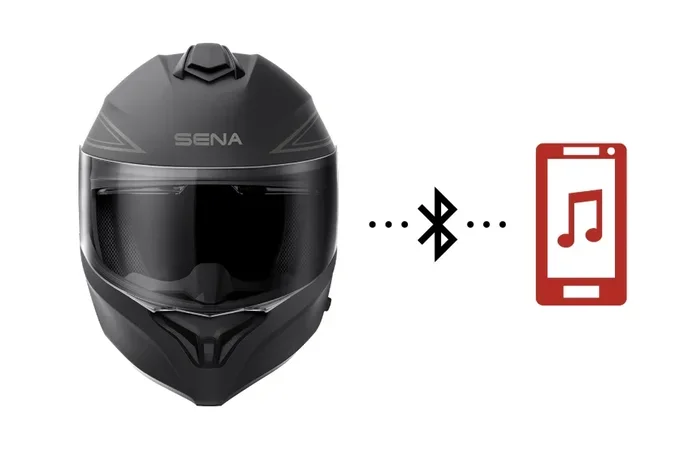
How Do I Connect My Sena Harley Helmet To My Phone Easily
Connecting your Sena Harley helmet to your phone is simple once you know the right steps. You will learn how to pair your helmet’s Bluetooth module with your smartphone, install the Sena app, and troubleshoot common issues. This guide covers setup, tips, and expert advice so you can enjoy hands-free calls and music on every ride.
Riding a Harley is one of life’s greatest joys. The wind, the road, the engine sound — it all feels incredible. But staying connected while you ride matters too. You want to take calls. You want to hear your music. You want GPS directions without stopping.
That is where your Sena Harley helmet comes in. These helmets have built-in Bluetooth technology. They let you link your phone directly to your helmet. But many riders feel confused during setup. They ask, “How do I connect my Sena Harley helmet to my phone?” The answer is simpler than you think.
This guide walks you through every step. You will learn how to pair your helmet with your phone. You will discover how to use the Sena app. You will also find quick fixes for common problems. By the end, you will be connected and riding with confidence.
Let us get started. No tech skills are needed. Just follow along, and you will be good to go.
Key Takeaways
- Easy Bluetooth Pairing: Follow simple steps to connect your Sena Harley helmet to any compatible phone in minutes.
- Sena App is Key: The Sena Smart App lets you manage settings, update firmware, and customize your riding experience.
- Multiple Connection Options: You can use Bluetooth, USB, or the Sena app to link your helmet and phone.
- Common Issues Have Simple Fixes: Most connection problems are solved with a quick reset or firmware update.
- Hands-Free Safety: A connected helmet lets you take calls and listen to music without taking your hands off the handlebars.
- Works Across Models: The process is similar for Sena 50R, Sena 30K, and other popular Sena helmet models.
📑 Table of Contents
- Why Connecting Your Sena Harley Helmet to Your Phone Matters
- Before You Start: What You Need
- Step-by-Step Guide: How to Connect Your Sena Harley Helmet to Your Phone
- Common Problems and How to Fix Them
- Tips for a Better Connected Riding Experience
- How Sena Helmets Compare With Other Motorcycle Helmets
- Expert Insights: Getting the Most From Your Sena Helmet
- Key Takeaways
- Conclusion
Why Connecting Your Sena Harley Helmet to Your Phone Matters
Modern motorcycle helmets are not just about protection anymore. Helmets like the Sena Harley Bluetooth helmet are smart devices. They have speakers, microphones, and Bluetooth chips built right in. This opens up a whole world of convenience for riders.
Here is why connecting your helmet to your phone is a game-changer:
- Hands-free calling: Answer phone calls without pulling out your phone. Stay safe and keep your hands on the handlebars.
- Music on the go: Stream your favorite playlists directly through your helmet speakers. Your ride just got more enjoyable.
- GPS navigation: Hear turn-by-turn directions through your helmet. No need to look at your phone screen while riding.
- Rider-to-rider communication: Connect with your passenger or other riders using the intercom feature.
- Voice commands: Control calls and music with simple voice prompts. Keep your focus on the road.
When you set up your Sena motorcycle helmet phone connection properly, everything feels seamless. You barely notice the technology is there. It just works. And that is exactly what a good ride should feel like.
Before You Start: What You Need
Before you try to pair your helmet and phone, make sure you have everything ready. Skipping this step can cause frustration later. Here is a quick checklist.
Check Your Helmet Model
Sena makes several helmet models. The most popular ones include the Sena 50R, the Sena 30K, and the Sena SMH10. Each model has slightly different setup steps. Check your helmet’s user manual if you are unsure which model you have. The model name is usually printed inside the helmet or on the box.
Make Sure Your Phone Is Compatible
Most modern smartphones work with Sena helmets. Both Android and iPhone devices support Bluetooth connectivity. Here are the general requirements:
- Android phones: Version 8.0 or newer is recommended.
- iPhone: iOS 14 or later works best.
- Bluetooth version: Your phone should support Bluetooth 4.0 or higher.
Charge Your Helmet
A low battery can cause connection problems. Before you start, charge your Sena helmet fully. Most Sena helmets use a USB charging cable. Plug it in and wait until the indicator light shows a full charge. A fully charged helmet ensures a smooth pairing process.
Download the Sena Smart App
The Sena Smart App is free and available on both the App Store and Google Play. This app is your main tool for managing helmet settings. It also helps you update firmware, adjust audio levels, and troubleshoot issues. Download it before you begin the pairing process.
Step-by-Step Guide: How to Connect Your Sena Harley Helmet to Your Phone
Now for the part you have been waiting for. Here is the full process to connect your Sena helmet to your phone. Follow these steps carefully, and you will be connected in no time.
Step 1: Turn On Your Sena Helmet
Press and hold the power button on your Sena helmet. You will hear a beep or see a light flash. This means the helmet is on and ready. Most Sena helmets power on in about 3 seconds. If your helmet does not turn on, check the battery level first.
Step 2: Enable Bluetooth on Your Phone
Go to your phone’s settings. Find the Bluetooth option and turn it on. Your phone will start scanning for nearby devices. Make sure your phone is not connected to another audio device at this point. Disconnect from speakers or headphones if needed. This helps your phone find the Sena helmet faster.
Step 3: Put Your Helmet in Pairing Mode
This is the step many riders miss. Your Sena helmet needs to be in pairing mode to show up on your phone. Here is how to do it:
- Press and hold the Bluetooth button on your helmet for about 5 seconds.
- Wait for the LED light to flash blue and red.
- You may hear a voice prompt saying “Pairing mode is on.”
If you are not sure which button to press, check your helmet’s manual. The pairing process is slightly different for each Sena model. But the flashing light is the universal sign that pairing mode is active.
Step 4: Find the Helmet on Your Phone
Go back to your phone’s Bluetooth settings. Look for the list of available devices. Your Sena helmet should appear with a name like “Sena 50R” or “Sena 30K.” Tap on the helmet name to start pairing.
You may see a pairing request on your phone screen. Tap “Pair” or “Connect” to confirm. Some phones will ask you to enter a PIN. The default PIN for most Sena helmets is “0000.” If that does not work, try “1234.”
Step 5: Confirm the Connection
Once paired, you will hear a confirmation tone in your helmet. The Bluetooth light on your helmet will stay solid instead of flashing. On your phone, the Sena helmet will now show as “Connected” under Bluetooth devices.
Try a quick test. Play some music on your phone. If you hear it through your helmet speakers, you are connected. Make a test call if you want to check the microphone too. Everything should work smoothly now.
Step 6: Download and Set Up the Sena Smart App
Open the Sena Smart App on your phone. The app will automatically detect your connected helmet. Follow the on-screen prompts to complete the setup. You can now customize your helmet settings right from your phone.
Inside the app, you can:
- Adjust volume levels for calls and music separately.
- Set up voice command shortcuts.
- Update your helmet firmware to the latest version.
- Check battery status and connection quality.
- Reset your helmet settings if needed.
Common Problems and How to Fix Them
Even with the best instructions, things can go wrong. Bluetooth connections can be tricky sometimes. Here are the most common issues riders face and how to solve them.
Helmet Does Not Show Up on My Phone
This is the most common problem. It usually happens for one of three reasons:
- The helmet is not in pairing mode: Make sure you held the Bluetooth button long enough. The flashing light is your clue that pairing mode is active.
- Bluetooth is turned off on your phone: Double-check that Bluetooth is enabled. Try turning it off and back on again.
- The helmet is connected to another device: Sena helmets can remember up to two paired devices. If your helmet was previously connected to another phone, it may auto-connect to that device instead. Turn off Bluetooth on the other phone, or reset the helmet’s Bluetooth memory.
Connection Keeps Dropping
A stable connection should last as long as both devices are powered on. If your connection drops often, try these fixes:
- Move closer to your phone. Bluetooth works best within 30 feet.
- Check for interference from other Bluetooth devices nearby.
- Update your helmet firmware through the Sena Smart App.
- Restart both your helmet and your phone, then try reconnecting.
Audio Quality Is Poor or Crackly
If your music or calls sound muffled, the issue is usually easy to fix:
- Check the helmet speakers for any debris or dirt. Clean them gently with a soft cloth.
- Make sure the helmet speakers are properly seated inside the helmet padding.
- Adjust the audio balance in the Sena Smart App.
- Lower the phone volume and raise the helmet speaker volume for a better balance.
The Sena App Will Not Detect My Helmet
If the app does not find your helmet, try these steps:
- Make sure Bluetooth is turned on in your phone settings.
- Force close the Sena app and reopen it.
- Check that your helmet firmware is up to date. An outdated firmware can cause detection issues.
- Uninstall and reinstall the Sena Smart App.
- Restart your phone and try again.
Tips for a Better Connected Riding Experience
Once your Sena Harley Bluetooth connection is working, you can make it even better with a few simple tips. These small changes make a big difference in your daily riding experience.
Keep Your Firmware Updated
Sena regularly releases firmware updates. These updates fix bugs, improve connection stability, and add new features. Check for updates in the Sena Smart App at least once a month. An up-to-date helmet performs much better than an outdated one.
Use Voice Commands While Riding
One of the best features of a Sena helmet is voice control. You can answer calls, skip songs, and activate GPS navigation using voice commands. This keeps your hands on the handlebars and your eyes on the road. Practice a few voice commands before your next ride so you feel comfortable using them.
Manage Multiple Device Connections
Sena helmets support connections to multiple devices. You can pair your phone and your passenger’s phone at the same time. You can also connect your phone and a GPS device. This is great for group rides. Just be aware that connecting too many devices can slow down performance. Stick to two or three connected devices for the best experience.
Protect Your Helmet’s Battery
Bluetooth connections drain battery power. If you plan to ride for a long time, charge your helmet fully before you go. Some riders carry a portable USB charger on long trips. This ensures your helmet stays powered throughout the ride. A dead helmet battery means no music, no calls, and no intercom.
Adjust Audio Settings for Wind Noise
Wind noise can make it hard to hear calls and music at higher speeds. Use the Sena Smart App to adjust your audio settings. Turn up the volume slightly for highway riding. You can also enable the Sena helmet’s wind noise reduction feature if your model supports it. This makes a noticeable difference in audio clarity.
How Sena Helmets Compare With Other Motorcycle Helmets
The market for connected motorcycle helmets has grown a lot in recent years. Many brands now offer Bluetooth-enabled helmets. Here is how Sena stacks up against the competition.
| Feature | Sena Helmets | Other Brands |
|---|---|---|
| Bluetooth Range | Up to 1,600 feet | Varies (usually 300-900 feet) |
| App Support | Sena Smart App with full controls | Limited or no app support |
| Firmware Updates | Easy through the app | Often not available |
| Multi-Device Pairing | Up to 2 devices | Usually 1 device |
| Intercom Quality | Excellent with Mesh technology | Good to average |
| Price Range | Mid to premium | Varies widely |
Sena helmets stand out for their reliable Bluetooth motorcycle helmet connectivity. The Sena Smart App gives you control that other brands simply do not offer. If you ride a Harley, a Sena helmet is one of the best ways to stay connected on the road. The intercom quality is also top-notch, especially in newer models with Mesh communication technology.
Expert Insights: Getting the Most From Your Sena Helmet
We asked experienced riders and tech experts for their best tips on using Sena helmets. Here is what they shared.
Start with a clean setup. Many riders rush through the pairing process. Take your time. Make sure both devices are charged, Bluetooth is on, and your helmet is in pairing mode. A clean setup prevents most connection issues.
Reset before you troubleshoot. When things go wrong, a factory reset often solves the problem. It clears old paired devices and refreshes the Bluetooth connection. This is the first thing experts recommend when a connection fails.
Use the Sena app daily. The app is not just for setup. Make it a habit to open it before every ride. Check your battery level, update firmware, and adjust settings based on your riding conditions. This small habit keeps everything running smoothly.
Invest in a good charging routine. Plug your helmet in every night after riding. A consistent charging habit ensures your helmet is always ready when you are. It also extends the overall battery lifespan.
Explore Sena’s community. Sena has a strong online community of riders. Join forums and groups where users share tips and tricks. You will learn new features and shortcuts you never knew existed. The community is a great resource for getting the most out of your helmet.
Key Takeaways
- Easy Bluetooth Pairing: Follow simple steps to connect your Sena Harley helmet to any compatible phone in minutes.
- Sena App is Key: The Sena Smart App lets you manage settings, update firmware, and customize your riding experience.
- Multiple Connection Options: You can use Bluetooth, USB, or the Sena app to link your helmet and phone.
- Common Issues Have Simple Fixes: Most connection problems are solved with a quick reset or firmware update.
- Hands-Free Safety: A connected helmet lets you take calls and listen to music without taking your hands off the handlebars.
- Works Across Models: The process is similar for Sena 50R, Sena 30K, and other popular Sena helmet models.
Conclusion
Connecting your Sena Harley helmet to your phone does not have to be complicated. With the right steps, you can be paired and riding in under 10 minutes. The key is to follow the process carefully, use the Sena Smart App, and keep your firmware updated.
Once connected, you will wonder how you ever rode without it. Hands-free calls, streaming music, and GPS directions all become second nature. Your rides become safer, more enjoyable, and more connected.
If you run into any issues, remember that most problems have simple solutions. Check your Bluetooth settings, reset your helmet, or update your firmware. The Sena support team is also available if you need extra help.
Now that you know how to connect your Sena Harley helmet to your phone, get out there and enjoy the ride. Stay connected, stay safe, and ride smart.
Frequently Asked Questions
How long does it take to connect a Sena Harley helmet to a phone?
The pairing process usually takes less than 5 minutes. If you have downloaded the Sena Smart App and charged your helmet beforehand, it will be even faster. First-time setup may take a few extra minutes as you familiarize yourself with the steps.
Can I connect my Sena helmet to more than one phone at a time?
Most Sena helmets can remember up to two paired devices. However, they can only be actively connected to one phone at a time. If you want to switch phones, simply disconnect from the current phone and connect to the new one through your Bluetooth settings.
Why is my Sena helmet not showing up in my phone’s Bluetooth list?
This usually happens when the helmet is not in pairing mode. Make sure you hold the Bluetooth button for at least 5 seconds until the LED light flashes blue and red. Also check that your phone’s Bluetooth is turned on and that no other device is interfering with the connection.
Do I need the Sena Smart App to connect my helmet to my phone?
No, you can connect your helmet to your phone using Bluetooth alone without the app. However, the Sena Smart App unlocks many extra features like firmware updates, audio customization, and voice command setup. It is highly recommended for the best experience.
Can I use my Sena helmet to make phone calls while riding?
Yes, absolutely. Once your Sena helmet is connected to your phone, you can answer and make calls using the helmet’s built-in microphone and speakers. The hands-free feature keeps you safe and allows you to stay focused on the road at all times.
What should I do if the audio quality is poor during my ride?
Poor audio is often caused by wind noise or low battery. Try reducing your riding speed or adjusting the audio balance in the Sena Smart App. Also check that your helmet speakers are clean and properly positioned. Keeping your helmet fully charged also improves audio performance significantly.