How Do I Change The Bluetooth Name On My Samsung Phone
Changing the Bluetooth name on your Samsung phone is quick and easy. Whether you want to personalize your device or make it easier to identify, renaming your Bluetooth device takes just a few taps. This guide walks you through the exact steps you need to follow on any Samsung Galaxy model.
Have you ever been in a room full of Bluetooth devices and could not tell which one was yours? It happens more often than you think. When your Samsung phone shows up as “Samsung Galaxy S23” or some generic name, it can be hard to spot among all the other devices. The good news is that changing your Bluetooth name is simple and takes less than a minute.
If you have been wondering how to make your Samsung phone stand out when it connects to speakers, car systems, or headphones, you are in the right place. This guide will show you exactly how to change the Bluetooth name on your Samsung phone. You will learn the step-by-step process, different methods, and tips to pick a name that really works for you.
Key Takeaways
- Renaming Bluetooth is simple: You can change your Samsung Bluetooth name in just a few steps through the phone settings.
- Multiple methods work: Both the standard settings menu and the Bluetooth device name editor let you customize your name.
- Works on all Galaxy models: The process is similar across Samsung Galaxy S series, A series, and newer models.
- Pick a smart name: A clear Bluetooth name helps you identify your phone when pairing with other devices.
- Troubleshooting is available: If the name does not change, simple fixes like restarting your phone usually solve the problem.
- No apps needed: You do not need any third-party apps to rename your Samsung Bluetooth device.
📑 Table of Contents
- Why You Might Want to Rename Your Samsung Bluetooth Name
- Step-by-Step Guide: How to Change Bluetooth Name on Samsung
- Alternative Methods to Rename Your Bluetooth Device
- Tips for Picking the Best Bluetooth Name for Your Samsung Phone
- Troubleshooting When Your Bluetooth Name Will Not Change
- Bluetooth Naming Differences Across Samsung Galaxy Models
- How Bluetooth Naming Works Behind the Scenes
- Conclusion
Why You Might Want to Rename Your Samsung Bluetooth Name
There are many good reasons to rename your Bluetooth device. The default name that Samsung assigns to your phone is often long and generic. It does not help you stand out when you are trying to connect to something in a hurry.
Here are some common reasons people choose to rename their Bluetooth device:
- Easy identification: When you are in a crowded place with many Bluetooth devices, a custom name helps you spot your phone quickly.
- Personalization: You can make your device name fun or unique. Names like “Alex’s Phone” or “Living Room Speaker” are easy to remember.
- Professional use: If you use your phone for work presentations or meetings, a clean name like “Office Phone” looks more polished.
- Household organization: Families with multiple Samsung phones can use different names to avoid confusion when pairing with shared speakers or car systems.
- Better Bluetooth visibility: A clear name makes it easier for others to find your device when they are searching for Bluetooth connections.
Changing the Samsung Bluetooth name is not just about looks. It is a practical step that saves time and reduces frustration every day. Whether you use your phone at home, at work, or on the go, a good Bluetooth name makes life simpler.
Step-by-Step Guide: How to Change Bluetooth Name on Samsung
The most common way to rename your Bluetooth device is through the Samsung settings menu. This method works on almost all Galaxy phones, including the S series, A series, and Z series. Follow these steps carefully and you will have your new name set up in under two minutes.
Method 1: Using the Settings Menu
Start by opening the Settings app on your Samsung phone. You can find it on your home screen or in the app drawer. The gear icon is easy to spot.
- Open Settings on your Samsung phone.
- Tap on Connections. This option is near the top of the settings list.
- Select Bluetooth from the menu that appears.
- Tap the three dots in the upper right corner of the screen.
- Choose Device Name or Rename Device from the menu.
- Delete the current name and type in your new Bluetooth name.
- Tap Save or Done to confirm the change.
That is it! Your Samsung phone will now show the new name when other devices search for Bluetooth connections. The change takes effect right away, so you can test it immediately by turning on Bluetooth on another device and looking for your phone in the list.
Method 2: Changing the Name Through the About Phone Section
Some Samsung models also let you change the device name from the About Phone section. This method works well if the first method does not give you the option you need.
- Go to Settings on your Samsung phone.
- Scroll down and tap About Phone.
- Look for Device Name and tap on it.
- Enter your preferred Bluetooth name.
- Tap Save to apply the change.
Both methods achieve the same result. If one does not work on your specific model, try the other. The steps may vary slightly depending on your Samsung model and the One UI version you are running.
Alternative Methods to Rename Your Bluetooth Device
While the settings menu is the most straightforward approach, there are other ways to change the Bluetooth name on your Samsung phone. These methods can be helpful if the standard route does not work or if you prefer a different workflow.
Using Samsung Members App
The Samsung Members app is a built-in tool that offers support and tips for your phone. In some cases, you can find device naming options through this app. Open the app, go to the support section, and look for device settings or naming options.
Third-Party Apps for Advanced Customization
If you want even more control over how your Bluetooth device appears, you can explore third-party apps on the Google Play Store. Apps like “Bluetooth Rename” or “Device Name Changer” offer additional customization options. However, be careful when downloading apps from outside the official Samsung ecosystem. Always check reviews and permissions before installing.
Quick Tip: You do not need a third-party app to change your Bluetooth name. The built-in settings on Samsung phones handle this perfectly for most users. Only use external apps if you need features that the default settings do not offer.
Tips for Picking the Best Bluetooth Name for Your Samsung Phone
Choosing a good Bluetooth name might seem like a small thing, but it makes a big difference in your daily experience. A well-chosen name helps you and others find your device quickly and easily.
Keep It Short and Sweet
Shorter names work better for Bluetooth discovery. Most devices can display around 20 to 30 characters. Names like “John’s Galaxy” or “Kitchen Speaker” are clear and easy to read on any screen.
Avoid Special Characters
Some Bluetooth devices do not display special characters correctly. Stick to letters, numbers, and basic spaces. Avoid symbols like @, #, or % because they might show up as question marks or blank spaces on other devices.
Make It Descriptive
Think about where you usually use your phone for Bluetooth connections. If you pair it with your car often, a name like “My Car Phone” is helpful. If you use it mostly with home speakers, try “Living Room Phone.”
Do Not Use Personal Information
Your Bluetooth name is visible to nearby devices. Avoid using your full name, home address, or other private details. Keep it friendly but safe.
| Good Bluetooth Names | Names to Avoid |
|---|---|
| Alex Phone | Alex Smith, 123 Main St |
| Office Galaxy | Work Phone – Confidential |
| Car Speaker | iPhone14 (confusing!) |
| Home Music | !!!TEST!!! |
Common Mistakes to Avoid: Do not pick a name that is too long or too similar to other devices in your household. If you and your partner both have Samsung phones, naming them “Samsung Phone” and “Samsung Phone 2” will only cause confusion. Use distinct names like “My Phone” and “Partner Phone” instead.
Troubleshooting When Your Bluetooth Name Will Not Change
Sometimes things do not go as planned. If you followed the steps but your Samsung Bluetooth name did not change, do not worry. There are several simple fixes you can try.
Restart Your Phone
A quick restart fixes most minor issues on Samsung phones. Turn your phone off completely, wait for 10 seconds, and turn it back on. Then check if the Bluetooth name has updated.
Toggle Bluetooth Off and On
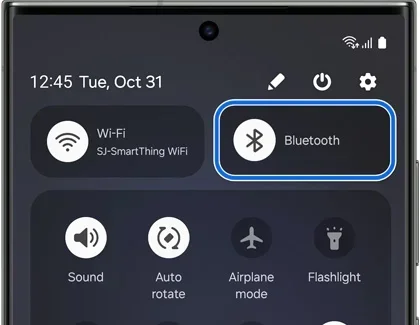
Sometimes the Bluetooth connection needs a refresh. Go to your quick settings panel and turn Bluetooth off. Wait a few seconds and turn it back on. This simple step often resolves naming issues.
Check for Software Updates
Samsung regularly releases updates that fix bugs and improve performance. An outdated software version might cause issues with renaming your Bluetooth device. Go to Settings > Software Update and check if there is an update available.
Reset Network Settings
If none of the above steps work, you can try resetting your network settings. Go to Settings > General Management > Reset > Reset Network Settings. This will clear all saved Bluetooth pairings, Wi-Fi networks, and mobile data settings. Make sure you know your Wi-Fi passwords before doing this.
Expert Insight: According to Samsung support documentation, the Bluetooth device name is tied to your phone’s overall device name. If you change the device name in one place, it should reflect across all connections including Bluetooth. If it does not, a software update or factory reset of network settings usually resolves the issue.
Bluetooth Naming Differences Across Samsung Galaxy Models
Samsung makes many different Galaxy models, and the exact steps for renaming your Bluetooth device can vary slightly. Here is what you need to know about different Samsung models.
Samsung Galaxy S Series
The Galaxy S series (S24, S23, S22, S21, and older models) follows the standard naming process described above. These phones run the latest One UI versions and offer the smoothest Bluetooth renaming experience. The Device Name option is usually found under Settings > Connections > Bluetooth.
Samsung Galaxy A Series
The Galaxy A series (A54, A34, A14, etc.) also uses the same Settings > Connections path. Some older A series models may have slightly different menu layouts, but the core steps remain the same. Look for the Bluetooth option and then the Device Name setting.
Samsung Galaxy Z Series
The Fold and Flip models from Samsung follow the same process. The only difference is that the foldable screen might display the Bluetooth settings menu slightly differently due to the smaller outer screen. Once you open the full settings, the process is identical to other Galaxy models.
No matter which Samsung Galaxy model you own, the ability to rename your Bluetooth device is always built into the phone. You never need to visit a service center or contact support just to change a name.
How Bluetooth Naming Works Behind the Scenes
Understanding how Bluetooth naming works can help you troubleshoot issues and make better choices. When you pair your Samsung phone with another device, it broadcasts a signal that includes your device name. Other devices read this name and display it in their Bluetooth device list.
The name you set in your Samsung settings becomes the public-facing identifier. It is not hidden or encrypted. Anyone nearby who is scanning for Bluetooth devices can see your chosen name. This is why choosing a clear and appropriate name matters.
Samsung phones use a combination of the manufacturer name (“Samsung”), the model identifier, and your custom device name to create the full Bluetooth broadcast. When you rename your device, you are changing the custom part of this broadcast signal.
Does Changing the Bluetooth Name Affect Pairing?
No, changing your Bluetooth name does not affect any existing pairings. Your saved connections remain intact. You do not need to re-pair your phone with speakers, headphones, or car systems after renaming it. The change only affects how your phone appears in new Bluetooth searches.
Quick Tip: After renaming your Samsung Bluetooth device, it is a good idea to test the new name by searching for it from another device. This confirms the change has taken effect and helps you catch any issues early.
Conclusion
Changing the Bluetooth name on your Samsung phone is a simple process that anyone can do. Whether you use the Settings menu, the About Phone section, or an alternative method, the steps are straightforward and take less than two minutes. A well-chosen Bluetooth name makes your device easier to find, more professional for work use, and more personal for everyday enjoyment.
Remember to keep your name short, avoid special characters, and make it descriptive enough for others to recognize. If you run into any issues, the troubleshooting tips in this guide should help you get things working again quickly.
Now that you know how to change the Bluetooth name on your Samsung phone, go ahead and give your device a name that truly represents you. Your Bluetooth connections will never be confusing again.
Frequently Asked Questions
Can I change the Bluetooth name on any Samsung Galaxy model?
Yes, you can change the Bluetooth name on all Samsung Galaxy models. The process is the same across the S series, A series, Z series, and older models. Simply go to Settings, find the Bluetooth or Device Name option, and enter your preferred name.
Will changing my Bluetooth name delete my paired devices?
No, changing your Bluetooth name does not delete any paired devices. Your existing connections stay intact. You will not need to re-pair your phone with speakers, headphones, or car systems after renaming it.
How long does the new Bluetooth name take to show up on other devices?
The new name appears almost instantly. Once you save the change, other devices should see the updated name the next time they search for Bluetooth connections. If it does not show up right away, try turning Bluetooth off and back on.
Can I use emojis in my Samsung Bluetooth name?
Most Samsung phones allow emojis in the Bluetooth name. However, some older devices or third-party Bluetooth systems may not display emojis correctly. If you want maximum compatibility, stick to plain text letters and numbers.
Why does my Samsung phone keep reverting to the old Bluetooth name?
This can happen if your phone has a software glitch or if a system update resets the name. Try restarting your phone first. If the problem continues, check for software updates or reset your network settings to fix the issue.
Is there a difference between the device name and the Bluetooth name on Samsung?
On most Samsung phones, the device name and the Bluetooth name are the same. When you change the device name in settings, it updates the Bluetooth broadcast name as well. Some Samsung models may have separate options, but they are usually linked together.