Can You Connect Your Phone To Alexa Here Is Everything
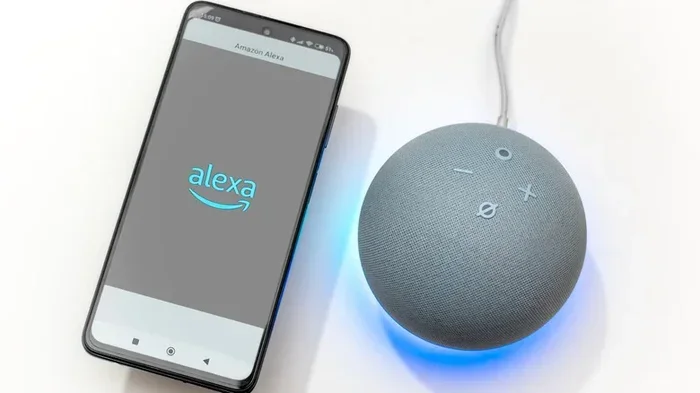
Yes, you can absolutely connect your phone to Alexa, and it is simpler than most people think. Whether you use an Android or an iPhone, linking your device to Alexa opens up a world of hands-free control and smart home integration. This guide walks you through every step, from initial setup to advanced features, so you can get the most out of your Amazon Echo and Alexa app.
You have an Amazon Echo sitting on your counter. You have your smartphone in your pocket. But did you know that linking these two devices together can completely change the way you interact with your home? Connecting your phone to Alexa is one of the easiest yet most impactful things you can do. It turns your phone into a remote control, a communication hub, and a personal assistant all at once.
Maybe you are wondering whether this even works. The short answer is yes. Alexa phone connection is supported for both Android and iPhone users. You do not need to be a tech expert either. In this guide, we will walk you through everything step by step. By the end, you will know exactly how to set it up, what features you unlock, and how to fix any problems that come up along the way.
Let us start with the basics and then dive deep into the setup process. No jargon. No confusing steps. Just clear, practical advice that you can follow right now.
Key Takeaways
- Easy Setup: Connecting your phone to Alexa takes just a few minutes using the Alexa app on both Android and iPhone.
- Rich Features: Once connected, you can make hands-free calls, stream music, set reminders, and control smart home devices.
- Broad Compatibility: Alexa works with virtually all modern smartphones, including both iOS and Android devices.
- Troubleshooting Available: Common connection issues have simple fixes, from restarting your router to updating the app.
- Privacy Controls: You can manage what Alexa hears and stores through your phone settings and the Alexa app.
- Smart Home Hub: Your phone becomes a powerful remote when linked to Alexa, letting you manage your entire smart home.
📑 Table of Contents
- What Is Alexa and Why Connect Your Phone to It?
- How to Connect Your Phone to Alexa
- Features You Get When Your Phone Is Connected to Alexa
- Troubleshooting Common Connection Issues
- Tips to Get the Most Out of Alexa on Your Phone
- Is It Safe to Connect Your Phone to Alexa?
- Comparison: Alexa Phone Connection on Android vs iPhone
- Final Thoughts on Connecting Your Phone to Alexa
What Is Alexa and Why Connect Your Phone to It?
Before we get into the how, let us talk about the why. Amazon Alexa is a voice assistant powered by artificial intelligence. It lives inside devices like the Echo Dot, Echo Show, and Echo Studio. But it also lives inside your phone through the Alexa app.
When you connect your phone to Alexa, you create a bridge between your device and the Alexa ecosystem. This means your phone can send commands to Alexa, receive notifications, and even act as a second speaker in some cases. Here is why this matters:
- Hands-free convenience: You can control smart home devices without lifting a finger.
- Seamless communication: Make calls, send messages, and use Alexa Drop-In features right from your phone.
- Music streaming: Link your Spotify, Amazon Music, or Apple Music accounts for uninterrupted playback.
- Reminders and alarms: Set Alexa reminders and alarms that sync across all your devices.
- Smart home control: Turn lights on, adjust the thermostat, and lock doors using just your voice.
Think of your phone as the command center. Alexa is the voice that carries out your requests. Together, they form a powerful team that makes daily life a little easier.
How to Connect Your Phone to Alexa
The setup process is straightforward. It should take less than five minutes whether you are on Android or iPhone. Below, we break it down by device type so you can follow the exact steps that apply to you.
Connecting an Android Phone to Alexa
Android users have a smooth path to Alexa smartphone integration. Here is what you need to do:
- Open the Google Play Store on your Android phone.
- Search for “Amazon Alexa” and tap the install button.
- Once the app downloads, open it and tap “Sign In.”
- Enter your Amazon account credentials. If you do not have one, create a free account first.
- Grant the necessary permissions when prompted, including microphone access and notifications.
- Tap the “More” menu and select “Settings.”
- Choose “Alexa Preferences” and then “Device Settings.”
- Tap “Add Device” and follow the on-screen prompts to pair your phone with your Echo device.
That is it. Your Android phone is now linked to Alexa. You can start using voice commands right away. Make sure your phone and your Echo device are on the same Wi-Fi network for the best experience.
Connecting an iPhone to Alexa
iPhone users follow a very similar process. Apple does not limit you from using Alexa. Here are the steps:
- Open the App Store on your iPhone.
- Search for “Amazon Alexa” and download the app.
- Launch the app and sign in with your Amazon account.
- Allow notifications and microphone access when the app asks.
- Go to “More” in the bottom right corner.
- Select “Settings” and then “Device Settings.”
- Tap “Add Device” and choose your Echo device from the list.
- Follow the prompts to complete the pairing process.
One thing to note for iPhone users: Siri and Alexa can coexist on your device. You do not have to choose one over the other. You can use Siri for Apple-specific tasks and Alexa for smart home control and Amazon services.
Features You Get When Your Phone Is Connected to Alexa
Once the Alexa phone connection is established, a whole new world of features opens up. Here is what you can do with your phone linked to Alexa:
Hands-Free Calling and Messaging
You can make Alexa hands-free calling from your phone. This means you can call other Alexa users or even landline and mobile numbers using just your voice. The Alexa messaging feature lets you send and receive text-like messages without typing a single word.
This is especially useful when your hands are busy. You are cooking dinner and need to call your spouse? Just say, “Alexa, call Mom.” It works like magic.
Music and Media Streaming
Your phone becomes a media remote when connected to Alexa. You can stream music from Spotify, Amazon Music, Apple Music, and other supported services. Ask Alexa to play your favorite playlist, and it will fill your room with music.
You can also control podcasts, audiobooks, and even radio stations. The Alexa Drop In feature lets you check in on family members who also have Echo devices. It works like an intercom system for your home.
Smart Home Control
If you have smart home devices like smart bulbs, smart plugs, or a smart thermostat, Alexa can control them all. When your phone is connected, you get an extra layer of control. You can adjust settings from the Alexa app on your phone or use voice commands from anywhere in your home.
For example, you can say “Alexa, turn off the living room lights” or “Alexa, set the thermostat to 72 degrees.” Your phone also receives push notifications when devices are triggered, giving you real-time updates.
Alexa Routines and Reminders
Alexa routines are one of the most powerful features available. A routine is a series of actions triggered by a single command or a specific time. For example, you can create a “Good Morning” routine that turns on the lights, reads the news, and starts your coffee maker all at once.
Your phone syncs with these routines seamlessly. You can set Alexa reminders through the app, and they will announce at the scheduled time through your Echo device. This is a game-changer for anyone who struggles with remembering appointments or tasks.
Phone Notifications on Alexa
When your phone is connected, you can have Alexa read your notifications aloud. This includes text messages, calendar events, and app alerts. It is a great way to stay informed without constantly looking at your screen.
You can customize which notifications Alexa reads through the app settings. This keeps things tidy and ensures you only hear what matters to you.
Troubleshooting Common Connection Issues
Even though the setup is simple, sometimes things do not go as planned. Here are the most common Alexa connection problems and how to fix them.
Alexa Not Responding to Phone Commands
If Alexa is not responding when you give commands from your phone, try these steps:
- Make sure both your phone and Echo device are connected to the same Wi-Fi network.
- Check that the Alexa app is up to date. Go to the App Store or Google Play Store and look for updates.
- Restart your phone and your Echo device. A simple reboot often fixes the issue.
- Sign out of the Alexa app and sign back in to refresh the connection.
- Check your internet speed. A weak connection can cause delays or timeouts.
Bluetooth Pairing Problems
Some users want to connect their phone to Alexa via Bluetooth for audio streaming. If Bluetooth pairing fails, try the following:
- Turn off Bluetooth on your phone, wait 10 seconds, and turn it back on.
- Make sure your Echo device is in pairing mode. Say “Alexa, pair” to activate Bluetooth discovery.
- Remove old Bluetooth pairings from both devices and try again.
- Move your phone closer to the Echo device during the pairing process.
Alexa App Crashing or Freezing
If the Alexa app keeps crashing, it can disrupt your connection. Try clearing the app cache on your phone or reinstalling the app entirely. Also, check that your phone meets the minimum system requirements for the Alexa app.
Wi-Fi Connectivity Issues
A weak Wi-Fi signal is one of the biggest culprits behind connection problems. Try moving your Echo device closer to your router. If that does not help, consider using a Wi-Fi extender to boost the signal in your home.
You can also try changing your DNS settings or restarting your router. Sometimes a simple router reboot is all it takes to restore a stable connection between your phone and Alexa.
Tips to Get the Most Out of Alexa on Your Phone
Now that your phone is connected, here are some expert tips to help you get the most out of the experience.
Enable Alexa Whisper Mode
Alexa Whisper Mode is a great feature for early mornings or late nights. When enabled, Alexa will whisper back when you speak quietly. This is perfect for when you do not want to wake up the house.
You can enable this in the Alexa app under Settings, then Voice Responses. Toggle on Whisper Mode and enjoy the quiet interaction.
Set Up Voice Profiles
Alexa can recognize different voices in your household. Set up voice profiles for each family member. This allows Alexa to personalize responses, reading preferences, and calendars based on who is speaking.
To set this up, go to Settings in the Alexa app, then Your Profile, and add a new voice profile. Each person should train their voice by reading a short passage aloud.
Use the Alexa App as a Remote
Your phone essentially becomes a remote control for all your Alexa-enabled devices. Use the app to adjust volume, change music, check the weather, or add items to your shopping list. The Alexa app also lets you set up new routines and manage smart home devices with ease.
Explore Alexa Skills
Alexa skills are like apps for Alexa. There are thousands of skills available, from games to fitness trackers to cooking assistants. You can enable skills directly through the Alexa app on your phone.
Some popular skills include Jeopardy, Calm for meditation, and Uber for ride booking. Browse the Skills section in the app to discover new ways to use your Alexa device.
Keep Your Phone and Alexa Synced
Regularly check that your phone and Alexa are synced properly. Updates to the Alexa app or your phone’s operating system can sometimes break the connection. Keeping both devices updated ensures a smooth experience.
Is It Safe to Connect Your Phone to Alexa?
Privacy is a top concern for many people when using voice assistants. The good news is that Amazon takes security seriously. When you connect your phone to Alexa, your data is encrypted and protected.
You have full control over what Alexa hears and stores. You can review your voice history in the Alexa app and delete recordings at any time. You can also turn off the microphone on your Echo device with the push of a button.
For extra security, enable two-step verification on your Amazon account. This adds an extra layer of protection to your Alexa setup and keeps unauthorized users out.
Overall, connecting your phone to Alexa is safe and secure. As long as you follow basic privacy practices, you can enjoy all the features without worry.
Comparison: Alexa Phone Connection on Android vs iPhone
Both platforms offer a great experience, but there are a few differences worth noting.
| Feature | Android | iPhone |
|---|---|---|
| App Availability | Google Play Store | App Store |
| Default Voice Assistant | Google Assistant | Siri |
| Bluetooth Pairing | Fully supported | Fully supported |
| Hands-Free Calling | Supported | Supported |
| Smart Home Integration | Full support | Full support |
| Alexa Drop In | Supported | Supported |
| Routines | Supported | Supported |
As you can see, both Android and iPhone offer nearly identical experiences when connecting to Alexa. The main difference is that iPhone users also have Siri available, while Android users have Google Assistant. Both voice assistants can coexist with Alexa on your device.
Choose whichever platform you are comfortable with. The Alexa app works beautifully on both, and you will have access to all the core features regardless of your phone type.
Final Thoughts on Connecting Your Phone to Alexa
Connecting your phone to Alexa is one of the simplest upgrades you can make to your daily routine. It takes just a few minutes to set up, and the benefits last for years. From hands-free calling to smart home control, the Alexa phone connection transforms how you interact with technology.
Whether you use an Android or an iPhone, the process is straightforward and well-supported. If you run into any issues, the troubleshooting tips in this guide should help you get back on track quickly.
Take a few minutes today to connect your phone to Alexa. You will wonder how you ever lived without it. The convenience, the control, and the sheer fun of using voice commands make it well worth the effort. Start now and experience the difference for yourself.
Frequently Asked Questions
Can I connect my phone to Alexa without Wi-Fi?
Most Alexa phone connection features require Wi-Fi to work. However, you can use Bluetooth to connect your phone to an Echo device for audio streaming even without Wi-Fi. Some basic functions like setting alarms may also work offline, but full features need an internet connection.
Is it free to connect my phone to Alexa?
Yes, the Alexa app is free to download on both Android and iPhone. Connecting your phone to Alexa does not cost anything extra. However, some features like Alexa hands-free calling to mobile numbers may require an Amazon Prime membership or a small per-minute fee.
Can I connect multiple phones to one Alexa device?
Yes, you can connect multiple phones to a single Alexa device. Each person can sign into the Alexa app and link their own account. This is great for families who want to share one Echo device while keeping their personal settings and calendars separate.
What phones are compatible with Alexa?
Almost all modern smartphones are compatible with Alexa. This includes Android phones running version 6.0 or later and iPhones running iOS 14.0 or later. As long as your phone can download the Alexa app from the respective app store, you should be good to go.
Can I use Alexa on my phone without an Echo device?
Yes, you can use the Alexa app on your phone as a standalone voice assistant without owning an Echo device. The app gives you access to many Alexa features, including setting reminders, checking the weather, and controlling compatible smart home devices.
How do I disconnect my phone from Alexa?
To disconnect, open the Alexa app, go to Settings, then Device Settings. Select the device you want to remove and tap “Remove Device.” You can also sign out of the Alexa app entirely to disconnect your phone from the Alexa ecosystem.
=== CONCLUSION ===
Connecting your phone to Alexa is easy, free, and incredibly useful. Whether you want hands-free calling, smart home control, or just a better way to manage your daily tasks, the Alexa phone connection delivers. Follow the steps in this guide, explore the features, and enjoy a smarter, more connected home. Your phone and Alexa are a perfect match.