Can You Reset Computer Without Admin Password Today
Yes, you can reset your computer without an admin password. Whether you forgot your password or got locked out, there are several proven methods to regain access. This guide covers safe mode tricks, command prompt commands, Microsoft account recovery, and factory reset options that actually work.
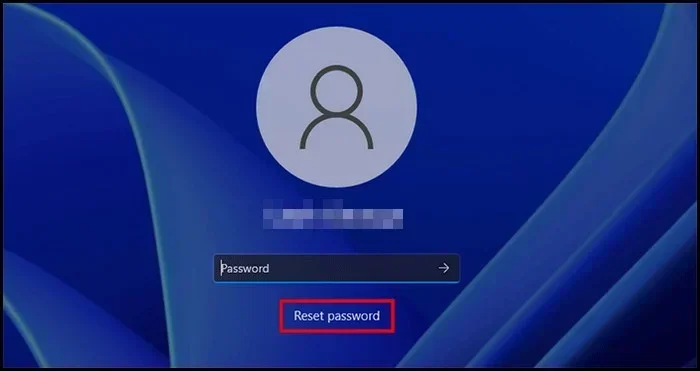
Getting locked out of your own computer is frustrating. You sit in front of the screen, type in your password, and get that dreaded error message. Maybe you changed it recently and forgot. Maybe someone else set it up and never told you. Either way, you are stuck.
Here is the good news. Can you reset computer without admin password? Yes, absolutely. You do not need to be a tech expert. You do not need to call a repair shop and spend hundreds of dollars. There are real, working methods you can try right now. This guide walks you through every option, step by step.
We will cover everything from built-in Windows features to third-party tools. You will learn how to use Safe Mode, Command Prompt, and even the Microsoft account recovery page. By the end of this article, you will know exactly what to do. Let us get started.
Key Takeaways
- Safe Mode Method: You can boot into Safe Mode and create a new admin account to bypass the locked password.
- Command Prompt Trick: Using the Windows Recovery Environment, you can reset passwords with simple net user commands.
- Microsoft Account Recovery: If you signed in with a Microsoft account, you can reset your password online.
- Password Reset Disk: A pre-created disk can save you from being locked out in the future.
- Factory Reset: As a last resort, a full factory reset wipes everything and restores your PC to factory settings.
- Third-Party Tools: Reliable software like PCUnlocker and Ophcrack can help recover or reset lost passwords.
- Prevention Matters: Setting up a password reset disk and linking your account to Microsoft helps avoid future lockouts.
📑 Table of Contents
- Why Do You Get Locked Out of Your Computer?
- Can You Reset Computer Without Admin Password Using Safe Mode?
- Using Command Prompt to Reset the Admin Password
- Microsoft Account Recovery Options
- Factory Reset Without Admin Password
- Third-Party Password Reset Tools
- How to Prevent Future Password Lockouts
- Frequently Asked Questions
- Final Thoughts
Why Do You Get Locked Out of Your Computer?
Before we dive into the solutions, let us talk about why this happens. Understanding the cause helps you pick the right fix. There are several common reasons people lose access to their admin accounts.
Forgot Password
This is the most obvious reason. We all have too many passwords to remember. You change your Windows password, think you will remember it, and then completely blank out when you need it most. It happens to everyone.
Someone Else Set It Up
If you bought a used computer or received one from a coworker, the admin password might not be known to you. The previous owner never shared it. Now you are stuck at the login screen with no way in.
Windows Update Glitches
Sometimes a Windows update goes wrong. After the update finishes, your password suddenly stops working. The system rejects your correct password, and you cannot log in. This is more common than you think.
Keyboard Layout Issues
Believe it or not, your keyboard layout can cause password failures. If your caps lock is on, or your keyboard switched from US to UK layout, the characters you type will not match. This simple issue tricks people into thinking they forgot their password.
Can You Reset Computer Without Admin Password Using Safe Mode?
Safe Mode is one of the easiest and most reliable ways to regain access. It boots Windows with only the essential drivers and services. This gives you a stripped-down version of your system where you can make changes.
How to Boot into Safe Mode
First, you need to get into Safe Mode. Here is how to do it on Windows 10 and Windows 11:
- Force your computer to shut down three times in a row. Turn it on, wait for the logo, then hold the power button until it shuts off. Repeat this three times.
- On the fourth boot, Windows will enter the Automatic Repair screen.
- Click “Advanced options.”
- Go to “Troubleshoot” and then “Advanced options.”
- Select “Startup Settings” and click “Restart.”
- Press F4 or F5 to boot into Safe Mode.
Creating a New Admin Account in Safe Mode
Once you are in Safe Mode, you can create a brand new user account with admin rights. This is a powerful workaround that many people do not know about.
- Press the Windows key and R at the same time. Type “cmd” and press Ctrl + Shift + Enter to run it as administrator.
- Type
net user newadmin password123 /addand press Enter. Replace “newadmin” with your desired username and “password123” with a password you will remember. - Next, type
net localgroup administrators newadmin /addand press Enter. - Restart your computer and log in with the new account you just created.
Now you have full admin access. You can go into User Accounts and change or remove the old password. This method works on most Windows versions including Windows 7, Windows 8, Windows 10, and Windows 11.
Quick Tips for Safe Mode
- If F4 does not work, try pressing F5 for Safe Mode with Networking. This gives you internet access, which can help with other methods.
- Make sure you remember the new password you create. Write it down somewhere safe.
- This method does not work if your computer uses a Microsoft account that requires online verification.
Using Command Prompt to Reset the Admin Password
The Command Prompt method is one of the most popular ways to reset computer without admin password. It works through the Windows Recovery Environment, which you can access even when you cannot log in.
Step-by-Step Command Prompt Method
- Boot from your Windows installation USB or recovery drive. If you do not have one, you can create it on another PC using the Media Creation Tool from Microsoft’s website.
- When the setup screen appears, press Shift + F10 to open Command Prompt.
- Type
move d:windowssystem32utilman.exe d:windowssystem32utilman.exe.bakand press Enter. - Type
copy d:windowssystem32cmd.exe d:windowssystem32utilman.exeand press Enter. - Remove the USB drive and restart your computer.
- On the login screen, click the Ease of Access icon in the bottom right corner.
- Command Prompt will open instead of the accessibility menu.
- Type
net user username newpasswordand press Enter. Replace “username” with the locked account name and “newpassword” with a new password. - Close Command Prompt and log in with the new password.
This trick has been around for years and still works on most systems. It is simple, fast, and does not require any third-party software.
Common Mistakes to Avoid
- Typing wrong drive letters: If your Windows is installed on the C drive, the commands above work. But if it is on D or E, you need to adjust the drive letter. Type
dir d:to check if the Windows folder exists there. - Forgetting to restore the original file: After you regain access, go back to Command Prompt and type
del d:windowssystem32utilman.exefollowed bymove d:windowssystem32utilman.exe.bak d:windowssystem32utilman.exe. This restores the real Ease of Access tool. - Using this on BitLocker-encrypted drives: If your drive is encrypted with BitLocker, you will need the recovery key first. This method will not bypass BitLocker.
Microsoft Account Recovery Options
If your computer is linked to a Microsoft account, you have a built-in recovery path. Microsoft stores your account in the cloud, which means you can reset your password from any internet-connected device.
Reset Password Online
Go to the Microsoft account recovery page at account.live.com/password/reset. Follow these steps:
- Enter your Microsoft email address.
- Complete the security challenge. This might be a code sent to your phone or email.
- Create a new password.
- Use the new password to log into your computer.
This method works as long as you have internet access on the locked computer or another device. It is the easiest and safest option for most users.
What If You Do Not Have Access to Recovery Options?
Sometimes you no longer have access to the phone number or email linked to your Microsoft account. In this case, Microsoft offers an identity verification process. You answer security questions and provide details about your account. It takes a few days, but it does work.
| Method | Difficulty | Data Loss Risk | Works Without Internet |
|---|---|---|---|
| Safe Mode New Account | Easy | None | Yes |
| Command Prompt Trick | Medium | None | Yes |
| Microsoft Account Recovery | Easy | None | No |
| Factory Reset | Easy | High | Yes |
| Third-Party Tools | Medium | Low | Yes |
| Password Reset Disk | Easy | None | Yes |
As you can see from the table above, the Command Prompt trick and Safe Mode method are the most versatile. They do not require internet access and carry no risk of data loss.
Factory Reset Without Admin Password
If nothing else works, a factory reset will get you back into your computer. This method wipes everything from your hard drive and reinstalls a fresh copy of Windows. It is the nuclear option, but it does work.
How to Factory Reset from the Login Screen
You can access the reset options even when you cannot log in:
- Force shut down your computer three times by holding the power button during boot. This triggers the Automatic Repair environment.
- Go to “Troubleshoot” then “Reset this PC.”
- Choose “Remove Everything” to wipe all data or “Keep My Files” to preserve personal files while removing apps and settings.
- Follow the on-screen prompts to complete the reset.
Important Warnings
- Data loss is real: If you choose “Remove Everything,” all your files, photos, and apps will be gone. Make sure you have backups if possible.
- It takes time: A factory reset can take one to three hours depending on your hardware. Do not interrupt the process.
- You will need your Windows product key: In most cases, Windows 10 and 11 automatically activate after a reset. But if you have an older version, you might need the key.
When to Choose Factory Reset
Factory reset should be your last resort. Try all the other methods first. Only go this route if you are completely locked out and have no other options. It is effective, but it is drastic.
Third-Party Password Reset Tools
If the built-in methods do not work for you, third-party tools can help. These programs are designed specifically to reset or remove Windows passwords. They work by booting from a USB drive and modifying system files.
Top Password Reset Tools
PCUnlocker: This is one of the most popular tools for resetting Windows passwords. You download it on another computer, burn it to a USB drive, and boot from the USB on the locked PC. It detects user accounts and lets you reset or remove passwords with a few clicks.
Ophcrack: Ophcrack is a free, open-source tool that uses rainbow tables to crack Windows passwords. It works best on simple passwords. Complex passwords with special characters may take longer to crack.
Hiren’s Boot CD: This is a comprehensive bootable toolkit that includes multiple password recovery options. It is more advanced but very powerful. Many IT professionals use Hiren’s Boot CD for troubleshooting and recovery tasks.
Are Third-Party Tools Safe?
Most reputable tools are safe to use. However, you should always download from the official website. Avoid sketchy download sites that bundle malware with their software. Also, only use these tools on computers you own or have permission to access. Using them on someone else’s computer without authorization is illegal in many places.
Expert Insights
Security professionals recommend trying the built-in Windows methods first. They are free, safe, and do not require downloading anything. Third-party tools should only be used when the built-in options fail. Always create a password reset disk for your admin account as a preventive measure. It takes five minutes and can save you hours of frustration later.
How to Prevent Future Password Lockouts
The best way to handle a lost admin password is to never lose it in the first place. Here are simple steps you can take today to protect yourself.
Create a Password Reset Disk
A password reset disk is a USB drive that stores a backup of your password recovery information. You create it once and keep it somewhere safe.
- Insert a USB flash drive into your computer.
- Go to Control Panel and search for “Create a password reset disk.”
- Follow the wizard to set it up.
- Store the USB drive in a safe place.
If you ever get locked out, you can use this disk to reset your password quickly.
Link Your Account to Microsoft
Always use a Microsoft account instead of a local account. Microsoft accounts offer cloud-based recovery options that local accounts do not. If you forget your password, you can reset it online from any device.
Write Down Your Passwords
This sounds old-school, but it works. Keep a physical notebook with your important passwords. Store it in a safe place at home. Do not write “admin password” on the notebook. Use a hint that only you would understand.
Use a Password Manager
Apps like Bitwarden, LastPass, and 1Password store all your passwords securely. You only need to remember one master password. Many password managers also offer password recovery options if you forget the master password.
Frequently Asked Questions
Is it legal to reset a computer password without admin rights?
Yes, it is legal if the computer belongs to you or you have permission from the owner. Resetting your own computer’s password is perfectly fine. Using these methods on someone else’s computer without their consent may be illegal and is not recommended.
Will I lose my files if I reset the password?
Most password reset methods do not delete your files. The Safe Mode method, Command Prompt trick, and Microsoft account recovery all preserve your data. However, a factory reset will erase everything unless you choose the “Keep My Files” option. Always back up important data if possible before attempting any reset.
Do I need a Windows installation USB for the Command Prompt method?
Yes, for the Command Prompt method you need a bootable Windows USB drive. You can create one for free using Microsoft’s Media Creation Tool on another computer. The USB drive is only needed temporarily to access the recovery environment.
Can these methods work on Windows 7 and Windows 8?
Yes, most of these methods work on Windows 7, Windows 8, Windows 10, and Windows 11. The Safe Mode and Command Prompt tricks have been available in Windows for many years. The exact steps may vary slightly between versions, but the core process remains the same.
What is the easiest method for beginners?
The Microsoft account recovery method is the easiest if your computer uses a Microsoft account. You simply go to the Microsoft recovery website from any browser and follow the prompts. No technical skills are needed. If you use a local account, the Safe Mode method is the next easiest option.
Can a password reset disk help me if I did not create one beforehand?
Unfortunately, no. A password reset disk must be created before you get locked out. If you did not set one up, you will need to use one of the other methods described in this guide. This is exactly why it is so important to create one proactively.
Final Thoughts
Can you reset computer without admin password? The answer is a clear yes. You have multiple reliable methods at your disposal. Whether you use Safe Mode, Command Prompt, Microsoft account recovery, or a third-party tool, you can regain access to your computer. Each method has its strengths, and the best one depends on your specific situation.
The Command Prompt trick and Safe Mode method are the most versatile options. They work offline, do not cost anything, and do not risk your data. If those do not work, Microsoft account recovery is your next best bet. Factory reset is the last resort when everything else fails.
Take action today. Try the method that fits your situation. Do not let a forgotten password keep you from using your own computer. And once you regain access, set up a password reset disk and link your account to Microsoft. These small steps will save you from the same headache in the future.
You now have the knowledge to handle this problem like a pro. Share this guide with anyone who might need it. A little preparation today can save a lot of frustration tomorrow.