How Do I Reset My Optimum Id And Password Step By Step
Resetting your Optimum ID and password is simple when you follow the right steps. This guide walks you through every method, from self-service online tools to customer support options. You will learn how to recover your account quickly and keep your login secure.
Have you ever sat in front of your screen, staring at the Optimum login page, completely blank on your password? You are not alone. Thousands of Optimum users face this problem every single day. The good news is that resetting your Optimum ID and password is way easier than you think. In this guide, we will walk you through every step, from start to finish. You will be back into your account in no time.
Your Optimum account gives you access to email, TV, internet, and billing tools. Losing access to it can feel frustrating and stressful. But here is the thing — you do not need to panic. Whether you forgot your password, lost your user ID, or got locked out of your account, we have got you covered. This article covers everything you need to know about how to reset your Optimum ID and password the right way.
We will keep things simple and practical. No confusing tech jargon. No long waits. Just clear steps you can follow right now. Let us get started.
Key Takeaways
- Multiple Reset Methods: You can reset your Optimum password online, through the mobile app, or by contacting customer support.
- Self-Service Is Fast: The Optimum self-service portal lets you recover your account in just a few minutes.
- Keep Your Info Updated: Having your registered email and phone number ready makes the reset process smooth.
- Security Matters: Strong passwords and two-factor authentication protect your Optimum account from unauthorized access.
- Common Issues Have Simple Fixes: Locked accounts, forgotten usernames, and browser issues can all be resolved easily.
- Expert Help Is Available: Optimum customer service is there when you need extra help with account recovery.
📑 Table of Contents
- Why You Might Need to Reset Your Optimum ID and Password
- How to Reset Your Optimum Password Step by Step
- How to Recover or Reset Your Optimum ID
- Common Optimum Login Problems and How to Fix Them
- Tips to Keep Your Optimum Account Secure
- When to Contact Optimum Customer Support
- Frequently Asked Questions
- Final Thoughts
Why You Might Need to Reset Your Optimum ID and Password
There are many reasons you might need to reset your Optimum ID and password. Understanding why helps you pick the right recovery method. Let us look at the most common situations.
You Forgot Your Password
This is the number one reason people search for help. You type your password into the Optimum login page and it does not work. Maybe you used a different browser. Maybe you have too many passwords to remember. Whatever the reason, forgetting your password is completely normal. The good thing is that Optimum makes it easy to reset it.
Your Account Got Locked
Optimum locks your account after too many failed login attempts. This is a security feature. It protects your account from hackers trying to guess your password. If your account is locked, you will need to reset your password to get back in. This can happen faster than you think, especially if you try multiple passwords in a row.
You Cannot Remember Your Optimum ID
Your Optimum ID is usually your email address or account number. But what if you do not remember which one you used? Maybe you signed up years ago and forgot the details. In this case, you need to recover your Optimum ID before you can reset anything else. We will cover this in detail later in the article.
You Changed Your Email or Phone Number
If your registered email or phone number has changed, you might not receive the password reset email. This creates a tricky situation. You will need to update your account information through Optimum support. We will show you how to handle this scenario too.
You Suspect Unauthorized Access
If you think someone else has accessed your Optimum account, you need to act fast. Reset your password immediately. Change your security questions if you set any. This keeps your personal data and billing information safe. We will share tips on how to secure your account at the end of this guide.
How to Reset Your Optimum Password Step by Step
Resetting your Optimum password is a straightforward process. You can do it yourself online without calling anyone. Here is the full step-by-step guide.
Step 1: Go to the Optimum Login Page
Open your web browser and go to the official Optimum website. Look for the login or sign-in button. This is usually at the top right corner of the page. Click on it to access the Optimum ID login screen.
Step 2: Click on “Forgot Password”
Right below the password field, you will see a link that says “Forgot Password” or “Reset Password.” Click on it. This will take you to the password recovery page. From here, the Optimum password reset process begins.
Step 3: Enter Your Optimum ID or Email
You will be asked to enter your Optimum ID or the email address linked to your account. Type it in carefully. Double-check for typos. If you are unsure about your ID, try your primary email address first.
Step 4: Verify Your Identity
Optimum will ask you to verify your identity. This usually means entering a code sent to your registered phone number or email. Check your inbox or messages for the verification code. Enter it in the required field. This step keeps your Optimum account recovery process secure.
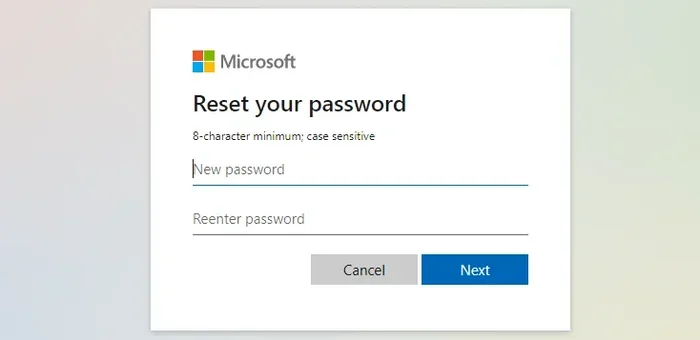
Step 5: Create a New Password
Once verified, you can create a new password. Make it strong and unique. Use a mix of uppercase letters, lowercase letters, numbers, and special characters. Avoid using personal information like your name or birthday. Your new password should be at least eight characters long.
Step 6: Log In with Your New Password
After setting your new password, go back to the Optimum login page. Enter your Optimum ID and the new password. You should be logged in successfully. If it does not work, double-check that you typed the password correctly. Passwords are case-sensitive.
Quick Tips for a Smooth Password Reset
- Use a modern web browser like Chrome, Firefox, or Edge.
- Clear your browser cache if the reset page does not load properly.
- Make sure your internet connection is stable.
- Try resetting your password on a desktop computer first.
- Do not use public WiFi when resetting sensitive account details.
How to Recover or Reset Your Optimum ID
Sometimes the problem is not your password. Sometimes you cannot remember your Optimum ID at all. Losing your user ID can feel like losing the key to your house. But do not worry — there are ways to get it back.
Check Your Welcome Email
When you first signed up for Optimum, they sent you a welcome email. This email contains your Optimum ID and setup details. Search your inbox for “Optimum” or “welcome.” This is often the fastest way to find your user ID.
Use the Optimum Account Lookup Tool
Optimum offers an online account lookup tool on their website. You can use your account number, service address, or registered phone number to find your ID. Go to the Optimum homepage and look for the “Find My Account” or “Account Lookup” option.
Check Your Optimum Mobile App
If you have the Optimum mobile app installed on your phone, open it. Your Optimum ID may be displayed on the main screen or in the account settings section. The Optimum mobile app is a handy tool for managing your account on the go.
Contact Optimum Customer Support
If none of the above methods work, you can always call Optimum customer support. They can verify your identity and help you recover your Optimum ID. Have your account number and service address ready. This speeds up the verification process.
Common Mistakes When Recovering Your Optimum ID
- Trying too many IDs and getting your account temporarily locked.
- Not checking spam or junk folders for the welcome email.
- Using an old phone number that is no longer linked to your account.
- Confusing your Optimum ID with a different account username.
Common Optimum Login Problems and How to Fix Them
Even after resetting your password, you might run into login issues. Let us look at the most common problems and their solutions.
Problem 1: The Reset Email Never Arrives
This is a very common issue. If you do not see the password reset email, check your spam or junk folder first. Sometimes email filters block automated messages. You can also try requesting the reset email again. Wait a few minutes between attempts. If the email still does not come, contact Optimum support.
Problem 2: The Verification Code Does Not Work
Verification codes have a short expiration time, usually around five to ten minutes. If your code does not work, request a new one. Make sure you are entering the code exactly as shown, including any dashes or spaces. Also, check that your phone number or email is up to date in your Optimum account settings.
Problem 3: Your Browser Keeps Showing an Error
Browser errors can block the reset process. Try clearing your browser cache and cookies. You can also try using a different browser or opening the page in an incognito window. Sometimes simply restarting your computer fixes the issue. These simple steps solve the problem most of the time.
Problem 4: Your Optimum Account Is Still Locked
After resetting your password, your account might still show as locked. Wait a few minutes and try logging in again. If it stays locked, you may need to contact Optimum customer service for help unlocking it. Do not keep trying to log in, as this can make the lock worse.
Problem 5: You Cannot Access the Optimum Self-Service Portal
The self-service portal is where you manage your Optimum account settings. If you cannot access it, make sure your browser is up to date. Disable any browser extensions that might block the page. You can also try accessing the portal from a different device.
| Problem | Likely Cause | Quick Fix |
|---|---|---|
| Reset email not received | Email filter or spam folder | Check spam folder and resend |
| Verification code not working | Code expired | Request a new code |
| Browser error on reset page | Cache or extension issue | Clear cache or use incognito mode |
| Account still locked after reset | Cool-down period not over | Wait a few minutes and retry |
| Cannot access self-service portal | Outdated browser or extensions | Update browser or try another device |
Tips to Keep Your Optimum Account Secure
Once you have successfully reset your Optimum ID and password, you want to keep your account safe. Here are some practical tips to boost your account security.
Use a Strong, Unique Password
Your password is the first line of defense. Use a password that is at least twelve characters long. Mix uppercase and lowercase letters, numbers, and symbols. Do not use the same password across multiple sites. Consider using a password manager to keep track of your passwords securely.
Enable Two-Factor Authentication
Two-factor authentication adds an extra layer of protection. Even if someone gets your password, they cannot log in without the second verification step. Check your Optimum account settings to see if this option is available. Turn it on for better security.
Keep Your Recovery Information Updated
Make sure your registered email and phone number are current. This ensures you always receive password reset emails and verification codes. Outdated recovery info can lock you out of your own account during an emergency.
Log Out from Shared Devices
If you ever log into your Optimum account on a shared or public device, always log out when you are done. Do not save your password in the browser on shared computers. This prevents unauthorized access to your Optimum account.
Monitor Your Account Activity
Periodically check your Optimum account for any unusual activity. Look at your login history if the option is available. If you see logins from unfamiliar locations, change your password right away and contact Optimum support.
Expert Insight
Security experts recommend changing your passwords every three to six months. This simple habit dramatically reduces the risk of unauthorized access. Pair this with a strong, unique password for each account, and you will be ahead of most users.
When to Contact Optimum Customer Support
Most password and ID reset issues can be handled on your own. But sometimes you need professional help. Here is when you should reach out to Optimum customer support.
Your Account Recovery Options Are Not Working
If you cannot access your registered email or phone number, self-service recovery will not work. In this case, contact Optimum support directly. They can verify your identity through alternative methods and help you regain access.
You Keep Getting Locked Out
If your account keeps getting locked after password resets, something else might be going on. There could be a technical issue on Optimum’s end. Customer support can investigate and fix the problem for you.
You Need Help with Optimum Billing or Service Login
Sometimes the issue is not with your general Optimum ID but with a specific service login, like your Optimum billing portal or Optimum email. Customer support can guide you through the specific steps for each service.
You Are Not Comfortable Doing It Yourself
There is no shame in asking for help. If the steps above feel overwhelming or confusing, calling Optimum support is a perfectly valid option. They are trained to walk you through the process patiently and clearly.
You can reach Optimum customer support through their website, mobile app, or by phone. Have your account details ready to speed up the process. The sooner you reach out, the faster your issue gets resolved.
Frequently Asked Questions
How long does it take to reset my Optimum password?
The online password reset process usually takes less than five minutes. As long as you have access to your registered email or phone number, you can reset your password quickly. If you need to contact customer support, it might take a little longer depending on wait times.
Can I reset my Optimum password without my email address?
Yes, you can use your registered phone number as an alternative verification method. Optimum sends a verification code via text message. If you no longer have access to either your email or phone, you will need to contact Optimum customer support for further assistance.
Why is my Optimum ID and password not working even after a reset?
This can happen if you are typing the password incorrectly. Passwords are case-sensitive, so check your caps lock key. It could also be that your account has not fully updated yet. Wait a few minutes after resetting and try again. Clearing your browser cache can also help resolve this issue.
Is it safe to reset my Optimum password online?
Yes, it is completely safe as long as you are on the official Optimum website. Make sure the URL starts with “https” and shows a padlock icon in your browser. Avoid resetting your password on public or shared devices to keep your account secure.
How often should I change my Optimum password?
Security experts recommend changing your password every three to six months. You should also change it immediately if you suspect any unauthorized access. Using a unique password for your Optimum account adds an extra layer of protection.
What should I do if I am permanently locked out of my Optimum account?
If you are permanently locked out, contact Optimum customer support right away. They will guide you through identity verification and help you regain access. Have your account number, service address, and any other relevant details ready when you call.
Final Thoughts
Resetting your Optimum ID and password does not have to be a stressful experience. With the right steps, you can handle it yourself in just a few minutes. Whether you use the online self-service portal, the Optimum mobile app, or reach out to customer support, there is a solution that works for you.
Remember to keep your recovery information updated and your password strong. These small habits go a long way in protecting your Optimum account. If you ever run into trouble, do not hesitate to seek help. Optimum support is there to make the process as smooth as possible.
Now that you know exactly how to reset your Optimum ID and password, you are prepared for whatever comes next. Bookmark this guide for future reference. Share it with anyone you know who might need help. Staying informed is the best way to stay in control of your online accounts.