Can You Connect Two Laptops Together Yes Heres How
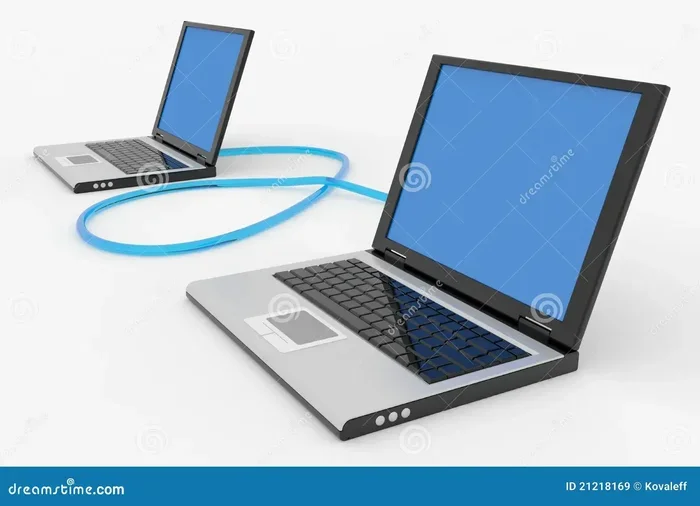
Yes, you can connect two laptops together using USB cables, Ethernet, Wi-Fi, or Bluetooth. This guide covers every method for file sharing, data transfer, and network sharing between two laptops so you can pick the best option for your needs.
Key Takeaways
- Multiple methods exist: You can link laptops via USB, Ethernet, Wi-Fi, Bluetooth, or remote desktop software depending on your needs.
- USB data transfer is one of the fastest and simplest ways to move files between two laptops.
- Wireless connections like Wi-Fi Direct and Bluetooth offer flexibility without cables.
- Remote desktop tools let you control one laptop from another for productivity and support.
- Common issues like driver problems and network conflicts are easy to fix with basic troubleshooting.
- Security matters: Always use encrypted or password-protected connections when sharing data between laptops.
- Your choice depends on purpose: Pick a method based on file size, speed needs, and whether you want a wired or wireless setup.
📑 Table of Contents
- Can You Connect Two Laptops Together? Here’s How
- Why Connect Two Laptops Together?
- Different Ways to Connect Two Laptops
- How to Connect Two Laptops Using a USB Cable
- Setting Up an Ethernet Connection Between Two Laptops
- Wireless Laptop Connection Methods
- Using Remote Desktop Software to Connect Laptops
- Troubleshooting Common Connection Issues
- Security Tips When Connecting Two Laptops
- Which Connection Method Is Right for You?
- Conclusion
Can You Connect Two Laptops Together? Here’s How
So you want to know if you can connect two laptops together. The short answer is absolutely yes. You can link two laptops in several ways, whether you want to transfer files, share an internet connection, or even use one laptop as a second screen. The method you choose depends on what you are trying to accomplish.
Connecting two laptops is easier than most people think. You do not need expensive software or technical expertise. Whether you prefer a wired connection or a wireless one, there is a simple solution for you. In this guide, we walk you through every method step by step. You will learn how to connect laptops via USB, Ethernet, Wi-Fi, Bluetooth, and remote desktop tools.
We also cover common problems and quick fixes. By the end, you will have the confidence to set up a dual laptop connection on your own. Let us get into it.
Why Connect Two Laptops Together?
Before we jump into methods, let us talk about why you might want to connect two laptops. Understanding your goal helps you pick the right method.
Transfer Files Quickly
One of the most common reasons is file sharing between laptops. Maybe you have a big video file on one laptop and need it on the other. Emailing it is too slow. A direct laptop-to-laptop connection moves files in seconds without using the cloud or external drives.
Share an Internet Connection
Sometimes only one laptop has internet access. You can turn that laptop into a hotspot and let the other connect. This is called network sharing, and it works great in a pinch. You basically share your Wi-Fi or mobile data between two laptops without extra hardware.
Use One Laptop as a Second Screen
Content creators and professionals often want to extend their display across two screens. Connecting two laptops lets you use one as a secondary display. This boosts productivity and makes multitasking much smoother. Video editors, programmers, and designers love this setup.
Collaborate and Remote Work
Working together is simpler when two laptops are linked. You can share resources, run joint presentations, or even control one machine from the other. This is handy for remote desktop sessions and tech support. It saves time and keeps everyone on the same page.
Different Ways to Connect Two Laptops
Now let us explore the main methods. Each has pros and cons. We will break them down so you can choose wisely.
USB Connection
A direct USB cable connection is one of the fastest ways to link two laptops. You use a special USB data transfer cable. These cables have built-in chips that manage the data flow. They are plug-and-play and very beginner-friendly.
USB connections are ideal for large file transfers. Speeds can reach 10 Gbps or higher with USB 3.1 cables. The downside is you need the right cable, and both laptops must have USB ports.
Ethernet Cable Connection
Using an Ethernet cable creates a reliable wired network between two laptops. You do not even need a router. Just connect both laptops with a straight-through Ethernet cable and configure the network settings. This method offers stable speeds and low latency.
Ethernet is great for extended sessions or when you need a LAN connection between laptops. It works well for gaming, large transfers, and shared internet access.
Wi-Fi and Wireless Connection
Both laptops can connect over a wireless connection. Options include Wi-Fi Direct, ad-hoc networks, and shared hotspots. This method is convenient because no cables are needed.
Wireless laptop connections are perfect for quick sharing or when cables are impractical. Speeds vary depending on your Wi-Fi standard. Modern Wi-Fi 6 connections can be surprisingly fast. However, wireless transfers are usually slower than wired ones.
Bluetooth Pairing
Bluetooth is another wireless option. It is built into most modern laptops. Pairing two laptops over Bluetooth lets you share smaller files and devices. It is simple to set up and uses very little power.
The trade-off is speed. Bluetooth transfers are much slower than USB or Ethernet. They work best for documents, photos, and small files. If you want to pair devices casually, Bluetooth does the job.
Remote Desktop Software
Remote desktop tools like TeamViewer, AnyDesk, and Chrome Remote Desktop let you control one laptop from another. This is not a traditional network connection, but it achieves similar goals. You can access files, run apps, and troubleshoot issues remotely.
This method requires internet access on both machines. It works across different locations too. Remote desktop is perfect for IT support and long-distance collaboration. It is one of the most flexible laptop connection solutions available.
How to Connect Two Laptops Using a USB Cable
A USB data transfer cable is often the simplest and fastest option. Here is how to do it step by step.
What You Need
- A USB data transfer cable (not just a charging cable)
- Both laptops powered on and updated
- Driver software (usually included with the cable)
Step-by-Step Setup
- Install the driver software that came with the USB cable on both laptops.
- Plug one end of the cable into Laptop A and the other end into Laptop B.
- Wait for both systems to recognize the connection.
- Open the file transfer software that installed with the cable.
- Select the files you want to move and choose the destination laptop.
- Start the transfer and wait for it to complete.
That is all there is to it. Most USB transfer cables work with Windows, and many support Mac as well. USB cable laptop connection is reliable, fast, and very user-friendly.
Quick Tips for USB Transfers
- Always use a data transfer cable, not a standard USB charging cable. Charging cables lack the data chips needed for file sharing.
- Keep both laptops plugged into power during large transfers.
- Verify the transfer is complete before unplugging the cable.
- Update your USB drivers regularly for the best performance.
Setting Up an Ethernet Connection Between Two Laptops
An Ethernet connection creates a private, high-speed network. This is a great option when you need a stable link for longer sessions.
What You Need
- An Ethernet cable (Cat5e or Cat6 recommended)
- Both laptops with Ethernet ports (or USB-to-Ethernet adapters)
- Basic network settings knowledge (we will walk you through it)
Step-by-Step Setup
- Connect the Ethernet cable from one laptop to the other.
- Open Network Settings on both laptops. On Windows, go to Control Panel and open Network and Sharing Center.
- Click on your Ethernet adapter and select Properties.
- Select Internet Protocol Version 4 (TCP/IPv4) and click Properties.
- Assign a static IP address. For Laptop A, use 192.168.1.1. For Laptop B, use 192.168.1.2.
- Set the subnet mask to 255.255.255.0 on both machines.
- Click OK and close the settings.
- Test the connection by pinging the other laptop from the command prompt.
Once configured, you can share folders, printers, and internet access between the two laptops. This LAN connection is rock solid. Many gamers and professionals rely on this method every day.
Comparison Table: USB vs Ethernet vs Wireless
| Feature | USB Cable | Ethernet Cable | Wireless |
|---|---|---|---|
| Speed | Very Fast (up to 10 Gbps) | Fast (1 Gbps typical) | Moderate (varies by Wi-Fi standard) |
| Range | Limited by cable length | Limited by cable length | Wide (room to building range) |
| Setup Difficulty | Easy | Moderate | Easy to Moderate |
| Best For | Quick file transfers | Stable networking and shared internet | Convenience and flexibility |
| Cables Required | Yes | Yes | No |
Wireless Laptop Connection Methods
Not everyone wants cables. Wireless methods offer great flexibility. Let us look at the best wireless options for linking two laptops.
Wi-Fi Direct
Wi-Fi Direct lets two devices connect without a router. Both laptops need Wi-Fi support. You enable Wi-Fi Direct in your system settings, discover the other device, and pair. File sharing then happens directly between the two machines. This is one of the most popular ways to connect two laptops wirelessly.
Ad-Hoc Network
An ad-hoc network is like a mini Wi-Fi network between two laptops. You create it through Windows settings. One laptop acts as the host and the other joins it. This works well for sharing internet access and transferring files. It is older technology but still functional on most systems.
Bluetooth File Sharing
To share files via Bluetooth, you pair the two laptops first. Then you send files through the Bluetooth menu. This is best for small files like documents or images. Bluetooth pairing is simple and does not require any extra software. Just make sure both laptops have Bluetooth enabled and are discoverable.
Creating a Mobile Hotspot
If one laptop has internet and the other does not, you can share the connection. Turn on Mobile Hotspot on the connected laptop. Then join that hotspot from the other laptop. This share internet between laptops method works instantly and needs no extra gear. It is perfect for on-the-go situations.
Quick Tips for Wireless Connections
- Keep both laptops close together for the strongest wireless signal.
- Use Wi-Fi 6 or higher for faster wireless transfers.
- Always password-protect your ad-hoc or hotspot connections.
- Turn off other wireless devices to reduce interference.
- Check that your firewall settings allow file sharing.
Using Remote Desktop Software to Connect Laptops
Remote desktop connection is a powerful way to link two laptops over the internet or a local network. Instead of physically transferring files, you access one laptop from the other.
Popular Remote Desktop Tools
- TeamViewer: Free for personal use. Works on Windows, Mac, and Linux. Easy to set up with no networking knowledge required.
- AnyDesk: Lightweight and fast. Great for remote support and collaboration sessions.
- Chrome Remote Desktop: Free and browser-based. Runs on any device with Chrome. Very simple to install.
- Windows Remote Desktop (RDP): Built into Windows Pro editions. Requires some network configuration but offers excellent performance.
How to Set Up Remote Desktop
- Download and install your chosen remote desktop app on both laptops.
- Create an account or sign in on both machines.
- On the host laptop, note the device ID or connection code.
- On the remote laptop, enter the ID and connect.
- Accept the connection request on the host laptop.
- You are now in control of the second laptop from the first.
Remote desktop tools are ideal for connecting two laptops across different locations. You can edit files, run programs, and even stream media. The setup takes just a few minutes. Many professionals use this method daily for remote work and tech support.
Expert Insight
IT professionals strongly recommend remote desktop tools for long-distance laptop connections. Unlike direct connections, remote desktop works across cities and even countries. Security is strong with end-to-end encryption. Always use two-factor authentication for the best protection. This approach gives you full control without being physically present.
Troubleshooting Common Connection Issues
Even with simple methods, problems can happen. Here are the most common issues and how to fix them quickly.
Laptops Not Recognizing Each Other
This usually happens with Ethernet or USB connections. First, check all physical connections. Make sure cables are firmly plugged in. Then verify that both laptops have the latest drivers installed. Restarting both machines often solves the problem too.
Slow Transfer Speeds
Slow speeds can frustrate anyone. For wired connections, check that you are using the right cable category. A Cat5e cable supports gigabit speeds. For wireless, move closer to the router or reduce interference from other devices. Also close background apps that might be using bandwidth. Transfer files between laptops should be fast once you fix these bottlenecks.
Firewall Blocking the Connection
Windows Firewall often blocks network discovery and file sharing. To fix this, go to your firewall settings and allow file and printer sharing. You can also temporarily disable the firewall for testing. Remember to turn it back on afterward for security. This is one of the most common reasons laptops fail to connect.
Driver Issues
Outdated or missing drivers cause many connection problems. Visit your laptop manufacturer website and download the latest network, USB, and Bluetooth drivers. Keeping drivers updated solves most issues and improves performance. A simple driver update can make a big difference.
Bluetooth Not Pairing
If Bluetooth is failing, try removing the paired device and pairing again. Make sure Bluetooth is enabled on both laptops and they are within range. Airplane mode can also interfere, so check that it is off. Updating Bluetooth drivers usually resolves persistent pairing issues.
Common Mistakes to Avoid
- Using a charging cable instead of a data transfer cable for USB connections.
- Forgetting to enable network discovery before trying to connect.
- Setting incorrect IP addresses when configuring Ethernet.
- Ignoring firewall warnings that block connections.
- Trying wireless methods too far apart without checking range limits.
Security Tips When Connecting Two Laptops
Connecting laptops creates shared access. That means you should always think about security. Here are a few essential practices.
- Use strong passwords on all shared networks and remote desktop tools.
- Enable encryption wherever possible. Use HTTPS, SSL, or VPN connections.
- Keep antivirus software active on both laptops before sharing data.
- Limit shared folders to only what you need. Do not share your entire drive.
- Disconnect after use. Turn off file sharing when you are done.
- Use two-factor authentication for remote desktop sessions.
Following these simple steps keeps your data safe while enjoying the benefits of a dual laptop setup. Security should never take a back seat to convenience.
Which Connection Method Is Right for You?
Let us match your needs to the best method. Here is a quick guide.
For Fast File Transfers
Use a USB data transfer cable. It is the fastest and most direct option. You get maximum speed with minimal setup time.
For Stable Networking
Use an Ethernet cable. This gives you a reliable LAN connection for extended use. It is perfect for gaming, shared work, and server-style setups.
For Convenience
Use Wi-Fi Direct or Bluetooth. These wireless methods require no cables and work anywhere within range. They are ideal for casual sharing and quick tasks.
For Remote Access
Use remote desktop software. Tools like TeamViewer or AnyDesk let you control one laptop from anywhere. This is the best option for remote desktop work and support.
For Sharing Internet
Use a mobile hotspot or Ethernet sharing. Both are easy to set up and require no extra hardware. This solves the problem of one laptop lacking internet access.
Conclusion
So, can you connect two laptops together? Absolutely. You now know multiple ways to make it happen. Whether you choose USB, Ethernet, Wi-Fi, Bluetooth, or remote desktop software, each method serves a unique purpose. Connecting two laptops gives you more flexibility, better collaboration, and faster file management.
The best method depends on what you need. For raw speed, go with a USB cable. For stable networking, use Ethernet. For wireless freedom, pick Wi-Fi Direct or Bluetooth. For remote access, trust remote desktop tools. Every method is practical and accessible to regular users.
Now you have the knowledge to make smart choices. Try the method that fits your situation best. You will be glad you did. Connecting two laptops is a simple skill that pays off in big ways. Start exploring today and enjoy the full power of a connected setup.
Frequently Asked Questions
Can I connect two laptops together without a cable?
Yes, you can connect two laptops wirelessly using Wi-Fi Direct, Bluetooth, or a mobile hotspot. You can also use remote desktop software over the internet. These methods are convenient and require no physical cables at all.
What is the fastest way to transfer files between two laptops?
The fastest way is using a USB data transfer cable. These cables support speeds up to 10 Gbps with USB 3.1. Ethernet connections are also very fast and reliable. Wireless methods are convenient but usually slower than wired options.
Can I use one laptop as a second screen for another?
Yes, you can extend your display to another laptop using Windows Projection or software like SpaceDesk. You can also use HDMI or DisplayPort adapters in some setups. This is a great way to boost productivity with a dual laptop connection.
Do I need special software to connect two laptops?
It depends on the method. USB transfer cables usually need driver software. Ethernet connections use built-in Windows settings. Remote desktop tools like TeamViewer must be installed. Bluetooth and Wi-Fi Direct work with built-in system features and no extra software.
Is it safe to connect two laptops via Ethernet or USB?
Yes, it is completely safe. Wired connections are generally more secure than wireless ones. Just make sure both laptops have updated antivirus software. Avoid sharing unnecessary folders and always use strong passwords on any shared network.
How can I share internet from one laptop to another?
You can share internet by creating a mobile hotspot on the connected laptop. You can also use Ethernet sharing or an ad-hoc network. Go to your network settings, enable hotspot or sharing, and join from the second laptop. This share internet between laptops trick works in just a few minutes.