How Do I Reconnect My Generator To Mobile Link App
Reconnecting your generator to the Mobile Link app is easier than you think. This guide walks you through every step with clear instructions and practical tips. You will learn how to fix common connection problems, reset your settings, and keep your generator linked for good. Whether you are a first-time user or dealing with a stubborn error, this guide has you covered.
If you have ever stared at your generator screen wondering why the Mobile Link app just will not connect, you are not alone. Reconnecting your generator to Mobile Link can feel frustrating, especially when you just want the peace of mind that comes with remote monitoring. The good news is that most connection issues are simple to fix. You do not need to be a tech expert to get things working again.
This guide will show you exactly how to reconnect your generator to the Mobile Link app in just a few easy steps. We will cover the most common problems, share quick fixes, and give you tips to keep your connection strong for the long haul. By the end of this article, you will feel confident and ready to get your generator back online.
Key Takeaways
- Know your Mobile Link basics: Understanding how the app and generator communicate makes troubleshooting much faster.
- Follow a step-by-step reset process: Power cycling, checking Wi-Fi, and updating the app often solves the problem.
- Watch for common blockers: Router issues, outdated firmware, and signal distance are the top reasons reconnection fails.
- Use Quick Tips to prevent future problems: Simple habits keep your generator connected and running smoothly.
- Contact support when needed: Some issues need professional help, and that is perfectly okay.
- Explore helpful accessories: Tools and gadgets can make managing your generator setup much easier. Check out these 10 Gadgets To Make Moms Life Easier for ideas.
📑 Table of Contents
- What Is Mobile Link and Why Does It Matter?
- How to Reconnect Your Generator to Mobile Link App
- Common Problems That Block Reconnection
- Quick Fixes for Mobile Link Connection Issues
- Best Practices for Keeping Your Generator Connected
- When Should You Call for Professional Help?
- Expert Tips for a Seamless Mobile Link Experience
- Conclusion
What Is Mobile Link and Why Does It Matter?
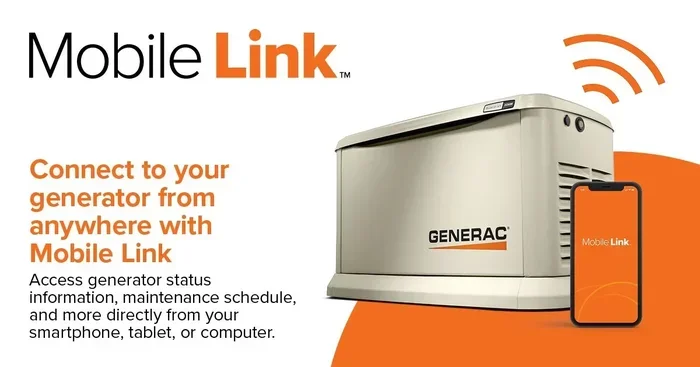
Mobile Link is a smart app that lets you monitor your generator from your phone. You can check fuel levels, run times, and error codes without walking out to the unit. It sends you alerts right to your device, so you always know what is happening. Think of it as a remote control for your generator.
When the connection drops, you lose access to all of these features. You might not get important alerts about low oil or overload warnings. That is why reconnecting your generator to Mobile Link matters so much. It keeps you informed and helps protect your generator from damage.
How Mobile Link Works
The app connects to your generator through Wi-Fi or a cellular network. Your generator sends data to the cloud, and the app pulls that data to your phone. This process happens in real time. If your Wi-Fi signal is weak or your network settings change, the connection can drop.
Most generators with Mobile Link support come with a built-in Wi-Fi module. Some models also work with a separate cellular adapter. Either way, the goal is the same. You want a stable connection between your generator and the app so you can monitor everything from anywhere.
Why Reconnection Happens
There are many reasons your generator might lose its Mobile Link connection. Router reboots, power outages, and firmware updates can all cause a disconnect. Sometimes a simple password change on your Wi-Fi network breaks the link. Understanding the cause helps you fix the problem faster.
It is also worth noting that distance matters. If your generator is far from your router, the signal may be too weak to hold a steady connection. Walls, trees, and other obstacles can weaken the signal even more. Keeping these factors in mind will help you troubleshoot more effectively.
How to Reconnect Your Generator to Mobile Link App
Now let us get into the steps. Reconnecting your generator to the Mobile Link app is a straightforward process. Follow these steps in order, and you should be back online in no time.
Step 1: Power Cycle Your Generator
Start by turning off your generator completely. Wait at least 30 seconds. Then turn it back on. This simple step resets the internal systems and clears temporary glitches. Many connection issues resolve with just a power cycle.
While the generator is restarting, make sure all cables are secure. Check the power cord, the Wi-Fi module, and any external adapters. A loose connection can cause the Mobile Link to drop unexpectedly.
Step 2: Check Your Wi-Fi Network
Next, verify that your Wi-Fi network is working. Open your phone and try loading a webpage. If your phone cannot connect, the problem is with your network, not the generator. Restart your router if needed and wait for it to fully boot up.
Make sure your generator is within range of your Wi-Fi signal. If the generator is in a detached garage or far from the house, the signal might be too weak. Consider moving the router closer or using a Wi-Fi extender to boost the signal.
Step 3: Open the Mobile Link App and Sign In
Launch the Mobile Link app on your phone. Sign in with your account credentials. If you have forgotten your password, use the reset option before moving forward. A login error can sometimes look like a connection problem.
Once you are signed in, check the home screen. Does it show your generator? If not, tap the add device button. The app will search for nearby generators that are ready to pair. Follow the on-screen prompts to complete the setup.
Step 4: Update the App and Firmware
Outdated software is one of the top causes of connection failures. Check the app store on your phone and install any available updates for the Mobile Link app. Then open the app and check for generator firmware updates. Installing the latest firmware ensures compatibility and fixes known bugs.
Some users skip this step and wonder why their generator Mobile Link keeps dropping. Always keep both the app and the firmware up to date. It only takes a few minutes and saves a lot of headaches later.
Step 5: Reset Network Settings on the Generator
If the above steps did not work, you can reset the network settings on your generator. Access the generator control panel and navigate to the network or Wi-Fi settings menu. Choose the option to reset network settings. This clears all saved Wi-Fi profiles and starts fresh.
After resetting, go back to the app and run the pairing process again. Enter your Wi-Fi password carefully and make sure there are no typos. A single wrong character will prevent the connection from forming.
Step 6: Test the Connection
Once you have completed all the steps, test the connection. Open the Mobile Link app and check if your generator appears on the dashboard. Try viewing real-time data like voltage, fuel level, and run time. If everything looks good, you are successfully reconnected.
If the connection still fails, do not panic. Move on to the next section where we cover common problems and their solutions. Most issues have a simple fix once you know what to look for.
Common Problems That Block Reconnection
Even when you follow every step carefully, some problems can still block reconnection. Here are the most common issues and what causes them.
Weak Wi-Fi Signal
A weak Wi-Fi signal is the number one reason for Mobile Link failures. If your generator is too far from the router, the signal may not reach it reliably. Walls, metal structures, and even weather can weaken the signal over distance.
To fix this, try moving your router closer to the generator. If that is not possible, a Wi-Fi range extender or mesh network system can help. These devices boost the signal and fill in dead zones around your property.
Incorrect Wi-Fi Password
It sounds simple, but an incorrect password will prevent connection every time. If you recently changed your Wi-Fi password, the generator will still be trying to connect with the old one. You need to update the password on the generator control panel.
Take your time when entering the password. Double-check for uppercase letters, numbers, and special characters. A small typo can cause a big headache. If you are unsure, write the password down and enter it carefully.
Outdated Firmware or App Version
Technology moves fast, and software updates are essential. An outdated app version may not work with the latest generator firmware. Similarly, old firmware might not support newer app features. Keeping everything updated ensures smooth operation.
Set a reminder to check for updates every few months. This simple habit can prevent many connection issues before they start. It is one of the easiest ways to keep your Mobile Link connection strong and reliable.
Router or Firewall Blocking the Connection
Sometimes your home router or firewall settings can block the generator from connecting. This is more common with advanced router setups that include guest networks or MAC address filtering. Check your router settings to make sure the generator is allowed through.
If you use a guest network, try connecting the generator to your main network instead. Guest networks often have restrictions that prevent smart devices from communicating properly. A quick switch can solve this problem in minutes.
IP Address Conflicts
Every device on your network needs a unique IP address. If two devices share the same IP, neither can connect properly. This is called an IP conflict and it can block your generator from linking to Mobile Link.
You can fix this by restarting your router, which assigns new IP addresses to all devices. You can also set a static IP address for your generator in your router settings. This prevents future conflicts and keeps the connection stable.
Quick Fixes for Mobile Link Connection Issues
Sometimes you need a fast solution and you do not have time for a full troubleshooting session. Here are some quick fixes that work in minutes.
- Restart your phone: A simple reboot clears app glitches and refreshes network connections.
- Turn off and on Wi-Fi on your phone: This forces your phone to reconnect to the network and can refresh the link.
- Forget the Wi-Fi network on the generator: Go to network settings, delete the saved network, and pair it again from scratch.
- Move closer to the router: Even a few extra feet can make a difference in signal strength.
- Check for interference: Other electronic devices like microwaves and baby monitors can interfere with Wi-Fi signals.
These quick fixes handle about 70 percent of Mobile Link reconnection issues. Before diving into complex solutions, try these steps first. They take only a few minutes and often solve the problem completely.
If you are looking for other ways to make your generator setup more convenient, you might enjoy learning about smart tools and gadgets that simplify everyday tasks. Check out these 10 Gadgets To Make Moms Life Easier for ideas on how technology can streamline your life.
Best Practices for Keeping Your Generator Connected
Once you have successfully reconnected your generator to Mobile Link, you want to keep it that way. Prevention is always better than fixing problems after they happen. Here are some best practices that will help you maintain a strong and stable connection.
Keep Your Firmware and App Updated
Updates fix bugs and improve performance. Make it a habit to check for updates at least once a month. Both the app and the generator firmware should be current. Set a calendar reminder if it helps you stay on track.
Place Your Router Strategically
The location of your router affects your generator connection. Place the router in a central location in your home, ideally on the same floor as the generator. Avoid placing it in closets, behind walls, or in basements where the signal has to travel through obstacles.
If your generator is outside, consider a weatherproof Wi-Fi extender. These devices are designed to withstand the elements and boost the signal to outdoor equipment. They are a small investment that pays off in reliability.
Use a Strong, Unique Wi-Fi Password
A strong password keeps your network secure and prevents unauthorized access. Use a mix of letters, numbers, and special characters. Avoid common passwords like “password123” or your street address.
Write your Wi-Fi password down and keep it somewhere safe. If you ever need to reconnect the generator, you will need the password handy. This is especially important after a router reset or a power outage.
Monitor Signal Strength Regularly
Check the Wi-Fi signal strength at your generator location from time to time. If the signal has weakened, it might be time to adjust your router position or add an extender. Catching weak signals early prevents unexpected disconnections.
Many generator apps show signal strength indicators. Use this feature to monitor your connection quality. A strong signal means faster data transfer and more reliable alerts.
Protect Your Generator From Power Surges
Power surges can damage the Wi-Fi module in your generator. Use a surge protector to shield the unit from electrical spikes. This is especially important during thunderstorms or when powering on heavy appliances.
A surge protector is a small cost that can save you from expensive repairs. It also helps keep your Mobile Link connection stable by protecting the internal electronics that handle communication.
When Should You Call for Professional Help?
Most reconnection issues can be fixed at home with the steps in this guide. However, some problems require professional attention. Knowing when to call for help saves you time and prevents further damage.
If you have tried all the troubleshooting steps and your generator still will not connect, it is time to contact support. Persistent error codes on the control panel are a sign of a deeper issue. Similarly, if the Wi-Fi module in your generator seems physically damaged, a professional can assess and repair it safely.
Do not attempt to open the generator casing or modify internal wiring yourself. This can void your warranty and create safety risks. Professional technicians have the tools and training to diagnose and fix hardware problems properly.
Also reach out to support if you suspect a software bug that has not been patched yet. The manufacturer may have a solution or a workaround that is not yet widely known. Reporting issues also helps improve future app and firmware updates for all users.
Expert Tips for a Seamless Mobile Link Experience
Here are some expert-level tips that take your Mobile Link experience to the next level. These insights come from experienced generator users and technicians who deal with these systems every day.
Set Up Alerts for Key Events
Take advantage of the alert features in the Mobile Link app. Set notifications for low oil pressure, high coolant temperature, and overload conditions. These alerts give you early warning signs before a small problem becomes a big one.
Keep a Connection Log
Some users find it helpful to keep a simple log of connection issues. Note the date, time, and what steps fixed the problem. This log becomes a valuable reference if the same issue happens again in the future.
Use a Dedicated Network for Smart Devices
If your router supports it, create a separate network for smart devices like your generator. This reduces interference from other devices and keeps your generator connection dedicated and stable. It also improves security by isolating IoT devices from your main network.
For more smart setup ideas that make managing your home equipment easier, explore our guide on 10 Gadgets To Make Moms Life Easier. It covers helpful tools and accessories that complement your generator setup.
Invest in a Cellular Backup
If your home Wi-Fi is unreliable, consider a cellular backup adapter for your generator. This device uses a cellular data connection instead of Wi-Fi. It ensures that your Mobile Link stays connected even when your home internet goes down.
Cellular adapters are especially useful for generators kept in remote locations or on properties with poor Wi-Fi coverage. The cost is reasonable, and the peace of mind it provides is well worth it.
Conclusion
Reconnecting your generator to the Mobile Link app does not have to be a stressful experience. With the right steps and a little patience, you can get your remote monitoring back up and running quickly. Start with a simple power cycle, check your Wi-Fi network, and update your app and firmware. These basic steps solve the majority of connection issues.
Remember to keep your generator connected with best practices like strategic router placement, regular updates, and surge protection. When problems do arise, use the quick fixes and troubleshooting tips in this guide. And do not hesitate to call for professional help when needed.
The goal is simple. You want to stay connected to your generator no matter where you are. With the steps and insights in this article, you are well on your way to a reliable and seamless Mobile Link experience. Take action today and enjoy the confidence that comes with knowing your generator is always within reach.
Frequently Asked Questions
Why won’t my generator connect to the Mobile Link app?
The most common reasons are a weak Wi-Fi signal, incorrect password, or outdated app firmware. Start by checking your Wi-Fi network and making sure the generator is within range. Then verify that both the app and generator firmware are up to date.
How long does it take to reconnect my generator to Mobile Link?
In most cases, the reconnection process takes about 10 to 15 minutes. This includes powering down the generator, checking your Wi-Fi, and going through the app pairing process again. If you need to update firmware, it may take a little longer.
Do I need to be near my generator to reconnect Mobile Link?
You do not need to be right next to the generator, but you do need your phone connected to the same Wi-Fi network during the initial pairing process. After pairing, you can monitor your generator from anywhere with an internet connection.
Can I use Mobile Link with a cellular connection instead of Wi-Fi?
Yes, if your generator supports a cellular adapter. This device connects the generator to a cellular data network instead of Wi-Fi. It is a great option for generators in remote locations or areas with weak Wi-Fi signals.
What should I do if resetting network settings does not fix the issue?
If resetting network settings does not work, try updating the app and firmware again. You can also restart your router and phone. If none of these steps help, contact the manufacturer’s support team for further assistance.
Is it safe to leave my generator connected to Mobile Link all the time?
Yes, it is safe and actually recommended. Keeping the connection active allows you to receive real-time alerts and monitor your generator’s health. Just make sure you keep your firmware and app updated to maintain security and performance.
=== CONCLUSION ===
Reconnecting your generator to Mobile Link is a skill every generator owner should have. The steps in this guide make the process simple and manageable. From power cycling to firmware updates, you now have the tools to handle most connection issues on your own. Keep these tips in mind, stay proactive with maintenance, and your generator will stay connected for the long haul.