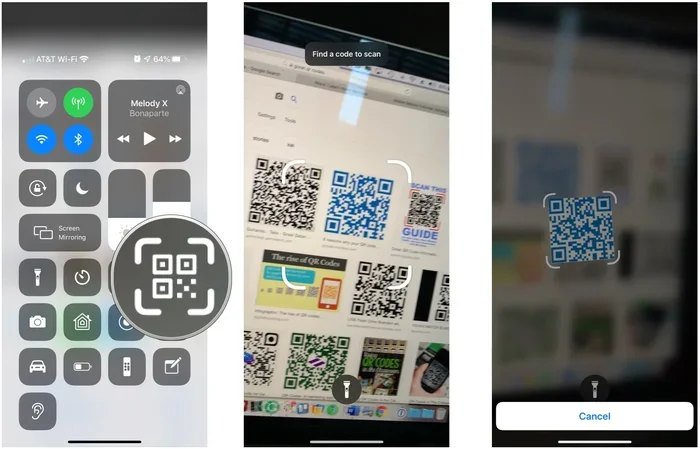
How Do I Open A QR Code From A Photo On My iPhone Easily
Opening a QR code from a photo on your iPhone is simple and fast. You can use the built-in Photos app, the default Camera app, or a free third-party QR reader. This guide walks you through every method so you can scan any saved QR code in seconds.
Have you ever had a QR code saved in your iPhone photo gallery and needed to scan it right away? Maybe someone sent you a screenshot of a restaurant menu. Or perhaps you saved a WiFi QR code for easy access. Whatever the reason, knowing how to open a QR code from a photo on iPhone is a handy skill. It saves time and keeps you from hunting for a scanner app.
Good news. Apple made this process much easier over the years. Your iPhone has built-in tools that can read QR codes from your photo library. You do not need to download anything extra. In this article, we will walk you through every method step by step. We will also share tips, tricks, and common mistakes to avoid. By the end, you will be able to scan any saved QR code in seconds.
Let us dive right in and explore the simplest ways to decode a QR code from your iPhone photos.
Key Takeaways
- Built-in iOS feature: iPhone natively supports scanning QR codes directly from photos without extra apps.
- Multiple methods: You can use the Photos app, Camera app, or a shortcut to decode QR codes from your gallery.
- No extra downloads needed: Apple’s native tools handle most QR code scanning tasks effortlessly.
- Third-party apps help too: Apps like QR Reader for iPhone offer extra features for frequent scanners.
- Common mistakes slow you down: Avoid blurry photos and outdated iOS versions for smooth scanning.
- Security matters: Always verify QR code links before tapping to protect your personal data.
📑 Table of Contents
- Why Would You Need to Scan a QR Code From a Photo?
- Method 1: Use the Built-In Photos App (Easiest Way)
- Method 2: Use the Camera App to Scan From Photos
- Method 3: Use the Shortcuts App for a Custom QR Scanner
- Method 4: Use a Third-Party QR Code Reader App
- Comparison Table: Built-In vs. Third-Party QR Scanners
- Common Mistakes When Scanning QR Codes From Photos
- Tips for Better QR Code Scanning From Photos
- Can You Scan QR Codes From Photos on Older iPhones?
- What Happens After You Scan a QR Code From a Photo?
- How to Save and Organize QR Codes for Easy Access
- Is It Safe to Scan QR Codes From Photos?
- Conclusion
Why Would You Need to Scan a QR Code From a Photo?
You might wonder why someone would save a QR code in their photo gallery instead of scanning it live. There are many perfectly good reasons for this.
Sometimes, the QR code appears on a screen and is too far away to scan directly. Maybe you are at a conference and the presenter shows a QR code on a big slide. Taking a photo lets you scan it later when you have a closer look. Other times, someone sends you a QR code through a text message or email. Saving it to your Photos app makes it easy to access anytime.
Here are some common situations where scanning a QR code from a photo comes in handy:
- Restaurant menus: Many restaurants use QR codes for digital menus. Saving the code means you can revisit it anytime.
- WiFi credentials: A saved WiFi QR code lets you connect new devices without typing in a password.
- Event tickets: Concert or flight QR codes often get saved for quick access at the gate.
- Business cards: Scanning a contact QR code from a photo saves the info directly to your phone.
- Promotional offers: Retailers often share discount codes as QR images that you save for later.
No matter the reason, your iPhone makes it easy to open and read these codes from your photo library.
Method 1: Use the Built-In Photos App (Easiest Way)
The simplest way to scan a QR code from a photo is by using your iPhone’s native Photos app. Apple built this feature right into iOS, so you do not need any third-party tools. This method works on most iPhones running iOS 11 or later.
Step-by-Step Guide
Follow these steps to scan a QR code from your photo gallery:
- Open the Photos app on your iPhone.
- Find the photo that contains the QR code you want to scan.
- Tap on the photo to open it fully.
- Look at the bottom of the screen. You should see a notification banner that says something like “QR Code detected.”
- Tap on that notification banner.
- Your iPhone will open the link or action associated with the QR code.
That is it. Just three taps and your QR code is scanned. This native method is incredibly fast and requires zero setup.
What If the Notification Does Not Appear?
Sometimes the QR code notification does not show up. This can happen for a few reasons:
- The photo might be too blurry or low-resolution.
- The QR code might be partially cut off or distorted.
- Your iPhone’s QR code scanning feature might be turned off in settings.
If the banner does not appear, try the next method below. It is just as effective.
Method 2: Use the Camera App to Scan From Photos
Another great way to open a QR code from a photo is by using the default Camera app. This method works well when the Photos app notification does not appear.
How to Do It
Here is what you need to do:
- Open the Camera app on your iPhone.
- Swipe up from the bottom of the viewfinder screen. This opens your photo library.
- Select the photo containing the QR code.
- Point your camera at the photo on your screen as if you were scanning a physical QR code.
- Your iPhone will recognize the QR code and show a notification.
- Tap the notification to open the link or action.
This trick works because the Camera app treats any QR code it sees, even on your screen, as a scannable image. It is a clever workaround that many people do not know about.
Quick Tip
Make sure the photo is bright and clear. Hold your iPhone steady and keep it about 6 to 8 inches from the screen. Good lighting makes a big difference in scan success.
Method 3: Use the Shortcuts App for a Custom QR Scanner
If you scan QR codes from photos often, the Shortcuts app can save you time. Apple’s Shortcuts app lets you create a custom workflow that opens any QR code directly from your photo library.
Setting Up a QR Scanner Shortcut
Here is how to set it up:
- Open the Shortcuts app on your iPhone.
- Tap the + button in the top right corner.
- Tap “Add Action.”
- Search for “QR Code” and select the “Scan QR Code” action.
- Tap “Next” and give your shortcut a name, like “Scan Photo QR.”
- Tap “Done” to save it.
Now whenever you want to scan a QR code from a photo, simply run your shortcut. It will prompt you to select a photo, and it will decode the QR code automatically.
Why Use Shortcuts for QR Scanning?
The Shortcuts method gives you more control. You can add the shortcut to your Home Screen for one-tap access. You can also customize it to save scanned links directly to your Notes app or clipboard. This is especially useful if you scan QR codes from photos regularly as part of your daily routine.
Method 4: Use a Third-Party QR Code Reader App
While Apple’s built-in tools work great for most people, some users prefer dedicated QR code reader apps. These apps often offer extra features like history tracking, batch scanning, and link previews.
Best Free QR Reader Apps for iPhone
Here are some reliable options you can download from the App Store:
- QR Reader for iPhone: A lightweight app with a clean interface. It scans QR codes from photos and saves a history of all your scans.
- Barcode Scanner: Supports QR codes and other barcode types. It works well for scanning codes from your photo gallery.
- Google Lens: Google’s free app can identify QR codes in photos with high accuracy. It also offers visual search features.
How to Scan With a Third-Party App
The process is generally the same across most apps:
- Download and install a QR reader app from the App Store.
- Open the app and look for a “Gallery” or “Photo Library” option.
- Select the photo containing the QR code.
- The app will decode the QR code and show you the linked content.
Keep in mind that third-party apps require access to your photo library. Always check app permissions and read reviews before downloading. Stick with well-known developers to protect your privacy.
Comparison Table: Built-In vs. Third-Party QR Scanners
| Feature | Built-In (Photos/Camera) | Third-Party App |
|---|---|---|
| Cost | Free | Free or paid |
| Setup Required | None | Download and install |
| Scan From Photos | Yes | Yes |
| Scan History | No | Usually yes |
| Extra Features | Basic scanning only | Batch scan, link preview, history |
| Privacy | Apple native, no data sharing | Varies by app developer |
| Works Offline | Yes | Most do |
For most users, the built-in method is all you need. But if you scan QR codes frequently, a dedicated app can add valuable convenience.
Common Mistakes When Scanning QR Codes From Photos
Even though scanning a QR code from a photo is straightforward, some common mistakes can cause frustration. Here is what to watch out for:
1. Using a Blurry or Low-Quality Photo
The most common reason a QR code fails to scan is poor image quality. If the photo is blurry, pixelated, or compressed, the scanner cannot read the code. Always use the clearest, highest-resolution version of the photo available.
2. Not Zooming In Enough
When using the Camera app method, make sure to zoom in on the QR code. The scanner needs a clear view of all the squares and patterns. If the code is small on your screen, pinch to zoom in before scanning.
3. Forgetting to Enable QR Scanning in Settings
Some iPhones have QR code scanning turned off by default. To check:
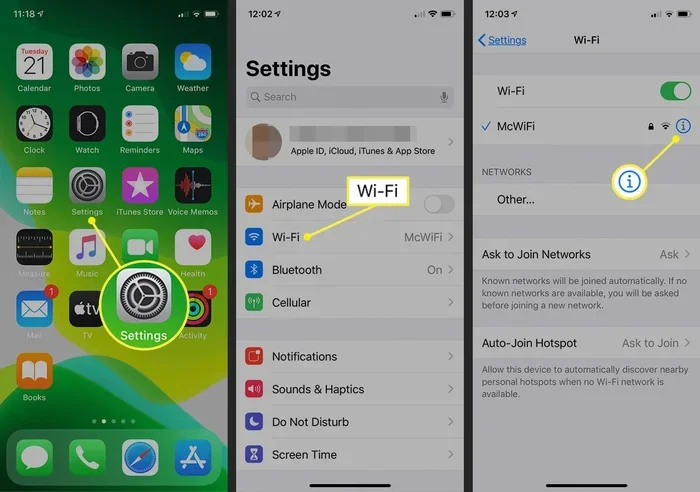
- Go to Settings on your iPhone.
- Tap Camera.
- Toggle on “Scan QR Codes.”
Without this setting enabled, your Camera app will not recognize QR codes, even from live views.
4. Ignoring the Notification Banner
When the Photos app detects a QR code, it shows a banner at the bottom of the screen. Many people scroll past this without noticing it. Always look for the banner before trying other methods.
5. Tapping Suspicious QR Codes Without Checking
Security is important. Before opening any QR code link, make sure you trust the source. Malicious QR codes can lead to phishing sites or unwanted downloads. If you are unsure, use a QR scanner that shows you the full URL before you visit it.
Expert Insight
Apple’s native QR scanning tools are reliable and secure. However, always exercise caution when opening links from QR codes you do not recognize. When in doubt, use a scanner that previews the URL before you tap to open it.
Tips for Better QR Code Scanning From Photos
Want to make your QR code scanning experience even smoother? Here are some practical tips that make a real difference:
- Use good lighting: Bright, even lighting helps your iPhone camera read QR codes more accurately.
- Clean your lens: A smudgy camera lens can cause scanning failures. Wipe it with a soft cloth before scanning.
- Save high-resolution images: If someone sends you a QR code, save it in the highest quality possible.
- Update your iOS: Keep your iPhone updated to the latest iOS version. Apple improves QR scanning with every update.
- Avoid glare and reflections: Glare on the screen can obscure the QR code and prevent scanning.
- Hold steady: Keep your iPhone still and at a consistent distance from the photo for the best results.
Can You Scan QR Codes From Photos on Older iPhones?
Yes, you can. QR code scanning from photos has been a built-in feature since iOS 11, which came out in 2017. This means any iPhone running iOS 11 or later can scan QR codes from the Photos app. That includes older models like the iPhone 6, iPhone 7, and iPhone 8.
If you have a very old iPhone that cannot update past an older iOS version, you may need a third-party app. But for the vast majority of iPhone users, the built-in tools work perfectly fine.
What Happens After You Scan a QR Code From a Photo?
After your iPhone decodes the QR code, several things can happen depending on the type of code:
- Website link: Your iPhone opens Safari and loads the linked webpage.
- WiFi login: Your iPhone prompts you to connect to the WiFi network automatically.
- Contact information: Your iPhone shows a contact card that you can save to your address book.
- Phone number: Your iPhone offers to call the number directly.
- Text message: Your iPhone opens a new message draft with the encoded text.
- App Store link: Your iPhone opens the App Store to the linked app page.
Understanding what happens after scanning helps you know what to expect and whether the link is safe before you tap to open it.
How to Save and Organize QR Codes for Easy Access
If you find yourself scanning QR codes from photos regularly, consider organizing them for quick access. Here is a simple workflow:
- Create a dedicated album in your Photos app called “QR Codes.”
- Save all your QR code images to this album.
- Name each photo clearly, like “Office WiFi” or “Restaurant Menu.”
- When you need to scan one, open the album and pick the right photo.
This small habit saves a lot of time when you need to find and scan a specific QR code quickly.
Is It Safe to Scan QR Codes From Photos?
Scanning QR codes from photos is generally safe, especially when you use Apple’s native tools. However, you should always be cautious. QR codes can contain links to websites, and some of those websites might be malicious. Here are a few safety tips:
- Check the URL before tapping: Some QR scanners show you the full link before opening it. Take a moment to review it.
- Only scan codes you trust: If someone you know sends you a QR code, it is likely safe. Be more cautious with codes from unknown sources.
- Use a secure browser: Safari on iPhone includes built-in fraud protection that warns you about known malicious websites.
- Keep your iPhone updated: Apple regularly patches security vulnerabilities that could be exploited through QR codes.
Staying safe while scanning QR codes is simple. Just use common sense and trust your instincts.
Conclusion
Opening a QR code from a photo on your iPhone is easier than most people think. Whether you use the built-in Photos app, the Camera app trick, the Shortcuts app, or a third-party reader, you have multiple reliable options at your fingertips. Each method works well, and the best one depends on your personal preference and how often you need to scan saved codes.
The built-in Photos app method is the fastest and requires no extra downloads. The Camera app workaround is great when that notification banner does not appear. The Shortcuts app is perfect for frequent scanners who want a custom workflow. And third-party apps offer extra features for power users.
Remember to follow the tips we shared. Keep your photos clear, your iPhone updated, and your QR codes organized. And always stay mindful of security when opening links from unfamiliar sources.
Now that you know all the methods, try scanning a saved QR code right now. You will be surprised at how quick and easy it is. Once you get the hang of it, you will wonder how you ever managed without this skill.
Your iPhone is a powerful tool, and scanning QR codes from photos is just one of the many ways it makes your life simpler. Use these methods, share them with friends, and enjoy the convenience of instant QR code scanning whenever you need it.
Frequently Asked Questions
Can I scan a QR code from a screenshot on my iPhone?
Yes, you can. Screenshots are saved in your Photos app just like any other photo. Open the screenshot, look for the QR code notification banner at the bottom, and tap it. Your iPhone will open the linked content immediately.
Why can’t my iPhone scan a QR code from a photo?
This usually happens for a few reasons. The photo might be blurry or too dark. The QR code might be partially cut off. Or the QR scanning feature might be turned off in your Camera settings. Try adjusting the photo quality or checking your settings first.
Do I need to download an app to scan QR codes from photos?
No, you do not need to download anything. Apple’s built-in Photos app and Camera app can both scan QR codes from your photo library without any extra apps. Only download a third-party app if you need advanced features like scan history or batch scanning.
Is it safe to open QR code links from photos?
It is generally safe, especially when you use Apple’s native tools. However, always be cautious with QR codes from unknown sources. Review the URL preview if your scanner shows one, and avoid tapping links that look suspicious or unfamiliar.
Can I scan a QR code from a photo on an older iPhone model?
Yes, you can. QR code scanning from photos has been available since iOS 11, which supports iPhone 5s and later. As long as your iPhone can run iOS 11 or newer, you can scan QR codes from your photo gallery.
What types of information can a QR code contain?
QR codes can store many types of data. Common types include website URLs, WiFi login credentials, contact information, phone numbers, text messages, email addresses, and App Store links. Your iPhone handles each type differently and offers the appropriate action after scanning.
=== CONCLUSION ===
Opening a QR code from a photo on your iPhone is a simple process that anyone can master. You now know four different methods, from the easiest built-in approach to using third-party apps for advanced needs. You also know the common mistakes to avoid and the tips that make scanning faster and more reliable.
Keep this guide handy. The next time you need to scan a saved QR code, you will know exactly what to do. Share this article with friends who might not know these tricks yet. And most importantly, enjoy the convenience that your iPhone puts right at your fingertips.