How Do I Merge Pdf Files Online Without Losing Quality
Merging PDF files is one of the most common tasks people need for work, school, and personal projects. You can combine multiple PDFs into one clean document using free online tools that keep your files looking sharp and professional. This guide walks you through every method so you can merge PDF files quickly, safely, and without losing a single pixel of quality.
Key Takeaways
- Free online tools make it easy: You can merge PDF files in minutes without installing anything.
- Quality loss is preventable: Using the right settings and tools keeps your documents crisp and clear.
- Multiple methods exist: From browser-based tools to desktop apps, there is an option for every need.
- Security matters: Always choose trusted platforms to protect sensitive documents during the merging process.
- Order and layout are key: Reordering pages and adjusting margins before merging saves time later.
- Batch merging saves effort: Combining many files at once speeds up document workflows significantly.
📑 Table of Contents
- How Do I Merge PDF Files Online Without Losing Quality?
- What Does It Mean to Merge PDF Files?
- Best Ways to Merge PDF Files Online
- Step-by-Step Guide to Merging PDFs Online
- How to Keep Your PDF Quality High
- Common Mistakes When Merging PDF Files
- Expert Tips for a Smooth PDF Merging Workflow
- Comparing Popular PDF Merging Tools
- Is It Safe to Merge PDFs Online?
- How to Merge PDF Files on Different Devices
- Key Takeaways
- Conclusion
How Do I Merge PDF Files Online Without Losing Quality?
If you have ever needed to combine several PDF documents into one neat file, you are not alone. Students, professionals, and business owners merge PDF files every single day. Whether you are putting together a report, compiling invoices, or organizing a portfolio, knowing how to do this quickly and cleanly is a real skill.
The good news is that you do not need expensive software anymore. Today, you can merge PDF files online for free and still keep every page looking perfect. No blurry text. No scrambled layouts. Just clean, professional documents that look exactly the way you want them to.
In this guide, we will walk you through every method, tool, and tip you need. You will learn how to combine documents safely, avoid common pitfalls, and get great results every time. Let us get started.
Why People Need to Combine PDF Files
There are so many reasons you might want to merge PDFs. Maybe your boss sent you five separate files and wants one complete report. Perhaps you are a freelancer putting together a proposal with different sections. Or maybe you are a student combining research papers into one submission.
Whatever the reason, the process is the same. You need a reliable way to bring multiple files together without messing up the formatting. That is exactly what this guide helps you do.
What Does It Mean to Merge PDF Files?
Merging PDF files means taking two or more separate PDF documents and combining them into a single file. Think of it like stacking pages from different notebooks into one big binder. The content stays the same, but everything lives in one place now.
When you merge PDF files online, you use a web-based tool or software to do this stacking automatically. The best tools keep the original quality intact. Your images stay sharp. Your text stays crisp. And your layout stays exactly as it was in each original file.
Some tools also let you rearrange pages, delete unwanted ones, or even rotate pages before you finalize the merged document. These extra features make the whole process much smoother.
Best Ways to Merge PDF Files Online
You have several options when it comes to combining PDF files. Some are free and fast. Others offer more advanced features. Let us look at the most popular methods so you can pick the one that fits your needs.
Free Online PDF Merger Tools
Browser-based tools are the easiest way to go. You do not need to download anything. You just open the website, upload your files, and click a button. The tool does all the work for you.
Some of the most popular free options include:
- Smallpdf – A user-friendly site with a clean interface and fast processing.
- iLovePDF – Offers many PDF tools beyond just merging, including compression and conversion.
- PDF24 – A free, ad-supported platform with no file size limits.
- Sejda – Great for those who want a simple drag-and-drop experience.
All of these tools let you combine PDF files in seconds. They work on any device with a web browser, so you can use them on your phone, tablet, or laptop.
Desktop Software for Merging PDFs
If you prefer offline tools, desktop software is a great choice. Programs like Adobe Acrobat Pro, PDFsam, and Foxit PDF Editor give you more control over the merging process.
Adobe Acrobat is the gold standard for PDF work. It lets you arrange pages precisely, adjust margins, and even add bookmarks to your merged document. The downside is that it costs money and requires installation.
Free desktop options like PDFsam Basic do a solid job without any fees. They may not have all the bells and whistles, but they handle basic merging tasks very well.
Built-In Operating System Features
Did you know your computer might already have a way to merge PDFs? Both Windows and Mac offer built-in tools that can help.
On Mac, you can open PDFs in Preview, select all pages, and drag them into one document. On Windows, the Print to PDF feature lets you combine files by printing them all into a single PDF. These methods work well for simple tasks.
Step-by-Step Guide to Merging PDFs Online
Now let us walk through the actual process. Follow these steps and you will have a merged document in no time.
Step 1: Choose Your Tool
Pick a trusted online PDF merger. Stick with well-known sites like the ones mentioned above. Avoid any random website you have never heard of, especially if your files contain sensitive information.
Before you start, check that the tool supports your file type and does not add watermarks. A good PDF merger tool will be clear about its features before you upload anything.
Step 2: Upload Your Files
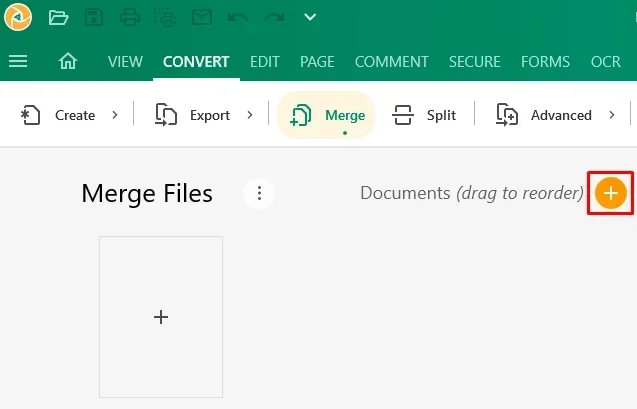
Most tools use a simple drag-and-drop interface. You just click the upload button and select the PDF files you want to combine. Some tools let you upload files directly from Google Drive or Dropbox.
Make sure your files are in the right order before uploading. If you need pages from different documents mixed together, you might want to use a tool that lets you rearrange pages after uploading.
Step 3: Arrange and Preview
Once your files are uploaded, take a moment to preview them. Most tools show thumbnails of each page so you can see the order. Drag and drop pages to rearrange them if needed.
This step is important. Catching a mistake now saves you from having to redo the whole process later. Check that all pages are present and in the correct sequence.
Step 4: Merge and Download
When you are happy with the order, click the merge button. The tool will process your files and create a single combined PDF. This usually takes just a few seconds.
Once the processing is complete, download your new file. Open it right away to make sure everything looks good. Check the text, images, and layout one more time before you send or share the document.
How to Keep Your PDF Quality High
One of the biggest worries people have is losing quality when they merge files. The good news is that with the right approach, you can keep your documents looking perfect.
Choose the Right Tool
Not all merging tools treat your files the same way. Some compress images or reduce resolution to make the final file smaller. If quality is your top priority, look for a tool that explicitly states it preserves original quality.
Tools like Adobe Acrobat and iLovePDF are known for maintaining high resolution during the merging process. They keep your images at their original DPI and your text sharp and readable.
Avoid Repeated Compression
If you merge files that have already been compressed, the quality can drop further. Each round of compression removes data. To avoid this, try to work with the highest quality original files you can find.
If you must compress a merged file, do it only once at the very end. This keeps the damage to a minimum.
Check Your Settings
Before you hit the merge button, look at the tool’s settings. Some platforms let you choose the output quality. If you see an option for resolution or image quality, set it to high or maximum.
Also, check if the tool keeps your original file size or reduces it. A smaller file is convenient, but not if it means your images look pixelated.
Use High-Quality Source Files
The quality of your merged document depends on the quality of your source files. If you start with blurry images or low-resolution PDFs, the final result will not look great no matter which tool you use.
Whenever possible, work with original, high-quality files. This is especially important for documents with charts, photos, or detailed graphics.
Common Mistakes When Merging PDF Files
Even simple tasks can go wrong if you are not careful. Here are the most common mistakes people make when they merge PDF files and how to avoid them.
Forgetting to Check the Page Order
This is the number one mistake. You upload files in the wrong order and do not notice until the document is already sent. Always preview and double-check the page sequence before you finalize the merge.
Using Untrusted Websites
There are countless websites that promise free PDF merging. But some of them are not safe. They might inject ads, track your data, or even install malware on your device.
Stick with well-known, reputable tools. Look for sites that use HTTPS encryption and have clear privacy policies. If a site looks sketchy, trust your instincts and move on.
Ignoring File Size Limits
Many free online tools have file size limits. If you try to upload a very large PDF, the tool might reject it or produce poor results. Check the limits before you start, and consider using a desktop tool for very large files.
Not Saving a Backup
Always keep copies of your original files before merging. If something goes wrong during the process, you will be glad you have the originals to fall back on.
Overlooking Watermarks
Some free tools add watermarks to your merged document. This can look unprofessional, especially for business or academic use. Read the tool’s terms before you start, and choose a watermark-free option when possible.
Expert Tips for a Smooth PDF Merging Workflow
Once you get comfortable with the basics, you can speed up your workflow and get even better results. Here are some tips from experienced users.
Use Batch Merging When Possible
If you need to merge many files at once, look for tools that support batch processing. This lets you upload several documents in one go and combine them all together. It saves a ton of time compared to merging files one at a time.
Name Your Files in Order
A simple trick is to name your PDF files in the order you want them to appear. For example, name them 01_Introduction.pdf, 02_Methods.pdf, 03_Results.pdf. When you upload them, they will already be in the correct sequence.
Consider PDF Compression After Merging
If your merged file is too large to email or upload, use a compression tool after the merge is complete. This keeps your quality high while making the file easier to share. Many of the same tools that merge PDFs also offer compression features.
Organize Your Files Before You Start
Spend five minutes organizing your files before you begin. Put all the PDFs you need in one folder. Delete any pages you do not need. This preparation makes the actual merging process much faster and smoother.
Use Bookmarks for Long Documents
If your merged PDF is very long, consider adding bookmarks. Most PDF tools let you create bookmarks that act like a table of contents. This makes it much easier for readers to navigate your document.
Comparing Popular PDF Merging Tools
Not all tools are created equal. Here is a quick comparison of the most popular options to help you choose.
| Tool | Type | Free? | Quality Preservation | Ease of Use |
|---|---|---|---|---|
| Smallpdf | Online | Yes (limited) | Excellent | Very Easy |
| iLovePDF | Online | Yes (limited) | Very Good | Very Easy |
| PDF24 | Online | Yes (unlimited) | Good | Easy |
| Adobe Acrobat Pro | Desktop | No (paid) | Excellent | Moderate |
| PDFsam Basic | Desktop | Yes | Very Good | Moderate |
| Mac Preview | Built-in | Yes | Excellent | Easy |
As you can see, you have great options at every price point. For quick, everyday tasks, free online tools work perfectly. For professional or high-volume work, investing in desktop software pays off.
Is It Safe to Merge PDFs Online?
Security is a valid concern when you upload files to any online service. Most reputable tools delete your files from their servers within a few hours. They do not store or share your data with anyone.
However, if your documents contain sensitive information like financial records, medical data, or personal details, you might want to use a desktop tool instead. This keeps your files entirely offline and under your control at all times.
Always read the privacy policy of any tool you use. Look for clear statements about data handling and file deletion. A trustworthy platform will be transparent about how it protects your information.
How to Merge PDF Files on Different Devices
The process is similar across devices, but there are a few differences worth noting.
On a desktop computer, you have the most options. You can use online tools, desktop software, or built-in operating system features. This gives you the most flexibility and control.
On a laptop, the process is the same as on a desktop. Just make sure you have a stable internet connection if you are using an online tool.
On a phone or tablet, online tools work best. Most browser-based PDF mergers are mobile-friendly. You can upload files from your device, merge them, and download the result all in one sitting.
Key Takeaways
- Merging PDF files is simple: With the right tool, you can combine multiple PDFs in just a few clicks.
- Quality loss is avoidable: Choose tools that preserve original resolution and avoid repeated compression.
- Free online tools work great: Sites like Smallpdf, iLovePDF, and PDF24 handle most merging tasks with ease.
- Preview before you finalize: Always check the page order and layout before you download the merged file.
- Security matters: Use trusted platforms and consider offline tools for sensitive documents.
- Good workflow saves time: Organize files, name them in order, and use batch merging for efficiency.
Conclusion
Learning how to merge PDF files online without losing quality is a skill that saves time and reduces frustration. Whether you are a student, a professional, or just someone who deals with documents regularly, the right approach makes all the difference.
You now know the best tools, the step-by-step process, and the common mistakes to avoid. You also have expert tips to speed up your workflow and keep your documents looking their best. The next time you need to combine several PDFs, you will know exactly what to do.
Start with a free online tool and see how easy it can be. With just a few clicks, you can turn scattered files into one organized, professional document. Give it a try today and experience how simple PDF merging can be.
Frequently Asked Questions
Can I merge PDF files for free without losing quality?
Yes, many free online tools like iLovePDF and Smallpdf let you combine PDF files without any quality loss. Just make sure to choose a reputable tool and check its settings before merging. Avoid tools that add watermarks or compress your files automatically.
How many PDF files can I merge at once?
This depends on the tool you use. Most online platforms allow you to merge anywhere from 2 to 20 files in one batch. Some desktop tools like PDFsam and Adobe Acrobat handle even more. If you have a very large number of files, consider using a desktop application for better control.
Will merging PDF files reduce the file size?
Merging itself usually does not reduce file size. In fact, the combined file might be larger than the individual ones. However, some tools offer compression options during or after the merge. If you need a smaller file, use a separate compression step after merging.
Is it safe to upload PDFs to online merging tools?
It is safe as long as you use a trusted, reputable platform. Well-known tools like Smallpdf and PDF24 use encryption and delete files from their servers quickly. For highly sensitive documents, use a desktop application to keep everything offline and under your control.
Can I merge PDFs on my phone?
Absolutely. Most online PDF merging tools work on mobile browsers. You can upload files from your phone, merge them, and download the result. Some apps also offer dedicated merging features for iOS and Android devices. The process is quick and does not require any special software.
What should I do if the merged PDF looks blurry or low quality?
This usually happens when the source files are low quality or when a tool compresses images during merging. To fix this, start with high-resolution source files and choose a tool that preserves original quality. You can also try a different merging tool if the first one does not give satisfactory results.