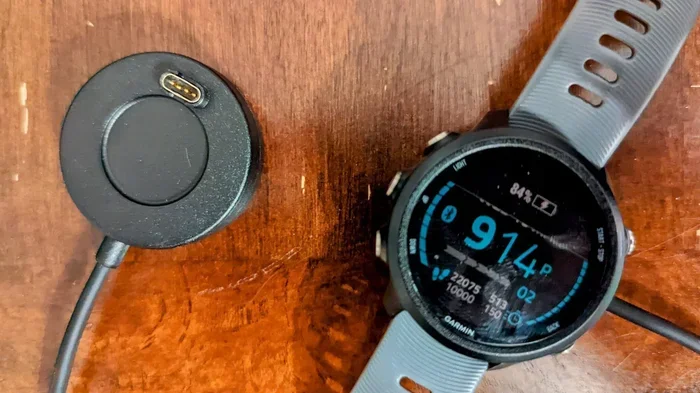
How Do I Know When My Garmin Is Fully Charged and Ready
Knowing when your Garmin is fully charged is simple once you understand the battery indicators and charging signals. This guide covers everything from LED lights and battery icons to charging times and tips that help you get the most out of your Garmin battery. Whether you own a Garmin watch, fitness tracker, or handheld GPS, you will learn how to read your device and keep it powered up.
You just finished a long run, and your Garmin watch is beeping at you with a low battery warning. You plug it in and wait. But how do you really know when your Garmin is fully charged and ready to go? It sounds like a simple question, but many Garmin users are not sure what the charging signals actually mean.
Whether you have a Garmin watch, a fitness tracker, or a handheld GPS device, understanding your battery status is important. A fully charged Garmin gives you confidence during long hikes, races, or daily workouts. In this guide, we will walk you through every way to tell when your Garmin battery is at 100 percent. You will learn about LED lights, screen icons, charging times, and simple habits that keep your device ready to go.
Let us break it all down so you never have to guess again. By the end of this article, you will know exactly what happens when your Garmin finishes charging and how to get the best performance from your battery every single day.
Key Takeaways
- LED Light Signals: The charging LED on your Garmin changes color or turns off to show a full battery.
- Battery Icon Display: Your Garmin screen shows a battery percentage or icon that updates when charging is complete.
- Charging Time Varies: Different Garmin models take between 1 and 3 hours to reach a full charge.
- Power Saving Mode Helps: Enabling battery saver mode extends your Garmin battery life between charges.
- Use the Right Charger: Always use the original Garmin cable or a certified USB charger for safe and efficient charging.
- Battery Health Matters: Proper charging habits keep your Garmin battery healthy and lasting longer over time.
📑 Table of Contents
How to Tell When Your Garmin Is Fully Charged
Every Garmin device gives you clear signals when the battery is full. These signals depend on the model you own, but they all work the same way at their core. Let us look at the most common methods your Garmin uses to tell you the charge is complete.
LED Charging Light Signals
Most Garmin devices have a small LED light near the charging port. When you plug in your Garmin, this light turns on to show that charging has started. The color and behavior of the light tell you the battery status.
Here is what the LED light usually means:
- Red or Amber Light: Your Garmin is still charging. The battery is not full yet.
- Green Light: Your Garmin is close to full or completely full. This is a great sign.
- Light Turns Off: On some models, the LED goes off when the battery reaches 100 percent.
- Blinking Light: A blinking pattern often means there is a charging error or the cable is not connected properly.
These signals are your first clue. If you see a green light or the light turns off, your Garmin is likely fully charged. Always check your specific model in the user manual for exact details.
Battery Icon on the Screen
When your Garmin is charging, the battery icon on the display changes to show progress. As the battery fills up, the icon fills with color. Once the icon is completely full, your device has reached 100 percent.
Some Garmin watches show a exact battery percentage number on the screen. This makes it even easier to know the exact charge level. If you see 100% on the display, you are good to unplug and start using your device.
Here are a few tips for reading your battery icon:
- Check the screen right after you plug in your Garmin.
- Wait for the icon to show a full battery symbol.
- If your watch shows a percentage, wait for it to read 100.
- Restart your Garmin if the icon seems stuck or does not update.
Vibration or Sound Alerts
Some newer Garmin models give you a vibration or a short sound when charging is done. This is a handy feature if you are not looking at the screen. You might feel a buzz on your wrist or hear a gentle tone.
This alert tells you the battery is full and you can safely remove the charger. If your Garmin has this feature, make sure it is turned on in the settings menu.
How Long Does It Take to Fully Charge a Garmin?
Charging times vary depending on the Garmin model and the battery size. Understanding how long it takes helps you plan your day and keep your device ready when you need it most.
Charging Times by Device Type
Different Garmin devices have different battery capacities. A small fitness tracker charges faster than a large GPS watch with a bright display. Here is a general idea of what to expect:
- Garmin Fitness Trackers: About 1 to 1.5 hours for a full charge.
- Garmin Smartwatches: Around 1.5 to 2.5 hours depending on the model.
- Garmin Handheld GPS Units: Usually 2 to 3 hours for a complete charge.
- Garmin Bike Computers: Roughly 1 to 2 hours, based on battery size.
These times assume you are using the original Garmin charger and a standard USB power source. Using a low-quality cable or a weak power adapter can slow down the process.
Factors That Affect Charging Speed
Several things can change how fast your Garmin charges. Being aware of these helps you avoid frustration and keeps your charging routine smooth.
- USB Port Power: A computer USB port charges slower than a wall adapter.
- Cable Quality: Cheap or damaged cables reduce charging speed.
- Battery Age: Older Garmin batteries take longer to charge than new ones.
- Device Usage While Charging: Using your Garmin while it charges slows the process down.
- Temperature: Extreme cold or heat can affect how fast the battery accepts a charge.
For the fastest charge, use the original Garmin cable, plug it into a wall adapter, and let the device rest while it charges.
Common Charging Mistakes to Avoid
Even though Garmin devices are built well, some common habits can hurt your battery over time. Avoiding these mistakes helps your Garmin battery stay healthy for years.
Using the Wrong Charger
Not all USB chargers are the same. Some deliver too much power, and others deliver too little. Using a non-certified charger can damage your Garmin battery or cause slow charging.
Always try to use the Garmin cable that came with your device. If you need a replacement, buy one from Garmin or a trusted brand. A good USB cable makes a big difference in charging performance.
Leaving Your Garmin Plugged In All the Time
It might seem convenient to keep your Garmin on the charger overnight. But leaving it plugged in after it is full can stress the battery over time. Most modern Garmin devices stop charging at 100 percent, but it is still better to unplug once it is full.
Think of it like charging your phone. You would not leave it on the charger forever, right? The same logic applies to your Garmin.
Charging in Extreme Temperatures
Heat and cold are enemies of lithium-ion batteries. Charging your Garmin in very hot or very cold environments can reduce battery life. The ideal temperature for charging is room temperature, between 50°F and 86°F (10°C and 30°C).
If your Garmin has been sitting in a hot car or a freezing backpack, let it warm up to room temperature before you plug it in.
How to Improve Your Garmin Battery Life
Getting the most out of each charge is every Garmin user’s goal. A few simple settings and habits can make your battery last much longer between charges.
Enable Power Saving Mode
Most Garmin devices have a battery saver or power save mode. When you turn this on, your watch reduces background activity and dims the display. This alone can add hours or even days to your battery life.
You can usually find this setting under the Settings menu, then look for Battery or Power Manager. Turn it on when you do not need all the advanced features.
Reduce Screen Brightness
The display is one of the biggest battery hogs on any Garmin device. Lowering the screen brightness saves a significant amount of power. You can set the brightness to auto-adjust or manually keep it lower during daily use.
Turn Off Unnecessary Features
Features like always-on display, GPS tracking, and music storage use extra battery. If you do not need them all the time, turn them off. Here are some features to consider disabling:
- Always-on display or raise-to-wake
- Continuous heart rate monitoring (use interval mode instead)
- Bluetooth music streaming
- Background widgets and apps
- Excessive notification alerts
Each of these small changes adds up and helps your Garmin go longer on a single charge.
When to Replace Your Garmin Battery
Even with the best care, every battery eventually loses its ability to hold a charge. Knowing when it is time for a replacement saves you from unexpected power loss during important activities.
Signs Your Garmin Battery Needs Replacement
Watch for these warning signs that your Garmin battery is wearing out:
- The battery drains much faster than it used to.
- Your Garmin does not hold a charge for more than a few hours.
- The device shuts down even though the battery icon shows charge remaining.
- Charging takes much longer than it did when the device was new.
- The battery icon shows 100 percent but the device dies within minutes.
If you notice any of these issues, it might be time to replace the battery. Garmin offers battery replacement services, or you can visit a certified repair center.
Battery Replacement Options
Garmin provides official battery replacement for many of their devices. The cost and process depend on your model. Some watches have user-replaceable batteries, while others require professional service.
Before you decide, check the Garmin support website for your specific model. They often have step-by-step guides and service options to help you get your device running like new again.
Expert Tips for Keeping Your Garmin Charged and Ready
Seasoned Garmin users know a few tricks that make battery management easier. Here are some expert tips to keep your device in top shape.
Charge After Every Use
Getting into the habit of charging your Garmin after each use prevents deep battery drain. Lithium-ion batteries last longer when you keep them between 20 percent and 80 percent charged most of the time.
You do not need to wait until the battery is completely empty. In fact, topping up after a workout is a great practice that keeps the battery healthy.
Update Your Garmin Firmware
Garmin regularly releases firmware updates that improve battery management and charging efficiency. Keeping your device updated ensures you get the best performance from your battery.
Connect your Garmin to the Garmin Connect app on your phone or computer and check for updates. A simple update can sometimes fix charging issues and extend battery life.
Keep a Backup Charging Cable
Cable wear and tear happens to everyone. Having a spare Garmin charging cable in your gym bag, car, or desk drawer saves you from being stuck with a dead device. Look for durable, braided USB cables that last longer than standard ones.
Monitor Battery Health in Garmin Connect
The Garmin Connect app gives you insights into your battery health and usage patterns. You can see how long your battery lasts on different features and identify which settings drain power the fastest.
Use this data to adjust your settings and get the most out of every charge cycle.
Final Thoughts
Now you know exactly how to tell when your Garmin is fully charged and ready for action. From LED lights and battery icons to vibration alerts and screen displays, your Garmin gives you plenty of signals to know when the charge is complete.
Remember to avoid common charging mistakes like using the wrong cable or leaving your device plugged in too long. Simple habits like charging after each use and enabling power saving mode go a long way in keeping your Garmin battery healthy.
Taking care of your Garmin battery means you always have a reliable device when you need it most. Whether you are training for a race, tracking your daily steps, or navigating a trail, a fully charged Garmin gives you the confidence to push forward. Follow the tips in this guide, and your Garmin will stay powered up and ready whenever you are.
Frequently Asked Questions
How long does a Garmin battery last on a full charge?
Battery life depends on the model and features you use. Most Garmin watches last between 5 and 14 days in smartwatch mode. GPS tracking reduces battery life to about 10 to 30 hours, depending on the device and settings.
Can I charge my Garmin with any USB cable?
You can use any USB cable, but the original Garmin cable ensures the safest and fastest charge. Third-party cables may work, but they can sometimes cause slow charging or connection issues.
Why does my Garmin show it is not charging even when plugged in?
This usually means the cable or USB port is not making proper contact. Try a different cable, a different USB port, or clean the charging contacts on your Garmin with a dry cloth.
Is it safe to use my Garmin while it is charging?
Yes, it is generally safe. However, using your Garmin while it charges slows down the charging process and can generate extra heat. For the fastest charge, it is best to let the device rest while plugged in.
How do I know if my Garmin battery is degrading?
If your Garmin battery drains much faster than it used to, does not hold a charge, or dies suddenly despite showing remaining battery, the battery may be degrading. In such cases, consider a battery replacement from Garmin or a certified service center.
What is the best way to store my Garmin if I am not using it for a while?
Store your Garmin with the battery at about 50 percent charge. Keep it in a cool, dry place and charge it every few months to prevent the battery from fully draining, which can cause long-term damage.