Can I Use An Ipad As A Portable Monitor For Beginners
Yes, you can use an iPad as a portable monitor with the right apps, cables, or wireless connections. This setup is perfect for students, remote workers, and travelers who need extra screen space on the go. We will walk you through every method step by step so you can get started today.
Have you ever wished you had another screen while working on your laptop? Maybe you are at a coffee shop, sitting in a tiny hotel room, or just need more space to juggle multiple windows. The good news is that you can use an iPad as a portable monitor. It is simpler than most people think, and it does not require a lot of expensive gear.
This guide is for complete beginners. We will explain every method, every app, and every cable you need. By the end, you will know exactly how to turn your iPad into a second screen. Let us dive in.
Key Takeaways
- Easy Setup: You can connect an iPad to your laptop or PC using cables or wirelessly with apps like Sidecar or Duet Display.
- Broad Compatibility: Most modern iPads with USB-C or Lightning ports work as external monitors with the right adapter.
- Affordable Alternative: Using an iPad as a second screen saves money compared to buying a dedicated portable monitor.
- Wireless Options Exist: Apps like Duet Display and iDisplay let you go cable-free for a cleaner workspace.
- Limitations Apply: Latency, battery drain, and app restrictions can affect your experience depending on the setup.
- Best for Specific Use Cases: The iPad shines as a portable monitor for writing, coding, design work, and presentations.
📑 Table of Contents
- What Does It Mean to Use an iPad as a Portable Monitor?
- How to Connect Your iPad as a Second Screen
- Best Apps for Using iPad as a Monitor
- Which iPad Models Work Best as Portable Monitors?
- Benefits and Limitations of Using iPad as a Monitor
- Quick Tips for Getting the Best Experience
- Common Mistakes Beginners Make
- Expert Insights: Who Benefits Most From This Setup?
- Final Thoughts
What Does It Mean to Use an iPad as a Portable Monitor?
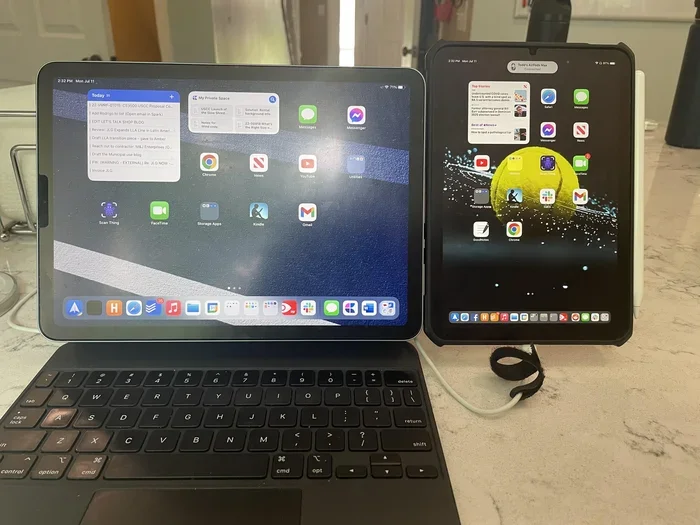
Using an iPad as a portable monitor means connecting it to another device like a laptop or desktop computer. The iPad then shows what would normally appear on your main screen. You get extra display space without buying a separate monitor.
Think of it like this. Your laptop screen shows your main work. Your iPad becomes an extension. You can drag windows, spread spreadsheets, or extend your design canvas across both screens. It works great for people who travel a lot or have limited desk space.
The whole idea revolves around display extension. Instead of mirroring your screen, you expand it. This gives you a dual-screen setup wherever you go. All you need is the right app, a compatible cable, or a wireless connection.
How to Connect Your iPad as a Second Screen
There are two main ways to set up your iPad as a monitor. You can go wired or wireless. Each method has its own pros and cons. Let us look at both so you can pick what works best for you.
Wired Connection: The Fast and Reliable Option
A wired setup gives you the lowest latency and the most stable connection. You plug one end of a cable into your computer and the other into your iPad. The iPad then acts as an external display almost instantly.
Here is what you need for a wired setup:
- A compatible cable (USB-C to USB-C or USB-C to Lightning)
- A display adapter if needed (like a USB-C to HDMI adapter)
- An app that supports wired connections
The biggest advantage of a wired connection is speed. There is almost no delay between your main screen and the iPad. This matters a lot if you are gaming, editing video, or doing anything that needs real-time response. The downside is that you are tethered to your iPad. You cannot move around freely.
Wireless Connection: Go Cable-Free
Wireless setups let you connect your iPad to your computer without any cables. You use Wi-Fi to send the display signal from your laptop to your iPad. It is super convenient and keeps your workspace clutter-free.
Here are the steps for a wireless setup:
- Download a wireless display app on both your computer and iPad.
- Make sure both devices are on the same Wi-Fi network.
- Open the app on your computer and select your iPad as the display.
- Adjust the resolution and orientation to your liking.
Wireless connections are great for portability. You can sit on your couch or move around a room while working. The trade-off is a slight delay or lag. For most office tasks like writing emails or browsing, this delay is barely noticeable. But for fast-paced work, wired is better.
Best Apps for Using iPad as a Monitor
The app you choose makes a huge difference. Not all apps are created equal. Some work better with certain devices or operating systems. Here are the top options you should consider.
Apple Sidecar (Built-In for Mac Users)
If you use a Mac, you already have a great tool built right in. Apple Sidecar lets you use your iPad as a wireless second screen. It works with most iPads that support USB-C or Lightning. You just click the Sidecar icon in your Mac menu bar and pair your iPad.
Sidecar is free and does not require any extra downloads. It supports Apple Pencil too, so you can draw or annotate directly on your iPad screen. The only catch is that it only works with Mac computers. Windows users will need a different solution.
Duet Display (Works with Mac and Windows)
Duet Display is one of the most popular apps for turning an iPad into a monitor. It supports both wired and wireless connections. You get low latency and smooth performance even during video playback or light gaming.
Here is what makes Duet Display stand out:
- Works with Mac and Windows computers
- Supports wired USB-C and Lightning connections
- Offers wireless mode over Wi-Fi
- Provides high-quality display output
- Has a low latency mode for smoother performance
Duet Display has a free trial, but the full version costs around $15. It is worth it if you plan to use your iPad as a monitor regularly. The app is reliable and well-supported with regular updates.
iDisplay (Simple and Affordable)
iDisplay is another solid option for extending your screen to an iPad. It is compatible with both Mac and Windows. The setup is straightforward and the app is lightweight. You can use it over Wi-Fi or through a USB cable.
iDisplay costs about $10 for the desktop version. It is a budget-friendly choice if you do not need advanced features. The app gets the job done without any fuss. It is perfect for beginners who just want a simple second screen.
SpaceDesk (Free and Windows-Compatible)
SpaceDesk is a free app that turns any tablet or phone into a second monitor for Windows PCs. It works over Wi-Fi or a direct USB connection. The setup takes just a few minutes and there is no cost involved.
The main limitation is that SpaceDesk only works with Windows. It also has slightly more latency than paid options. But if you are on a budget and use a Windows laptop, it is an excellent choice. Many users swear by it for everyday productivity tasks.
Which iPad Models Work Best as Portable Monitors?
Not all iPads are the same when it comes to using them as external monitors. Some models work better than others. Here is what you need to know about compatibility.
iPad Pro Models
iPad Pro models are the best choice for using as a portable monitor. They have high-resolution screens, fast processors, and USB-C connectivity. The 11-inch and 12.9-inch models both deliver excellent display quality. You get vibrant colors, sharp text, and smooth performance.
If you already own an iPad Pro, you are in great shape. The USB-C port makes wired connections easy. And the powerful hardware handles display extension without any lag. These models also support Sidecar natively, which is a huge plus for Mac users.
iPad Air and iPad Mini
iPad Air and iPad Mini also work well as second screens. The newer models with USB-C ports offer the best experience. They have good display quality and solid performance for most tasks.
The iPad Mini is especially popular as a compact portable monitor. It is small enough to carry in a bag easily. The screen size might feel tight for heavy multitasking, but it works great for reading, coding, or viewing documents on the side.
Standard iPad (10th Generation and Earlier)
The standard iPad with a Lightning port can still work as a monitor. You will need the right cable and adapter. The display quality is good enough for most tasks. However, older models may experience more lag or lower refresh rates compared to Pro models.
Overall, any iPad from the last few generations can serve as a portable monitor. The newer models with USB-C will give you the best results. But do not rule out older iPads just yet. They still get the job done for basic display extension.
Benefits and Limitations of Using iPad as a Monitor
Like any setup, using an iPad as a second screen has its strengths and weaknesses. Let us break them down so you can make an informed decision.
The Benefits
- Portability: Your iPad is lightweight and easy to carry everywhere. It is the ultimate portable monitor solution.
- Cost Savings: You already own an iPad. Using it as a monitor saves you from buying a separate portable display.
- Touch Interaction: iPads support touch input. You can interact directly with your extended screen for design or annotation work.
- Apple Pencil Support: If you have an Apple Pencil, you can draw or write on your iPad as a creative workspace.
- Battery Independence: iPads have their own battery, so you do not need an external power source for the second screen.
- High-Quality Display: Modern iPads have stunning Retina displays with excellent color accuracy and brightness.
The Limitations
- Battery Drain: Using your iPad as a monitor drains its battery faster. You may need to keep it plugged in during long sessions.
- Latency Issues: Wireless connections can have slight delays. This might bother fast-paced tasks like gaming or video editing.
- Screen Size: iPad screens are smaller than most desktop monitors. They work best as secondary displays, not primary ones.
- App Restrictions: Some apps do not support external display modes or have limited functionality on extended screens.
- Connection Stability: Wireless setups can occasionally disconnect or experience interference from other devices.
Quick Tips for Getting the Best Experience
Want to get the most out of your iPad-as-monitor setup? Here are some practical tips that make a big difference.
First, always use the latest version of your chosen app. Developers push updates that improve performance and fix bugs. Keeping your app current ensures the smoothest experience.
Second, use a high-quality cable for wired connections. Cheap cables can cause flickering, disconnections, or poor image quality. A certified USB-C cable from a reputable brand makes a noticeable difference.
Third, adjust your iPad display settings for optimal performance. Lower the resolution slightly if you notice lag. Turn off auto-brightness to prevent the screen from dimming during long work sessions.
Fourth, keep your devices close together for wireless connections. The closer your iPad is to your computer, the stronger and more stable the Wi-Fi signal. Avoid walls and obstacles between the two devices.
Fifth, invest in a good stand or mount for your iPad. Holding it in your hands gets tiring fast. A lightweight stand props it up at the perfect angle and keeps your workspace organized.
Common Mistakes Beginners Make
Setting up an iPad as a portable monitor is pretty straightforward. But beginners often run into avoidable problems. Here are the most common mistakes and how to dodge them.
Using the wrong cable. Not all cables support display output. A regular charging cable will not work for extending your screen. Always use a cable that supports data transfer and display protocols like DisplayLink or USB-C video output.
Ignoring app settings. Many apps have hidden settings that affect performance. Spend a few minutes exploring the settings menu. Adjust the resolution, refresh rate, and orientation to match your needs.
Overlooking battery management. Your iPad battery will drain quickly when acting as a monitor. Plug it into a power source during extended use. Some users forget this and end up with a dead iPad mid-work session.
Expecting perfect wireless performance. Wi-Fi is convenient but not perfect. If you need zero lag for competitive gaming or precise design work, go wired. Wireless is great for office tasks but has its limits.
Not checking compatibility. Not every iPad model works with every app. Check the app’s system requirements before purchasing. This saves you time and frustration down the road.
Expert Insights: Who Benefits Most From This Setup?
Using an iPad as a portable monitor is not for everyone equally. Some people benefit far more than others. Here is a look at who gets the most value from this setup.
Remote workers love this setup. They often work from coffee shops, co-working spaces, or hotel rooms. An iPad adds screen real estate without taking up much space in a bag. It turns any table into a full workstation.
Students also benefit a lot. They can use their iPad as a second screen for research while writing papers on their laptop. The touch interface makes annotating PDFs and taking notes feel natural.
Creative professionals like designers and illustrators find huge value here. The iPad becomes a drawing tablet and a second display at the same time. Apple Pencil support makes this especially powerful for digital artists.
Travelers appreciate the compact form factor. A laptop plus an iPad replaces a bulky laptop-plus-external-monitor setup. You get a dual-screen workspace that fits in a single carry-on bag.
Final Thoughts
So, can I use an iPad as a portable monitor? Absolutely yes. Whether you go wired or wireless, there is a method that fits your needs and budget. The setup process is beginner-friendly, and the results are impressive once you get everything configured correctly.
Start with the basics. Pick the right app for your computer and iPad model. Choose between a cable or wireless connection based on your workflow. Follow the tips we shared, and you will have a second screen running in no time.
The beauty of this setup is its flexibility. You are not locked into one way of working. You can use your iPad as a monitor at home, at the office, or on the road. It adapts to your life, not the other way around. Give it a try, and you might wonder how you ever worked without it.
Frequently Asked Questions
Can I Use An Ipad As A Portable Monitor Without Any Extra Apps?
Yes, but only if you use a Mac with Sidecar. Apple Sidecar is a built-in feature that lets you use your iPad as a wireless second screen without downloading anything. Windows users will need a third-party app like Duet Display or SpaceDesk to make it work.
Is There a Free Way to Turn My iPad Into a Monitor?
Yes. If you have a Mac, Sidecar is completely free. Windows users can try SpaceDesk, which is also free. Duet Display and iDisplay offer free trials, but you will need to pay for the full version to use it long-term.
Does Using an iPad as a Monitor Drain Its Battery Quickly?
Yes, it does. Acting as an external display uses significant battery power. You should expect faster drain than normal use. Keeping your iPad plugged into a charger during long sessions is highly recommended to avoid running out of power mid-task.
Can I Use Any iPad Model as a Second Screen?
Most modern iPads can work as a second screen, but performance varies. iPad Pro and iPad Air models with USB-C offer the best experience. Older models with Lightning ports still work but may have more lag or require specific adapters for wired connections.
Is the Lag on Wireless iPad Monitor Setups Noticeable?
It depends on the app and your Wi-Fi quality. For everyday tasks like writing emails or browsing, the lag is usually unnoticeable. But for fast-paced activities like gaming or video editing, you may feel a slight delay. Wired connections eliminate this problem almost entirely.
Can I Use My iPad as a Monitor for Gaming?
You can, but with some caveats. The iPad screen size limits the experience, and wireless setups may introduce input lag. For casual gaming, it works fine. For competitive or fast-paced games, a wired connection is strongly recommended to minimize delay and ensure smooth performance.
=== CONCLUSION ===
Using your iPad as a portable monitor is one of the smartest things you can do with the device you already own. It saves money, boosts productivity, and gives you a flexible dual-screen setup anywhere you go. Whether you pick a wired connection for speed or a wireless one for convenience, the process is straightforward and beginner-friendly.
Remember to choose the right app for your needs, keep your devices updated, and follow the tips we shared for the best experience. Can I use an iPad as a portable monitor? Now you know the answer is a definite yes. Start experimenting today and see how much more you can accomplish with that extra screen right at your fingertips.