How Do I Connect My Chromebook To My Tv Without Hdmi
Connecting your Chromebook to your TV without an HDMI port is easier than you think. You can use a USB-C to HDMI adapter, mirror your screen wirelessly, or plug in through a USB-C hub. This guide walks you through every option step by step so you can start streaming big screen in minutes.
So you want to watch something big on your TV, but your Chromebook doesn’t have an HDMI port. Maybe you looked at the back of your laptop and only saw a USB-C slot. Or maybe your TV is older and missing the right inputs. Whatever the reason, you are not stuck. There are several easy ways to get your Chromebook screen onto your TV without a standard HDMI cable.
In this guide, we will walk through every practical method you can use today. Whether you prefer a wired setup or want to go wireless, there is a solution that fits your gear and your budget. We will also cover common mistakes to avoid so you do not waste time trying things that will not work.
By the end of this article, you will know exactly which option works best for your setup. You will also have clear steps to follow so you can start watching your favorite shows, sharing presentations, or playing games on the big screen right away.
Key Takeaways
- USB-C to HDMI adapters are the most reliable wired option for connecting a Chromebook to a TV.
- Wireless screen mirroring lets you cast your Chromebook display to a smart TV without any cables at all.
- USB-C hubs and docks give you multiple connection options in one small device.
- VGA cables work as a backup option if your TV has older ports.
- Checking your Chromebook ports first saves time and helps you pick the right adapter.
- Troubleshooting tips can fix most common connection issues quickly.
📑 Table of Contents
- Why Your Chromebook Might Not Have an HDMI Port
- Option 1: Use a USB-C to HDMI Adapter
- Option 2: Screen Mirror Wirelessly to Your Smart TV
- Option 3: Connect Through a USB-C Hub or Dock
- Option 4: Use a VGA Cable or Other Alternative
- Quick Tips for the Best Experience
- Common Mistakes to Avoid
- Expert Insights: What Works Best for Different Setups
- Final Thoughts
Why Your Chromebook Might Not Have an HDMI Port
Most modern Chromebooks use USB-C or micro HDMI ports instead of the full-sized HDMI jack you find on laptops and desktops. Google designs these machines to be thin and light, which means fewer ports. This is great for portability but can make connecting to a TV feel tricky at first.
The good news is that USB-C handles both video and data. That means a single cable or adapter can carry your screen signal to your TV. You just need the right accessory for the job. Let us look at your options one by one.
Check Your Chromebook Ports First
Before buying anything, take a look at the ports on your Chromebook. Flip it over or check the sides. You might see one of the following:
- USB-C port — the most common option on newer Chromebooks
- Micro HDMI port — smaller than standard HDMI but still works with the right cable
- Mini DisplayPort — less common but still usable with an adapter
- No video output port — some budget models rely entirely on wireless options
Knowing what you have makes the next steps much simpler. If you are unsure, check your Chromebook model number on Google’s support page. It will list every port and compatible accessory.
Option 1: Use a USB-C to HDMI Adapter
This is the most popular and reliable way to connect a Chromebook to TV without HDMI. A USB-C to HDMI adapter plugs into your Chromebook’s USB-C port and gives you a standard HDMI output. You then run a regular HDMI cable from the adapter to your TV.
Why This Method Works So Well
USB-C adapters are affordable and widely available. You can find them online or at most electronics stores for under $20. They support both video and audio, so you get sound through your TV speakers too. Most adapters also support high resolutions like 1080p or even 4K, depending on your Chromebook’s capabilities.
Here is what you need to do:
- Plug the USB-C adapter into your Chromebook.
- Connect an HDMI cable to the adapter.
- Plug the other end of the HDMI cable into your TV.
- Switch your TV to the correct HDMI input.
- Your Chromebook screen should appear on the TV automatically.
If your screen does not show up right away, go to your Chromebook settings and look for the display options. You may need to select the external display manually.
Things to Watch Out For
Not all USB-C adapters are the same. Some only support data transfer, not video output. Make sure you buy a USB-C to HDMI adapter that specifically supports display output. Check the product description before you purchase. Also, some cheap adapters may not support audio. If you do not hear sound on your TV, try a different adapter or check your audio settings.
If you have ever wondered whether you can connect other devices this way, check out our guide on can I convert from USB-C to HDMI for more details on compatibility.
Option 2: Screen Mirror Wirelessly to Your Smart TV
Not a fan of cables? You can mirror your Chromebook screen to your TV over Wi-Fi. This method works best if you have a smart TV that supports screen casting or if you use a device like a Chromecast plugged into your TV.
How Wireless Mirroring Works
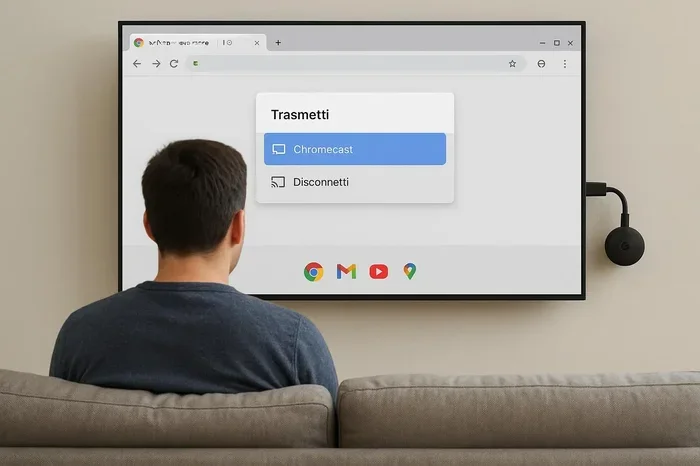
Chromebooks have a built-in feature called Cast. It lets you send your screen to a compatible TV or streaming device on the same Wi-Fi network. Here is how to use it:
- Make sure your Chromebook and TV are on the same Wi-Fi network.
- Click the clock in the bottom-right corner of your Chromebook.
- Look for the Cast icon (a rectangle with Wi-Fi waves).
- Click it and select your TV or Chromecast device.
- Choose whether to mirror your full screen or just cast a tab.
That is it. Your TV now shows whatever is on your Chromebook screen. You can watch videos, browse the web, or present slides — all without a single cable.
When Wireless Mirroring Is the Best Choice
Wireless casting is perfect for casual viewing and presentations. It is also great when you do not want to deal with extra cords. However, there is a small delay compared to a wired connection. If you are watching fast-action videos or playing games, a wired adapter will give you smoother results.
For more tips on casting without extra hardware, see our article on can I mirror my phone to my smart TV without Wi-Fi which covers similar wireless display concepts.
Troubleshooting Wireless Connection Issues
If your TV does not show up in the Cast menu, try these steps:
- Restart your Chromebook and your TV
- Make sure both devices are on the same network
- Check that your TV supports Miracast or Chromecast
- Update your Chromebook to the latest version
- Turn off any VPN or firewall that might block the connection
Option 3: Connect Through a USB-C Hub or Dock
A USB-C hub is like a Swiss Army knife for your Chromebook. It adds multiple ports — including HDMI — in one small device. You plug the hub into your Chromebook’s USB-C port, and then connect an HDMI cable from the hub to your TV.
Benefits of Using a USB-C Hub
USB-C hubs are great because they give you more than just a video connection. Most hubs include:
- HDMI output for connecting to your TV or monitor
- USB-A ports for plugging in a mouse or keyboard
- SD card slots for transferring photos or files
- Ethernet port for a more stable internet connection
- Power delivery so you can charge your Chromebook at the same time
This makes a USB-C hub a smart choice if you want a clean, organized setup. You only need one device to connect everything.
How to Set Up a USB-C Hub with Your TV
Setting up a USB-C hub is straightforward:
- Plug the USB-C hub into your Chromebook.
- Connect an HDMI cable to the hub’s HDMI port.
- Run the other end of the cable to your TV.
- Switch your TV to the correct HDMI input.
- Adjust display settings if needed.
Some hubs also support charging while you use them. Look for a hub with power delivery if you plan to use your Chromebook for long sessions while it is connected to your TV.
For more information on using hubs with monitors and TVs, read our guide on can I connect a USB-C hub to a monitor.
Option 4: Use a VGA Cable or Other Alternative
If your TV is older and does not have HDMI inputs, you still have options. A VGA cable can carry video signals from your Chromebook to your TV. You will need a USB-C to VGA adapter to make this work.
When VGA Makes Sense
VGA is an older connection standard, but it still works. Many projectors and older TVs have VGA ports. Here are the pros and cons:
- Pros: Widely available, cheap adapters, works on older equipment
- Cons: No audio support, lower resolution than HDMI, bulkier cables
VGA is a solid backup option when HDMI is not available. Just keep in mind that you will need a separate audio connection if you want sound. You can use a 3.5mm headphone jack or Bluetooth speakers for audio.
To learn more about converting between different video connections, check out our article on can I convert HDMI to VGA for helpful tips on adapter compatibility.
Quick Tips for the Best Experience
No matter which method you choose, these tips will help you get the best results:
- Update your Chromebook before connecting. Go to Settings > About ChromeOS and check for updates.
- Use high-quality cables and adapters. Cheap ones can cause flickering or no signal at all.
- Adjust your display resolution in Chromebook settings to match your TV’s native resolution for the sharpest picture.
- Test audio output by clicking the volume icon and making sure it is set to output through your TV.
- Keep your devices close to your router if you are using wireless mirroring for a stronger signal.
Common Mistakes to Avoid
Even with the right gear, simple mistakes can cause frustration. Here are the most common ones:
- Buying the wrong adapter. Not all USB-C adapters support video output. Always check the label.
- Forgetting to switch TV inputs. Your TV will not show your Chromebook unless you select the right HDMI or VGA channel.
- Using a damaged cable. Frayed or bent cables cause intermittent signal loss. Replace them if they look worn.
- Ignoring audio settings. If you cannot hear sound, check that your Chromebook is set to output audio through the external display.
- Overloading a USB-C hub. Do not plug in too many devices at once. This can cause power issues and disconnections.
Avoiding these simple mistakes will save you a lot of headaches and get you up and running faster.
Expert Insights: What Works Best for Different Setups
Every setup is different, and the best connection method depends on your gear and your needs. Here is a quick breakdown:
| Setup Type | Best Method | Why |
|---|---|---|
| Modern TV with HDMI | USB-C to HDMI adapter | Reliable, supports audio and video, easy setup |
| Smart TV with Chromecast | Wireless screen mirroring | No cables needed, works over Wi-Fi |
| Older TV with VGA only | USB-C to VGA adapter | Only option for VGA-only displays |
| Multi-device desk setup | USB-C hub with HDMI | Adds multiple ports, supports charging |
| Temporary or guest setup | Wireless casting | Fast, no extra gear needed |
Pick the method that matches your TV and how you plan to use it. You can always try more than one method to see what works best for you.
Final Thoughts
Connecting your Chromebook to your TV without HDMI is totally doable. You have wired options like USB-C adapters and hubs, and wireless options like screen mirroring and casting. Each method has its strengths, and the best one depends on your TV, your Chromebook model, and what you plan to do.
Start by checking your ports. Then pick the method that fits your situation. Whether you are watching movies, giving a presentation, or just showing photos to friends, you can get your Chromebook on the big screen in minutes.
Do not let the lack of an HDMI port stop you. With the right adapter or a simple wireless connection, your Chromebook and TV work together beautifully. Try one of these methods today and enjoy your content on the biggest screen in your home.
Frequently Asked Questions
Can I connect my Chromebook to my TV without any extra accessories?
It depends on your Chromebook and TV. If both have USB-C ports and your TV supports USB-C input, you can use a direct USB-C cable. However, most TVs only accept HDMI, so you will likely need a USB-C to HDMI adapter or use wireless casting. Check your devices’ ports first to know for sure.
Do USB-C to HDMI adapters support audio?
Yes, most quality USB-C to HDMI adapters carry both video and audio signals through the HDMI cable. This means you will hear sound through your TV speakers. If you do not get audio, check your Chromebook’s sound output settings and make sure it is set to the external display.
Is wireless screen mirroring as good as a wired connection?
Wireless mirroring is very convenient and works well for most tasks like streaming videos and browsing. However, a wired USB-C to HDMI connection offers a more stable signal with less latency. If you need perfect sync for gaming or fast-moving video, a wired adapter is the better choice.
Can I use a USB-C hub to connect my Chromebook to my TV and charge it at the same time?
Yes, many USB-C hubs support power delivery, which means they can charge your Chromebook while also sending video to your TV. Look for a hub that lists power delivery support on the product description. This is especially useful for long viewing sessions or presentations.
What should I do if my TV does not recognize my Chromebook after connecting?
First, check that your TV is set to the correct input source. Then try unplugging and replugging the adapter or cable. You can also go to your Chromebook settings and look for display options to detect the external screen. Restarting both devices often fixes the issue too.
Are there any free apps I can use to connect my Chromebook to my TV?
Yes, Chromebooks have a built-in Cast feature that lets you mirror your screen to a smart TV or Chromecast for free. You do not need to download anything extra. Just make sure both devices are on the same Wi-Fi network, and you can start casting right from your Chromebook’s quick settings menu.
=== CONCLUSION ===
There you have it. You now know how to connect your Chromebook to your TV without HDMI using adapters, hubs, and wireless casting. Each method is simple, affordable, and works with most setups. Pick the one that fits your gear, follow the steps, and enjoy your content on the big screen.