How Do I Connect My Boss Audio To My Phone Quickly
Connecting your Boss Audio system to your phone is easier than you think. Whether you use Bluetooth, AUX, or USB, this guide walks you through every method step by step. You will learn fast pairing tricks, troubleshooting fixes, and pro tips for the best sound quality. Keep reading to get your music streaming in minutes.
Key Takeaways
- Bluetooth is the fastest way: Wireless pairing takes under a minute once your devices are ready.
- AUX cables work universally: A simple 3.5mm cable solves connection problems when Bluetooth fails.
- USB offers charging and audio: Plug in one cable to stream music and keep your phone powered.
- Troubleshooting is simple: Most connection issues have quick fixes you can do yourself.
- Sound quality matters: A few small settings changes make a big difference in your listening experience.
- Multiple Boss Audio models are supported: The methods in this guide work across most Boss Audio units.
- Hands-free calling is a bonus: Once connected, you can make and receive calls safely.
📑 Table of Contents
How Do I Connect My Boss Audio To My Phone Quickly
Boss Audio makes some of the best car stereo systems on the market today. These units deliver powerful sound, clear bass, and reliable performance. But the real magic happens when you connect your phone to your Boss Audio system. Suddenly, you have access to all your favorite apps, playlists, and podcasts right at your fingertips.
If you have been wondering how to get your phone talking to your Boss Audio, you are in the right place. This guide covers every connection method you can use. You will learn Bluetooth pairing, AUX cable hookups, USB connections, and more. Each method is broken down into simple steps anyone can follow.
The good news is that most modern Boss Audio units support wireless Bluetooth streaming. This means you do not need to buy extra cables or fancy equipment. But if Bluetooth is not your thing, there are wired options that work just as well. No matter your tech skill level, you will find a method that works for you.
Let us dive into the details. By the end of this article, you will know exactly how to connect your phone to your Boss Audio system. You will also know how to fix common problems and get the best sound quality possible. Let us get started.
Understanding Your Boss Audio System
Before you start connecting anything, it helps to know what you are working with. Boss Audio builds a wide range of car stereos and audio systems. Each model may have slightly different features and connection options. But the core connection methods stay the same across most units.
What Makes Boss Audio Special
Boss Audio has been around for decades. They build affordable car audio that punches above its price point. Their receivers often come with built-in Bluetooth, USB ports, and AUX inputs. Some models even support wireless audio streaming right out of the box. This makes them a popular choice for people who want great sound without spending a fortune.
Most Boss Audio head units also include hands-free calling features. This means once your phone is connected, you can answer calls through your car speakers. It is a safety bonus that makes driving while talking much easier. The microphone picks up your voice clearly, even at highway speeds.
Check Your Model First
Not every Boss Audio unit has the same ports. Some models have a USB port for charging and data transfer. Others rely on Bluetooth or an AUX input. Before you start, check the back panel of your unit or look up your model online. Knowing what ports you have will save you time and frustration.
If you are unsure whether your current stereo supports Bluetooth, you might want to explore options for upgrading. You can check out Can I Upgrade My Car Stereo To Bluetooth for helpful guidance on making your system wireless-ready.
Connecting Via Bluetooth
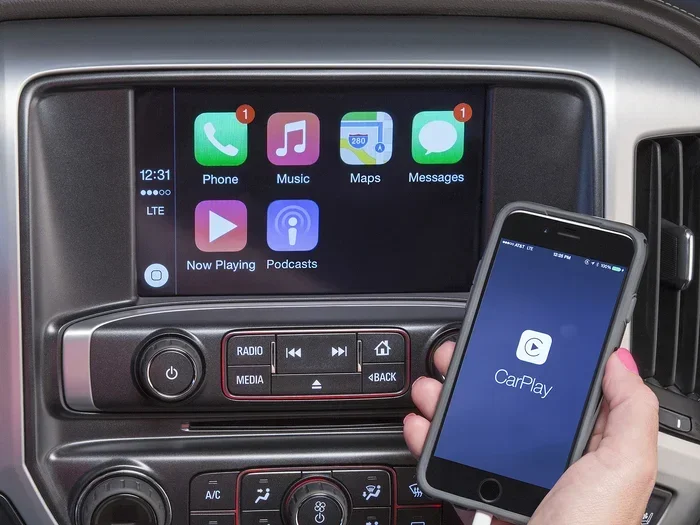
Bluetooth is the most popular way to connect a phone to a Boss Audio system. It is wireless, fast, and works with both iPhones and Androids. Most people prefer this method because there are no cables to deal with. Once paired, your phone connects automatically every time you get in the car.
Step-by-Step Bluetooth Pairing
Follow these steps to pair your phone with your Boss Audio unit:
- Turn on your Boss Audio system. Make sure it is powered on and in Bluetooth mode. Look for the Bluetooth icon on the display screen.
- Enable Bluetooth on your phone. Go to your phone settings and toggle Bluetooth on. Make sure your phone is visible to other devices.
- Search for available devices. On your Boss Audio unit, go to the Bluetooth settings menu and select “Search” or “Scan.”
- Select your phone from the list. Your phone name should appear on the Boss Audio screen. Tap on it to initiate pairing.
- Confirm the pairing code. Both devices will show a code. Make sure they match, then confirm the connection.
- Test the connection. Play a song on your phone. If you hear it through your car speakers, you are connected.
The entire process takes about one to two minutes. Once paired, your phone will reconnect automatically the next time you start your car. This is one of the biggest reasons people love Bluetooth car stereo systems.
Tips For Better Bluetooth Performance
Bluetooth connections can sometimes be finicky. Here are a few tips to keep things running smoothly:
- Keep your phone close to the head unit. Bluetooth works best within a few feet of the source.
- Turn off other Bluetooth devices. Too many connected devices can slow things down.
- Restart both devices if connection fails. A quick reboot fixes most minor issues.
- Update your firmware. Boss Audio releases updates that improve Bluetooth stability.
- Delete old pairings. If your unit remembers too many devices, it can cause conflicts.
If you want to learn more about using Bluetooth for audio, check out Can I Turn My Phone Into A Bluetooth Speaker for extra tips on getting the most from wireless audio.
Using An AUX Cable Connection
Not everyone wants to use Bluetooth. Some people prefer a wired connection for reliability. An AUX cable is the simplest way to connect your phone to your Boss Audio system. It uses a standard 3.5mm jack, just like your headphones use.
How To Set Up AUX Connection
Setting up an AUX connection is incredibly easy. Here is what you need to do:
- Find the AUX input on your Boss Audio unit. It is usually on the front panel or the back of the unit. It looks like a standard headphone jack.
- Get a 3.5mm AUX cable. You probably already have one lying around. Any standard auxiliary cable will work.
- Plug one end into your phone. Insert the jack into your phone’s headphone port or use an adapter if needed.
- Plug the other end into the Boss Audio AUX input. Make sure it clicks in snugly.
- Switch to AUX mode on your Boss Audio. Use the source or mode button on your unit to select AUX.
- Play music on your phone. The sound should come through your car speakers immediately.
One of the best things about AUX connections is that they work with almost every phone. Even older phones without Bluetooth can use an AUX cable. The sound quality is solid and consistent. There is no lag or interference like you might experience with wireless connections.
When AUX Is Better Than Bluetooth
AUX cables have some clear advantages over Bluetooth in certain situations:
- No pairing needed. Just plug in and play.
- More stable connection. No dropouts or interference.
- Works with any device. Even phones without Bluetooth support.
- No battery drain. Your phone does not waste power searching for a Bluetooth signal.
If you are looking for reliable, plug-and-play connectivity, an AUX cable is hard to beat. It is especially useful for older phones or devices that do not support modern Bluetooth standards.
Connecting Via USB Cable
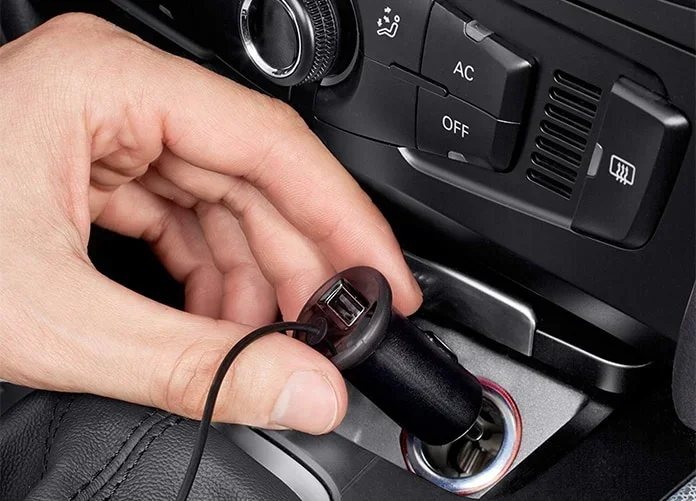
USB connections offer another great way to link your phone to your Boss Audio system. This method is especially useful because it can charge your phone while streaming music. It is a two-for-one deal that many car audio users love.
USB Connection Setup
Here is how to connect your phone using a USB cable:
- Check if your Boss Audio unit has a USB port. Most modern units do. Look for a rectangular port on the front or back panel.
- Use the right USB cable. A standard USB-to-USB-C or USB-to-Lightning cable works depending on your phone.
- Plug the cable into your phone. Connect one end to your phone and the other to the Boss Audio USB port.
- Select USB mode on your Boss Audio. Use the source button to switch to USB input.
- Your phone should be recognized. The display may show your phone model or a media icon.
- Browse and play your music. Use the Boss Audio controls to navigate your phone’s music library.
USB connections are great for people who want a clean, cable-based setup. You also get the added benefit of charging your phone on long drives. If your battery is low, this is a huge advantage.
One thing to keep in mind is that not all USB cables carry audio data. Some cables are for charging only. Make sure you use a cable that supports data transfer. If you are having trouble, try a different cable or a different USB port on your unit.
For more information about USB connectivity options across different devices, you might want to check out Can I Connect Usb To Thunderbolt to understand the different USB standards and how they affect audio quality.
Troubleshooting Common Connection Problems
Even with the best setup, you might run into connection issues now and then. Do not worry. Most problems are easy to fix. Let us walk through the most common issues and their solutions.
Bluetooth Will Not Pair
If your phone will not connect to your Boss Audio via Bluetooth, try these steps:
- Turn Bluetooth off and back on on both devices.
- Delete the old pairing from your Boss Audio unit. Start fresh with a new pairing attempt.
- Make sure your phone is not connected to another device. Sometimes phones auto-connect to previously paired devices.
- Restart both devices. A full restart clears temporary glitches.
- Check the distance. Keep your phone within a few feet of the Boss Audio unit during pairing.
No Sound After Connecting
If your phone connects but you hear no sound, try these fixes:
- Check the volume on both devices. Your phone and Boss Audio each have independent volume controls.
- Make sure the correct input source is selected. If you are using AUX, make sure the unit is in AUX mode.
- Pause and resume playback. Sometimes the audio stream needs a small nudge to start.
- Check if your phone is connected to a Bluetooth device other than your Boss Audio. This can redirect audio away from your car speakers.
Poor Sound Quality
If your music sounds distorted or weak, here is what to try:
- Check your EQ settings on the Boss Audio unit. Flat or neutral settings often sound best.
- Use a higher-quality cable. Cheap AUX cables can introduce static and signal loss.
- Move your phone closer to the unit. Bluetooth signal strength drops with distance.
- Reduce the number of active Bluetooth connections. Too many devices can degrade audio quality.
For tips on how to get the best audio out of your setup, including using Bluetooth for audio while video plays through another method, check out Can I Use Hdmi For Video And Bluetooth For Audio for helpful cross-connection insights.
Tips For The Best Audio Experience
Once your phone is connected to your Boss Audio, you want the best possible sound. A few small adjustments can make a huge difference in your listening experience.
Adjust Your EQ Settings
Boss Audio units come with built-in equalizer presets. You can choose from rock, pop, jazz, and more. But for the best results, try setting the EQ to flat or custom. This gives you more control over the bass, midrange, and treble. Adjust each band to match your personal preference and the type of music you listen to most.
Keep Your Phone Updated
Software updates on your phone can improve Bluetooth performance and audio streaming. Make sure your phone is running the latest version of its operating system. Similarly, check for firmware updates on your Boss Audio unit. These updates often include bug fixes and performance improvements for wireless connections.
Use High-Quality Audio Files
The quality of your music files matters. Streaming services like Spotify and Apple Music use compressed audio. This is fine for casual listening, but if you want the best sound, try downloading high-quality files. FLAC and lossless formats sound noticeably better than standard MP3s when played through a quality car stereo like a Boss Audio unit.
Keep Your Cables In Good Shape
If you use AUX or USB cables, take care of them. Frayed or damaged cables cause static, dropouts, and poor sound quality. Replace worn cables regularly. A good cable lasts a long time and keeps your connection clean and reliable.
For those who also use their phone as a speaker for amplification in other settings, you might enjoy reading Can I Use A Bluetooth Speaker To Amplify My Voice for additional Bluetooth audio tips.
Which Connection Method Is Right For You
Now that you know all the options, let us compare them side by side. Each method has its strengths, and the right choice depends on your needs.
| Method | Pros | Cons |
|---|---|---|
| Bluetooth | Wireless, convenient, auto-reconnects | Slight audio delay possible, range limited |
| AUX Cable | Reliable, no pairing needed, universal | Cable can be messy, phone battery drains |
| USB Cable | Charges phone, stable, good quality | Cable needed, not all cables carry audio |
For most people, Bluetooth is the go-to choice. It is fast, easy, and keeps your dashboard clean. But if you need a backup option or have an older phone, AUX and USB are excellent alternatives. Many car audio enthusiasts use a combination of methods depending on the situation.
The key is to have at least one wired option available. If your Bluetooth ever fails, an AUX cable saves the day. Keep one in your glove box at all times. It is a small investment that pays off big when you need it most.
Conclusion
Connecting your Boss Audio to your phone is a simple process that anyone can do. Whether you choose Bluetooth, AUX, or USB, the steps are straightforward and take just a few minutes. Once connected, you will enjoy seamless music streaming, hands-free calling, and a much better driving experience.
Start with Bluetooth for the most convenient wireless setup. Keep an AUX cable handy as your backup. And use USB when you want to charge your phone while listening to music. With these methods, you are covered for every situation.
Now that you know how to connect your Boss Audio to your phone quickly, it is time to try it out. Follow the steps in this guide, and you will be listening to your favorite tunes in no time. If you run into any issues, come back to this guide for troubleshooting tips. Happy listening.
Frequently Asked Questions
Can I connect any phone to a Boss Audio system?
Yes, most phones can connect to a Boss Audio system. Whether you have an iPhone or an Android, Bluetooth, AUX, and USB connections work across all major phone brands. The connection method you choose depends on what ports your Boss Audio unit has and what your phone supports.
Why won’t my Boss Audio find my phone via Bluetooth?
This is usually caused by a simple settings issue. Make sure Bluetooth is turned on for both devices and that your phone is set to be visible. Try deleting old pairings and restarting both devices. If the problem persists, check for firmware updates on your Boss Audio unit, as these often fix connectivity bugs.
Does connecting via AUX affect sound quality?
Aux connections provide solid and consistent sound quality. They do not have the slight compression or delay that can sometimes happen with Bluetooth. The quality also depends on the cable you use. A well-made 3.5mm AUX cable will deliver clean audio without static or interference.
Can I charge my phone while streaming music through USB?
Yes, one of the biggest advantages of using a USB connection is that it charges your phone while you stream music. This is especially helpful on long road trips. Just make sure you use a USB cable that supports data transfer, not just charging.
How do I disconnect my phone from Boss Audio Bluetooth?
You can disconnect by going to the Bluetooth settings on your Boss Audio unit and selecting your phone. Choose the option to unpair or forget the device. You can also turn off Bluetooth on your phone, which will automatically end the connection. The next time you want to connect, simply repeat the pairing process.
Is Bluetooth safe to use while driving?
Yes, Bluetooth is designed to be safe for driving. Once your phone is connected, you can answer and make calls through your car speakers without touching your phone. This keeps your hands on the wheel and your eyes on the road. Most Boss Audio units also support voice commands for even safer operation.