How Do I Connect My Beats Bluetooth Step by Step Guide
Our complete guide walks you through exactly how to connect your Beats Bluetooth in just a few simple steps. Whether you own Beats Solo, Powerbeats, or Studio headphones, you will find clear instructions, helpful tips, and real solutions to common pairing problems. We cover everything from putting your Beats in pairing mode to connecting them to phones, laptops, tablets, and even gaming consoles.
So you just got a pair of Beats Bluetooth headphones and you are ready to start listening to your favorite music wirelessly. The only problem? You are not quite sure how to get them connected. You are not alone. Many people find the pairing process a little confusing the first time around. The good news is that connecting your Beats to any device is much simpler than it looks.
In this guide, we will walk you through every single step. From turning on your headphones to fixing common connection problems, we have you covered. Whether you use an iPhone, Android phone, Windows laptop, or even a smart TV, you will find the instructions you need right here. We also share quick tips and expert insights that make the whole process smoother.
Wireless audio has changed the way we listen to music, take calls, and watch videos. No more tangled wires. No more pulling cables across the room. With Bluetooth connectivity, your Beats headphones give you the freedom to move around while still enjoying high-quality sound. Let us get you connected.
Key Takeaways
- Pairing Mode is Key: Putting your Beats in pairing mode is the first and most important step for any successful connection.
- Works Across Devices: You can connect Beats Bluetooth to phones, laptops, tablets, and smart TVs with ease.
- Troubleshooting Helps: Knowing how to reset and fix common connection issues saves time and frustration.
- Firmware Updates Matter: Keeping your Beats updated ensures the best performance and compatibility.
- Multiple Devices are Supported: Many Beats models allow multipoint pairing so you can switch between devices smoothly.
📑 Table of Contents
- What Are Beats Bluetooth Headphones?
- How Do I Connect My Beats Bluetooth to My Phone
- How Do I Connect My Beats Bluetooth to a Laptop or Computer
- How Do I Connect My Beats Bluetooth to a Tablet or Smart TV
- Troubleshooting Common Beats Bluetooth Connection Problems
- Beats Bluetooth Features You Should Know About
- Can You Use Beats Bluetooth for Gaming
- Can You Connect Regular Speakers to Bluetooth
- Final Thoughts on Connecting Your Beats Bluetooth
What Are Beats Bluetooth Headphones?
Before we dive into the connection steps, let us quickly talk about what makes Beats Bluetooth headphones special. Beats by Dre has built a strong reputation for delivering bold sound, comfortable fit, and stylish design. Their wireless models use Bluetooth technology to stream audio from your devices without any cables.
Most Beats models support Bluetooth 5.0 or higher, which means a stronger signal, wider range, and lower latency. You can expect a reliable connection within about 30 feet of your device. Some models also feature multipoint pairing, which lets you connect to two devices at the same time. This is incredibly handy if you switch between your phone and laptop throughout the day.
It is worth noting that Beats headphones come in several styles. There are over-ear models like the Beats Studio, on-ear options like the Beats Solo, and in-ear or earhook designs like the Powerbeats Pro. Each type connects the same way via Bluetooth, but the button placement may differ slightly. We will point out those differences as we go.
How Do I Connect My Beats Bluetooth to My Phone
Connecting your Beats to a smartphone is the most common use case. Whether you have an iPhone or an Android device, the process is straightforward. Here is exactly what to do.
Step 1: Charge Your Beats
Before you start, make sure your Beats have enough battery. A low battery can cause pairing problems or unexpected disconnections. Plug them into the charging case or use the included USB cable. Wait until the LED light shows a full or at least moderate charge.
Step 2: Turn On Your Beats
Press and hold the power button on your Beats. You will see a LED light flash, which tells you the headphones are on. For most models, the power button is located on the left ear cup or on the bottom of the headband. Once the light comes on, your Beats are ready for pairing.
Step 3: Put Your Beats in Pairing Mode
This is the step most people miss. Your Beats need to be in pairing mode to show up on other devices. To do this, press and hold the Bluetooth button (or the power button on some models) for about five seconds. The LED light will start flashing white or red and white, depending on your model. That flashing light means your Beats are ready to be found.
Step 4: Open Bluetooth on Your Phone
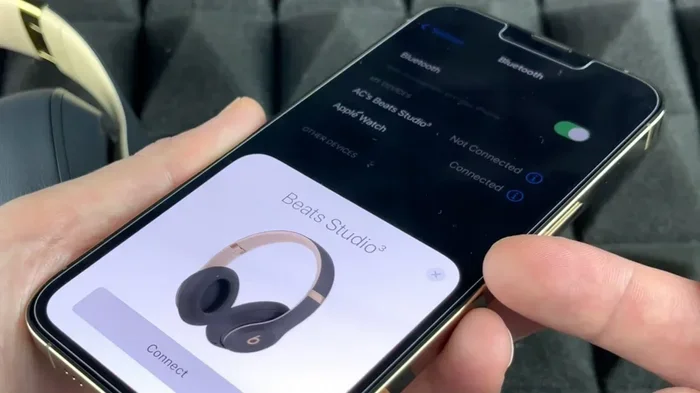
Go to your phone settings and turn on Bluetooth. On iPhone, swipe down from the top right corner and tap the Bluetooth icon. On Android, go to Settings, then Connections, then Bluetooth. Make sure Bluetooth is toggled on.
Step 5: Find and Select Your Beats
Your phone will start scanning for nearby Bluetooth devices. Look for your Beats in the list of available devices. The name will usually start with “Beats” followed by the model name, like “Beats Solo Pro” or “Beats Powerbeats Pro.” Tap on the name to pair.
Step 6: Confirm the Connection
Once you tap the Beats name, your phone will connect automatically. You will hear a short chime in your headphones, and the LED light on the Beats will stop flashing and stay solid. That means the connection is successful. You can now start playing music or taking calls.
Quick Tip: If your Beats do not show up on your phone, try turning Bluetooth off and back on again. You can also move closer to your phone to ensure a strong signal. Sometimes restarting both devices solves the problem quickly.
How Do I Connect My Beats Bluetooth to a Laptop or Computer
Using your Beats with a laptop or desktop computer is just as easy. Whether you have a Windows PC or a Mac, the steps are similar. Let us walk through them.
For Windows Laptops
On Windows 10 or 11, click the Start menu and go to Settings. Select Devices, then Bluetooth and other devices. Toggle Bluetooth on and click “Add Bluetooth or other device.” Choose Bluetooth from the list. Your Beats should appear in the search results. Click on them to pair.
Once connected, you can set your Beats as the default audio output device. Go to Sound Settings and select your Beats under the output section. This ensures all audio from your computer plays through your headphones.
For Mac Computers
On a Mac, click the Apple menu and go to System Preferences. Click Bluetooth and make sure it is turned on. Your Beats should appear in the list of devices. Click “Connect” next to your Beats name. The connection is instant and seamless on macOS.
One great thing about Beats on Mac is that Apple devices often remember your headphones. So the next time you turn on your Beats near your Mac, they will reconnect automatically. This is a huge convenience if you use your Beats daily with the same computer.
If you ever want to use your wired headphones with a Bluetooth connection, you can check out our guide on how to make your wired headphones Bluetooth. It is a great option if you have a favorite pair of wired headphones you do not want to replace.
How Do I Connect My Beats Bluetooth to a Tablet or Smart TV
Beats Bluetooth headphones work great with tablets and smart TVs too. The process is very similar to connecting to a phone, but there are a few extra things to keep in mind.
Connecting to an iPad or Tablet
On an iPad, open Settings and tap Bluetooth. Turn it on and wait for your Beats to appear. Tap the name to pair. The process is nearly identical to an iPhone. One advantage of using Beats with a tablet is that you can enjoy wireless audio while watching movies or reading without disturbing anyone nearby.
Connecting to a Smart TV
Most modern smart TVs support Bluetooth. Go to your TV settings and look for the Bluetooth or audio output section. Put your Beats in pairing mode and search for devices on your TV. Select your Beats when they appear.
Keep in mind that some smart TVs have a limited Bluetooth range. Stay within about 10 to 15 feet for the best experience. Also, not all TVs support audio output to Bluetooth headphones natively. In those cases, you may need a Bluetooth transmitter that plugs into the TV audio output. This is a simple and affordable solution that works with almost any TV.
If you are exploring options for using Bluetooth with your TV setup, you might also be interested in learning about using HDMI for video and Bluetooth for audio. This approach gives you the best picture quality while keeping your audio wireless through your Beats.
Troubleshooting Common Beats Bluetooth Connection Problems
Even though Beats are reliable, you may run into connection issues from time to time. Here are the most common problems and how to fix them.
Beats Not Showing Up on Your Device
If your Beats do not appear in the Bluetooth list, try these steps. First, make sure your Beats are in pairing mode. The flashing LED light is your signal that they are ready. Second, move closer to your device. Bluetooth works best within 10 feet during initial pairing. Third, restart Bluetooth on your device and try again.
Sometimes the issue is as simple as your Beats being connected to a different device. Bluetooth headphones can only connect to one device at a time unless they support multipoint. Check if your Beats are still paired with another phone or tablet nearby. Disconnect them from that device first, then try pairing again.
Audio Keeps Cutting Out or Lagging
Intermittent audio is frustrating but usually easy to fix. The most common cause is interference from other wireless devices. Wi-Fi routers, microwaves, and even USB 3.0 ports can cause Bluetooth signal disruption. Move away from these devices and see if the audio improves.
Another cause is a low battery. When your Beats battery drops below 20%, the Bluetooth signal can weaken. Charge your headphones fully and test again. If the problem persists, try resetting your Beats. We will cover the reset process in detail below.
Beats Will Not Connect After a Software Update
Sometimes a firmware update on your Beats or a software update on your phone can break the Bluetooth connection. This happens because the devices need to re-establish their pairing after an update. Simply delete the Beats from your device Bluetooth list and pair them again. This refreshes the connection and usually solves the problem.
For Bluetooth troubleshooting, always start with the basics. Turn Bluetooth off and on, restart both devices, and check for updates. These three steps fix the majority of connection issues.
Resetting Your Beats
If nothing else works, a factory reset often does the trick. The reset process varies by model. For most Beats Solo and Studio models, hold the power button and the volume down button together for about 10 seconds. The LED light will flash, indicating the reset is complete. For Powerbeats Pro, hold the button on the bottom of the charging case for 10 seconds.
After resetting, you will need to pair your Beats from scratch. This clears any corrupted pairing data and gives you a fresh start. It is like turning a computer off and on again. Simple and effective.
Beats Bluetooth Features You Should Know About
Once your Beats are connected, you can take advantage of several features that make wireless listening even better. Here are some highlights.
Multipoint Pairing
Many newer Beats models support multipoint Bluetooth. This means you can connect to two devices at the same time. For example, your Beats can stay connected to your phone while also connected to your laptop. When a call comes in on your phone, the audio automatically switches. When the call ends, it switches back to your laptop. This feature is a game changer for people who work across multiple devices.
Battery Life and Charging
Beats Bluetooth headphones offer impressive battery life. Most models last between 12 and 40 hours on a single charge, depending on the model and usage. The charging case for in-ear models like the Powerbeats Pro provides extra charges on the go. You can also use a power bank to charge your Beats when you are traveling, which is especially useful for long flights or commutes.
Call Quality and Microphone
Beats headphones come with built-in microphones that handle phone calls well. The microphone picks up your voice clearly even in noisy environments. If you ever want to use your Beats as a microphone for calls or recordings, they work great for that purpose too. You can learn more about using Bluetooth headsets as microphones in our dedicated guide.
Sound Quality Over Bluetooth
One common question is whether Bluetooth affects sound quality. The short answer is no, not significantly. Modern Bluetooth codecs like AAC and aptX deliver high-quality audio that is nearly indistinguishable from wired connections. Your Beats will sound just as good wirelessly as they do with a cable. The convenience of going wireless far outweighs any tiny difference in audio quality.
Can You Use Beats Bluetooth for Gaming
Many people ask whether Beats headphones work well for gaming. The answer is yes, with some caveats. Bluetooth headphones can be used for gaming on phones and tablets easily. For PC gaming, the experience depends on your setup. Some PCs support Bluetooth audio natively, while others may need a Bluetooth adapter.
One thing to keep in mind is latency. Bluetooth adds a slight delay between the audio and what you see on screen. For casual gaming, this is barely noticeable. For competitive or fast-paced games, the delay might be a concern. In those cases, a wired connection or a gaming-specific wireless headset might be a better choice. You can read more about using Bluetooth headphones for gaming in our detailed guide.
Overall, Beats Bluetooth headphones are great for casual gaming, watching game trailers, and enjoying immersive story-driven games. The sound quality and comfort make them a solid choice for relaxed gaming sessions.
Can You Connect Regular Speakers to Bluetooth
If you want to share your Beats audio with a group, you might be wondering about connecting regular speakers to Bluetooth. The good news is that you can turn almost any pair of wired speakers into Bluetooth speakers with a simple Bluetooth receiver. This is an affordable way to expand your wireless audio setup without buying new speakers.
Our guide on turning regular speakers into Bluetooth covers this process in detail. It is a simple and budget-friendly upgrade that works with any speaker system. You just plug in a small Bluetooth adapter, and your speakers become wireless.
Similarly, if you have a car stereo that does not support Bluetooth, you can upgrade it easily. Check out our article on upgrading your car stereo to Bluetooth for simple and effective solutions.
Final Thoughts on Connecting Your Beats Bluetooth
Connecting your Beats Bluetooth headphones does not have to be complicated. With the steps outlined in this guide, you can pair your Beats to any device in just a few minutes. Remember the key steps: charge your Beats, turn them on, enter pairing mode, open Bluetooth on your device, and select your Beats from the list.
If you run into issues, do not worry. Most connection problems are easy to fix with a simple reset or by moving closer to your device. Keep your Beats firmware updated and your phone or laptop software current for the best experience.
Wireless audio gives you freedom and convenience. Your Beats Bluetooth headphones let you move around your home, office, or gym without being tethered to your device. Once you experience the ease of a Bluetooth connection, going back to wired headphones feels like a step backward.
Take your time with the pairing process. Follow each step carefully. And remember, practice makes perfect. After you connect your Beats a few times, the process becomes second nature. You will be putting them in pairing mode and connecting to new devices without even thinking about it.
Enjoy your music, your podcasts, your calls, and your games with the freedom that Bluetooth connectivity provides. Your Beats are ready to deliver an amazing wireless experience. All you have to do is press that pairing button.
Frequently Asked Questions
Why Won’t My Beats Show Up in the Bluetooth List?
Your Beats may not appear if they are not in pairing mode. Make sure the LED light is flashing after holding the Bluetooth button for five seconds. Also check that Bluetooth is turned on your device and that your Beats are not already connected to another nearby device. Moving closer to your phone or computer can also help.
How Do I Put My Beats in Pairing Mode?
To put most Beats models in pairing mode, press and hold the Bluetooth button or the power button for about five seconds. The LED light will start flashing, which means the headphones are ready to be found. Check your specific model’s manual if you are unsure about the exact button combination.
Can I Connect My Beats to Multiple Devices at Once?
Some newer Beats models support multipoint pairing, which allows you to connect to two devices simultaneously. Check if your specific model has this feature. If not, you will need to disconnect from one device before connecting to another.
How Do I Reset My Beats Bluetooth Headphones?
For most Beats models, hold the power button and the volume down button together for about 10 seconds until the LED light flashes. For Powerbeats Pro, hold the button on the bottom of the charging case for 10 seconds. After resetting, you will need to pair your Beats again from scratch.
Does Bluetooth Affect the Sound Quality of My Beats?
No, modern Bluetooth technology delivers high-quality audio that is nearly identical to wired connections. Beats use advanced Bluetooth codecs that preserve sound quality. You should not notice any meaningful difference in audio between wireless and wired listening.
How Far Can I Move Away from My Device While Connected?
Beats Bluetooth headphones have a reliable range of about 30 feet in open spaces. Walls, furniture, and other obstacles can reduce this range. For the best experience, stay within 10 to 15 feet of your connected device, especially during the initial pairing process.
=== META TITLE ===
How Do I Connect My Beats Bluetooth | Step by Step Guide
=== URL SLUG ===
how-do-i-connect-my-beats-bluetooth
=== SEO TITLE ===
How Do I Connect My Beats Bluetooth Step by Step Guide