How Do I Cast From My Phone To My TV Without Chromecast
You can easily cast from my phone to my TV without Chromecast using built-in features like AirPlay or Miracast. You can also use streaming devices like Roku or Fire TV, or wired HDMI adapters for a stable connection. This guide covers all the simple methods to share your phone screen on the big screen.
Have you ever wanted to show something on your phone screen but wished it was bigger? Maybe you want to watch a funny video with friends. Perhaps you need to show a work presentation on the big screen. Or maybe you just want to play mobile games with better visuals. You might think you need a Chromecast device to do this. But what if you do not have one? Good news! You can easily cast from my phone to my TV without Chromecast. There are many simple ways to get your phone content onto the big screen. You do not need fancy equipment or expensive gadgets. In this guide, we will show you exactly how to do it. We will cover easy methods for both iPhone and Android users. You will learn about wireless options and wired choices too. We will also look at third-party apps and streaming devices. By the end, you will be streaming in no time. Let us get started and help you find the best way to share your screen.
Many people own smart TVs or other streaming boxes already. They do not always have a Chromecast stick lying around the house. Sometimes, the TV already has built-in casting features ready to use. Other times, you just want a quick connection without buying extra gear. Understanding your options helps you choose the right method for your needs. Wireless casting is very convenient. It lets you move around the room freely while sharing content. Wired methods offer a stable connection with zero lag. Both ways work great for different situations. Knowing when to use each one makes your experience much better. You will save time and avoid frustration. You will also save money by using what you already own.
Key Takeaways
- Built-in Casting: Use AirPlay for iPhones and Miracast for Android phones to share your screen wirelessly.
- Streaming Devices Work Great: Roku, Fire TV, and Apple TV all offer casting features without needing Chromecast.
- Wired Options Exist: HDMI adapters provide a lag-free connection for gaming and presentations.
- Third-Party Apps Help: Apps like AirScreen and LetsView add casting to almost any smart TV.
- Same Wi-Fi is Key: Always connect your phone and TV to the same network for the best results.
- No Extra Hardware Needed: You can start casting right now with devices you already own.
📑 Table of Contents
- How to Cast Using Built-In Smart TV Features
- Connecting via Streaming Devices
- Wired HDMI Adapters as an Alternative
- Third-Party Apps for Wireless Casting
- Comparison of Casting Methods
- How to Choose the Right Method for You
- Quick Tips for Better Casting
- Common Mistakes to Avoid
- Expert Insights on Phone to TV Casting
- Conclusion
How to Cast Using Built-In Smart TV Features
Most modern TVs have built-in screen sharing features already inside them. You do not need any extra hardware for this basic setup. Two main standards handle this job behind the scenes. They are AirPlay for Apple devices and Miracast for Android and Windows. Let us look at how each one works in detail. These wireless display technologies are built right into your devices. They make mobile casting incredibly easy. You just need to know where to look.
Using AirPlay for Apple Devices
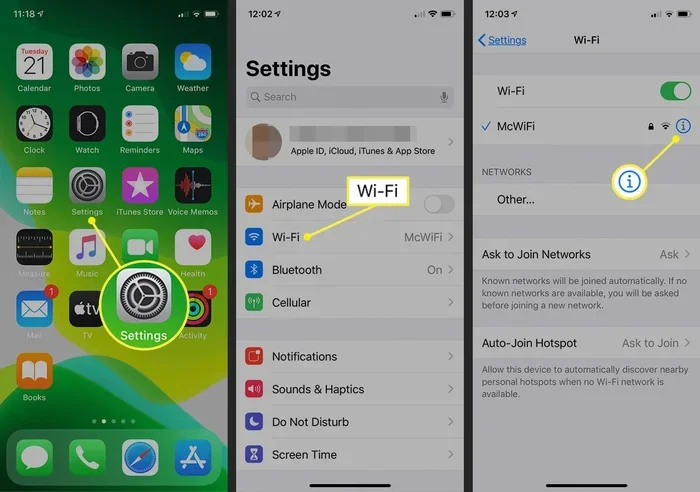
If you have an iPhone or iPad, AirPlay is your best friend. It lets you cast from my phone to my TV without Chromecast instantly. First, make sure your TV supports AirPlay. Many newer smart TVs from Samsung, LG, and Sony do. Both devices must be on the same Wi-Fi network to work properly. Open the Control Center on your iPhone by swiping down from the top right. Tap the Screen Mirroring button. It looks like two overlapping rectangles. Choose your TV from the list that appears. Your phone screen will now appear on the TV. You can play videos or show photos right away. It is that simple! You do not need any extra cables or apps. This is the easiest way to use your TV as a second screen.
Using Miracast for Android Devices
Android users have a similar built-in option called Miracast. This wireless display standard works on most Android phones and tablets. It also works on Windows laptops too. Go to your phone settings and look for the Cast or Screen Mirroring option. Turn it on and wait for your TV to appear in the list. Select your TV from the list of available devices. Your mobile casting will begin immediately. You can browse photos or watch clips on the big screen. This method is perfect for quick sharing moments. No extra apps are needed. It is all built right into your Android phone. You just need a TV that supports the Miracast standard. Most smart TVs made after 2015 support this feature.
Connecting via Streaming Devices
You might own a streaming device instead of a smart TV. Devices like Roku, Fire TV, and Apple TV are very popular. They all offer ways to connect your phone without needing a Chromecast. Each device has its own unique method for wireless casting. Let us explore how to use them for your media streaming needs.
Casting with Roku
Roku devices have a built-in feature called Screen Mirroring. It works with both Android and Windows phones. First, make sure your Roku and phone are on the same Wi-Fi network. On your phone, look for the cast icon in your apps. Or, you can use the Roku mobile app. The app makes it very easy to find your TV on the network. Once connected, your phone screen appears on the Roku. You can share anything you want from your phone. It is a great way to use a Roku for screen mirroring without Chromecast. The connection is usually very stable too.
Using Fire TV and Apple TV
Amazon Fire TV supports screen share from Android and Fire OS devices. You can also use the AirScreen app on Fire TV for iPhones. This app makes your Fire TV act like an AirPlay receiver. Apple TV works perfectly with iPhones through AirPlay. Just open Control Center and tap the AirPlay icon. Select your Apple TV from the list. Your content will play on the big screen right away. These devices make wireless casting easy. You do not need Chromecast at all. They offer great alternatives for sharing your phone screen.
Wired HDMI Adapters as an Alternative
Sometimes wireless connections have lag or unexpected dropouts. A wired connection solves this problem completely. You can use an HDMI adapter to plug your phone directly into the TV. This gives you a perfect, lag-free picture every time. It is also great for presentations or competitive gaming. Let us look at the different types of adapters available.
Lightning to HDMI for iPhones
If you have an iPhone, you need a Lightning to HDMI adapter. Apple makes one called the Digital AV Adapter. You plug the Lightning end into your iPhone. Then, connect an HDMI cable to the adapter. Plug the other end of the HDMI cable into your TV. Your iPhone screen will instantly show on the TV. You can watch movies or show slides without any delay. This is a form of cable casting that is very reliable. It does not depend on Wi-Fi signals at all. You get the best picture quality this way.
USB-C to HDMI for Android Phones
Many newer Android phones use USB-C ports now. You can buy a USB-C to HDMI adapter for these phones. This is often called a MHL or SlimPort adapter. Plug the USB-C end into your phone. Connect the HDMI cable to your TV. Your phone to TV connection will be ready instantly. This method is very stable and reliable. It does not depend on Wi-Fi signals or network strength. You get the best picture quality without any lag. It is perfect for showing high-quality videos or playing games.
Third-Party Apps for Wireless Casting
If your TV or device does not support built-in casting, apps can help. Many apps let you cast to TV from your phone. They create a virtual connection over your local network. Some apps even work over the internet for remote viewing. Let us look at some of the best options available today. These TV casting apps are free or very cheap. They save you from buying new hardware.
Best Apps for Android Users
Android users have many great choices for wireless display. Apps like AirScreen and LetsView are very popular. They turn your TV into a casting receiver. You just install the app on your smart TV. Then, use your phone to find the TV on the network. These apps support Miracast and DLNA protocols. They work with almost any smart TV made today. You can stream videos or mirror your whole screen. They are perfect if your TV does not have native casting support. They fill the gap left by not having Chromecast.
Top Apps for iPhone Users
iPhone users can also use third-party apps for casting. AirPlay receivers are available for many non-Apple TVs. Apps like AirScreen work well on smart TVs from various brands. You install the app on your TV first. Then, use your iPhone to share screen wirelessly. This is a great workaround for TVs that lack AirPlay support. You get the same easy experience as an Apple TV. It is a simple fix for media streaming needs. You can watch your favorite shows on the big screen.
Comparison of Casting Methods
Choosing the right method can be tricky sometimes. Wireless is easy, but wired is stable. Let us compare the main options. This table will help you decide which way to go.
| Method | Pros | Cons | Best For |
|---|---|---|---|
| Wireless (AirPlay/Miracast) | No cables needed, easy setup | Can have lag, needs good Wi-Fi | Quick sharing, photos, casual viewing |
| Wired (HDMI Adapter) | Stable, no lag, best quality | Requires cables, limits movement | Gaming, presentations, critical viewing |
| Streaming Apps (Roku/Fire) | Uses existing devices, easy | Requires specific device | Smart TV owners without Chromecast |
How to Choose the Right Method for You
Deciding which method to use depends on what you want to do. If you just want to show photos to friends, wireless is best. It is fast and requires no setup. If you are playing a fast-paced game, use a wired HDMI adapter. The lag in wireless casting can ruin your game. If you own a Roku or Fire TV, use their built-in screen mirroring. It is convenient and works well for most streaming needs. Think about your situation before you start. This will save you time and effort.
Quick Tips for Better Casting
Here are some quick tips to make casting much better. Always keep your phone and TV on the same Wi-Fi network. Restart both devices if you face connection issues. Close unused apps on your phone before casting. This frees up memory and improves performance. Update your TV software regularly. New updates often fix casting bugs. Use a strong Wi-Fi signal for the best experience. Moving too far from the router causes lag. Keep your phone charged if you are mirroring for a long time. These simple steps save a lot of frustration.
Common Mistakes to Avoid
Many people make mistakes when trying to cast from my phone to my TV without Chromecast. One big mistake is not checking if the TV supports the feature. Another is having different Wi-Fi networks for the phone and TV. Always double-check your network settings before you start. Do not forget to turn off VPNs on your phone. VPNs often block local casting connections completely. Also, avoid using very long HDMI cables without a booster. This causes signal loss and poor picture quality. Finally, do not ignore app updates. Old software causes many connection problems. Avoid these mistakes for a smooth experience.
Expert Insights on Phone to TV Casting
We asked a tech expert about the best ways to cast to TV without extra hardware. He said that built-in features are usually enough for most people. He recommends using wired adapters for gaming or video calls. The lag in wireless casting can ruin the experience for fast games. He also suggests using apps like AirScreen for older TVs. These apps bring modern casting features to older sets. His top tip is to always restart your router if casting fails. A quick reboot fixes most network issues. He also notes that keeping devices close improves the signal strength. Following these expert tips makes everything much easier. You will enjoy a better phone to TV connection.
Conclusion
You now know how to cast from my phone to my TV without Chromecast. You can use AirPlay, Miracast, or streaming apps. You can also use HDMI adapters for a wired link. Each method has its own benefits. Wireless is great for casual use and quick sharing. Wired connections are perfect for stable, high-quality viewing. Try the method that fits your setup best. You do not need to buy a Chromecast just to share your screen. Your TV and phone can work together easily. Start casting today and enjoy your favorite content on the big screen.
Frequently Asked Questions
Can I cast without Wi-Fi?
Yes, you can cast without Wi-Fi using wired HDMI adapters. You can also use Wi-Fi Direct on some Android phones, which creates a direct connection without a router. However, most wireless methods like AirPlay and Miracast do require a Wi-Fi network to work properly.
Why is my screen mirroring lagging?
Lagging usually happens when your Wi-Fi signal is weak or too many devices are using the network. Moving closer to your router can help. Also, closing other apps on your phone frees up resources. If you use a wired HDMI adapter, you will completely eliminate lag.
Do I need a smart TV to cast without Chromecast?
Not necessarily. You can use a streaming device like a Roku or Fire TV Stick with an older TV. You can also use third-party apps that turn your TV into a casting receiver. Wired HDMI adapters work with any TV that has an HDMI port, regardless of how old it is.
Is casting from phone to TV safe?
Yes, casting is generally very safe. When you use built-in features like AirPlay or Miracast, the connection stays local on your home network. Just be careful when using third-party apps and only download them from official app stores to avoid security risks.
Can I cast from my phone to multiple TVs at once?
Standard AirPlay and Miracast usually only connect to one TV at a time. However, some third-party apps and advanced streaming devices support multi-room casting. You can also use multiple HDMI adapters if you want to show the same content on several TVs.
What is the difference between casting and screen mirroring?
Casting usually means sending a specific video or app from your phone to the TV. The TV plays the content directly. Screen mirroring shows an exact copy of your phone screen on the TV. Mirroring is what you get when you use AirPlay or Miracast to display everything on your phone.