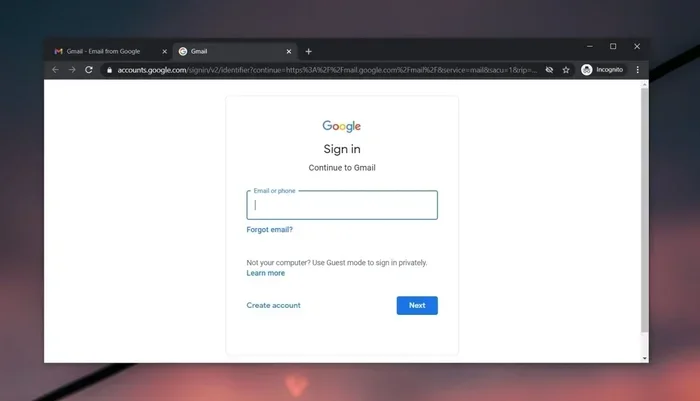
Firefox Wont Keep Gmail Logged In And How To Fix It
Firefox Wont Keep Gmail Logged In is an essential topic that provides valuable insights.
Key Takeaways
- Cookies and cache issues are the most common reason Firefox Wont Keep Gmail Logged In.
- Disabling third-party cookies in Firefox can break Gmail login persistence.
- Firefox profile corruption may cause repeated sign-outs that seem impossible to fix.
- Browser extensions like ad blockers and privacy tools can interfere with Gmail sessions.
- Firefox Sync settings and account preferences play a big role in staying logged in.
- Clearing your browser data the right way can solve login problems fast.
- Keeping Firefox updated ensures compatibility with Gmail’s latest security features.
📑 Table of Contents
- Why Firefox Wont Keep Gmail Logged In
- What Causes Firefox To Forget Your Gmail Login
- How To Fix Firefox Wont Keep Gmail Logged In
- Preventing Firefox From Forgetting Your Gmail Login Again
- When to Consider Alternative Browsers
- Common Mistakes That Cause Gmail Login Problems
- Final Thoughts on Fixing Firefox Gmail Login Issues
Why Firefox Wont Keep Gmail Logged In
There is nothing more annoying than typing in your Gmail password every single time you open a new tab. You log in, you check your emails, and then suddenly — you are signed out again. If you have been wondering why Firefox Wont Keep Gmail Logged In, you are not alone. Thousands of Firefox users run into this exact problem every day.
The good news is that this issue is almost always fixable. Most of the time, the cause is something simple like your browser settings or stored data. This guide will walk you through every possible reason and every solution. You do not need to be a tech expert to follow along. Just grab a cup of coffee, and let us get your Gmail login working again.
Before we dive into the fixes, it helps to understand what is actually happening. When you stay logged into Gmail, your browser stores small pieces of data called cookies. These cookies tell Gmail, “Hey, this is the same person who logged in earlier.” When those cookies get deleted, blocked, or corrupted, Firefox signs you out. That is the short version. Now let us look at the longer version and the fixes.
What Causes Firefox To Forget Your Gmail Login
Browser Cookies Getting Blocked or Deleted
Cookies are the number one reason Firefox Wont Keep Gmail Logged In. Firefox has privacy settings that control how cookies work. If your settings block third-party cookies or clear cookies every time you close the browser, Gmail will never stay logged in. This is by design in some cases, but it can be very inconvenient.
Here is what happens behind the scenes. When you sign into Gmail, Google sets a session cookie in your browser. That cookie stays there until it expires or until you clear it. If Firefox deletes that cookie on exit, you get signed out every time. Simple as that.
Corrupted Cache and Browsing Data
Your browser cache stores temporary files to help pages load faster. But sometimes, those files get corrupted. When the cache has bad data, it can conflict with Gmail’s login system. This leads to repeated sign-outs, login loops, or pages that refuse to remember your session.
Corrupted cache is one of the sneakiest causes. You might not even know it is happening. Everything else on your browser might work fine, but Gmail just will not cooperate. That is a telltale sign that your cache needs attention.
Firefox Profile Issues
Every Firefox user has a profile folder that stores all their settings, bookmarks, cookies, and login data. If that profile gets corrupted — maybe from a crash or a failed update — your login data can vanish. Firefox Wont Keep Gmail Logged In problems often trace back to profile corruption.
Profile issues are more serious than cookie or cache problems. They can affect multiple websites, not just Gmail. If you notice other sites also forgetting your login, a profile issue is very likely the culprit.
Conflicting Browser Extensions
Firefox extensions are great. They add features, block ads, and boost privacy. But some extensions interfere with how websites handle sessions. Privacy extensions, ad blockers, and cookie managers can all block Gmail cookies without you realizing it.
If you recently installed a new extension and suddenly Gmail keeps signing you out, that extension is probably the cause. This is one of the easiest problems to diagnose and fix.
Firefox Not Being Up to Date
Old browser versions can have compatibility issues with modern websites. Gmail updates its security protocols regularly. If your Firefox version is outdated, it might not handle those updates correctly. This can lead to login failures and session drops.
Keeping your browser updated is one of the simplest things you can do. Yet many people ignore update notifications for weeks or months. A quick update can solve more problems than you think.
How To Fix Firefox Wont Keep Gmail Logged In
Fix 1: Check Your Cookie Settings
The first thing you should do is check your Firefox cookie settings. Here is exactly how to do it:
- Open Firefox and click the menu button (three horizontal lines) in the top right corner.
- Select Settings from the dropdown menu.
- Click on Privacy and Security in the left sidebar.
- Scroll down to the Cookies and Site Data section.
- Make sure the option to Delete cookies and site data when Firefox is closed is unchecked.
- Also, ensure that Accept cookies and site data from websites is set to “All cookies (best for site compatibility).”
These settings control whether Firefox remembers your login sessions. If the “delete on close” option is turned on, Firefox will wipe every cookie every time you shut the browser. That includes your Gmail session cookie. Turning it off is often all it takes to fix the problem.
Quick Tip: After changing these settings, restart Firefox and try logging into Gmail again. Do not close the browser right away — give it a few minutes to establish the session properly.
Fix 2: Clear Your Cache Properly
Clearing your cache sounds counterintuitive, but sometimes a bad cache causes more harm than good. The key is to clear it the right way. Here is how:
- Click the menu button and go to Settings.
- Click on Privacy and Security.
- Scroll down to Cookies and Site Data and click Clear Data.
- Check both boxes for cookies and cached data.
- Click Clear and restart Firefox.
After clearing your cache, log into Gmail again and see if it stays logged in. A clean cache gives Gmail a fresh start, and it can resolve many session-related issues.
Common Mistake: Some people clear their entire browsing history every day. This includes cookies and cached logins. If you do this, no website will remember you. Try to be more selective about what you clear.
Fix 3: Disable Problematic Extensions
Extensions can be troublemakers when it comes to staying logged into Gmail. Here is how to check if an extension is causing the issue:
- Click the menu button and go to Add-ons and Themes.
- Go through your installed extensions one by one.
- Pay special attention to ad blockers, cookie auto-delete tools, and privacy extensions.
- Disable each extension and test Gmail after each one.
If Gmail stays logged in after disabling a specific extension, you have found your culprit. You can either remove that extension or adjust its settings to allow Gmail cookies.
Quick Tip: Some of the most common offenders include uBlock Origin, Privacy Badger, and Cookie AutoDelete. These are great extensions in general, but they can be too aggressive with Gmail. Adjusting their settings to whitelist Google domains usually solves the problem.
Fix 4: Create a New Firefox Profile
If the problem persists, your Firefox profile might be corrupted. Creating a new profile can fix this. Here is how:
- Type about:profiles in the Firefox address bar and press Enter.
- Click on Create a New Profile.
- Follow the on-screen instructions to set up the new profile.
- Launch Firefox with the new profile and log into Gmail.
A new profile starts fresh with no corrupted data. If Gmail stays logged in on the new profile, your old profile was the problem. You can then migrate your bookmarks and essential data to the new profile.
Expert Insight: Profile corruption is more common than most people think. Firefox updates, sudden crashes, and disk errors can all damage profile files. Creating a new profile is a clean and effective solution that resolves most stubborn login issues.
Fix 5: Update Firefox to the Latest Version
Running an outdated version of Firefox can cause all sorts of compatibility issues. Here is how to check for updates:
- Click the menu button and go to Settings.
- Click on General in the left sidebar.
- Scroll down to the Firefox Updates section.
- Click Check for Updates and install any available updates.
- Restart Firefox after the update is complete.
New Firefox versions include security patches, bug fixes, and improved compatibility with websites like Gmail. Keeping your browser updated is one of the best preventive measures you can take.
Fix 6: Check Your System Date and Time
This one sounds strange, but an incorrect system clock can break your Gmail login. Cookies have expiration dates, and if your system time is wrong, Firefox might think the cookie has already expired. Here is how to fix it:
- On Windows: Right-click the clock in your taskbar and select Adjust date and time. Make sure “Set time automatically” is turned on.
- On Mac: Go to System Preferences and click Date and Time. Enable automatic time setting.
Once your system clock is correct, restart Firefox and log into Gmail again. This simple fix resolves the problem more often than people expect.
Preventing Firefox From Forgetting Your Gmail Login Again
Adjust Firefox Privacy Settings for Better Compatibility
Firefox is known for its strong privacy features. While these are great for security, they can sometimes interfere with website logins. You do not need to turn off all privacy protections. Instead, fine-tune your settings for the best balance.
Go to Settings > Privacy and Security and set the Enhanced Tracking Protection to Standard instead of Strict. Strict mode blocks more cookies and trackers, which can affect Gmail’s ability to keep you logged in. Standard mode provides good privacy while still allowing most websites to function properly.
Enable Firefox Sync for Seamless Logins
Firefox Sync lets you save your logins, bookmarks, and preferences across devices. When you use Firefox Sync properly, it can help maintain your Gmail session across different devices. Here is how to set it up:
- Click the menu button and select Settings.
- Click on Sync in the left sidebar.
- Click Sign In to Sync and follow the prompts.
- Make sure Saved Logins is enabled in the sync options.
With Firefox Sync turned on, your login data is backed up and restored across devices. If one device signs you out, another device might still keep the session active. This adds a layer of reliability to your Gmail login experience.
Use Firefox’s Built-in Password Manager
Firefox has a built-in password manager that can save your Gmail credentials. When you save your password, Firefox can auto-fill it and sometimes maintain the session more reliably. To enable this:
- Go to Settings > Privacy and Security.
- Scroll down to Logins and Passwords.
- Make sure Ask to save logins is turned on.
- Next time you log into Gmail, Firefox will prompt you to save the password.
While this does not guarantee the session will stay alive forever, it does make logging back in faster if you do get signed out. It also reduces the friction of repeated sign-outs.
Regular Maintenance for Your Browser
Just like any other tool, your browser benefits from regular maintenance. Here are some habits that help prevent login issues:
- Restart Firefox weekly. This clears temporary glitches and refreshes browser processes.
- Update Firefox regularly. Enable automatic updates so you never fall behind.
- Review your extensions every month. Remove extensions you no longer use.
- Clear cache selectively. Do not clear cookies unless necessary.
- Check your system clock. Make sure automatic time sync is always enabled.
These small habits take minimal time but can save you from a lot of frustration down the road. Prevention is always easier than troubleshooting.
When to Consider Alternative Browsers
Sometimes, no matter what you try, Firefox just does not play nice with Gmail. This is rare, but it does happen. In those cases, it might be worth trying a different browser. Chrome, Edge, and Brave all handle Gmail sessions well and have their own set of features.
That said, Firefox is a fantastic browser with strong privacy protections and customization options. Before switching, try all the fixes in this guide first. Most users find that one of the solutions above resolves the issue completely.
If you do decide to switch browsers, make sure to export your bookmarks and sync your data first. You do not want to lose any of your important information in the process.
Common Mistakes That Cause Gmail Login Problems
Clearing All Browsing Data Without Thinking
Many people clear all their browsing data at once — cookies, cache, history, everything. This is the fastest way to get signed out of every website you use, including Gmail. Be selective about what you clear. If you only need to clear the cache, uncheck the cookies option.
Using VPNs Without Whitelisting Google
VPNs can change your IP address and location, which sometimes triggers Gmail’s security systems. If you use a VPN and notice Gmail keeps signing you out, try disconnecting the VPN and see if the problem goes away. If it does, add Google domains to your VPN’s whitelist.
Ignoring Browser Notifications
Firefox sometimes shows notifications about cookie blocked or site data cleared. These are easy to dismiss, but they can indicate the root cause of your login problem. Pay attention to what Firefox is telling you and address any warnings promptly.
Final Thoughts on Fixing Firefox Gmail Login Issues
Firefox Wont Keep Gmail Logged In is a problem with clear solutions. In most cases, adjusting your cookie settings, clearing your cache, or disabling a problematic extension does the trick. For more stubborn issues, creating a new Firefox profile or updating your browser can make all the difference.
The key is to work through the fixes one at a time. Start with the simplest solutions and work your way up. By the time you reach the more advanced fixes, you will likely have already solved the problem without realizing it.
Remember, keeping your browser and system updated, maintaining good browsing habits, and being mindful of your privacy settings can prevent most login issues from ever happening. Take care of your browser, and it will take care of your Gmail sessions.
Now that you know exactly what causes this problem and how to fix it, you can get back to reading your emails without interruption. Try the fixes in this guide today and enjoy a seamless Gmail experience on Firefox again.
Frequently Asked Questions
Why does Firefox keep signing me out of Gmail?
The most common reason is that your cookie settings are set to delete cookies when Firefox closes. Other causes include corrupted cache, conflicting browser extensions, and outdated Firefox versions. Check your cookie and privacy settings first, as this solves the problem for most users.
How do I stop Firefox from deleting my Gmail cookies?
Go to Settings, click Privacy and Security, and find the Cookies and Site Data section. Make sure the option to delete cookies when Firefox closes is unchecked. Also, set the cookie acceptance to “All cookies” for the best compatibility with Gmail.
Can browser extensions cause Firefox to forget my Gmail login?
Yes, absolutely. Privacy extensions, ad blockers, and cookie management tools can interfere with how Gmail handles sessions. Try disabling your extensions one by one to identify which one is causing the problem. Whitelisting Google domains in the extension settings usually fixes it.
Is it safe to create a new Firefox profile?
Yes, it is completely safe. Creating a new profile gives you a fresh start without affecting your old data. You can export your bookmarks and important data from the old profile and import them into the new one. This is a great way to fix profile corruption issues.
Does an incorrect system clock affect Gmail login on Firefox?
Yes, it can. Cookies have expiration times based on your system clock. If your clock is wrong, Firefox might think the cookie has expired and sign you out. Make sure your system time is set to automatic and matches your actual time zone.
What should I do if none of these fixes work?
If none of the fixes in this guide work, try using Gmail in a private browsing window. If it stays logged in there, the issue is specific to your Firefox profile. You can also try resetting Firefox to its default settings or contacting Mozilla support for further assistance.
=== CONCLUSION ===
Firefox Wont Keep Gmail Logged In is a solvable problem. With the right steps, you can enjoy uninterrupted access to your Gmail inbox. Start with the cookie settings and work your way through the fixes in this guide. Most users find relief within the first few steps. Keep your browser updated, maintain good habits, and your Gmail sessions will stay alive and well. You now have everything you need to fix this issue and prevent it from coming back.