How Can I Watch Tv On My Projector With These Easy Steps
Watching TV on your projector is easier than most people think. You can connect almost any device using an HDMI cable, a streaming stick, or even wirelessly. This guide walks you through every method so you can turn any room into a home theater.
Have you ever wanted to watch your favorite shows on a massive screen? Watching TV on a projector turns any room into a personal cinema. It sounds complicated, but the truth is that it is much simpler than you might expect.
Whether you own a basic home projector or a fancy smart model, you can stream live TV, watch movies, or cast content from your phone. The key is knowing which connection method works best for your setup. This guide breaks everything down into easy steps you can follow right now.
Over the next few sections, we will cover every way to connect your TV to a projector. You will learn about cables, streaming devices, wireless options, and how to tweak settings for the best picture. By the end, you will have everything you need to start enjoying big-screen entertainment at home.
Key Takeaways
- Multiple Connection Options: You can watch TV on your projector using HDMI cables, streaming devices, wireless casting, or even built-in smart features.
- HDMI Is the Easiest Method: A simple HDMI cable gives you the best picture quality and the most reliable connection for watching live TV or streaming content.
- Streaming Sticks Work Great: Devices like a Fire Stick or Roku plug directly into your projector and give you access to all major apps.
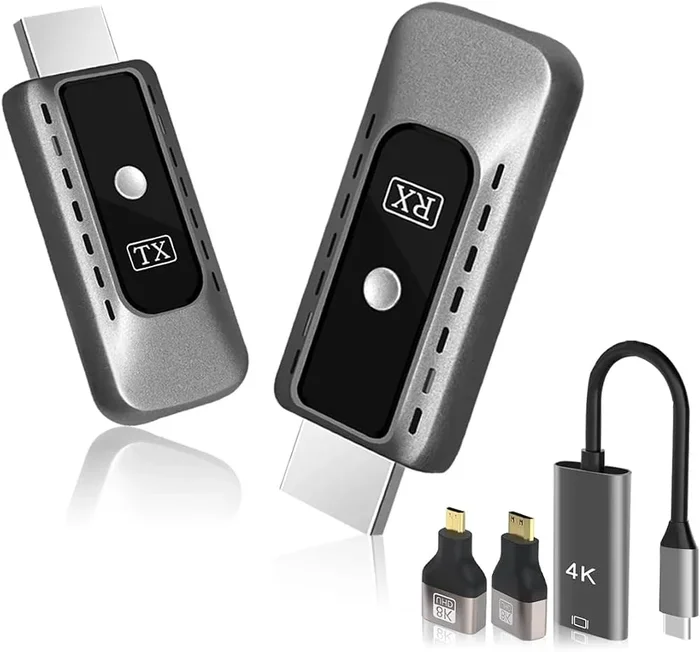
- Wireless Options Exist: You can make your projector wireless and cast content from your phone or laptop without any cables at all.
- Audio Matters Too: Projector speakers are often weak, so adding external speakers or a soundbar dramatically improves your viewing experience.
- Placement and Settings Count: Adjusting brightness, resolution, and projector placement makes a huge difference in picture quality.
📑 Table of Contents
- Why Watch TV on a Projector?
- Method 1: Connect With an HDMI Cable
- Method 2: Use a Streaming Device
- Method 3: Go Wireless With Casting
- Method 4: Use a Smart Projector
- Improving Your Projector TV Experience
- Common Mistakes to Avoid
- Expert Insights: Choosing the Right Setup for You
- Can You Use a Projector as a TV? A Quick Note
- Final Thoughts
Why Watch TV on a Projector?
More people are switching from small TVs to projectors for a reason. A projector gives you a screen size that no standard TV can match. You can go from 80 inches to 150 inches or more with just a simple setup change.
Here are some of the biggest reasons people choose a projector for watching TV:
- Bigger Screen: You get a theater-sized image without leaving your home.
- Cost Per Inch: Projectors offer more screen size for your dollar compared to large TVs.
- Flexible Placement: You can project onto a wall, a pull-down screen, or even a white bedsheet.
- Portability: Many projectors are lightweight and easy to move from room to room.
- Eye Comfort: Projected light is easier on the eyes than a bright LED screen during long viewing sessions.
Of course, projectors also come with some trade-offs. Brightness can be an issue in sunny rooms. And most built-in projector speakers are not very powerful. But with the right setup, these small drawbacks fade away.
Method 1: Connect With an HDMI Cable
The simplest and most reliable way to watch TV on your projector is with an HDMI cable. This method works with almost every modern projector and gives you the best picture quality. No apps, no Wi-Fi, no fuss.
What You Need
- An HDMI cable (HDMI 2.0 or higher for the best results)
- A TV tuner device or a cable box with HDMI output
- A projector with at least one HDMI input port
Step-by-Step Setup
Follow these steps to get started:
- Plug one end of the HDMI cable into your TV tuner or cable box.
- Plug the other end into the HDMI port on your projector.
- Turn on the projector and select the correct HDMI input source.
- Tune your TV channels using the cable box remote.
- Adjust the projector focus and keystone settings for a clear image.
This method is perfect if you want to watch live broadcast TV or cable channels on a big screen. The picture quality is sharp and the connection is stable. If your projector does not have an HDMI port, you can use an HDMI-to-VGA adapter, though this may reduce quality.
Quick Tip: Keep your HDMI cable as short as possible to avoid signal loss. A cable longer than 25 feet may need a signal booster for the best performance.
Method 2: Use a Streaming Device
If you do not have cable TV, a streaming device is a fantastic option. These small gadgets plug right into your projector’s HDMI port and give you access to Netflix, Hulu, Disney+, and many more apps. You can even use a Fire Stick on a projector for a seamless setup.
Popular Streaming Devices for Projectors
- Amazon Fire TV Stick: Affordable and easy to use. Works with Alexa voice commands.
- Roku Streaming Stick: Simple interface and a wide app selection.
- Google Chromecast: Great for casting content from your phone or tablet.
- Apple TV: Premium option with excellent picture quality and app support.
Setting Up a Streaming Device
Setting up a streaming stick is straightforward. Plug the device into your projector’s HDMI port. Connect it to your Wi-Fi network using the on-screen prompts. Download the streaming apps you want. That is really all there is to it.
Most streaming devices come with a remote control. Some also let you control them from your phone. This makes navigation easy, even from the couch.
Quick Tip: If your projector has limited USB power, use the USB power cable that comes with the streaming device and plug it into a wall outlet. This prevents the device from disconnecting during use.
Method 3: Go Wireless With Casting
Not everyone wants to deal with cables. The good news is that you can make your projector wireless and cast content directly from your phone, tablet, or laptop. This is one of the most convenient ways to enjoy TV on a big screen.
Wireless Casting Options
- Chromecast Built-In: Some projectors come with Chromecast already installed. You just need the Google Home app on your phone.
- Miracast: This is a wireless standard built into many Windows laptops and Android phones. Look for “Screen Mirroring” or “Wireless Display” in your projector settings.
- AirPlay: Apple users can cast from iPhones and iPads to compatible projectors using AirPlay.
- Wi-Fi Direct: Some projectors have built-in Wi-Fi that lets you connect directly without a router.
How to Cast From Your Phone
Here is a simple way to cast content wirelessly:
- Make sure your phone and projector are on the same Wi-Fi network.
- Open the streaming app on your phone (like YouTube or Netflix).
- Tap the cast icon (it looks like a rectangle with Wi-Fi waves in the corner).
- Select your projector from the list of available devices.
- Your content now plays on the big screen.
Wireless casting works well for most everyday viewing. However, it can sometimes lag or buffer if your Wi-Fi signal is weak. For the smoothest experience, use a strong and stable connection.
Quick Tip: If you experience lag while casting, try moving your router closer to the projector. A mesh Wi-Fi system can also help improve coverage in larger rooms.
Method 4: Use a Smart Projector
Smart projectors are becoming more popular, and for good reason. These devices have built-in apps, Wi-Fi, and operating systems just like a smart TV. You can watch TV directly on the projector without any extra devices or cables.
What Makes a Projector “Smart”?
A smart projector has its own operating system and app store. You can download streaming apps like Netflix, Amazon Prime Video, and YouTube directly onto the device. Some models even come with voice assistants built in.
Popular Smart Projector Brands
- Epson: Known for reliable home theater projectors with smart features.
- BenQ: Offers excellent picture quality and user-friendly smart interfaces.
- Anker: Makes affordable portable smart projectors that work well for casual viewing.
- XGIMI: Offers feature-rich projectors with built-in Harman Kardon speakers.
When choosing a smart projector, look for at least 1080p resolution for a clear picture. Higher brightness (measured in lumens) helps you watch comfortably in rooms with some ambient light. A resolution of 4K is ideal if you want the sharpest possible image.
Quick Tip: Before buying a smart projector, check if it supports the apps you actually watch. Not every projector supports every streaming service.
Improving Your Projector TV Experience
Once you have your projector set up, a few tweaks can make a big difference. These simple adjustments improve picture quality, sound, and overall comfort while watching.
Adjust Brightness and Contrast
Most projectors have settings for brightness, contrast, and color saturation. For watching TV in a dark room, lower the brightness slightly and boost the contrast. This gives you deeper blacks and more vivid colors. For rooms with some light, increase brightness so the image stays clear and visible.
Fix the Keystone and Focus
Projectors often project a slightly skewed image if they are not perfectly aligned with the screen. Use the keystone correction setting to straighten the picture. Then adjust the focus ring until the image looks sharp and clear. Some projectors have automatic keystone and focus features that do this for you.
Upgrade the Audio
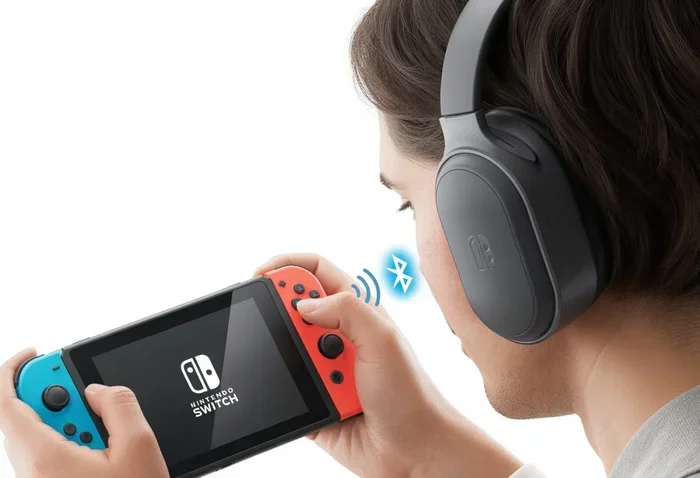
Projector speakers are almost always an afterthought. They are small and often sound tinny. If you want to enjoy TV shows and movies the way they were meant to sound, consider adding external audio. A simple Bluetooth soundbar or a pair of wireless speakers makes a massive improvement. You can also use a Bluetooth speaker as a quick audio boost in a pinch.
Manage Your Cables
Cable management keeps your setup clean and safe. Use cable ties or a cable cover to keep HDMI cords and power cables organized. This prevents tripping hazards and makes your viewing area look neat and professional.
Control Ambient Light
The less light in your room, the better your projector picture will look. Close curtains or blinds before watching TV. If you cannot block all light, consider getting a projector screen with a high-gain surface. These screens reflect more light back to the viewer, improving brightness and contrast even in brighter rooms.
Common Mistakes to Avoid
Even with a simple setup, people sometimes make mistakes that hurt their viewing experience. Here are a few to watch out for:
- Using the Wrong Cable: Not all cables support high-definition video. Always use an HDMI cable rated for at least 1080p or 4K.
- Ignoring Room Lighting: Projectors struggle in bright rooms. Dim the lights or watch during evening hours for the best results.
- Forgetting to Update Apps: Keep your streaming apps updated to avoid playback issues and enjoy the latest features.
- Placing the Projector Too Close: Check your projector’s throw ratio. Placing it too close can make the image too small or blurry.
- Neglecting Ventilation: Projectors generate heat. Keep the vents uncovered and give the device space to breathe. This extends the lamp life and prevents overheating.
Avoiding these simple mistakes saves you from frustration and helps your projector last longer. A little care goes a long way.
Expert Insights: Choosing the Right Setup for You
Every home is different, and the best setup depends on your specific situation. Here are a few scenarios and the methods that work best for each.
| Your Situation | Best Method | Why It Works |
|---|---|---|
| You have cable TV and want a simple setup | HDMI Cable | Direct, reliable, and the best picture quality |
| You cut the cord and use streaming apps | Streaming Device | Gives you access to all major apps without a computer |
| You want a clean, cable-free setup | Wireless Casting | No cables needed; works from your phone or laptop |
| You want an all-in-one solution | Smart Projector | Built-in apps and Wi-Fi mean no extra devices |
| You watch in a bright room | Smart Projector with High Lumens | Higher brightness handles ambient light better |
Think about how you watch TV most often. Do you prefer live broadcasts, or do you mainly use streaming apps? Your answer helps you pick the right method and equipment.
Can You Use a Projector as a TV? A Quick Note
Many people wonder whether a projector can truly replace a TV. The short answer is yes, with the right setup. Projectors can display the same content as a TV, and in many cases, the bigger screen makes the experience even more enjoyable. If you want to learn more about using a projector as a regular TV, check out this guide on can I use a projector as a TV for additional tips and insights.
Keep in mind that projectors work best in dimmer environments. If your room gets a lot of sunlight, you may need to close the blinds or choose a projector with very high brightness. But for cozy evening viewing, a projector often beats a TV hands down.
Final Thoughts
Watching TV on your projector does not have to be difficult. With an HDMI cable, a streaming device, or wireless casting, you can enjoy your favorite shows on a big, beautiful screen in no time. Each method has its strengths, and the best choice depends on your equipment and preferences.
Start with the simplest method that fits your setup. Once you see how great a projected image looks, you will wonder why you ever watched on a small screen. Experiment with different settings, upgrade your audio, and make your viewing area comfortable.
The most important thing is to just get started. Pick one method from this guide, follow the steps, and enjoy your new big-screen experience. You will not regret it.
Frequently Asked Questions
Can I watch regular cable TV on a projector?
Yes, you can watch regular cable TV on a projector using an HDMI cable and a cable box or TV tuner. Simply connect the cable box to the projector with an HDMI cable, select the correct input, and tune your channels as usual. This gives you the same live TV experience on a much bigger screen.
Do I need a special projector to watch TV?
No, you do not need a special projector. Most modern projectors with an HDMI input can display TV content. Smart projectors make it even easier because they have built-in apps and Wi-Fi, but even a basic projector works great with a streaming device or cable box.
Is it better to watch TV on a projector or a TV?
It depends on your preferences and room setup. Projectors offer a much larger screen size and a more cinematic feel. TVs are brighter and work better in well-lit rooms. For evening viewing in a dim room, a projector often provides a more immersive experience than a standard TV.
Can I use a Fire Stick with my projector?
Yes, you can use a Fire Stick with most projectors that have an HDMI port. Simply plug the Fire Stick into the HDMI port, connect it to Wi-Fi, and you can access all your favorite streaming apps on the big screen. This is one of the easiest and most affordable ways to add smart features to any projector.
Why is my projector picture blurry when watching TV?
A blurry picture is usually caused by incorrect focus, keystone distortion, or using the wrong cable. Try adjusting the focus ring on the projector first. Then check the keystone settings to make sure the image is square. Finally, ensure you are using a high-quality HDMI cable that supports your resolution.
How can I improve the sound when watching TV on a projector?
Projector speakers are typically weak and small. To improve sound, connect external speakers, a soundbar, or a Bluetooth speaker to your projector. Many projectors have a 3.5mm audio output or Bluetooth capability. A simple external speaker setup makes a huge difference in audio quality and overall enjoyment.
=== CONCLUSION ===
Watching TV on your projector opens up a whole new world of entertainment at home. Whether you choose a simple HDMI connection, a streaming stick, wireless casting, or a smart projector, the process is straightforward and rewarding. You do not need expensive equipment or technical expertise to get started.
Follow the steps in this guide, avoid the common mistakes, and experiment with what works best for your space. The big-screen experience is waiting for you. So grab some popcorn, dim the lights, and enjoy your favorite shows like never before.