Here Is How You Can Easily Test Your Wi Fi Calling
Testing your Wi Fi Calling is easier than you think. You can verify call quality, check settings, and troubleshoot common problems in just a few minutes. This guide walks you through every method so you can test Wi Fi Calling confidently on any device.
Have you ever tried making a call over Wi-Fi and wondered if it was actually working? Maybe your call sounded a little off, or you dropped the connection halfway through. The good news is that testing Wi-Fi calling is something you can do right from your phone. You do not need to be a tech expert to figure out if your Wi-Fi calling setup is working properly. In this guide, we will walk you through every step to test Wi-Fi calling with confidence.
Whether you use an iPhone or an Android phone, the process is pretty straightforward. You will learn how to check your settings, run a test call, and fix common problems. We will also cover what to look for in call quality and how to get the best results from your Wi-Fi connection. By the end of this article, you will know exactly how to make sure your Wi-Fi calling is working the way it should.
Let us get into it. No fluff, no confusing jargon — just practical steps you can follow right now.
Key Takeaways
- Test Wi Fi Calling using built-in phone settings, carrier apps, and manual call tests.
- Wi-Fi calling quality depends on your internet speed, signal strength, and network settings.
- Common issues like dropped calls or poor audio can often be fixed with simple troubleshooting steps.
- Carrier support matters — not all providers enable Wi-Fi calling the same way.
- Regular testing helps you catch problems before they affect real conversations.
📑 Table of Contents
- Why Testing Your Wi-Fi Calling Matters
- How to Test Wi-Fi Calling on Your Phone
- What to Look for When Testing Wi-Fi Calling Quality
- Common Wi-Fi Calling Problems and How to Fix Them
- Quick Tips for the Best Wi-Fi Calling Experience
- How Wi-Fi Calling Compares to Regular Cellular Calls
- When to Contact Your Carrier for Help
- Final Thoughts
Why Testing Your Wi-Fi Calling Matters
You might be thinking, “Why do I even need to test this?” Well, Wi-Fi calling can be a lifesaver. It lets you make calls when your cellular signal is weak. But if your Wi-Fi connection is not set up right, calls can drop, sound fuzzy, or not connect at all. Testing helps you catch these issues early.
Here are a few reasons why testing Wi-Fi calling is worth your time:
- Call quality check — You can hear if your voice sounds clear on the other end.
- Connection stability — A test call shows if your Wi-Fi signal stays strong during a conversation.
- Settings verification — You confirm that your phone and carrier settings are correct.
- Troubleshooting prep — If something is wrong, you can fix it before an important call.
- Battery and data awareness — Testing helps you understand how Wi-Fi calling affects your phone’s battery.
Think of it like a quick health check for your phone’s calling features. A few minutes now can save you a lot of frustration later.
How to Test Wi-Fi Calling on Your Phone
Now let us get to the good stuff. Below are the best ways to test Wi-Fi calling on both iPhone and Android devices. Each method is simple and does not require any special tools.
Method 1: Check Your Wi-Fi Calling Settings
The first step is to make sure Wi-Fi calling is turned on. Here is how to do it:
- On iPhone: Go to Settings, tap Phone, then tap Wi-Fi Calling. Toggle it on and make sure your address is registered.
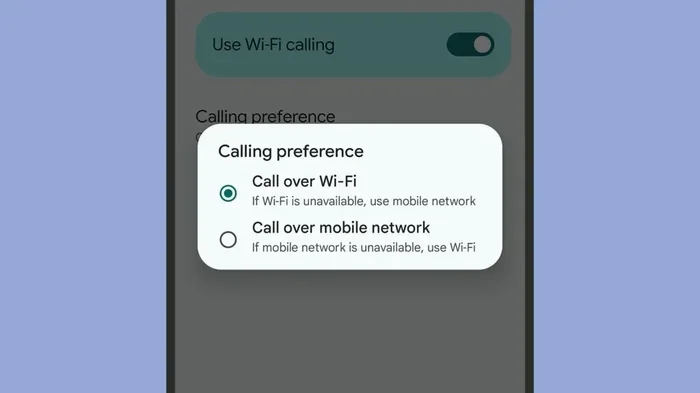
- On Android: Open Settings, go to Network and Internet, then tap Mobile Network. Look for Wi-Fi Calling and turn it on.
Once you confirm the setting is enabled, you are ready to test. This simple check solves many problems people have with Wi-Fi calling not working.
Method 2: Make a Test Call to a Friend or Family Member
The most practical way to test Wi-Fi calling is to actually make a call. Ask a friend or family member to help you. Here is what to do:
- Turn off your mobile data so the call goes over Wi-Fi only.
- Call someone you trust and let them know you are testing.
- Ask them if your voice sounds clear and if the connection stays stable.
- Walk around your house during the call to check for dead spots.
This real-world test gives you the best picture of how your Wi-Fi calling performs in daily life. You will quickly notice if the audio cuts out or if the call drops when you move to a different room.
Method 3: Use Your Carrier’s App to Test
Many carriers offer apps that let you check your Wi-Fi calling status. For example, Verizon, AT, and T-Mobile all have apps with network diagnostic tools. You can use these to run a full Wi-Fi calling test. These apps often show signal strength, connection type, and call quality scores.
If you are not sure which app to use, check your carrier’s website. They usually list the right app for your plan. Some carriers also let you test Wi-Fi calling right from their website portal. This is a great option if you prefer using a computer.
Method 4: Check Your Internet Speed
Wi-Fi calling needs a solid internet connection. A slow connection can cause poor call quality. You can test your speed using free tools like Speedtest.net or Fast.com. Here is what to look for:
- Download speed: At least 1 Mbps for basic calls. 3 Mbps or more is ideal.
- Upload speed: At least 1 Mbps for clear voice transmission.
- Ping (latency): Under 100 ms for smooth, real-time calls.
If your speeds are below these numbers, your Wi-Fi calling might suffer. Try moving closer to your router or restarting it. This simple step often fixes connection issues right away.
What to Look for When Testing Wi-Fi Calling Quality
Running a test is one thing. But knowing what to listen for is another. Here are the key things to pay attention to during your Wi-Fi calling test.
Audio Clarity
The most important thing is how clear your voice sounds. Does the person on the other end hear you well? Is there any static, echo, or robotic sound? Good Wi-Fi calling should sound just like a regular phone call. If it sounds muffled or choppy, something is off.
Connection Stability
Watch for any moments where the call drops or freezes. A stable Wi-Fi connection should keep your call going without interruptions. If you notice drops, try moving closer to your router. Walls, furniture, and other electronics can weaken your Wi-Fi signal.
Delay and Lag
Notice if there is a delay between when you speak and when the other person hears you. A small delay is normal. But if the lag is more than a second or two, it can make conversations hard. This usually points to a slow internet connection or a crowded network.
Battery Usage
After testing, check how much battery your phone used during the call. Wi-Fi calling can use more battery than a regular call, especially if your Wi-Fi signal is weak. If your phone drains fast, consider adjusting your settings or moving to a stronger Wi-Fi network.
Common Wi-Fi Calling Problems and How to Fix Them
Even after testing, you might run into issues. Here are the most common problems and simple fixes.
Wi-Fi Calling Keeps Turning Off
Sometimes Wi-Fi calling turns off by itself. This can happen if your phone switches to mobile data or if a software update resets your settings. To fix this, go back to your settings and turn it back on. On some phones, you can lock the setting so it does not change by accident.
Poor Call Quality or Dropped Calls
If your calls sound bad or keep dropping, your Wi-Fi signal might be the culprit. Try these steps:
- Move closer to your router.
- Reduce the number of devices using your network.
- Restart your router and modem.
- Switch to a less crowded Wi-Fi channel.
Also, check if your internet speed meets the minimum requirements. A slow connection is the number one cause of poor Wi-Fi calling quality.
Wi-Fi Calling Not Available on Your Device
Not all phones support Wi-Fi calling. Older models or budget phones might not have this feature. Check your phone’s settings first. If you do not see the option, your device may not support it. In that case, you might want to look into getting a phone that does support it.
Carrier Does Not Support Wi-Fi Calling
Some carriers do not offer Wi-Fi calling on all plans. Before you can test it, make sure your carrier supports the feature on your plan. Contact your carrier’s customer service to confirm. You can also check their website for a list of supported devices and plans.
Quick Tips for the Best Wi-Fi Calling Experience
Want to get the most out of your Wi-Fi calling? Follow these quick tips:
- Use a dual-band router. It gives you better range and faster speeds.
- Keep your phone software updated. Updates often fix Wi-Fi calling bugs.
- Restart your router weekly. This keeps your Wi-Fi network running smoothly.
- Avoid placing your router near thick walls or metal objects. These block Wi-Fi signals.
- Test your setup regularly. A quick monthly test keeps everything working well.
These small habits make a big difference. They keep your Wi-Fi calling clear and reliable every time.
How Wi-Fi Calling Compares to Regular Cellular Calls
It helps to understand how Wi-Fi calling differs from a regular cellular call. Here is a quick comparison:
| Feature | Wi-Fi Calling | Regular Cellular Call |
|---|---|---|
| Connection Type | Uses Wi-Fi network | Uses cellular towers |
| Works Without Signal | Yes, if Wi-Fi is available | No, needs cellular coverage |
| Call Quality | Depends on Wi-Fi speed | Generally stable |
| Battery Usage | Can be higher | Normal usage |
| International Calls | Often cheaper or free | Usually costs more |
| Setup Required | Must enable in settings | Works out of the box |
As you can see, Wi-Fi calling has some clear advantages. It works even when your cellular signal is weak. It can also save you money on international calls. But it does depend on your Wi-Fi connection quality. That is why testing is so important.
You can also check if your carrier offers Wi-Fi calling support by visiting their site or calling customer service. For example, Boost Mobile users can look into Wi-Fi calling with Boost Mobile for specific guidance. And if you are curious about using your Wi-Fi connection for other purposes, you might want to explore how to connect your PC to Wi-Fi without Ethernet to expand your home network setup.
When to Contact Your Carrier for Help
If you have tried everything and your Wi-Fi calling still does not work, it might be time to reach out to your carrier. Here are signs you need help:
- Wi-Fi calling keeps turning off no matter what you do.
- You get error messages when trying to enable it.
- Calls still drop even with a strong Wi-Fi signal.
- Your carrier has not activated Wi-Fi calling on your account.
Your carrier can check your account settings and make sure everything is set up correctly on their end. They can also walk you through any device-specific steps. Most carriers have customer service available 24/7, so you can get help whenever you need it.
Also, if you are setting up a home network and want to make sure your Wi-Fi covers every room, you might want to look into getting your own router. You can learn more about having your own personal Wi-Fi router to take full control of your home network. And if you are wondering about getting Wi-Fi without a traditional setup, check out how to get just Wi-Fi at home for helpful tips.
Final Thoughts
Testing your Wi-Fi calling does not have to be complicated. With the methods above, you can check your settings, run a test call, and fix common problems in no time. The key is to test regularly and pay attention to call quality, connection stability, and speed. A few simple checks can save you from frustrating dropped calls and poor audio.
Remember, Wi-Fi calling is a powerful tool. It keeps you connected even when your cellular signal is weak. But like any tool, it works best when you set it up right and test it often. Take a few minutes today to run through these steps. You will be glad you did the next time you need to make an important call.
Stay connected, stay prepared, and enjoy the benefits of reliable Wi-Fi calling every day.
Frequently Asked Questions
Can I test Wi-Fi calling without making an actual call?
Yes, you can check your settings to confirm it is enabled. You can also run an internet speed test to see if your connection is strong enough. But the best way to truly test Wi-Fi calling is to make a test call to someone you trust.
Why does my Wi-Fi calling keep disconnecting during calls?
This usually happens when your Wi-Fi signal is weak or unstable. Moving closer to your router can help. Also, too many devices on the same network can cause disconnects. Try reducing the number of connected devices during your calls.
Is Wi-Fi calling free to use?
Most carriers offer Wi-Fi calling at no extra cost. It uses your existing plan minutes. However, international calls made over Wi-Fi calling may have different rates, so check with your carrier to be sure.
Does Wi-Fi calling use a lot of battery?
It can use slightly more battery than a regular call, especially if your Wi-Fi signal is weak. Keeping your phone close to your router helps reduce battery drain during Wi-Fi calls.
Can I use Wi-Fi calling without a cellular plan?
Most carriers still require an active cellular plan for Wi-Fi calling to work. It does not replace your cellular plan entirely. But it does let you make calls using Wi-Fi when your cellular signal is poor.
How do I know if my phone supports Wi-Fi calling?
Go to your phone’s settings and look for a Wi-Fi Calling option. If you see it, your phone supports the feature. If you do not find it, your device may not be compatible. You can also check your carrier’s website for a list of supported phones.