How Can I Make Free Calls Using Wifi And Save Money
Making free calls using wifi is easier than you think and can save you serious money each month. You can use calling apps, built-in wifi calling features, or even your phone’s hotspot to place calls without spending a dime. This guide walks you through every method, from setup to troubleshooting, so you can start saving right away.
Key Takeaways
- Wifi Calling Built-In: Most modern phones have wifi calling turned on in settings, letting you call anyone with a wifi connection.
- Free Calling Apps Work Great: Apps like WhatsApp, Skype, and Google Voice let you make free calls over wifi to anyone worldwide.
- You Need A Stable Wifi Connection: A strong wifi signal makes all the difference in call quality and reliability.
- Saving Money Is Real: Switching to wifi-based calls can reduce your monthly phone bill significantly or eliminate it entirely.
- Setup Is Simple: You do not need technical skills to start making free calls using wifi today.
📑 Table of Contents
- How Can I Make Free Calls Using Wifi And Keep More Of Your Money
- What Is Wifi Calling And Why Does It Matter
- Best Free Apps For Making Calls Over Wifi
- How To Set Up Wifi Calling On Your Phone
- How To Use Your Phone As A Wifi Hotspot For Calls
- Can I Get Free Wifi For Making Calls Anywhere
- How Much Money Can You Really Save
- Common Problems And How To Fix Them
- Expert Tips For The Best Wifi Calling Experience
- Final Thoughts On Making Free Calls Using Wifi
How Can I Make Free Calls Using Wifi And Keep More Of Your Money
Phone bills keep going up every year. Most people pay for calling plans they barely use. What if you could drop that cost and still stay connected? Making free calls using wifi is the answer many people are looking for. You just need a wifi connection and the right tools. This guide shows you exactly how to do it, step by step, so you can start saving money today.
Whether you want to call friends overseas or reach your family across town, wifi calls let you do it all without spending a cent on airtime. The best part? You probably already have everything you need. Your smartphone, a wifi network, and a free app are all it takes. Let us walk you through the simplest ways to make free wifi calls and cut your phone bill for good.
What Is Wifi Calling And Why Does It Matter
Wifi calling lets you make phone calls over a wireless internet connection instead of using your cellular network. Your phone sends voice data through your wifi router, just like it sends emails or web pages. This means you can call anyone without using your cellular minutes. If you have unlimited wifi at home or work, you can talk all day long without touching your phone plan.
Why does this matter so much? Traditional calling uses your cellular network, which means your carrier charges you for every minute. Wifi calling bypasses that completely. You also get better sound quality in many cases, especially if your wifi signal is strong. People living in areas with weak cell coverage benefit the most because wifi often reaches where cell towers do not.
How Wifi Calling Works On Your Phone
When you enable wifi calling, your phone treats your wireless network like a mini cell tower. It routes your voice through the internet to the recipient. The person on the other end hears your voice clearly, just like a regular call. Most modern phones support this feature out of the box. You just need to turn it on in your settings.
Here is what you need to know about how it works behind the scenes. Your phone converts your voice into small data packets. These packets travel through your wifi router to your internet provider. They then reach the recipient through their own network or wifi connection. The whole process happens in milliseconds, so there is almost no delay during your conversation.
Best Free Apps For Making Calls Over Wifi
If you want to make free wifi calls to anyone, calling apps are your best friend. These apps use your internet connection to send voice data, so they work anywhere you have wifi. You do not even need the other person to have the same app in many cases. Let us look at the top options you can start using today.
Google Voice
Google Voice is one of the most popular free calling services available. You get a free phone number that works over wifi. You can call US and Canadian numbers for free, and international calls are very affordable. The app works on both Android and iPhone, making it easy for anyone to use. Setting up Google Voice takes just a few minutes, and you can start calling right away.
WhatsApp lets you make free voice and video calls over wifi or mobile data. It is one of the most widely used messaging apps in the world. The person you are calling also needs WhatsApp installed, but that is a small trade-off for a completely free service. Call quality is excellent when you have a strong wifi connection. You can also make group calls with up to several people at once.
Skype
Skype has been around for years and remains one of the best options for free internet calling. You can call other Skype users for free anywhere in the world. Skype also offers affordable rates for calling landlines and mobile numbers if you ever need to. The app works on phones, tablets, and computers, giving you flexibility in how you communicate.
Facebook Messenger
If you already use Facebook, Messenger is a great choice for free wifi calls. You can call any of your Facebook friends who also use the app. The setup is simple because it is built right into the Facebook app. Call quality is solid, and you can switch between voice and video calls with just one tap.
How To Set Up Wifi Calling On Your Phone
Setting up wifi calling on your phone is simple and takes less than five minutes. Both Android and iPhone users can follow these steps. Once you are set up, you will never worry about running out of minutes again.
Setting Up Wifi Calling On Android
Open your phone app and go to Settings. Look for the “Calls” or “Network” section. You should see a “Wifi Calling” option. Toggle it on and follow the prompts. Your phone will ask you to confirm your address for emergency services. This is important because wifi calls use your internet location, not your cell tower location. Once you confirm, you are ready to make free calls over wifi.
Setting Up Wifi Calling On iPhone
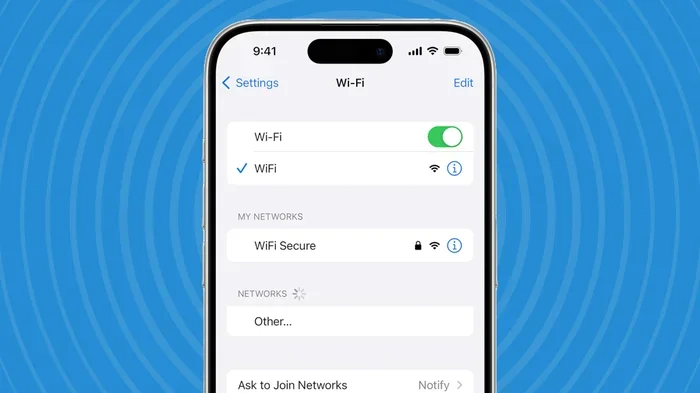
On your iPhone, open the Settings app. Scroll down and tap “Phone.” Select “Wifi Calling” and toggle it on. You will see a prompt to enter your address for emergency location services. Fill this in and tap “Enable.” Your iPhone will now make calls over wifi whenever a strong connection is available. You will see “Wifi” appear next to your signal bars when you are connected.
Checking If Your Carrier Supports Wifi Calling
Most major carriers support wifi calling, but it is always good to double-check. Boost Mobile and many other carriers offer this feature at no extra cost. You can usually find this information on your carrier’s website or by calling their support line. If your carrier does not support it, you can still use free calling apps as an alternative.
How To Use Your Phone As A Wifi Hotspot For Calls
Did you know you can share your phone’s connection with other devices? This is helpful when you want to make calls from a tablet or laptop. You can also use this trick when you are traveling and need to stay connected. Sharing your mobile data with another phone works in a similar way and opens up even more possibilities for free communication.
To use your phone as a hotspot, go to Settings and look for “Hotspot” or “Tethering.” Turn it on and set a password. Other devices can then connect to your phone’s internet and make calls using apps like WhatsApp or Skype. This is especially useful when you are away from your home network but still want to make free calls using wifi.
Tips For Using Your Hotspot For Calls
- Keep your phone plugged in: Hotspot mode drains your battery fast, so keep a charger nearby.
- Use a strong data plan: Wifi calls use very little data, but video calls use more.
- Set a strong password: Keep your hotspot secure so strangers cannot connect.
- Turn off hotspot when not in use: This saves battery and keeps your data safe.
Can I Get Free Wifi For Making Calls Anywhere
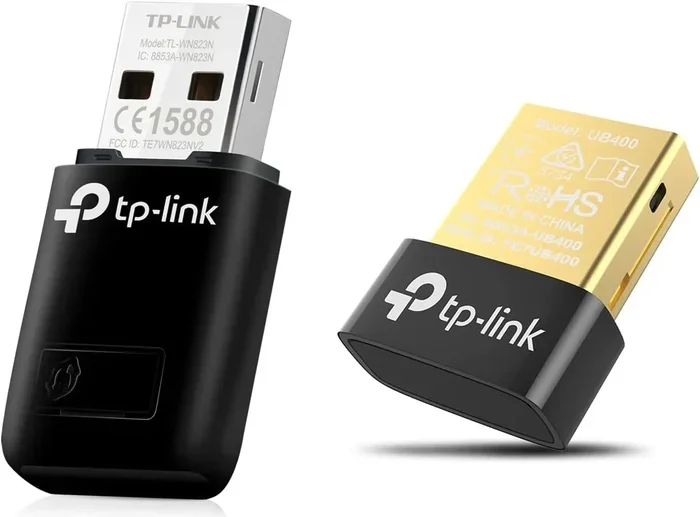
Having access to wifi is the key to making free calls. The good news is that free wifi is available in many places. Libraries, coffee shops, and public parks often offer free connections. You can also use a wifi stick or portable hotspot device to stay connected on the go.
If you want to find free wifi near you, apps like WiFi Map can help. These apps show you public wifi networks in your area. Some cafes and restaurants also provide free wifi to customers. Just ask the staff and they will usually share the password with you. This makes it easy to stay connected and make free wifi calls no matter where you are.
Setting Up Your Home Wifi For The Best Call Quality
Your home wifi setup matters a lot for call quality. A weak signal means dropped calls and choppy audio. Here are some quick tips to improve your home wifi for calling. Place your router in a central location in your home. Keep it away from walls and large appliances that can block the signal. If your home is large, consider using a mesh system to extend coverage to every room.
You should also make sure your internet speed is fast enough for calls. Most wifi calls work fine with speeds as low as 1 Mbps. However, if you want to make video calls, aim for at least 5 Mbps. Running a speed test on your phone is an easy way to check your connection. If your speed is too slow, you may want to contact your internet provider or look into extending your wifi with an ethernet cable for a more stable connection.
How Much Money Can You Really Save
The savings from making free calls using wifi add up fast. The average American spends about $50 to $80 per month on their phone plan. If you switch to a wifi-based calling setup, you could save hundreds of dollars every year. Some people eliminate their phone bill entirely by relying on wifi calling and messaging apps.
Here is a simple breakdown of what you could save. If you currently pay $60 per month for a calling plan, that is $720 per year. By switching to a free wifi calling setup, you could save that entire amount. Even if you keep a small data plan for backup, the savings are still significant. Over five years, you could save thousands of dollars just by changing how you make calls.
| Monthly Phone Bill | Annual Savings With Wifi Calls |
|---|---|
| $30 | $360 |
| $50 | $600 |
| $80 | $960 |
| $100 | $1,200 |
Keep in mind that you will still need a data plan if you are making calls outside of your home wifi network. However, data plans are much cheaper than traditional calling plans. Many carriers offer affordable data-only plans for under $20 per month. This still saves you a lot compared to a full calling plan.
Common Problems And How To Fix Them
Wifi calling is not perfect, and you may run into some issues from time to time. The good news is that most problems are easy to fix. Here are the most common issues and their solutions.
Dropped calls: This usually happens when your wifi signal is weak. Move closer to your router or restart your router to improve the connection. You can also try switching to a different wifi channel on your router settings.
Echo or delay: If you hear an echo or notice a delay, your internet speed may be too slow. Try turning off other devices that are using the same network. Streaming videos and large downloads can slow down your connection and affect call quality.
Wifi calling not showing up: If you do not see the wifi calling option in your settings, your carrier may not support it. Check with your carrier or try using a free calling app instead. Apps like WhatsApp and Google Voice work independently of carrier support.
Emergency calling issues: Wifi calls may not always connect to 911 correctly. Make sure your address is set up correctly in your phone settings. If you are unsure, keep your cellular service active as a backup for emergencies.
Expert Tips For The Best Wifi Calling Experience
Here are some expert tips that will help you get the most out of free wifi calls. These small changes can make a big difference in your daily calling experience.
- Use a wifi extender: If your router is far from where you usually take calls, a wifi extender boosts your signal in that area.
- Keep your apps updated: Updated calling apps have better sound quality and fewer bugs.
- Use headphones: Headphones reduce echo and make your voice sound clearer to the other person.
- Turn off background apps: Other apps using your connection can slow down your calls. Close them before making an important call.
- Test your setup first: Make a test call to a friend before relying on wifi calls for anything important. This helps you catch any issues early.
Wifi calling has come a long way in recent years. The technology is now reliable enough for daily use. Many people have completely switched to wifi-based communication and never looked back. With the right setup and a few free apps, you can enjoy clear, uninterrupted calls without spending a penny on your phone bill.
Final Thoughts On Making Free Calls Using Wifi
Making free calls using wifi is one of the smartest things you can do to save money in 2024 and beyond. You do not need expensive equipment or technical knowledge. Your phone and a wifi connection are all you need to get started. Whether you use built-in wifi calling or free apps like WhatsApp and Google Voice, the savings are real and immediate.
Start by setting up wifi calling on your phone today. Try a few different apps to find the one that works best for you. You will be surprised at how easy it is to cut your phone bill and still stay connected with the people who matter most. The money you save each month adds up fast, and that is money you can put toward something you actually enjoy.
Remember, a strong wifi connection is the foundation of great wifi calls. Take the time to optimize your home network, and you will enjoy crystal-clear conversations without spending a dime. Free wifi calls are not just a dream, they are a practical reality that anyone can enjoy right now.
Frequently Asked Questions
Can I make free calls using wifi without any app?
Yes, you can. Most modern smartphones have built-in wifi calling that works without any extra app. You just need to turn on wifi calling in your phone settings and have a wifi connection. Your carrier must support this feature for it to work.
Do wifi calls use a lot of data?
No, wifi voice calls use very little data. A one-hour call uses about 100 MB of data. Video calls use more, around 500 MB per hour. This is still very little compared to streaming video or downloading large files.
Can I call any phone number using wifi calling?
Yes, you can call any phone number if you use apps like Google Voice or Skype. Built-in wifi calling usually only works between mobile numbers. Free calling apps give you more flexibility to call landlines and international numbers.
Is wifi calling free on all carriers?
Most major carriers include wifi calling at no extra cost. Some smaller carriers may charge a small fee, but it is usually minimal. Check with your carrier to confirm their policy on wifi calling charges.
What happens if my wifi goes down during a call?
If your wifi drops during a call, the call will disconnect. This is why it is important to have a strong and stable wifi connection. You can switch to your cellular network as a backup if your carrier supports seamless handoff.
Can I make wifi calls internationally for free?
Yes, you can. Apps like WhatsApp, Skype, and Google Voice let you make free international calls over wifi. You do not need an international calling plan. Just make sure both you and the recipient have a stable wifi connection.
=== CONCLUSION ===
Making free calls using wifi is simple, practical, and incredibly effective for saving money. You have many great options, from built-in wifi calling to free apps like WhatsApp and Google Voice. The key is to set up your phone correctly, maintain a strong wifi connection, and choose the right app for your needs. Start today and enjoy the freedom of staying connected without worrying about your phone bill. Your wallet will thank you.