Here Is How You Can Boost Your T Mobile Wi Fi Signal
Boosting your T Mobile Wi Fi signal is easier than you think. You can improve your connection with simple router placement tricks, signal boosters, and network settings adjustments. Whether you are dealing with slow speeds or dead zones, these proven methods help you get the most out of your T Mobile internet.
Dealing with a weak T Mobile Wi Fi signal can be incredibly frustrating. You are trying to stream your favorite show, join a video call, or just browse the web, and suddenly everything slows to a crawl. The good news is that you do not need to be a tech expert to fix this problem. There are plenty of simple, effective ways to strengthen your T Mobile Wi Fi signal and enjoy faster, more reliable internet throughout your home.
In this guide, we will walk you through every practical method you can use right now. From basic placement tips to advanced network settings, you will find actionable steps that really work. Whether you live in a small apartment or a large house, these strategies will help you get the most out of your T Mobile connection.
Before we dive in, it helps to understand a few basics about how T Mobile home internet works. T Mobile uses a gateway device that combines a modem and a router into one unit. This gateway sends out a wireless signal that your phones, laptops, and smart home devices connect to. When that signal is weak, everything suffers. So let us explore how to fix it.
Key Takeaways
- Router Placement Matters: Moving your T-Mobile gateway to a central location can dramatically improve signal coverage.
- Use a WiFi Range Extender: A booster or extender helps eliminate dead zones in larger homes.
- Update Firmware Regularly: Keeping your T-Mobile router updated ensures optimal performance and security.
- Reduce Interference: Avoid placing your router near microwaves, cordless phones, and thick walls.
- Adjust WiFi Channels: Switching to a less congested channel can reduce interference and speed up your connection.
- Consider a Mesh Network: Mesh systems provide whole-home coverage for stubborn signal problems.
- Limit Connected Devices: Too many devices on one network slow down your T-Mobile Wi Fi signal.
📑 Table of Contents
Why Your T Mobile Wi Fi Signal Might Be Weak
Understanding the root cause of a weak signal is the first step toward fixing it. Several factors can affect your T Mobile Wi Fi signal strength, and often it is a combination of things working together.
Common Causes of Weak WiFi Signals
- Router Placement: If your gateway sits in a corner, closet, or basement, the signal has a hard time reaching every room. Walls, floors, and furniture all block wireless signals.
- Interference from Other Devices: Microwaves, baby monitors, cordless phones, and even Bluetooth devices can interfere with your WiFi frequency.
- Too Many Connected Devices: Every device connected to your network shares the available bandwidth. The more devices, the slower each one performs.
- Outdated Firmware: Older router software may not handle modern internet speeds efficiently and can cause connectivity issues.
- Network Congestion: If your neighbors are on the same WiFi channel, their signals can overlap and weaken yours.
Once you identify what is causing your weak signal, you can take the right steps to fix it. Let us get into the solutions.
Simple Tips to Boost Your T Mobile Wi Fi Signal
The easiest and most effective changes you can make often cost nothing. Start with these simple tips before moving on to more advanced solutions.
1. Move Your Router to a Central Location
Where you place your T-Mobile gateway has a huge impact on your WiFi coverage. Try to position it in the center of your home, preferably on a higher shelf or mounted on a wall. Avoid hiding it inside cabinets or behind large furniture. A clear line of sight helps the signal travel freely to every room.
If your gateway is currently in the basement, try moving it to the main floor. If it is in a far corner of the house, consider relocating it closer to the middle. Even a few feet of movement can make a noticeable difference in your T Mobile Wi Fi signal strength.
2. Keep Your Router Away From Interference Sources
Electronic devices emit signals that can interfere with your WiFi. Place your gateway at least a few feet away from:
- Microwaves
- Cordless phones
- Baby monitors
- Bluetooth speakers
- Large metal objects
- Thick concrete walls
These items can absorb or block your wireless signal. By keeping your router clear of these obstacles, you give your T Mobile connection the best chance to perform at its best.
3. Restart Your Gateway Regularly
Sometimes the simplest fix is also the most effective. Restarting your T-Mobile gateway clears its memory, refreshes the connection, and can resolve temporary performance issues. Try unplugging your gateway for 30 seconds, then plug it back in. This quick habit can improve your WiFi signal significantly over time.
Many people set a weekly reminder to restart their router. It takes almost no effort but can keep your network running smoothly.
4. Update Your Router Firmware
T-Mobile regularly releases firmware updates for its gateways. These updates often include performance improvements, bug fixes, and security patches. To check for updates, log into your gateway’s admin panel by visiting 192.168.1.1 in your web browser. Look for a section labeled “Firmware Update” or “System Update” and install any available updates.
Keeping your firmware current ensures your T Mobile Wi Fi signal operates at peak efficiency. It also protects your network from vulnerabilities.
Advanced Solutions for Stronger T Mobile WiFi
If the simple tips above do not solve your signal problems, it is time to explore more advanced solutions. These methods require a small investment but can transform your home network.
1. Use a WiFi Range Extender
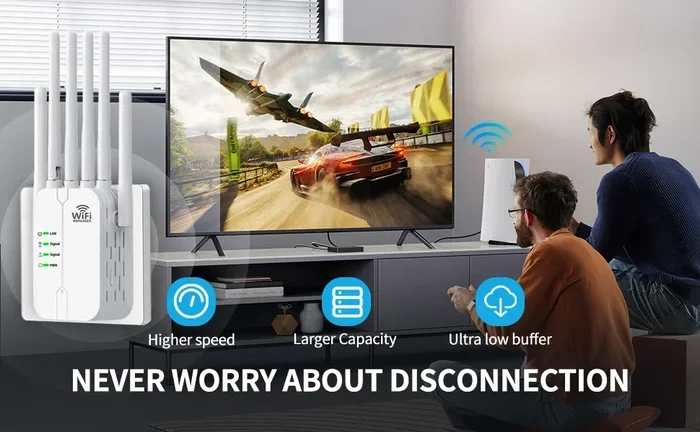
A WiFi range extender picks up your existing T-Mobile signal and rebroadcasts it to areas where the signal is weak. These devices are affordable and easy to set up. You simply plug the extender into a wall outlet in a room where the signal is still decent, and it creates a new coverage zone.
Place the extender halfway between your gateway and the area with poor coverage. This ensures it receives a strong enough signal to rebroadcast effectively. Popular brands like Netgear and TP-Link make reliable extenders that work well with T-Mobile gateways.
One thing to keep in mind: extendors can sometimes reduce your overall speed slightly because the signal has to travel twice. However, for most users, the improvement in coverage far outweighs any minor speed loss.
2. Switch to a Mesh WiFi System
If your home is large or has multiple floors, a single gateway might not be enough. A mesh WiFi system uses multiple nodes placed around your home to create seamless, whole-house coverage. Unlike traditional extenders, mesh systems provide a single network name, so your devices switch automatically between nodes as you move around.
Mesh systems like Google Nest WiFi, Eero, and TP-Link Deco are excellent choices. They work alongside your T-Mobile gateway and can dramatically improve your T Mobile Wi Fi signal in every room. While they cost more than a single extender, the performance boost is well worth it for larger homes.
3. Connect Your PC to WiFi Without Ethernet
If you are trying to get your desktop or laptop online without running an Ethernet cable, you have options. You can connect your PC to WiFi without Ethernet by using a USB WiFi adapter or a wireless PCIe card. These devices plug into your computer and give it a direct wireless connection to your T-Mobile gateway.
This is especially helpful if your computer does not have built-in WiFi capabilities. A quality USB adapter can improve your connection speed and stability, giving you a stronger T Mobile Wi Fi signal on your PC.
4. Consider Using a Hotspot Instead of WiFi
In some situations, you might find that using a dedicated hotspot works better than relying on your home WiFi. You can get a hotspot instead of WiFi by using a mobile hotspot device or enabling the hotspot feature on your T-Mobile phone. This creates a separate network that your devices can connect to directly.
Hotspots can be especially useful in areas where your home WiFi signal is consistently weak. They also give you more control over your connection and can sometimes provide faster speeds than a congested home network.
Optimize Your T Mobile Network Settings
Beyond hardware solutions, adjusting your network settings can have a significant impact on your T Mobile Wi Fi signal. These changes are free and can be done in minutes.
1. Change Your WiFi Channel
Your T-Mobile gateway broadcasts on specific WiFi channels. If your neighbors are using the same channel, their signals can interfere with yours, causing slowdowns and weak connections. You can change your channel through the gateway admin panel to find a less congested one.
For the 2.4 GHz band, channels 1, 6, and 11 are the best options because they do not overlap with each other. For the 5 GHz band, there are more channels available, so interference is less of a problem. Experiment with different channels and use a WiFi analyzer app to find the clearest one.
2. Enable Band Steering
Most T-Mobile gateways are dual-band, meaning they broadcast both 2.4 GHz and 5 GHz signals. The 5 GHz band is faster but has a shorter range, while the 2.4 GHz band is slower but travels farther. Enable band steering in your gateway settings to allow your devices to automatically connect to the best band for their location.
This feature ensures that devices close to the router use the faster 5 GHz band, while devices farther away use the more reliable 2.4 GHz band. The result is a stronger, more consistent T Mobile Wi Fi signal throughout your home.
3. Limit Connected Devices
Every device connected to your network uses bandwidth, even when it is not actively in use. Smart TVs, game consoles, smart speakers, and IoT devices all compete for your T-Mobile signal. Consider disconnecting devices that are not actively being used and limiting the number of devices on your network.
You can also set up a guest network for visitors and smart home devices. This keeps your main network less congested and helps maintain strong speeds for your primary devices.
4. Block Unauthorized Devices
If you suspect that neighbors or others are using your WiFi without permission, this can slow down your connection and weaken your T Mobile Wi Fi signal. You can block a device from using your WiFi by accessing your gateway’s admin panel and using the device management or access control features. This lets you see all connected devices and remove any that do not belong to you.
Keeping your network secure also protects your personal data and ensures that your internet speed is not being shared with unauthorized users.
When to Contact T Mobile Support
If you have tried all of the tips above and your T Mobile Wi Fi signal is still weak, it may be time to contact T-Mobile support. There could be an issue with your gateway device, your account settings, or the network infrastructure in your area.
Here are some situations where contacting support makes sense:
- Your signal is weak in every room, not just specific areas
- You have tried multiple routers and extenders with no improvement
- Your internet speeds are consistently below what your plan promises
- Your gateway device is more than three years old
- You suspect a service outage or network issue in your neighborhood
T-Mobile support can run diagnostics on your account, check for outages, and sometimes send a replacement gateway at no cost. They can also help you determine if upgrading your internet plan would improve your experience.
Quick Tips for Maintaining a Strong T Mobile WiFi Signal
Once you have optimized your T Mobile Wi Fi signal, a few simple habits will help keep it strong over time:
- Restart your gateway monthly to clear temporary data and refresh the connection
- Check for firmware updates every few weeks
- Keep your gateway in an open, central location away from walls and electronics
- Monitor connected devices regularly to ensure no unauthorized users
- Use a WiFi analyzer app to periodically check for channel congestion
- Replace your gateway if it is more than four years old and struggling to keep up
These small habits take minimal effort but pay off in the long run. A well-maintained network delivers faster speeds, better reliability, and fewer frustrating disconnections.
Final Thoughts
Boosting your T Mobile Wi Fi signal does not have to be complicated or expensive. Start with the simple, free solutions like repositioning your router and reducing interference. Then move on to hardware upgrades like range extenders or mesh systems if needed. Finally, fine-tune your network settings to get the most out of your T-Mobile connection.
Every home and network is different, so it may take some trial and error to find the combination of solutions that works best for you. But with the tips in this guide, you are well equipped to tackle any T Mobile WiFi signal problem. A strong, reliable connection is within your reach, and the steps you take today will pay off for years to come.
Frequently Asked Questions
What is the best way to boost T Mobile Wi Fi signal?
The best way is to reposition your gateway to a central, elevated location in your home. Combine this with regular restarts, firmware updates, and reducing electronic interference. For larger homes, a mesh WiFi system or range extender can make a big difference in your T Mobile Wi Fi signal strength.
Can I add WiFi to my PC without a built-in wireless adapter?
Yes, you can. You can add WiFi to your PC using a USB WiFi adapter or a wireless PCIe card. These affordable devices plug into your computer and connect wirelessly to your T-Mobile gateway. This is a great solution if your desktop does not have built-in WiFi capabilities.
Why is my T Mobile WiFi signal weak in certain rooms?
Weak signals in specific rooms are usually caused by distance from the gateway, thick walls, or electronic interference. Walls, floors, and large furniture can block WiFi signals. Moving your gateway to a more central location or using a range extender can help eliminate these weak spots.
How do I know if someone else is using my T Mobile WiFi?
Log into your gateway admin panel and check the list of connected devices. If you see devices you do not recognize, someone may be using your WiFi without permission. You can block unauthorized devices and change your WiFi password to secure your network and restore your T Mobile Wi Fi signal strength.
Should I use the 2.4 GHz or 5 GHz band for better T Mobile WiFi?
The 5 GHz band offers faster speeds but has a shorter range, while the 2.4 GHz band is slower but travels farther. Enable band steering on your T-Mobile gateway so devices automatically connect to the best band. For devices far from the router, 2.4 GHz works better. For close-range devices, 5 GHz delivers faster performance.
How often should I restart my T Mobile gateway?
Restarting your gateway once a month is a good habit. It clears the device memory, refreshes the connection, and can resolve temporary performance issues. If you notice slow speeds or weak T Mobile Wi Fi signal, a quick restart is the first thing you should try before exploring more complex solutions.