How Can I Boost My Roku Signal Without Any Extra Gear
You can boost your Roku signal without spending a dime on extra equipment. Simple free steps like repositioning your router, changing Wi-Fi channels, and updating your Roku settings can dramatically improve your streaming experience. These practical tips work for almost any Roku model and require zero technical expertise.
Your Roku keeps freezing mid-show. The buffer wheel spins endlessly. You wonder if you need to buy a new router or some expensive signal booster. But before you spend a single dollar, there are plenty of free ways to boost Roku signal right now.
Boosting your Roku signal does not require fancy equipment or technical skills. Most solutions take just a few minutes. You can fix buffering, improve picture quality, and enjoy seamless streaming using simple tricks you can do today. This guide walks you through every step in plain language.
Whether you own a Roku Express, Roku Streaming Stick, or a top-tier Roku Ultra, these tips apply to all models. We will cover router placement, Wi-Fi optimization, Roku settings, and network adjustments. By the end, you will know exactly how to make your Roku work better without buying anything extra.
Let us dive in. Your favorite shows deserve to play without interruptions.
Key Takeaways
- Router placement matters: Moving your router closer to your Roku can instantly improve signal strength.
- Change your Wi-Fi channel: Switching to a less crowded channel reduces interference and boosts Roku signal.
- Update your Roku software: Regular updates fix bugs that cause buffering and connection drops.
- Use the 5GHz band: If your router supports it, the 5GHz frequency delivers faster, more stable streaming.
- Restart your devices: A simple restart of your Roku and router can solve many signal issues.
- Reduce wireless interference: Moving other electronics away from your Roku helps maintain a strong connection.
📑 Table of Contents
- Why Does Your Roku Signal Drop?
- Best Router Placement for Roku
- How to Reduce Wireless Interference
- Roku Settings That Improve Signal
- Network Optimization Tips for Better Streaming
- When to Consider Professional Help
- Common Mistakes That Hurt Your Roku Signal
- Quick Tips for Instant Improvement
- Expert Insights on Roku Signal Optimization
- Final Thoughts
Why Does Your Roku Signal Drop?
Understanding the problem helps you fix it. Roku streams video over your home Wi-Fi network. If the Wi-Fi signal is weak or unstable, your Roku suffers. Several common factors cause poor Roku signal strength.
Distance From Your Router
The farther your Roku is from your router, the weaker the signal becomes. Walls, floors, and furniture block wireless signals. If your Roku sits in a different room from your router, you may experience buffering and lag.
Wireless Interference
Other electronic devices create interference. Microwaves, baby monitors, and cordless phones all operate on similar frequencies. This interference weakens your Roku connection. Even your neighbor’s Wi-Fi network can cause problems if it uses the same channel.
Outdated Software
Old Roku software can cause connection issues. Manufacturers release updates that fix bugs and improve performance. If you have not updated your Roku in a while, this could be hurting your signal.
Network Congestion
Too many devices on your network slow everything down. When someone else in your house is streaming or downloading, your Roku competes for bandwidth. This congestion leads to poor streaming quality.
Best Router Placement for Roku
Where you put your router has a huge impact on your Roku signal. Moving your router to a better spot is the single most effective free fix. Try these placement strategies.
Center Your Router
Place your router in the center of your home. This gives the signal equal distance to every room. If your router sits in a corner, the signal barely reaches the opposite side of the house.
Keep It Elevated
Put your router on a high shelf or mount it on a wall. Signals travel downward better than upward. A router on the floor loses strength quickly. Elevating it even a few feet makes a noticeable difference.
Avoid Obstacles
Keep your router away from thick walls, metal objects, and large appliances. These block wireless signals. Do not hide your router inside a closet or behind a TV. Open spaces let the signal flow freely.
Point Antennas Correctly
If your router has external antennas, point them vertically. One antenna straight up and one at a 45-degree angle works well. This spreads the signal across multiple floors and rooms.
How to Reduce Wireless Interference
Wireless interference is one of the biggest enemies of Roku streaming. Reducing interference can boost Roku signal significantly. Here is how to do it.
Switch to the 5GHz Band
Most modern routers broadcast two bands: 2.4GHz and 5GHz. The 2.4GHz band travels farther but is more crowded. The 5GHz band is faster and less congested. If your Roku supports 5GHz, switch to it for better performance.
Change Your Wi-Fi Channel
Your neighbors’ Wi-Fi networks can overlap with yours. This creates interference. Use a free app like Wi-Fi Analyzer to find the least crowded channel. Then log into your router settings and switch to that channel. This simple change often fixes buffering instantly.
Move Competing Devices
Keep your Roku and router away from other electronics. Bluetooth devices, USB 3.0 cables, and even fluorescent lights can cause interference. Give your Roku at least three feet of space from other gadgets.
Limit Bandwidth-Hogging Activities
Ask everyone in your household to pause heavy downloads while you stream. Online gaming, video calls, and large file downloads all eat up bandwidth. Reducing these activities during streaming hours helps your Roku maintain a strong signal.
Roku Settings That Improve Signal
Your Roku has built-in settings that affect signal performance. Tweaking these settings can make a big difference without any extra gear.
Update Your Roku Software
Go to Settings, then System, then System Update. Install any available updates. These updates often include fixes for connection issues and performance improvements. Keeping your Roku updated is one of the easiest ways to boost Roku signal.
Enable Auto-Detect
Your Roku can automatically detect the best connection settings. Go to Settings, then Network, then Set Up Connection. Choose Automatic. This lets your Roku find the optimal network settings on its own.
Adjust Display Resolution
Lowering your resolution temporarily can help diagnose signal issues. Go to Settings, then Display Type, and try 720p instead of 4K. If streaming improves, your signal may be too weak for higher resolutions. You can then decide whether to upgrade your internet plan or adjust your setup.
Clear Cache and Restart
A overloaded Roku runs slower and connects poorly. Restart your Roku regularly by going to Settings, then System, then Power, then System Restart. This clears temporary files and refreshes your connection.
Network Optimization Tips for Better Streaming
Your home network setup affects Roku performance. A few smart adjustments can improve signal strength without spending money.
Restart Your Router Regularly
Routers accumulate data over time. A fresh restart clears memory and refreshes connections. Unplug your router for 30 seconds, then plug it back in. Do this once a week for best results.
Use a Wired Connection When Possible
If your Roku is near your router, consider a wired Ethernet connection. You can use an Ethernet adapter for Roku models that support it. Wired connections are faster and more stable than Wi-Fi. If you are wondering about connecting other devices, you can learn how to connect an HDMI to my Mac for a similar direct connection approach.
Set Up a Guest Network
Create a separate guest network for your streaming devices. This isolates your Roku from other traffic. Fewer devices competing for bandwidth means a stronger Roku signal. Most modern routers let you set up a guest network through their admin panel.
Check Your Internet Speed
Run a speed test on your phone while connected to your Wi-Fi. If speeds are below 10 Mbps, streaming will struggle. Contact your internet provider if speeds are consistently low. Sometimes a simple plan upgrade makes all the difference.
Use DNS Settings
Changing your DNS server can improve Roku streaming speed. Go to Settings, then Network, then Set Up Connection, then Advanced. Enter Google DNS (8.8.8.8 and 8.8.4.4) or OpenDNS. This can reduce buffering and speed up channel loading.
When to Consider Professional Help
Most signal issues resolve with the free tips above. But sometimes the problem runs deeper. Here is when you should consider calling in the experts.
Persistent Buffering Despite All Fixes
If you have tried every tip and still experience constant buffering, your internet plan may be insufficient. Contact your internet provider to discuss faster options. They can run line tests to identify underlying issues.
Hardware Problems
Old routers and aging Roku devices may simply be too weak for modern streaming. If your equipment is more than five years old, an upgrade might be worth considering. But always try the free solutions first.
Large Home Challenges
Very large homes with thick walls pose unique challenges. If you live in a multi-story house with brick walls, standard routers may not reach every room. In these cases, you might explore mesh network systems or powerline adapters. But these involve extra gear, which this guide does not cover.
Explore Alternative Streaming Methods
If your Roku signal remains weak, consider alternative ways to watch content. Some people find success mirroring their phone to their smart TV without wifi as a temporary workaround. You can also try connecting your phone to TV with HDMI cable for a direct, reliable connection. These methods bypass Wi-Fi entirely and deliver a stable viewing experience.
Remember, the goal is to enjoy your favorite shows without frustration. Start with the free tips in this article. Most people see immediate improvement. Only consider paid solutions if these steps do not work for your situation.
Common Mistakes That Hurt Your Roku Signal
Avoid these common mistakes that make Roku signal problems worse.
- Placing your router in a basement: Signals struggle to travel upward through floors.
- Ignoring router updates: Old router firmware causes performance issues.
- Overloading your network: Too many connected devices slow everything down.
- Using old HDMI cables: Faulty cables can mimic signal problems.
- Never restarting your Roku: Regular restarts keep your device running smoothly.
- Hiding your router behind furniture: This blocks the signal and reduces range.
Quick Tips for Instant Improvement
Need fast results? Try these quick fixes right now.
- Restart your Roku and router. This solves 50% of all signal issues.
- Move your Roku closer to your router, even temporarily.
- Switch your router to the 5GHz band.
- Check for Roku software updates.
- Close background apps on your Roku.
- Reduce the number of connected devices on your network.
- Change your Wi-Fi channel using your router settings.
These steps take less than ten minutes combined. Try them in order and test your streaming after each one. You will likely notice improvement after just the first two or three steps.
Expert Insights on Roku Signal Optimization
Network engineers recommend treating your Roku like any other wireless device. The same principles that improve phone Wi-Fi apply to your streaming box. Keep your router firmware updated, minimize interference, and place your router strategically.
One often-overlooked tip is to check your router’s Quality of Service (QoS) settings. QoS lets you prioritize streaming traffic over other types of data. This means your Roku gets priority bandwidth when multiple devices are active. Check your router’s admin panel for QoS options and enable them if available.
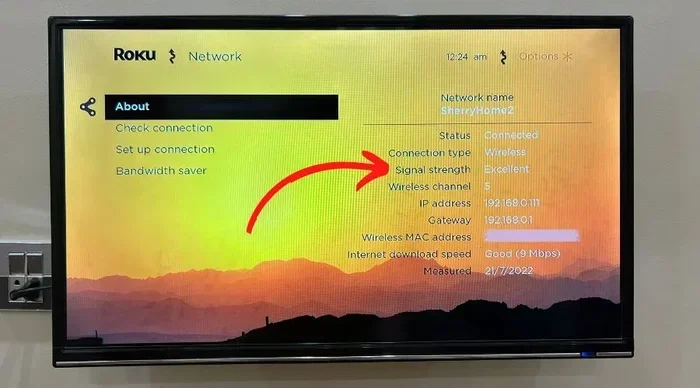
Another pro tip is to monitor your Wi-Fi signal strength directly from your Roku. Go to Settings, then Network, then About. The signal strength indicator shows you exactly how strong your connection is. Use this as a baseline to measure improvements after making changes.
Final Thoughts
Boosting your Roku signal does not require expensive equipment or technical expertise. Simple, free steps like repositioning your router, switching Wi-Fi bands, and updating your software can transform your streaming experience. Start with the router placement tips and work through the list. Each step builds on the last.
Remember that every home is different. What works perfectly for one person might need slight adjustments for another. Experiment with these tips and find the combination that works best for your setup. The goal is a smooth, buffer-free streaming experience, and that is absolutely achievable without spending a penny on extra gear.
Your Roku deserves to perform at its best. Apply these tips today and enjoy your favorite content the way it was meant to be watched. Happy streaming!
Frequently Asked Questions
Why does my Roku keep buffering even with a strong Wi-Fi signal?
Buffering can happen when your internet speed is too slow for the content you are watching. Try lowering the resolution in your Roku display settings. Also, check if other devices are using bandwidth at the same time. Restarting your router often helps too.
Can I boost my Roku signal without buying anything?
Yes, absolutely. Most signal issues can be fixed for free by adjusting router placement, changing Wi-Fi channels, updating software, and reducing interference. These tips require zero extra gear and take just a few minutes.
What is the best Wi-Fi channel for Roku?
The best channel is whichever one has the least interference in your area. Use a free Wi-Fi analyzer app to scan nearby networks. Choose a channel that is far from your neighbors’ networks. Channels 1, 6, and 11 are the standard options for 2.4GHz connections.
Does the 5GHz band really make a difference for Roku?
Yes, the 5GHz band is faster and less crowded than 2.4GHz. It delivers more stable streaming with less buffering. However, 5GHz has a shorter range. Make sure your Roku is close enough to the router to benefit from it.
How often should I restart my Roku and router?
Restart your Roku once a week and your router at least once a month. If you notice signal issues, restart both devices immediately. A simple restart clears temporary data and refreshes your connection.
Will moving my Roku closer to the router always fix signal issues?
Usually yes. Distance is the most common cause of weak Roku signals. Moving your Roku closer to the router often solves buffering and connection drops. If moving closer is not practical, try the other tips in this guide.