Does My Pc Have Bluetooth Here Are 5 Easy Ways To Check
Finding out if your PC has Bluetooth is simpler than you think. You can check your Device Manager, system settings, taskbar, or even your PC specs in just a few minutes. This guide walks you through 5 proven methods to confirm Bluetooth capability on any computer.
Do you want to connect wireless headphones, a speaker, or a mouse to your computer but aren’t sure if your machine supports it? The question does my pc have Bluetooth comes up all the time. Whether you are trying to set up a wireless connection for gaming, work, or streaming music, knowing your Bluetooth status is the first step.
The good news is that checking for Bluetooth on your PC takes only a few minutes. You do not need to be a tech expert. In this article, we walk you through five simple ways to find out if your computer has Bluetooth built in. We also cover what to do if it does not. You will learn practical tips, common mistakes to avoid, and expert advice that makes the whole process easy.
By the end of this guide, you will know exactly what to look for and how to get your Bluetooth connectivity working. Let us dive in.
Key Takeaways
- Device Manager is the fastest way to see if your PC supports Bluetooth wireless technology.
- Windows Settings and Control Panel both show Bluetooth options if your computer is enabled.
- A Bluetooth dongle or adapter can add wireless capability to any older PC.
- Taskbar icons give you a quick visual check for Bluetooth readiness.
- Checking your PC manual or specs online confirms Bluetooth version and range details.
📑 Table of Contents
- Why Bluetooth Matters on Your PC
- Way 1: Check Your Device Manager
- Way 2: Look at Your System Settings
- Way 3: Check Your Taskbar for Bluetooth Icons
- Way 4: Use a Third-Party Bluetooth Tool
- Way 5: Check Your PC Manual or Specs Online
- What to Do If Your PC Does Not Have Bluetooth
- Common Mistakes People Make When Checking for Bluetooth
- How to Pair Bluetooth Devices Once You Confirm Support
- Final Thoughts
Why Bluetooth Matters on Your PC
Bluetooth is a wireless technology that lets devices talk to each other without cables. It has become essential for modern computing. From wireless headphones to keyboards and mice, Bluetooth makes your setup cleaner and more flexible.
Most new laptops come with Bluetooth enabled right out of the box. Desktop PCs sometimes lack it unless you have a newer model or added a Bluetooth adapter. Knowing whether your PC has this feature saves you time and frustration when you want to pair a wireless peripheral.
Here are some common uses for Bluetooth on a PC:
- Connecting wireless headphones and earbuds
- Pairing a Bluetooth speaker for audio
- Using a wireless mouse or keyboard
- Transferring files between devices
- Connecting a game controller for gaming
If you are into gaming, you might also want to check if your setup supports Bluetooth headphones for gaming. Many gamers prefer the freedom of wireless audio without the lag.
Way 1: Check Your Device Manager
The Device Manager is the quickest and most reliable way to find out if your PC has Bluetooth. Windows keeps a list of all your hardware here, including wireless modules.
Steps to Check Device Manager
- Right-click the Start button on your taskbar.
- Select Device Manager from the menu.
- Look for a section called Bluetooth or Network Adapters.
- If you see a Bluetooth entry with a small icon, your PC supports it.
If the Bluetooth section is missing entirely, your computer might not have a Bluetooth module. Do not worry. We cover solutions for that later in this guide.
Sometimes the Bluetooth driver is hidden or disabled. In that case, click View in the Device Manager menu and select Show Hidden Devices. This trick reveals Bluetooth hardware that Windows has masked.
Quick Tip: If you see a yellow triangle next to the Bluetooth entry, your driver needs updating. Right-click the device and select Update Driver to fix it.
Way 2: Look at Your System Settings
Windows Settings give you another clear way to check for Bluetooth. This method works on Windows 10 and Windows 11.
Steps to Check System Settings
- Press the Windows key plus I to open Settings.
- Click on Bluetooth and devices (or Devices on older versions).
- Look for a toggle switch at the top.
- If the toggle exists, your PC has Bluetooth capability.
If you see the Bluetooth toggle, your computer is ready to pair devices. If the option is completely missing, your PC likely does not have built-in Bluetooth support.
Another thing to check here is the Bluetooth version. Newer versions offer better range and faster data transfer. If your PC has an older version, you might still get a solid wireless connection for most everyday tasks.
Expert Insight: Bluetooth 5.0 and above offer significantly better range and speed compared to older versions. If your PC has Bluetooth 4.0 or lower, consider upgrading your adapter for better performance.
Way 3: Check Your Taskbar for Bluetooth Icons
Your taskbar can tell you a lot about your PC’s wireless features. Windows places a Bluetooth icon in the system tray when Bluetooth is available and active.
How to Read the Taskbar
- Look at the bottom-right corner of your screen near the clock.
- Find the network or wireless icon (it looks like a signal tower).
- Click on it to see if Bluetooth appears in the quick menu.
- If you see Bluetooth listed, your PC supports it.
If you do not see the Bluetooth icon, do not panic yet. It might just be hidden. Right-click the taskbar, select Taskbar Settings, and make sure the Bluetooth toggle is turned on in the system tray icons section.
This method is not foolproof. Some PCs hide the icon even when Bluetooth hardware is present. That is why it is best to use this check along with the Device Manager method for confirmation.
For those who want to use their phone as a speaker or connect other audio devices, you might also enjoy learning how to turn your phone into a Bluetooth speaker. It is a handy trick that works great with a Bluetooth-enabled PC.
Way 4: Use a Third-Party Bluetooth Tool
If the built-in Windows tools do not give you a clear answer, third-party software can help. These tools scan your hardware and tell you exactly what wireless features your PC has.
Recommended Tools to Check Bluetooth
- Bluetooth Viewer: A free tool that scans and lists all Bluetooth devices and adapters on your PC.
- CPU-Z: A popular system information tool that shows detailed hardware specs including wireless modules.
- Speccy: A comprehensive system scanner that checks Bluetooth capability among other features.
These tools are especially helpful when you buy a used PC or a refurbished laptop. The seller might not mention whether Bluetooth is included. A quick scan tells you everything you need to know.
Quick Tip: Always download third-party tools from the official website. Avoid third-party download sites that bundle extra software you do not want.
Way 5: Check Your PC Manual or Specs Online
If none of the software methods work, you can always check the physical specs of your PC. Every computer has a model number that you can look up online.
How to Find Your PC Specs
- Look for a sticker on the bottom of your laptop or the back of your desktop tower.
- Write down the model number.
- Go to the manufacturer’s website.
- Search for your model and look at the specifications page.
The specs page will clearly state whether your PC includes Bluetooth. It will also tell you the Bluetooth version, which helps you understand the wireless range and speed you can expect.
If you bought your PC from a store, check the original box or receipt. The product description usually lists all the connectivity features including Bluetooth capability.
Common Mistake: Many people confuse Wi-Fi with Bluetooth. Wi-Fi and Bluetooth are different wireless technologies. Your PC might have Wi-Fi but not Bluetooth, or vice versa. Always check for both separately.
What to Do If Your PC Does Not Have Bluetooth
Finding out your PC lacks Bluetooth can feel disappointing. But the fix is simple and affordable. You can add Bluetooth to any computer with a USB Bluetooth adapter.
Option 1: Buy a Bluetooth USB Dongle
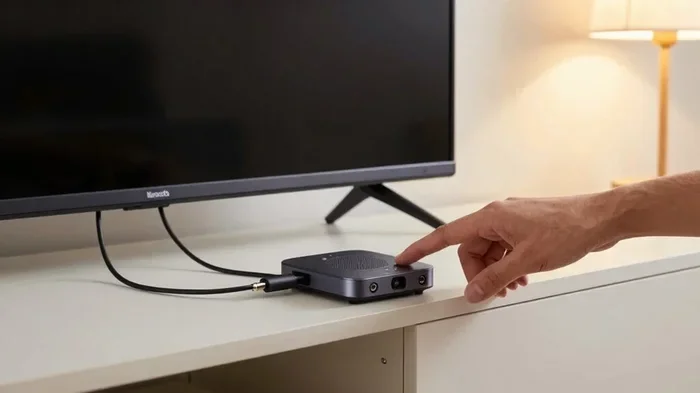
A Bluetooth dongle plugs into any USB port and adds wireless capability instantly. These adapters cost between $10 and $30. They work with almost every PC and are plug-and-play.
When shopping for a dongle, look for these features:
- Bluetooth 5.0 or higher for better range
- Compatibility with Windows 10 or 11
- Support for multiple device pairings
Once you plug in the dongle, Windows usually installs the driver automatically. You then go to Settings, find Bluetooth, and start pairing devices.
Option 2: Use a Bluetooth PCIe Card
For desktop PCs, a PCIe Bluetooth card offers a more permanent solution. You open your tower, insert the card into an empty PCIe slot, and your PC gains full Bluetooth support. This option is great for users who want a strong and stable wireless connection.
If you are interested in connecting external audio devices, you might also want to explore using HDMI for video and Bluetooth for audio. This setup gives you the best of both worlds for a complete media experience.
Common Mistakes People Make When Checking for Bluetooth
Many users make simple mistakes that slow them down. Here are the most common ones:
- Assuming Wi-Fi means Bluetooth: These are two separate technologies. One does not guarantee the other.
- Not checking the Bluetooth driver: Even if your PC has Bluetooth hardware, a missing or outdated driver can make it seem like it does not work.
- Ignoring hidden devices in Device Manager: Bluetooth hardware sometimes hides from the default view.
- Buying the wrong adapter: Always check compatibility before buying a Bluetooth dongle.
- Not restarting after installing a driver: A simple restart can activate new Bluetooth hardware.
Avoiding these mistakes saves you time and keeps you from buying unnecessary equipment.
How to Pair Bluetooth Devices Once You Confirm Support
Once you confirm your PC has Bluetooth, pairing devices is straightforward. Here is a quick walkthrough.
- Turn on the device you want to pair (headphones, speaker, mouse).
- Put it in pairing mode. Most devices have a dedicated button for this.
- Open Settings on your PC and go to Bluetooth and devices.
- Click Add device and select Bluetooth.
- Choose your device from the list and follow the prompts.
Once paired, your device connects automatically whenever both are in range. The typical Bluetooth range is about 30 feet, though walls and other obstacles can reduce this distance.
If you want to upgrade your wired headphones to wireless, check out our guide on making wired headphones Bluetooth. It is a great way to breathe new life into your favorite pair.
For users who also use their phone as a Bluetooth device, you might be interested in learning how to turn your phone into a Bluetooth speaker. This works seamlessly when your PC has proper Bluetooth support.
Final Thoughts
So, does my pc have Bluetooth? The answer is easy to find with the five methods we covered. Whether you check Device Manager, System Settings, the taskbar, a third-party tool, or your PC specs online, you can confirm Bluetooth capability in minutes.
If your PC does not have Bluetooth, adding it is affordable and simple. A USB Bluetooth dongle or a PCIe card solves the problem in seconds. You will be connecting wireless headphones, speakers, and peripherals before you know it.
Take a few minutes right now to run through these checks. You will be glad you did. Once you confirm your Bluetooth connectivity, the world of wireless devices opens up. Enjoy the freedom and convenience that comes with a fully connected PC.
Frequently Asked Questions
How do I know if my PC has Bluetooth built in?
Open Device Manager and look for a Bluetooth section. If it appears, your PC has built-in Bluetooth support. You can also check Windows Settings under Bluetooth and devices to confirm.
Can I add Bluetooth to a PC that does not have it?
Yes, you can. A USB Bluetooth dongle is the easiest and most affordable option. Simply plug it into a USB port, and Windows will install the driver automatically.
What is the difference between Bluetooth and Wi-Fi on a PC?
Bluetooth connects devices over short distances for peripherals like headphones and mice. Wi-Fi connects your PC to the internet. They are two separate wireless technologies that serve different purposes.
Why is my Bluetooth not showing up in Device Manager?
The Bluetooth driver might be missing or disabled. Try updating your drivers through Device Manager. You can also check if the hardware is hidden by selecting Show Hidden Devices under the View menu.
What Bluetooth version do I need for wireless headphones?
Bluetooth 4.0 or higher works well for most wireless headphones. Bluetooth 5.0 offers better range and battery efficiency, making it the ideal choice for a seamless wireless experience.
Is Bluetooth safe to use on my PC?
Yes, Bluetooth is safe. It uses low-energy radio waves and is widely used across devices. Keep your Bluetooth drivers updated and only pair with trusted devices for the best security.