Does Logitech Mouse Support Bluetooth Wireless Tech
Yes, many Logitech mice support Bluetooth wireless technology, but not all models do. You can connect select Logitech Bluetooth mice to computers, tablets, and phones without a USB receiver. Understanding which models work and how to set them up saves time and frustration.
Do you own a Logitech mouse and want to go wireless? Maybe you are tired of dealing with cables or lost USB receivers. The big question is, does Logitech mouse support Bluetooth? The answer is not a simple yes or no. It depends on the model you own. Some Logitech mice come with built-in Bluetooth, while others need a USB wireless receiver to work. In this guide, we will break it all down for you.
Bluetooth wireless technology has changed how we use our devices. You can connect keyboards, headphones, and mice without cords. Logitech is one of the top brands in wireless peripherals. They make mice for gamers, office workers, and everyday users. But not every Logitech mouse uses Bluetooth. Let us explore which ones do and how to get them working.
Key Takeaways
- Not all Logitech mice have Bluetooth: Only specific models support Bluetooth wireless connectivity.
- Bluetooth pairing is simple: You can connect a compatible Logitech mouse in just a few steps.
- Check the model number: Always verify your mouse model before assuming it has Bluetooth.
- Bluetooth and USB receiver can coexist: Some Logitech mice support both connection methods.
- Range matters: Bluetooth mice typically work within 30 feet of your device.
- Battery life varies: Bluetooth mice may drain batteries faster than those with a USB receiver.
📑 Table of Contents
Does Logitech Make Bluetooth Mice?
The short answer is yes. Logitech has been making Bluetooth mice for years. They offer a range of wireless mice that use Bluetooth technology to connect to your devices. But here is the catch. Not every Logitech mouse uses Bluetooth. Some models use a proprietary USB wireless receiver instead. So, how do you know which one you have?
Logitech uses different wireless technologies across its product lines. The two main types are Bluetooth and Logitech’s own wireless protocol. The proprietary wireless technology usually requires a USB dongle. Bluetooth, on the other hand, connects directly to your device without any extra hardware. Both have their pros and cons. Let us look at them more closely.
What Is Bluetooth Wireless Technology?
Bluetooth is a short-range wireless communication standard. It lets devices talk to each other without cables. Most modern laptops, tablets, and smartphones have Bluetooth built in. You can pair a Bluetooth mouse with these devices easily. The latest version is Bluetooth 5.0 and above. It offers better range and lower power consumption. This means your mouse battery lasts longer.
Bluetooth Low Energy, or BLE, is another important feature. It uses very little power while maintaining a strong connection. Many newer Logitech mice use BLE technology. This makes them efficient and great for everyday use. If you want a clutter-free desk, a Bluetooth mouse is a smart choice.
How to Connect a Logitech Mouse via Bluetooth
Connecting a Logitech Bluetooth mouse is straightforward. But the steps can vary slightly depending on your device. Here is a general guide that works for most setups.
Step-by-Step Bluetooth Pairing Process
- Check if your mouse supports Bluetooth. Look at the model number on the bottom of the mouse or in the product box.
- Turn on your mouse. Slide the power switch to the On position.
- Put the mouse in pairing mode. Most Logitech mice have a Bluetooth button or a switch. Press and hold it until a light starts blinking.
- Open Bluetooth settings on your device. On Windows, go to Settings > Bluetooth & Devices. On Mac, open System Settings > Bluetooth.
- Find your mouse in the list. Select it and click Pair or Connect.
- Wait for the connection. The blinking light should stop, and your cursor should start moving.
That is it. You are now connected. If you run into issues, do not worry. We will cover troubleshooting later in this article. You can also check out our guide on using Bluetooth headsets as microphones for more Bluetooth tips.
Tips for a Smooth Bluetooth Connection
- Keep your mouse close to your device during pairing. Stay within 3 feet for the best results.
- Make sure Bluetooth is turned on and visible on your device.
- Restart your device if the mouse does not show up in the list.
- Remove other Bluetooth devices temporarily if there is interference.
- Update your device drivers for the best compatibility.
Which Logitech Mouse Models Support Bluetooth?
This is where things get interesting. Logitech has many mouse lines, and only some support Bluetooth. Here is a breakdown of popular models and their connectivity options.
| Model | Bluetooth Support | USB Receiver | Best For |
|---|---|---|---|
| Logitech MX Master 3S | Yes | Yes | Productivity and multitasking |
| Logitech MX Anywhere 3 | Yes | Yes | Travel and multi-device use |
| Logitech M720 Triathlon | Yes | Yes | Multi-device switching |
| Logitech G502 HERO | No | Yes | Gaming |
| Logitech M185 | No | Yes | Budget everyday use |
| Logitech Pebble Mobile | Yes | No | Lightweight portability |
| Logitech MX Keys + Mouse Combo | Yes | Yes | Office and home setups |
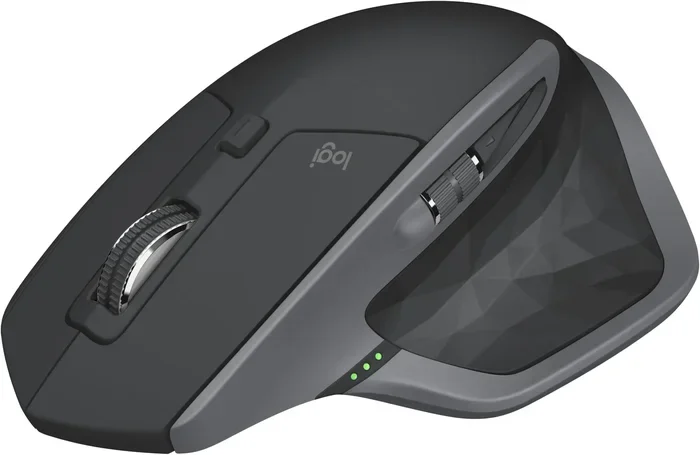
As you can see, the higher-end models tend to support Bluetooth. The MX Master and MX Anywhere lines are great examples. They offer both Bluetooth and USB receiver options. This gives you flexibility. You can switch between connection types depending on your needs.
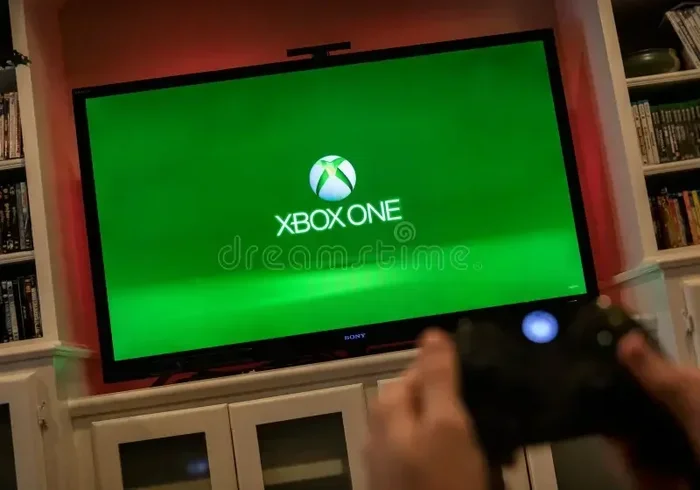
Gaming mice from Logitech usually do not support Bluetooth. They rely on USB receivers for faster response times. If you are a gamer, you might want to check out our article on pairing Bluetooth headphones to Xbox One for more wireless gaming insights.
Why Some Logitech Mice Do Not Have Bluetooth
There are a few reasons why some Logitech mice skip Bluetooth. Gaming mice need ultra-low latency. Bluetooth can introduce slight delays. For competitive gaming, every millisecond counts. A USB receiver provides a direct and faster connection.
Budget mice also often skip Bluetooth. Adding Bluetooth hardware increases the cost. Manufacturers keep costs down by using a simple USB receiver instead. This is why you see more non-Bluetooth options in the lower price range.
Bluetooth vs. USB Receiver: Which Is Better?
This is a common question among Logitech mouse users. Both connection methods have strengths. Let us compare them side by side.
Bluetooth Advantages
- No dongle needed: You free up a USB port. This is great for laptops with limited ports.
- Wide device compatibility: You can connect to phones, tablets, and smart TVs.
- Cleaner setup: No extra hardware on your desk. Just a clean and simple wireless connection.
- Easy switching: Many Logitech Bluetooth mice let you switch between multiple devices.
USB Receiver Advantages
- Lower latency: The connection is faster and more responsive. This matters for gaming and precise work.
- Stable connection: USB receivers are less prone to interference from other wireless devices.
- Better for gaming: Most gaming mice use USB receivers for peak performance.
- Plug and play: No need to go through a pairing process every time.
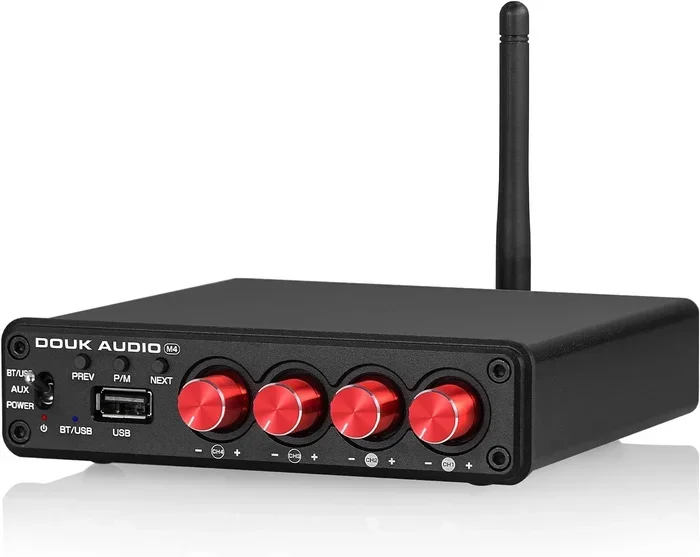
For most office and productivity tasks, Bluetooth works great. You get a clean desk and easy device switching. But if you are a gamer or need the fastest response, a USB receiver is the way to go. If you want to explore more wireless options, check out our guide on turning regular speakers into Bluetooth devices for creative wireless ideas.
Common Bluetooth Mouse Problems and How to Fix Them
Even the best Bluetooth mice can have connection issues. Here are the most common problems and their solutions.
Mouse Not Showing Up in Bluetooth List
This is the most common issue. First, make sure your mouse is in pairing mode. The light should blink. If it does not, try turning the mouse off and on again. Also, check that your device has Bluetooth turned on and is set to be discoverable.
Sometimes, your device may have too many Bluetooth connections. Disconnect devices you are not using. This can help your mouse appear in the list. Restarting your device often fixes this problem too.
Connection Keeps Dropping
If your mouse disconnects randomly, distance could be the issue. Stay within 30 feet of your device. Also, remove obstacles between the mouse and your device. Other wireless devices can cause interference too. Wi-Fi routers and microwaves are common culprits.
Another fix is to update your Bluetooth drivers. On Windows, go to Device Manager and look for Bluetooth adapters. Right-click and select Update Driver. On Mac, make sure your system is up to date.
Mouse Lag or Slow Response
Bluetooth mice can sometimes feel a bit slower than USB receiver mice. This is normal. Bluetooth has a slight delay compared to a direct USB connection. If you need instant response, consider switching to the USB receiver mode if your mouse supports it.
You can also reduce Bluetooth interference by closing unused apps. Some apps use Bluetooth in the background. This can slow down your mouse. Keeping your device close to the mouse helps too.
Expert Insight
Bluetooth technology has improved a lot over the years. The latest versions offer near-zero latency for everyday tasks. If you are not a competitive gamer, you will likely not notice any delay. For the best experience, keep your devices updated and stay within range.
How to Check if Your Logitech Mouse Has Bluetooth
Not sure if your mouse supports Bluetooth? Here is how to find out.
Method 1: Check the Product Name and Model
Look at the bottom of your mouse or the original box. Find the model number. Then, visit the Logitech website and search for that model. The product page will list all the features, including Bluetooth support.
Method 2: Look for a Bluetooth Button
Many Logitech Bluetooth mice have a dedicated Bluetooth button. It is usually on the bottom or side of the mouse. If your mouse has this button, it likely supports Bluetooth. Mice with only a USB receiver slot may not have Bluetooth.
Method 3: Use Logitech Options Software
Logitech offers free software called Logitech Options. It lets you customize your mouse settings. If your mouse is Bluetooth compatible, the software will show Bluetooth as a connection option. You can download it from the Logitech website.
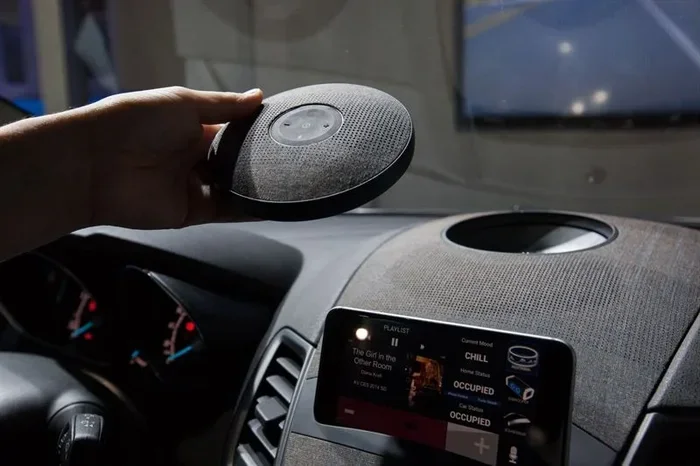
If you are exploring more Bluetooth device options, you might enjoy our article on making your old stereo Bluetooth enabled for more creative connectivity ideas.
Final Verdict
So, does Logitech mouse support Bluetooth? Yes, many models do. But it is not a universal feature across all Logitech mice. Before you buy or assume, always check the model specifications. The MX Master, MX Anywhere, and M720 lines are great Bluetooth options. They offer flexibility, easy pairing, and solid performance.
If you want a clean desk setup and use multiple devices, a Bluetooth Logitech mouse is a fantastic choice. Just keep in mind the range and battery considerations. For gaming or ultra-precise work, a USB receiver model might be a better fit.
Bluetooth wireless technology continues to improve. Logitech keeps updating its lineup with the latest features. Whether you are working from home, gaming, or traveling, there is a Logitech mouse for you. Go ahead, cut the cord, and enjoy the freedom of wireless.
Frequently Asked Questions
Can I use a Logitech Bluetooth mouse with my phone?
Yes, many Logitech Bluetooth mice work with smartphones and tablets. Just make sure your phone supports Bluetooth and follow the pairing steps in this guide. Most Android and iOS devices connect easily to Logitech Bluetooth mice.
Why is my Logitech Bluetooth mouse not connecting?
There are a few common reasons. The mouse might not be in pairing mode, or your device Bluetooth could be turned off. Try restarting both the mouse and your device. Also, make sure you are within 30 feet of each other for a stable connection.
Can I connect a Logitech Bluetooth mouse to multiple devices?
Yes, several Logitech models support multi-device pairing. The MX Master 3S and M720 Triathlon are great examples. You can switch between devices using a button on the mouse. This makes it easy to work across a laptop, tablet, and desktop.
Does a Logitech Bluetooth mouse need batteries?
Yes, Bluetooth mice need power to operate. Most use AA or AAA batteries, while some are rechargeable. Bluetooth connectivity can use slightly more battery than a USB receiver. But modern Logitech mice are designed to last for months on a single charge or set of batteries.
Is Bluetooth or USB better for a Logitech mouse?
It depends on your needs. Bluetooth is great for a clean setup and multi-device use. USB receivers offer lower latency and are better for gaming. Many Logitech mice offer both options, giving you the best of both worlds.
How far can a Logitech Bluetooth mouse work from my device?
Most Logitech Bluetooth mice have a range of about 30 feet. This can vary based on your device and any obstacles in the way. Walls and other wireless signals can reduce the effective range. Keeping your mouse close to your device ensures the best performance.