Does Google Wifi Replace Your Modem and Router Setup
Google Wifi does not replace your modem, but it can replace your traditional router. It is a mesh wifi system that works alongside your existing modem to create a strong, seamless wireless network throughout your home. Understanding this difference saves you time, money, and frustration when upgrading your home network setup.
Key Takeaways
- Google Wifi is a mesh router, not a modem: It replaces your router but still needs a modem to connect to your ISP.
- Mesh systems spread wifi coverage: Multiple points work together to eliminate dead zones in your home.
- You may already have a modem-router combo: Check your ISP equipment before buying anything new.
- Setting up Google Wifi is simple: The Google Home app walks you through the entire process.
- Google Mesh can work wirelessly: You do not always need extra cables to connect your points.
- Buying your own wifi box can save money: Renting equipment from your ISP costs extra each month.
📑 Table of Contents
Does Google Wifi Replace Your Modem?
Here is the short answer. No, Google Wifi does not replace your modem. But it can absolutely replace your router. This distinction matters a lot when you are planning a home network upgrade. Many people confuse these two devices, and that confusion leads to wasted money and wasted time.
Your modem talks to your internet service provider. It brings the internet signal into your home. A router, on the other hand, takes that signal and shares it with your devices. Google Wifi is a mesh router system. It does the job of a router, not a modem. So you still need a modem to get online.
Let us break this down further. When you sign up for internet service, your provider usually gives you a device. Sometimes that device is a modem. Sometimes it is a modem and router combo. Understanding what you already have helps you decide whether Google Wifi fits your setup.
If you rent a gateway device from your provider, it likely handles both jobs. It is a modem and a router in one box. In that case, you would replace just the router part with a Google Wifi system. The modem stays in place and connected to your wall outlet.
What Does a Modem Actually Do?
A modem is the bridge between your home and the wider internet. It translates the signal from your ISP into something your devices can understand. Without a modem, none of your gadgets can reach the internet. Period.
Think of it like this. Your ISP sends internet through a cable or phone line. That signal is raw and not usable by your phone or laptop. The modem converts it. Then your router distributes that converted signal wirelessly. Google Wifi steps in as a better, smarter router.
Some people have a separate modem and a separate router. Others have a single gateway device that does both. You need to know which setup you have before you buy Google Wifi.
How Google Wifi Works as a Mesh Router
Google Wifi is a mesh wifi system. That means it uses multiple points to spread your internet signal around your home. Each point acts as a wireless access point. Together, they create one unified network with a single name and password.
This is very different from a traditional router. A single router has one source of wifi. If you live in a large home, the signal gets weak in the far rooms. Dead zones appear. Google Wifi solves this problem by placing points in different rooms.
Each Google Wifi point talks to the others. They share the load and keep your connection strong everywhere. You do not need to switch between networks as you walk around your house. One network handles it all.
Can Google Mesh Work Wirelessly?
Yes, it can. One of the best things about Google Wifi is that the mesh points connect to each other wirelessly. You do not always need ethernet cables between every point. The system uses a dedicated wireless backhaul channel to keep communication fast and clean.
That said, using an ethernet cable to connect your main point to your modem gives the best performance. A wired connection is always more stable. But for the satellite points placed around your home, wireless works great in most cases.
If you want to extend your network further, you can also use an ethernet cable to connect additional points. This is a good option if you have ethernet ports already run through your walls. It gives you the strongest possible connection at each point.
What You Need Before Setting Up Google Wifi
Before you unbox your Google Wifi system, you need a few things in place. Getting prepared saves you headaches later. Here is what you need.
- A working modem connected to your ISP: This is non-negotiable. Your modem must be online before Google Wifi can do its job.
- An active internet plan: Google Wifi does not give you internet. It just shares what your ISP provides.
- A smartphone or tablet: You use the Google Home app to set everything up. It is simple and step-by-step.
- A power outlet near your modem: The main Google Wifi point plugs in right next to your modem.
- A broadband connection with decent speed: Google Wifi works best with a solid internet plan from your provider.
Do You Need a Modem-Router Combo?
Not anymore. Once you set up Google Wifi, you do not need your old router. The modem can connect directly to the main Google Wifi point. The Google Wifi point then acts as your router, switch, and wireless access point all in one.
Some people wonder if they can buy their own wifi box instead of renting from their ISP. The answer is yes. Buying your own equipment often saves money over time. Rental fees from ISPs add up month after month. A one-time purchase of Google Wifi pays for itself within a year or two.
Just make sure your modem is compatible with your ISP. Not every modem works with every provider. Check with your internet company before swapping out any equipment.
Google Wifi vs Traditional Router Setup
Let us compare the two setups side by side. This helps you see why so many people are switching to mesh systems.
| Feature | Traditional Router | Google Wifi Mesh |
|---|---|---|
| Coverage Area | Small to medium homes | Medium to large homes |
| Dead Zones | Common in larger homes | Minimal with multiple points |
| Setup Process | Manual configuration | Guided app setup |
| Network Name | One network | One unified network |
| Device Handling | Struggles with many devices | Handles many devices well |
| Price Range | $50 to $200 | $100 to $400+ |
| Replaceable Equipment | Yes | Yes, no rental fees |
The table above shows a clear advantage for Google Wifi in larger homes. If you live in a small apartment, a traditional router might be enough. But if your wifi signal struggles to reach the back bedroom, a mesh system changes everything.
Speed and Performance
Google Wifi supports dual-band wifi on both the 2.4 GHz and 5 GHz frequencies. This means your devices automatically connect to the best band for their needs. Streaming video uses the fast 5 GHz band. Smart home devices often work fine on the slower but longer-range 2.4 GHz band.
One thing to keep in mind. Google Wifi does not boost your internet speed on its own. It cannot make your ISP plan faster. What it does is deliver your existing speed more reliably to every corner of your home. No more buffering in the kitchen just because you are in the living room.
An AC unit or other large electronics can sometimes interfere with your wireless signal. Keep your Google Wifi points away from appliances that generate electromagnetic interference. This small tip keeps your network running smooth.
Setting Up Google Wifi Step by Step
The setup process is one of the best things about Google Wifi. It is designed for regular people, not tech experts. Here is how it works.
- Plug in your modem and make sure it is online. Wait for the lights to stabilize.
- Connect the main Google Wifi point to your modem using an ethernet cable.
- Plug the Google Wifi point into a power outlet near your modem.
- Download the Google Home app on your phone or tablet.
- Follow the on-screen prompts to name your network and set a password.
- Add additional points around your home by plugging them into power outlets.
- Place points strategically in rooms where you need the strongest signal.
That is it. The app guides you through every step. Within 15 minutes, you can have a fully working mesh network. No complicated router settings to mess with.
Tips for Best Placement
Where you place your Google Wifi points matters a lot. Here are some quick tips to get the best coverage.
- Place the main point in the center of your home, close to the modem.
- Keep satellite points within a reasonable distance of each other.
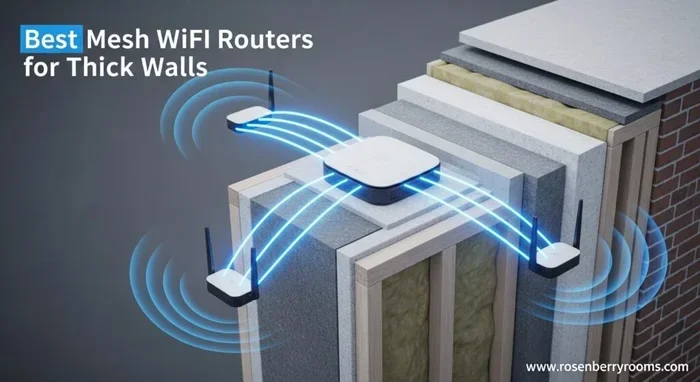
- Avoid hiding points inside closed cabinets or behind thick walls.
- Elevate points on shelves rather than placing them on the floor.
- Keep points away from microwaves and baby monitors that cause interference.
- Use the Google Home app to run a network check and find the best spots.
Common Mistakes People Make
Even with a simple setup like Google Wifi, people still make mistakes. Here are the ones to avoid.
- Skipping the modem check: People sometimes assume their modem works fine when it does not. Always verify your modem is online first.
- Placing points too far apart: Mesh points need to be close enough to talk to each other. Too much distance weakens the mesh connection.
- Using an old modem: An outdated modem can bottleneck your new Google Wifi system. Make sure your modem supports your internet speed tier.
- Ignoring firmware updates: Google pushes updates that improve performance and security. Keep your system updated through the app.
- Not blocking unwanted devices: If neighbors connect to your network, it slows you down. You can block a device from using your wifi through your router settings or Google Home app.
Avoiding these simple mistakes keeps your network fast and secure. A little attention to setup goes a long way.
Expert Insights on Mesh Networks
Mesh wifi systems like Google Wifi have changed how people think about home internet. Instead of one powerful router struggling to reach every room, you get a team of points working together. This approach is called distributed networking, and it is the future of home connectivity.
Network experts recommend mesh systems for homes with more than 1,500 square feet. For smaller spaces, a single router might still work fine. But the convenience of a seamless network with one name and password is hard to beat.
One thing experts always mention is the importance of your broadband connection. No matter how good your Google Wifi system is, it can only be as fast as your internet plan. If you pay for slow internet, a mesh system will not fix that. Upgrade your plan first if needed.
Also, consider whether your ISP equipment is holding you back. Many providers charge $10 to $15 per month to rent their modem-router combo. Over a year, that is $120 to $180. A Google Wifi system pays for itself and gives you much better performance. You can extend your wifi with an ethernet cable for the main connection, and let the mesh points handle the rest wirelessly.
Conclusion
So, does Google Wifi replace your modem? No. Does it replace your router? Absolutely yes. Google Wifi is a mesh system that takes the place of your traditional router and gives you better coverage, easier setup, and a more reliable connection throughout your home.
You still need a modem to connect to your internet service provider. But once you have that modem working, Google Wifi handles everything else. It spreads your signal, manages your devices, and keeps your network running smoothly.
If you are tired of wifi dead zones, slow speeds in the back of the house, or complicated router settings, Google Wifi is a great solution. It is simple, effective, and designed for real homes with real internet needs.
Take the time to check your current setup. Verify your modem works. Then decide if a mesh system like Google Wifi is the right move for you. Your home network will feel like a completely different experience.
Frequently Asked Questions
Can I use Google Wifi without a modem?
No, you cannot. Google Wifi needs a modem to connect to your internet service provider. The modem brings the internet signal into your home, and Google Wifi shares it with your devices. Without a modem, there is no internet to distribute.
Do I need to return my rented modem after buying Google Wifi?
You still need your modem even with Google Wifi. If you rent a gateway from your ISP, you can keep the modem part and remove the router part. Contact your ISP to confirm the best setup for your specific plan and equipment.
How many Google Wifi points do I need for my home?
It depends on the size of your home. One point covers about 1,500 square feet. For larger homes, you can add more points to extend coverage. Each additional point expands your network and eliminates dead zones in different rooms.
Can I add Google Wifi to my existing router?
You can add Google Wifi points to create a mesh network. However, running two routers on the same network can cause conflicts. It is better to replace your old router entirely with Google Wifi for the smoothest experience and best performance.
Does Google Wifi work with any internet provider?
Yes, Google Wifi works with any ISP that provides a modem. Whether you use cable, DSL, fiber, or satellite internet, Google Wifi can connect through your modem. Just make sure your modem is compatible with your provider and supports your speed tier.
Can I block someone from using my Google Wifi network?
Yes, you can. Through the Google Home app, you can manage connected devices and block anyone you do not recognize. This helps keep your network secure and ensures your internet speed stays fast for your own devices. You can also find your device through Google if you lose track of connected gadgets.