Compaq Presario Function Keys Explained for Beginners
The Compaq Presario function keys give you quick access to important features like volume control, screen brightness, and wireless settings. This guide breaks down every key on the top row so beginners can use their laptop like a pro. You will learn how to enable Fn lock, fix stuck keys, and use BIOS shortcuts with ease.
If you just bought a Compaq Presario laptop, the row of keys at the top of your keyboard might look confusing. Those small labels with sun icons, speaker symbols, and little screens do a lot more than you might think. The Compaq Presario function keys are designed to help you work faster and smarter. Once you learn what each key does, you will wonder how you ever lived without them.
This guide is built for complete beginners. We will walk through every function key step by step. You will find clear examples, practical tips, and easy fixes for common problems. By the end, you will feel confident using your Compaq Presario keyboard like a seasoned pro.
Key Takeaways
- Fn Key Basics: The Compaq Presario function keys let you control media, brightness, and wireless settings without opening extra apps.
- Fn Lock Matters: Toggling the Fn lock changes whether the top row acts as standard F1-F12 keys or as special Compaq Presario shortcuts.
- BIOS Access Is Easy: Pressing F10 during startup lets you enter the BIOS setup on most Compaq Presario models.
- Troubleshooting Is Simple: Most function key issues can be fixed by updating drivers or checking the Fn lock setting.
- Keyboard Shortcuts Save Time: Mastering Compaq Presario keyboard shortcuts boosts your productivity significantly.
- Multimedia Keys Are Powerful: The dedicated sound and display keys make everyday laptop use much more convenient.
📑 Table of Contents
- What Are Compaq Presario Function Keys?
- Common Compaq Presario Function Keys and What They Do
- How to Enable or Disable the Fn Key on Compaq Presario
- Using Compaq Presario Function Keys in BIOS Setup
- Troubleshooting Compaq Presario Function Key Problems
- Compaq Presario Function Keys vs. Other Laptop Brands
- Pro Tips for Getting the Most Out of Compaq Presario Function Keys
- Conclusion
What Are Compaq Presario Function Keys?
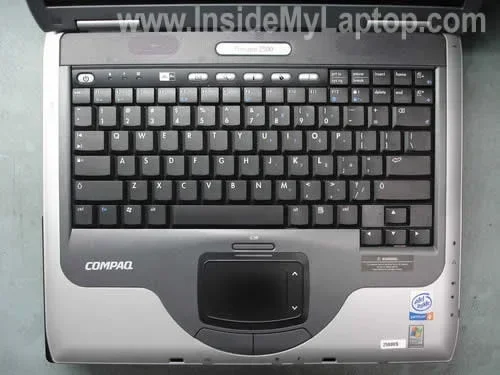
The function keys sit in the top row of your keyboard. They are labeled F1 through F12. On a Compaq Presario laptop, these keys do double duty. By default, many of them control system features like volume, brightness, and wireless settings. But you can also use them as standard function keys for games, spreadsheets, and other tasks.
There is a small “Fn” key usually located near the bottom-left corner of your keyboard. When you press and hold the Fn key while tapping a function key, you activate the special Compaq Presario shortcut. Without holding Fn, the same key acts as a regular F1 through F12 key.
Why Function Keys Matter on a Laptop
Function keys save you time. Instead of digging through menus to change the screen brightness, you just press one key. Instead of opening the sound mixer, you press the volume up key. These small actions add up to big productivity gains over time. The Compaq Presario function keys make your daily computing smoother and more efficient.
Common Compaq Presario Function Keys and What They Do
Every Compaq Presario model is slightly different, but most share the same basic set of function key shortcuts. Here is a breakdown of the most common ones you will find on your keyboard.
Brightness Control Keys
Two keys in the top row control your screen brightness. One key has a small sun icon with minus lines. The other has a sun icon with plus lines. Press the sun minus key to dim your screen. Press the sun plus key to brighten it. These are among the most-used Compaq Presario keyboard shortcuts for laptop users.
Quick Tip: If you are working on battery power, dimming your screen saves a lot of energy. You can extend your battery life by a noticeable amount.
Volume and Mute Keys
The volume control keys usually sit on the right side of the function key row. One key has a speaker icon with a plus sign. Another has a speaker with a minus sign. The third key has a speaker with a line through it, which means mute. These keys let you adjust sound instantly without opening any software.
You can also press Fn plus the volume keys to open the Windows volume mixer on some models. This gives you control over individual app volumes.
Wireless and Connectivity Keys
Many Compaq Presario laptops have a key with a wireless signal icon. Pressing this key toggles your Wi-Fi on and off. Some models also include a Bluetooth shortcut nearby. These Compaq Presario function keys are incredibly handy when you need to quickly disconnect from a network or pair a new device.
Media Playback Keys
Look for keys with play, pause, and skip icons. These let you control music and video playback without switching to your media player. The play/pause key is especially useful when you are working and want to quickly pause a song or video call.
Standard Function Keys (F1 Through F12)
When you hold down the Fn key, the function keys revert to their standard roles. Here is what each one does in most Windows programs:
- F1: Opens the Help menu in most applications.
- F2: Renames a selected file or folder in Windows Explorer.
- F3: Opens the search function in many programs.
- F4: Closes the current window when combined with Alt (Alt+F4).
- F5: Refreshes the current page in your web browser.
- F11: Toggles full-screen mode in browsers and some apps.
- F12: Opens the Save As dialog in Microsoft Office programs.
Knowing these standard shortcuts makes a big difference. They work across almost every program you open on your Compaq Presario.
How to Enable or Disable the Fn Key on Compaq Presario
Sometimes you want the top row to act as standard F1 through F12 keys. Other times, you want the Compaq Presario shortcuts. The good news is you can switch between these modes easily.
Using the Fn Lock Key
Some Compaq Presario models have a dedicated Fn Lock key. Look for a key labeled “FnLk” or a lock icon near the Esc key. Pressing Fn plus FnLk toggles the lock on and off. When the lock is on, the function keys behave as standard F1 through F12 keys. When the lock is off, they control system features like brightness and volume.
Changing Fn Key Behavior in BIOS
You can also change how the Fn key works from the BIOS setup screen. Here is how:
- Restart your Compaq Presario laptop.
- Press F10 repeatedly as soon as the screen lights up.
- Navigate to the “Advanced” or “System Configuration” menu.
- Look for “Function Key Behavior” or “Action Keys Mode.”
- Change the setting to “Function Key” or “Multimedia Key” depending on your preference.
- Press F10 to save and exit.
Once you change this setting, your Compaq Presario function keys will behave the way you want every time you start your laptop.
Using Compaq Presario Software
HP and Compaq laptops often come with special software that lets you customize keyboard behavior. Check your Start menu for “HP Quick Launch Buttons” or similar utilities. These tools give you even more control over your function keys and shortcuts.
Using Compaq Presario Function Keys in BIOS Setup
The BIOS (Basic Input/Output System) is the first software your laptop loads when you turn it on. It controls the most basic hardware settings. Function keys play an important role in navigating the BIOS menu.
Accessing BIOS on a Compaq Presario
To enter the BIOS setup on most Compaq Presario models, press F10 right after you power on the laptop. Some older models use F1 or F2 instead. You need to press the key repeatedly as soon as the screen turns on. If you miss the window, just restart and try again.
Navigating BIOS with Function Keys
Inside the BIOS, you use the arrow keys to move around. But the function keys also have specific roles:
- F1: Opens help documentation within BIOS.
- F5 and F6: Move items up or down in lists.
- F9: Loads default BIOS settings.
- F10: Saves changes and exits BIOS.
- F12: Opens the boot menu on some models.
These shortcuts make BIOS navigation much faster. You do not need to use the mouse or trackpad at all. Mastering these Compaq Presario keyboard shortcuts is especially helpful when you need to change boot order or enable legacy support.
Troubleshooting Compaq Presario Function Key Problems
Function keys do not always work perfectly forever. Sometimes they stop responding, or they behave strangely. Here are the most common issues and how to fix them.
Function Keys Not Working at All
If none of your Compaq Presario function keys respond, the first thing to check is the Fn lock setting. You might have accidentally toggled it into the wrong mode. Press Fn plus the Fn lock key and see if the behavior changes.
If that does not work, the keyboard driver might need updating. Go to the HP support website and search for your specific Compaq Presario model. Download the latest keyboard driver and install it. Restart your laptop and check if the keys work again.
Multimedia Keys Doing the Wrong Thing
Sometimes pressing the brightness key changes the volume instead. This usually happens when the Fn lock is in the wrong position. Toggle the Fn lock and try again. If the problem persists, check your Windows keyboard settings. Go to Settings, then Time and Language, then Typing. Look for the “Function key row” option and make sure it is set to your preferred behavior.
Sticky or Unresponsive Keys
Physical dirt and dust can cause function keys to stick. Turn off your laptop and gently clean the keys with a soft, dry cloth. You can also use compressed air to blow out debris from under the keys. Avoid using liquids or harsh cleaning products on your Compaq Presario keyboard.
When to Update Your Compaq Presario Drivers
Outdated drivers are one of the top reasons function keys misbehave. HP releases driver updates regularly to fix bugs and improve compatibility. Visit the official HP Support page and enter your laptop model number. Download and install any available keyboard or hotkey drivers. This simple step fixes many function key issues without any complicated troubleshooting.
Compaq Presario Function Keys vs. Other Laptop Brands
Every laptop brand handles function keys a little differently. Understanding how Compaq Presario compares to other brands helps you switch between devices more easily.
Compaq Presario vs. Dell Latitude
Dell Latitude laptops use a similar Fn key system. The main difference is the location of certain shortcuts. Dell puts its wireless toggle on a different key than Compaq Presario in most models. Both brands support Fn lock toggling and BIOS access through function keys.
Compaq Presario vs. Lenovo ThinkPad
Lenovo ThinkPads have a slightly different layout. The Fn key is in the same bottom-left position, but the shortcut icons are smaller and more subtle. ThinkPads also use a different BIOS access key, typically F1 instead of F10. The core concept of dual-purpose function keys remains the same across all brands.
Compaq Presario vs. HP Pavilion
Since Compaq is now part of HP, the Presario line shares many similarities with the HP Pavilion line. The function key layout, shortcut icons, and BIOS access methods are nearly identical. If you have used one, you will feel right at home with the other.
Below is a quick comparison table of the most important function key behaviors across popular brands:
| Feature | Compaq Presario | Dell Latitude | Lenovo ThinkPad | HP Pavilion |
|---|---|---|---|---|
| BIOS Access Key | F10 | F2 | F1 | F10 |
| Fn Lock Location | Near Esc | Near Esc | Near Fn key | Near Esc |
| Brightness Keys | Sun icons | Sun icons | Sun icons | Sun icons |
| Volume Keys | Speaker icons | Speaker icons | Speaker icons | Speaker icons |
| Wireless Toggle | Signal icon key | Signal icon key | Fn+F5 | Signal icon key |
| Fn Key Default Behavior | Multimedia first | Multimedia first | Function keys first | Multimedia first |
As you can see, the Compaq Presario function keys follow a very standard layout. Most of what you learn here applies to other laptops too. This makes your knowledge broadly useful and transferable.
Pro Tips for Getting the Most Out of Compaq Presario Function Keys
Now that you understand the basics, here are some advanced tips to help you get even more out of your Compaq Presario function keys.
Create Your Own Shortcut Cheat Sheet
Take a few minutes to write down the function keys you use most often. Stick the list near your keyboard or save it as a note on your desktop. Over time, you will memorize the shortcuts naturally. The more you use them, the faster your workflow becomes.
Combine Function Keys with Other Keys
Function keys work even better when combined with other modifier keys. Try pressing Ctrl plus an F key in your web browser to trigger different actions. For example, Ctrl+F opens the find bar in almost every app. Combining Compaq Presario function keys with Ctrl, Alt, or Shift unlocks a whole new layer of shortcuts.
Keep Your Keyboard Firmware Updated
HP occasionally releases firmware updates for Compaq Presario keyboards. These updates can improve key responsiveness and fix quirks. Check the HP Support website periodically for firmware updates specific to your model. A simple update can make your function keys feel brand new again.
Use Function Keys in Safe Mode
If your laptop is running slowly or acting up, booting into Safe Mode can help. In Safe Mode, Windows loads only essential drivers. Your Compaq Presario function keys should still work in Safe Mode. If they do not, the issue is likely a software conflict rather than a hardware problem. This is a helpful diagnostic trick for troubleshooting.
Explore Third-Party Keyboard Remapping Tools
If you want even more control over your Compaq Presario function keys, consider using a keyboard remapping tool. Programs like SharpKeys or AutoHotkey let you reassign any key to any function. This is great for power users who want a fully customized keyboard layout. Just be careful and keep a backup of your original settings.
Conclusion
The Compaq Presario function keys are one of the most underrated features of your laptop. Once you understand what each key does, you will work faster and more comfortably. From adjusting brightness to navigating BIOS, these keys give you direct control over your system. Take a few minutes to practice the shortcuts. Update your drivers if anything feels off. And remember, the Fn lock key is your best friend when switching between shortcut mode and standard function key mode.
With this guide, you now have everything you need to master your Compaq Presario keyboard. The function keys will soon become second nature. You will wonder how you ever managed without them. Start using them today and feel the difference in your daily computing experience.
Frequently Asked Questions
What do the Compaq Presario function keys do by default?
By default, most Compaq Presario function keys control multimedia and system features. This includes adjusting screen brightness, volume, and toggling Wi-Fi or Bluetooth. You can switch them to standard F1 through F12 keys by enabling the Fn lock.
How do I turn off the Fn key on my Compaq Presario?
You can turn off the Fn key behavior by pressing Fn plus the Fn Lock key. Alternatively, you can enter the BIOS by pressing F10 during startup and change the “Action Keys Mode” setting to make function keys work as standard keys by default.
Why are my Compaq Presario function keys not working?
Function keys may stop working if the Fn lock is in the wrong position, the keyboard driver is outdated, or there is a physical issue like dust under the keys. Try toggling the Fn lock first, then update your keyboard drivers from the HP support website.
Can I customize Compaq Presario function keys to do different things?
Yes, you can use third-party tools like SharpKeys or AutoHotkey to remap function keys to custom actions. You can also change the default behavior through the BIOS settings or HP keyboard management software included with your laptop.
Which function key opens BIOS on a Compaq Presario?
On most Compaq Presario models, you press F10 repeatedly right after turning on the laptop to enter the BIOS setup. Some older models may use F1 or F2 instead. You need to press the key quickly and repeatedly as soon as the screen lights up.
Are Compaq Presario function keys the same across all models?
Most Compaq Presario models share the same basic function key layout with brightness, volume, and wireless shortcuts. However, there can be slight differences between older and newer models. Always check your specific model’s manual for exact key functions.